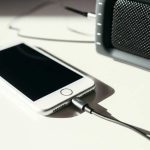
Unlock awesome sound from your Bluetooth speaker using its aux mode! It’s super simple and a great way to connect almost any device for a wired audio experience. Let’s get your music playing in a snap!
Hey there, tech adventurer! It’s Max from AffTechy.com, your go-to buddy for all things gadgety. You know how much we love our wireless world, right? Streaming music, taking calls, all that jazz. But sometimes, you might find yourself with a Bluetooth speaker and a device that doesn’t quite get along wirelessly. Or maybe you just want a super reliable connection for your gaming marathon or movie night. That’s where the humble aux mode comes in!
I remember when I first got my hands on a Bluetooth speaker. It was amazing, but I also had this old MP3 player and a laptop that just didn’t have the latest Bluetooth. I thought I was out of luck! Then, I spotted that little port, the aux input. It felt like discovering a secret superpower for my speaker. It’s like having a backup plan that’s always ready to go.
The beauty of aux mode is its simplicity. It’s been around forever and works with pretty much anything that has a headphone jack. So, even if your phone is from the stone age (kidding!), or your laptop is a bit old-school, you can still enjoy great sound. We’re going to dive into how to use this handy feature, making sure you get the most out of your speaker. No confusing jargon, just clear steps. Let’s break it down step by step!
What Exactly is Aux Mode?
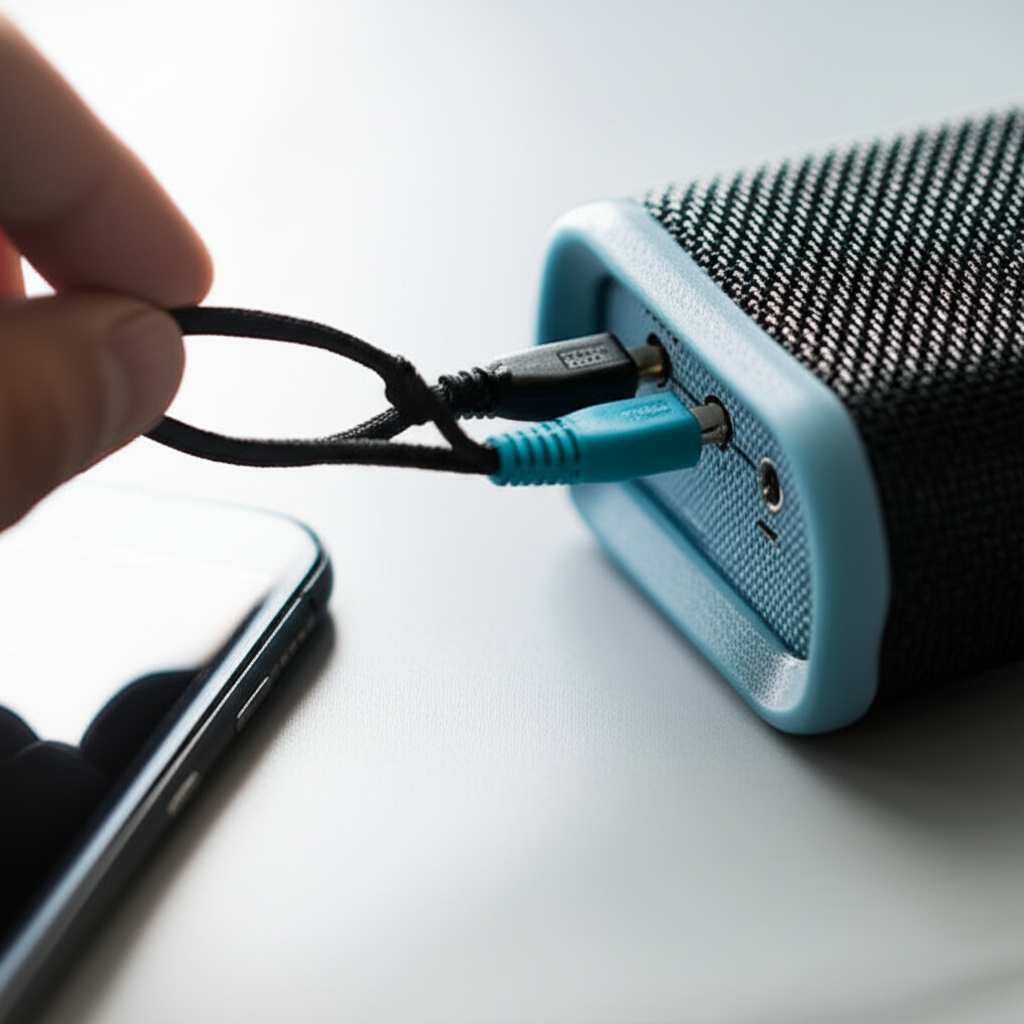
So, what’s this “aux mode” all about? Think of “aux” as short for “auxiliary.” It basically means an extra, or a backup, way to connect your speaker. It’s a direct, wired connection. You’ll usually see a small circular port on your speaker that looks like a headphone jack. This is the aux-in port.
When you use aux mode, you’re bypassing the Bluetooth connection entirely. Instead, you’re using a physical cable, typically a 3.5mm audio cable, to send sound directly from your device to the speaker. It’s like plugging in your headphones, but instead of going into your ears, the sound goes into the speaker!
This wired connection is fantastic for a few reasons. It’s super stable – no worrying about dropped signals or interference. It’s also incredibly simple to set up. Plus, it works with almost any audio source that has a headphone or line-out port. This makes your Bluetooth speaker way more versatile than you might have thought!
Why Use Aux Mode? Your Speaker’s Secret Weapon!
You might be thinking, “But it’s a Bluetooth speaker, why would I use a wire?” Great question! There are actually plenty of reasons why aux mode is your speaker’s secret weapon. It’s not just a fallback; it’s a feature that can enhance your audio experience in surprising ways.
One big reason is stability. Bluetooth connections, while convenient, can sometimes be a bit finicky. They can drop out, especially if there are a lot of other wireless devices around. Using an aux cable creates a direct, physical link that’s rock-solid. This means no interruptions during your favorite song or an important video call. It’s a consistently reliable way to get your audio where it needs to go.
Another great benefit is compatibility. Not all devices have Bluetooth, or they might have older versions that aren’t very good. Think about older laptops, desktop computers, gaming consoles, or even some smart TVs. They often have a standard headphone jack. With aux mode, you can easily connect these devices to your modern Bluetooth speaker and enjoy better sound. It’s like giving your older gadgets a new lease on life!
Sometimes, you might want to save your device’s battery. Bluetooth can use a fair bit of power. Plugging in via aux cable often uses less power from your phone or tablet, which can be a lifesaver when you’re on the go and need to conserve battery life. It’s a small detail, but it can make a big difference!
Finally, for certain situations like recording or DJing, a wired connection can offer lower latency, meaning there’s less delay between the sound being produced and you hearing it. This isn’t a big deal for casual listening, but it can be crucial for more professional or sensitive audio tasks. Aux mode offers that dependable, low-latency audio path.
Let’s Get Connected: Your Step-by-Step Guide
Ready to unleash your speaker’s aux power? It’s easier than making toast! You’ll only need two things: your Bluetooth speaker and an audio cable. The most common cable you’ll need is a 3.5mm male-to-male audio cable. It looks like a standard headphone plug on both ends.
If you don’t have one, they are super easy to find online or at any electronics store. They’re usually quite inexpensive too. Make sure you get one with a good build quality; it’ll last longer and give you a cleaner sound.
Step 1: Find the Aux-In Port
First things first, let’s locate the aux-in port on your speaker. This is usually a small, round socket. It often has a symbol next to it that looks like a headphone or sometimes the word “AUX” or “LINE IN.” Take a look at the back or sides of your speaker. It’s usually grouped with other ports like charging ports.
Most modern Bluetooth speakers will have this port, but it’s always good to check your speaker’s manual if you’re unsure. Some very small or ultra-portable speakers might skip this feature to save space, but it’s becoming less common. It’s a pretty standard feature these days!
Step 2: Connect Your Device
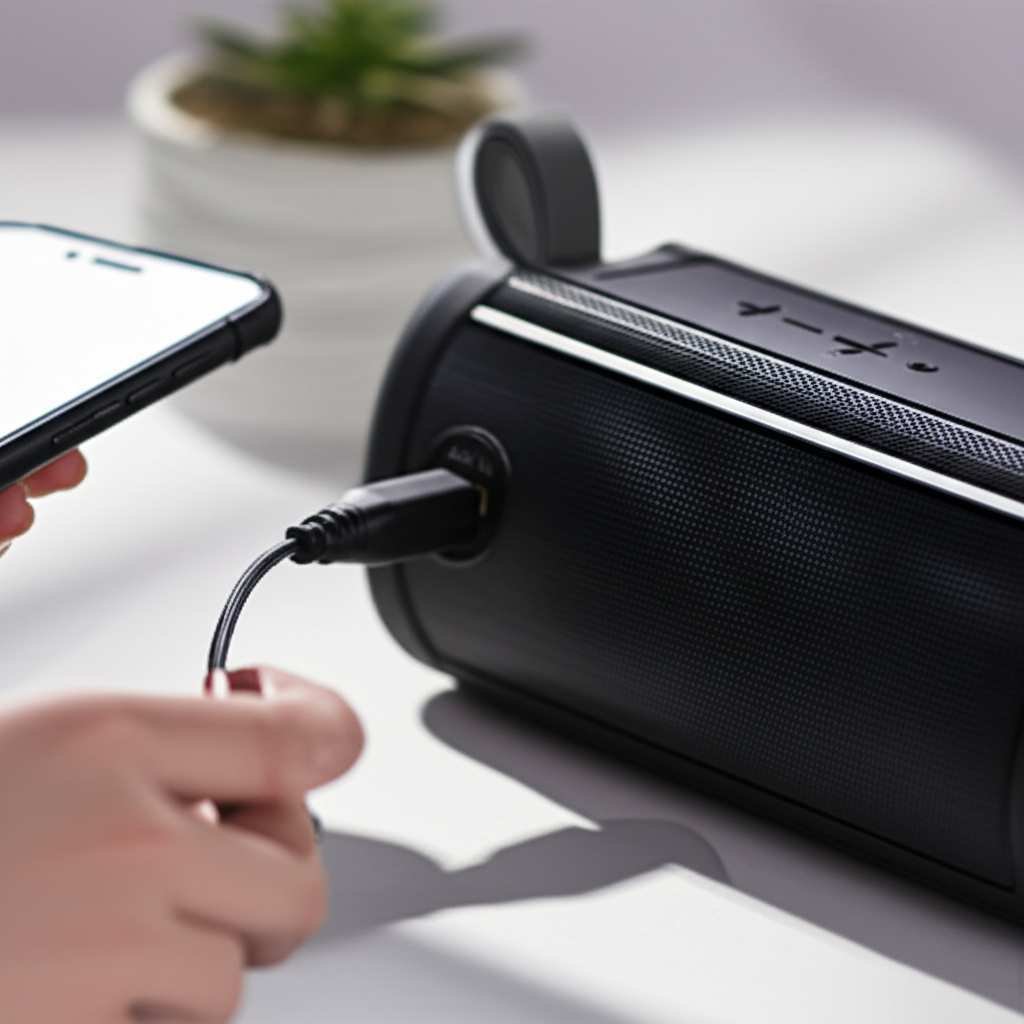
Now, grab your audio cable. Plug one end into the aux-in port on your speaker. Make sure it’s pushed in firmly. Then, take the other end of the cable and plug it into the headphone jack or audio-out port on your device. This could be your smartphone, tablet, laptop, MP3 player, or even a gaming console.
Again, ensure the plug is seated snugly in your device’s audio port. A loose connection can lead to crackling sounds or no sound at all. It’s a simple physical connection, but a good connection is key to good sound!
Step 3: Switch Your Speaker to Aux Mode
This is the crucial step! Your speaker needs to know you want to use the wired connection, not Bluetooth. Most Bluetooth speakers have a button that lets you cycle through different input modes. This might be labeled “Mode,” “Input,” or have a symbol that looks like a Bluetooth icon and an aux icon.
Press this button until your speaker announces “Aux Mode,” “Line In,” or something similar. Some speakers might show this on a small LED screen. You might hear a distinct sound or voice prompt. If you’re unsure, check your speaker’s manual for specific instructions on how to switch modes.
Here’s a quick tip: If your speaker doesn’t automatically switch to aux mode when you plug in the cable, manually selecting it with the mode button is essential. Don’t worry if it doesn’t immediately play music; you might need to initiate playback from your device.
Step 4: Play Your Audio!
Once your speaker is in aux mode and everything is plugged in, you’re ready to go! Open your music app, start your video, or launch your game on your connected device. The sound should now be coming through your speaker. You can control the volume from both your device and your speaker.
It’s often a good idea to set the volume on your device to about 75-80% and then use the speaker’s volume controls to fine-tune the loudness. This can help prevent distortion. If you hear any buzzing or humming, double-check that the cable is fully plugged in at both ends and that there isn’t any damage to the cable or ports.
Common Aux Cable Types and What They Mean
When you’re getting ready to use aux mode, you’ll need the right cable. Most of the time, this means a 3.5mm audio cable. But let’s quickly look at what that means and if there are any variations you might encounter.
- 3.5mm (1/8 inch) TRS Cable: This is your standard, everyday audio cable. It has three metal sections on each plug (Tip, Ring, Sleeve). This is what carries stereo audio (left and right channels). It’s the most common type for connecting speakers and headphones to devices.
- 3.5mm (1/8 inch) TRRS Cable: This one has four metal sections on each plug. The extra “ring” is often used for microphone input or controls (like play/pause on some headphones). While you can often plug a TRRS cable into an aux-in port, only the stereo audio part will be used. It won’t typically transmit microphone audio to the speaker.
- RCA to 3.5mm Cable: Less common for simple speaker connections, but you might see this. One end has two RCA plugs (usually red and white for stereo channels), and the other has a single 3.5mm plug. This is more for connecting to home stereo systems or older audio equipment.
For most Bluetooth speakers with an aux-in port, a simple 3.5mm TRS male-to-male cable is exactly what you need. They’re widely available and super affordable. You can find them in various lengths, so pick one that suits your setup!
When Aux Mode Shines: Real-World Scenarios
Let’s talk about when aux mode really proves its worth. It’s not just for when Bluetooth fails; it’s often the best way to connect in certain situations. Think of it as your audio Swiss Army knife!
Scenario 1: Your Friend’s Phone Doesn’t Have Bluetooth
Imagine you’re at a party, and your friend wants to share their amazing playlist. Their phone is older and doesn’t have Bluetooth. No problem! With your aux cable, they can plug right into your speaker and share the music. Everyone gets to hear the tunes without any fuss.
Scenario 2: Gaming on Your PC
Many PC gamers prefer a wired connection for gaming audio to minimize any lag. If your desktop computer or laptop has a headphone jack, you can connect it to your Bluetooth speaker via aux for a seamless gaming experience. This means you won’t miss any crucial in-game sound cues due to audio delay.
Scenario 3: Connecting to Older Audio Equipment
Have an old MP3 player, a vintage CD player with an aux-out, or even a projector that only has analog audio out? Your Bluetooth speaker can act as a fantastic modern sound system for these devices when connected via aux. It’s a great way to revive older tech and enjoy its audio through a better speaker.
Scenario 4: Reliable Background Music at an Event
If you’re hosting a small gathering, like a dinner party or a presentation, and need music to play reliably in the background, aux mode is your friend. You can connect your laptop or phone and set it up without worrying about Bluetooth pairing issues or signal drops. Just plug it in, press play, and relax.
Scenario 5: Saving Your Device’s Battery
On a long road trip or a day out, your phone’s battery might be your lifeline. Using Bluetooth constantly can drain it faster. By connecting your speaker via aux, you can enjoy your music or podcasts while keeping your phone’s battery topped up for calls and navigation. It’s a smart way to manage power.
These are just a few examples, but they show how versatile aux mode can be. It’s the unsung hero of speaker connectivity!
Speaker Speaker Comparison: Aux vs. Bluetooth
To really appreciate aux mode, let’s compare it side-by-side with Bluetooth. Both have their pros and cons, and understanding them will help you choose the best connection for any situation. It’s not always about which is “better,” but which is “better for you right now.”
| Feature | Aux Mode (Wired) | Bluetooth Mode (Wireless) |
|---|---|---|
| Connection Type | Physical cable (3.5mm audio cable) | Wireless radio waves |
| Setup Ease | Plug and play; select mode | Pairing process (can sometimes be tricky) |
| Sound Quality | Generally very good; depends on cable and source | Can be excellent; depends on Bluetooth version and codecs (e.g., aptX, LDAC) |
| Stability | Extremely stable; no interference | Can be affected by distance, obstacles, and other wireless signals |
| Latency (Delay) | Very low; ideal for gaming and video | Can have noticeable delay, especially with older Bluetooth versions |
| Device Compatibility | Works with almost any device with a headphone/audio-out jack | Requires devices with Bluetooth capability |
| Power Consumption (Device) | Lower; saves battery on source device | Higher; drains battery on source device faster |
| Range | Limited by cable length | Typically up to 30-100 feet (10-30 meters) |
| Portability | Requires carrying a cable | Cable-free; more freedom of movement |
As you can see from the table, aux mode offers fantastic reliability and low latency, making it a champion for situations where a stable, immediate audio feed is crucial. Bluetooth, on the other hand, wins for convenience and freedom of movement. Many speakers are designed to give you the best of both worlds, allowing you to switch between them based on your needs.
For example, if you’re watching a movie on your laptop and want to use your speaker for immersive sound, aux mode is probably your best bet. The minimal delay means the audio will perfectly sync with the video. If you’re just chilling and want to stream music from your phone while moving around the room, Bluetooth is the clear winner.
Tips for Getting the Best Sound from Aux Mode
Want to squeeze even more amazing sound out of your speaker when using aux mode? Here are a few pro tips to make your audio experience even better. These are simple things that can make a noticeable difference!
- Use a Quality Audio Cable: While any 3.5mm cable will work, a well-made cable can reduce interference and provide a cleaner signal. Look for cables with good shielding and solid connectors. They don’t have to be expensive, just decent quality.
- Check Cable Connections: Make sure the cable is fully inserted into both the speaker and your device. A loose connection is the most common culprit for crackling, static, or no sound at all. Give them a gentle push to ensure they’re snug.
- Set Your Source Volume Appropriately: As mentioned before, try setting the volume on your phone or laptop to around 75-80%. Then, use your speaker’s volume controls. This helps avoid overloading the speaker’s input and causing distortion. If you crank the source volume to 100%, it can sometimes introduce noise.
- Keep Cables Away from Power Sources: If you notice a humming or buzzing sound, it might be due to electrical interference. Try to route your audio cable away from power cords or adapters. Sometimes, just moving the cable a few inches can solve the problem.
- Ensure the Speaker is in Aux Mode: This sounds obvious, but it’s easy to forget! Double-check that your speaker is actually switched to “Aux” or “Line In” mode. If it’s still trying to connect via Bluetooth, you won’t get any sound through the cable.
- Clean Your Ports: Over time, dust and debris can get into ports. Gently clean the aux port on your speaker and your device’s headphone jack with some compressed air or a dry cotton swab. A clean port ensures a good connection.
By following these simple tips, you can ensure that your aux connection delivers the best possible audio quality. It’s all about giving your speaker a clean, strong signal to work with!
Troubleshooting Common Aux Mode Issues
Even with the best intentions, sometimes things don’t work perfectly right away. Don’t worry, most aux mode issues are pretty easy to fix. Let’s go through a few common problems and their solutions.
Problem 1: No Sound at All
Possible Causes & Solutions:
- Speaker not in Aux Mode: Make sure you’ve pressed the mode button on your speaker until it confirms “Aux” or “Line In.”
- Cable not fully plugged in: Check both ends of the audio cable. Push them in firmly.
- Damaged Cable: Try a different 3.5mm audio cable. Yours might be broken.
- Device Volume Muted or Too Low: Check the volume on your source device. Make sure it’s not muted and is turned up.
- Speaker Volume Too Low: Similarly, check the volume on your speaker.
- Wrong Port Used: Ensure you’re plugging into the “Aux In” port and not a “Line Out” port meant for sending audio elsewhere.
Problem 2: Crackling, Static, or Humming Sounds
Possible Causes & Solutions:
- Loose Connection: Wiggle the cable ends gently. If the sound changes, it’s a loose connection. Re-seat the cable.
- Damaged Cable or Port: Inspect the cable and ports for any visible damage. A bent pin or frayed cable can cause this.
- Electrical Interference: Move the audio cable away from power cords or other electronic devices.
- High Volume Distortion: Try turning down the volume on your source device slightly. Set it to about 80% and control the main volume on the speaker.
- Dirty Ports: Clean the aux port on your speaker and your device with compressed air.
Problem 3: Sound Only Coming from One Side (Mono instead of Stereo)
Possible Causes & Solutions:
- Faulty Cable: This is often caused by a damaged 3.5mm cable. Try a new one. Ensure it’s a TRS (Tip-Ring-Sleeve) cable, not a TS (Tip-Sleeve) which is usually for mono instruments.
- Device Audio Settings: Check your device’s audio settings to ensure stereo output is enabled. Some devices might have a “mono audio” setting that can be accidentally turned on.
- Speaker’s Internal Processing: While rare, some speakers might have issues processing stereo signals via aux. This is less common with reputable brands.
If you’ve tried these steps and are still having trouble, it might be worth checking your speaker’s manual for specific troubleshooting tips or contacting the manufacturer’s support. But usually, a good cable and a firm connection solve most problems!
Frequently Asked Questions (FAQ)
Here are some common questions beginners have about using aux mode on their Bluetooth speakers. Let’s clear things up!
Q1: Can I use any aux cable with my Bluetooth speaker?
A: Mostly, yes! The most common and recommended cable is a 3.5mm male-to-male audio cable. It has the same plug as most headphones. As long as both ends fit securely into your speaker’s aux-in port and your device’s audio-out port, it should work.
Q2: Do I need to turn off Bluetooth to use aux mode?
A: Not always! Most speakers will automatically switch to aux mode once they detect a signal from the aux cable. If not, you’ll need to manually select “Aux” mode using the speaker’s button. Once aux mode is active, the Bluetooth connection is usually inactive.
Q3: Will aux mode give me better sound quality than Bluetooth?
A: It can, and often does! Aux mode offers a direct, uncompressed audio signal. Bluetooth uses compression, and while modern Bluetooth codecs are very good, a wired connection can sometimes provide a cleaner, more detailed sound, especially if your device and speaker support high-fidelity audio.
Q4: Can I use my Bluetooth speaker’s built-in microphone with aux mode?
A: Generally, no. Aux mode is typically for audio input to the speaker for playback. The microphone function on Bluetooth speakers is usually only active during Bluetooth calls. If you need microphone input via a wire, you’d typically need a speaker with a dedicated microphone or line-in port for that purpose.
Q5: My phone doesn’t have a headphone jack. Can I still use aux mode?
A: If your phone lacks a headphone jack, you’ll need an adapter. For example, a USB-C to 3.5mm adapter or a Lightning to 3.5mm adapter. You would plug the adapter into your phone, and then plug your 3.5mm aux cable into the adapter to connect to your speaker. This works well!
Q6: How do I know if my speaker even has an aux-in port?
A: Look for a small, round port on the back or side of your speaker. It’s usually labeled “AUX,” “Line In,” or might have a headphone symbol next to it. If you can’t find it, check your speaker’s manual or the manufacturer’s website. It’s a common feature, but not universal on all models.
Q7: Can I connect two devices at once using aux and Bluetooth?
A: Most Bluetooth speakers can only actively play audio from one source at a time. While some advanced speakers might allow pairing with two devices for different functions, when using aux mode, the speaker prioritizes that wired connection. You’ll likely need to disconnect one to use the other.
Conclusion: Your Sound, Your Way!
And there you have it! You’ve officially unlocked the power of aux mode on your Bluetooth speaker. See? It wasn’t complicated at all! From understanding what it is to connecting your devices step-by-step, you’re now equipped to enjoy reliable, high-quality sound from almost any audio source.
Whether you’re reviving an old music player, ensuring a lag-free gaming experience, or simply want a super stable connection for your favorite tunes, aux mode is your trusty sidekick. It’s a simple feature that adds a huge amount of versatility to your speaker, making it an even more valuable part of your tech setup.
Don’t be afraid to experiment! Grab that audio cable, plug it in, and enjoy the fantastic sound. You’ve got the knowledge now to make your audio experience smoother and more enjoyable. Now go enjoy amazing sound and make every moment louder and better!