Yes, you absolutely can connect a Bluetooth speaker to your Xbox, but it’s not as straightforward as just pairing them. Xbox consoles don’t natively support direct Bluetooth audio output, but there are super easy workarounds! We’ll show you how to get your awesome sound from your speaker to your game or movie without any fuss.
Hey there, tech explorers! Max here from AffTechy.com, your go-to buddy for making technology feel as easy and fun as it should be. You know, sometimes you’re deep into a game, or maybe you’re watching an epic movie on your Xbox, and you think, “Man, this would sound SO much better with my awesome Bluetooth speaker!” It’s totally understandable. That big, booming sound from your favorite speaker can really pull you into the action, right?
But then comes the little head-scratcher: how do you actually get that sound from the Xbox to the speaker? It can feel like a puzzle sometimes, trying to figure out all the different connections and settings. Don’t worry, though! I’ve been there, and I’m here to break it all down for you. We’ll make sure you’re not staring at your console and speaker wondering if they can even be friends.
My goal is to take the mystery out of tech, and this is no different. We’ll go through everything you need to know, step-by-step, so you can enjoy that richer audio experience without pulling your hair out. Ready to get your Xbox and Bluetooth speaker singing the same tune? Let’s make this happen!
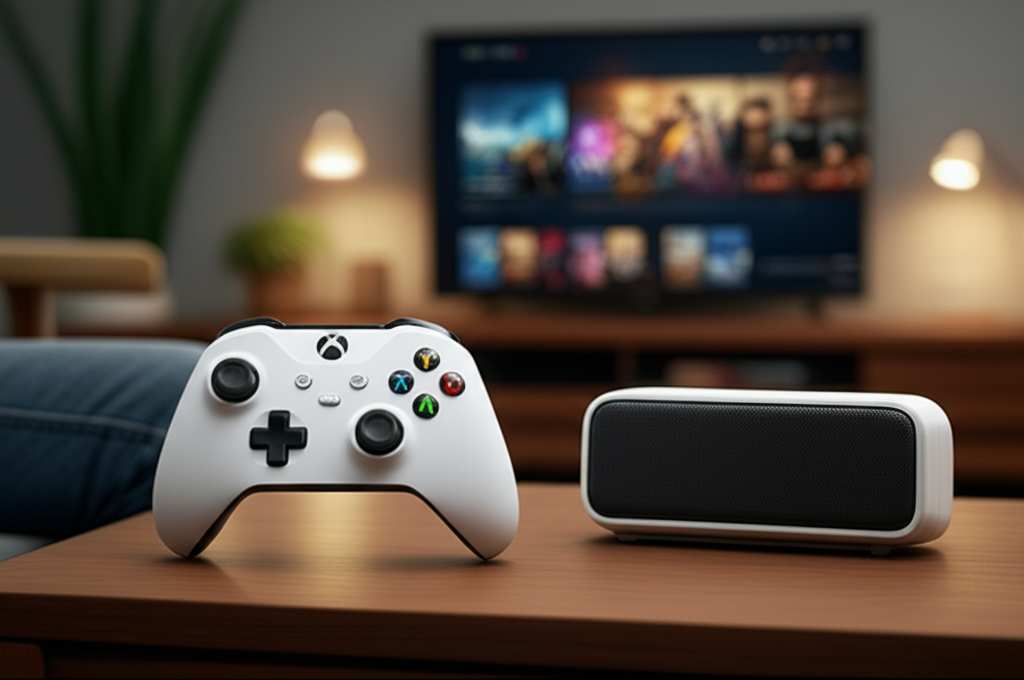
Let’s Talk About Sound: Why It Matters
You’ve got your Xbox, all set for some serious gaming or movie marathons. The picture on your screen is probably amazing, but what about the sound? Good audio makes a huge difference. It’s the difference between hearing a whisper of an enemy’s footsteps and feeling the rumble of an explosion right in your chest. It’s what makes those cinematic moments truly shine.
That’s where your favorite Bluetooth speaker comes in. You love it for your music, for parties, or just chilling out. It often sounds way better than your TV speakers, offering richer bass and clearer dialogue. So, naturally, you’d want that same fantastic sound for your gaming and entertainment. It’s a no-brainer for an upgraded experience, isn’t it?
The Big Question: Can I Connect Bluetooth Speaker To Xbox Directly?
This is the million-dollar question, right? You might have tried looking for a Bluetooth pairing option on your Xbox, just like you do with your phone or headphones. And you might have noticed… it’s not really there for speakers. Xbox consoles, especially the older models, are a bit particular about how they send out audio.
The Xbox system is designed to work with specific audio devices, often wired connections or specialized wireless adapters. This is mainly to ensure a stable connection with very low latency, which is super important for gaming. You don’t want the sound to be delayed, do you? That can ruin the immersion and make gameplay frustrating.
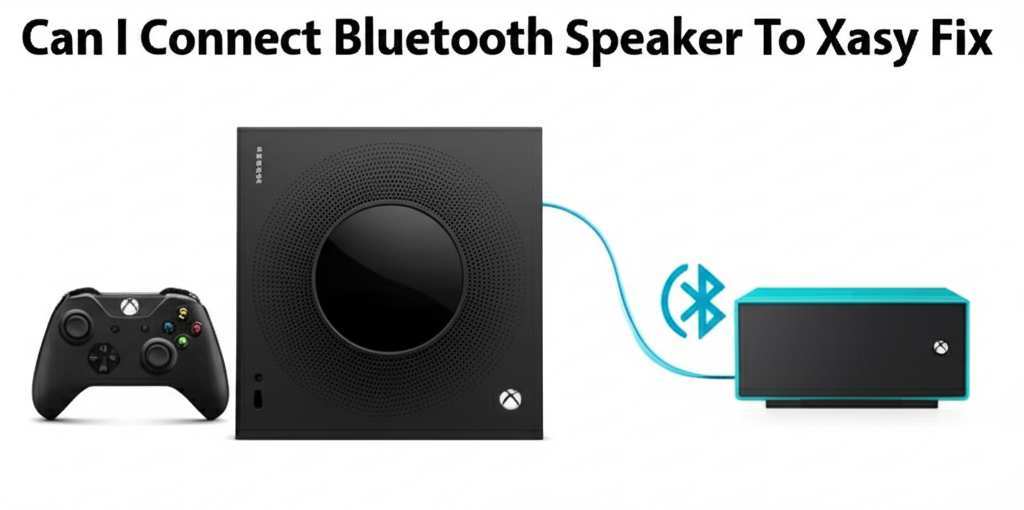
So, while you can’t just go to settings, hit “pair device,” and connect your speaker like magic, don’t pack up your speaker just yet! There are clever ways around this. Think of it like finding a secret path instead of the main road. We’re going to explore those secret paths together.
Understanding Xbox Audio: What’s Really Happening?
To get our Bluetooth speaker connected, it helps to understand how the Xbox handles sound. Most Xbox consoles send audio through their HDMI port (which goes to your TV) or through an optical audio port on older models. For controllers, audio usually goes through the headphone jack on the controller itself.
These are designed for reliability and speed. Bluetooth, while super convenient for many devices, can sometimes have a slight delay (latency). For phone calls or music, a tiny delay isn’t a big deal. But in a fast-paced game, that delay can mean you hear an explosion after you’ve already seen it, or you miss that crucial sound cue. The Xbox prioritizes avoiding this for a smooth gaming experience.
This is why you won’t find a simple “Add Bluetooth Speaker” button. The console isn’t built to broadcast audio wirelessly to just any Bluetooth device. It needs a specific handshake, and standard Bluetooth speakers don’t speak that language directly with the Xbox.
The Easy Fixes: How to Actually Connect
Alright, enough with the tech talk. Let’s get to the good stuff: how to make it work! There are a few super simple ways to get that sweet sound from your Xbox to your Bluetooth speaker. They all involve a little helper device, but they are usually straightforward and don’t break the bank.
Method 1: The Bluetooth Audio Transmitter (The Most Common Way!)
This is probably the easiest and most popular method. You get a small device called a Bluetooth audio transmitter. It’s like a little bridge that takes the sound from your Xbox and sends it wirelessly to your speaker.
Here’s how it works:
- Plug it in: Most of these transmitters plug into your TV’s audio output. This could be the headphone jack (3.5mm audio out) or sometimes an optical audio port (a small, square-ish port). Your TV then sends the sound to the transmitter.
- Power it up: The transmitter usually needs power. Some plug into a USB port on your TV or Xbox, while others might have their own power adapter.
- Pair your speaker: Put your Bluetooth speaker in pairing mode (usually by holding down a button until a light flashes). Then, put the transmitter in pairing mode. They’ll find each other and connect.
- Select the right audio output: On your TV or Xbox settings, you might need to make sure the audio is set to go out through the port you plugged the transmitter into (e.g., “Headphone Out” or “Optical”).
The beauty of this method is that it works with almost any TV that has an audio output, and it connects to any Bluetooth speaker. It’s a universal solution!
Method 2: Using a Bluetooth Transmitter with Xbox Controller (For Xbox Wireless Headsets)
Some newer Xbox controllers have a 3.5mm headphone jack. You can plug a special Bluetooth transmitter designed for this jack directly into your controller. This is often the same kind of device you’d use for headphones, but it can also transmit audio to speakers if they are small and portable enough to be near your controller.
Here’s the lowdown:
- Get the right transmitter: Look for a small Bluetooth transmitter that specifically mentions connecting to a 3.5mm audio jack.
- Plug it into your controller: Simply insert the transmitter into the headphone port on the bottom of your Xbox controller.
- Power and Pair: Turn on the transmitter and put it in pairing mode. Then, put your Bluetooth speaker into pairing mode. They should connect.
- Audio Settings: On your Xbox, go to Settings > General > Volume & audio output. Under “Headset format,” make sure it’s set to “Stereo uncompressed” or “Windows Sonic for Headphones.” This helps the console send audio to the controller jack correctly.
This method is great if you want to keep your speaker close by, or if your TV doesn’t have the audio outputs you need. Just remember, the speaker will need to be close to your controller, which might not be ideal for a large home theater setup.
Method 3: Using a Wireless Audio Adapter (More Advanced, but Worth Mentioning)
There are also more dedicated wireless audio adapters designed for gaming consoles. These might connect directly to the Xbox via USB or an optical port and come with their own receiver that plugs into your speaker. Some even offer lower latency than standard Bluetooth, which is a big win for gamers.
These are often a bit pricier but can offer a more seamless experience. They might require a bit more setup, but they’re built for this purpose. You’d follow the instructions that come with the specific adapter, which usually involve pairing the adapter to its receiver.
Choosing the Right Bluetooth Transmitter: What to Look For
Okay, so you’ve decided a Bluetooth transmitter is the way to go. Awesome! But with so many options out there, how do you pick the best one? Don’t sweat it; I’ve got you covered with some key things to consider.
Connection Type
This is super important. How will the transmitter connect to your sound source?
- 3.5mm Audio Jack: This is the most common. It’s a standard headphone jack found on most TVs, computers, and even some game consoles.
- Optical Audio (Toslink): This is a digital audio connection, often found on newer TVs and AV receivers. It can offer better sound quality than the analog 3.5mm jack.
- USB: Some transmitters can draw power from USB, or even act as a USB audio device.
Make sure the transmitter you choose has an input that matches what your TV or Xbox offers. Most people find a 3.5mm or optical input on their TV to be the most convenient.
Bluetooth Version
You’ll see numbers like Bluetooth 4.0, 4.2, or 5.0. Newer versions are generally better. Bluetooth 5.0 offers a longer range, faster speeds, and better power efficiency. It also supports features like aptX, which can reduce audio latency. For gaming, lower latency is king!
Latency (The Lag Factor!)
This is probably the MOST critical factor if you’re a gamer. Latency is the delay between the action on screen and the sound you hear. Standard Bluetooth can have noticeable latency. Look for transmitters that specifically mention “low latency” or support codecs like aptX Low Latency (aptX LL).
To use aptX LL, both your transmitter and your speaker need to support it. If your speaker doesn’t have aptX LL, you might still get some latency, but a good transmitter can minimize it. Check out resources like CNET’s guide on aptX to learn more about audio codecs.
Power Source
How does the transmitter get its power? Many can run off a USB port, which is super convenient if your TV or Xbox has one. Others might come with their own wall adapter. Make sure you have a way to power it up!
Number of Devices
Do you want to connect two pairs of headphones or two speakers at once? Some transmitters allow for dual-device pairing. This is great if you and a friend want to listen with separate Bluetooth headphones or speakers.
Quick Comparison: Transmitter Options
To give you a better idea, here’s a look at a few popular types of transmitters and what they’re good for. Remember, specific models change, but these categories are helpful.
| Type of Transmitter | Connection Method | Best For | Typical Latency | Approx. Price Range |
|---|---|---|---|---|
| Basic 3.5mm Transmitter | 3.5mm audio jack | Music, movies, casual gaming | Moderate to High | $20 – $40 |
| Optical/3.5mm Dual Input Transmitter | Optical or 3.5mm | TVs with multiple audio outputs, movies, gaming | Moderate to High | $30 – $50 |
| aptX Low Latency Transmitter | 3.5mm or Optical | Gaming, movies where sync is critical | Very Low (if speaker also supports aptX LL) | $40 – $70 |
| Controller-Specific Transmitter | 3.5mm controller jack | Portable speakers, gaming on the go | Moderate to High | $25 – $50 |
As you can see, the price can vary depending on the features. If you’re a serious gamer, investing a little extra in an aptX Low Latency transmitter is totally worth it to avoid that annoying audio lag. It really makes a difference in how responsive your games feel!
Setting Up Your Bluetooth Speaker: Step-by-Step
Alright, you’ve got your transmitter and your speaker. Let’s get this show on the road! This guide is for the most common setup using a transmitter plugged into your TV.
Step 1: Power Up Your Transmitter
Find a power source for your transmitter. Many come with a USB cable. You can plug this into a USB port on your TV, your Xbox, or a USB wall adapter. Some might have their own power adapter. Once plugged in, turn it on if it has a power switch.
Step 2: Connect the Transmitter to Your TV
Locate the audio output on your TV. This is usually a headphone jack (looks like a headphone symbol) or an optical audio port (a small, often red or black square with a tiny door). Plug the correct cable from your transmitter into this port. If your transmitter has both options, choose one!
Step 3: Put Your Transmitter in Pairing Mode
On the transmitter, there’s usually a button you need to press and hold for a few seconds. This puts it into “pairing mode.” You’ll often see a light flashing rapidly. Check your transmitter’s manual if you’re unsure how to do this.
Step 4: Put Your Bluetooth Speaker in Pairing Mode
Grab your Bluetooth speaker. Press and hold its power or Bluetooth button until you hear a sound or see a light flashing, indicating it’s ready to pair. Again, consult your speaker’s manual if needed.
Step 5: Let Them Connect
Keep both devices close to each other. They should automatically find each other and connect. The flashing lights on both the transmitter and speaker will usually turn solid, or you might hear a confirmation sound.
Step 6: Adjust TV Audio Settings (If Necessary)
This is a crucial step! On your TV, go into the settings menu and find the audio output options. You’ll need to select the correct output source that you plugged your transmitter into. For example, if you used the headphone jack, select “Headphone Out” or “External Speaker.” If you used optical, select “Optical Out.” This tells your TV to send the sound to the transmitter.
Step 7: Adjust Xbox Audio Settings
Now, let’s make sure your Xbox is sending audio that your TV can use. On your Xbox, go to:
- Settings
- General
- Volume & audio output
Under the “TV audio” section, ensure that “HDMI audio” is set to “Stereo uncompressed” or “Bitstream out” (depending on your TV’s capabilities and what works best). If you’re using optical, select that as your primary audio output. The exact settings can vary a bit depending on your TV model, so you might need to experiment slightly.
Step 8: Test It Out!
Load up a game or a video. You should now hear the sound coming from your Bluetooth speaker! If you don’t, double-check all the connections and settings. Sometimes, unplugging and replugging devices can help them reset.
Tips for the Best Gaming Audio Experience
Getting your speaker connected is awesome, but let’s make sure your gaming experience is top-notch. Here are a few extra tips to keep in mind:
- Latency is Key for Gamers: As we talked about, low latency is super important. If you notice a delay, try a different transmitter that supports aptX Low Latency and make sure your speaker also supports it. Sometimes, connecting the transmitter directly to the Xbox via USB (if it supports that) can also be faster than going through the TV.
- Volume Control: You’ll likely control the speaker’s volume directly on the speaker itself. However, you’ll also have volume controls on your TV and Xbox. Try to keep the TV’s volume at a moderate level and use your speaker for the main volume. This can prevent distortion.
- Speaker Placement: Don’t just plop your speaker anywhere! For immersive gaming, place it in front of you, at ear level if possible. This will make the sound feel like it’s coming from your screen.
- Power Management: If your transmitter runs on batteries, make sure they’re fresh. If it’s USB-powered, ensure the USB port provides enough power. A dying battery can cut your audio mid-game!
- Firmware Updates: Sometimes, both your transmitter and speaker will have firmware updates available. Checking the manufacturer’s website can sometimes improve performance or fix bugs.
What About Xbox Wireless Headsets?
It’s worth mentioning that Xbox has its own “Xbox Wireless” protocol, which is different from Bluetooth. This is what Xbox Wireless Headsets use. These connect directly to the Xbox console without needing a transmitter, offering very low latency. So, if you’re serious about wireless gaming audio and don’t need a Bluetooth speaker, an Xbox Wireless Headset is a fantastic option. You can find great reviews on sites like TechRadar for the latest models.
However, if your heart is set on using your existing Bluetooth speaker, the transmitter methods we’ve discussed are your best bet. They bridge the gap perfectly!
Troubleshooting Common Issues
Even with the best guides, sometimes tech throws us a curveball. Here are a few common problems and how to fix them:
- No Sound:
- Check all cable connections.
- Ensure the transmitter and speaker are powered on and paired.
- Verify your TV audio output settings are correct.
- Make sure your Xbox audio output is set to a compatible format (like Stereo Uncompressed).
- Try restarting your TV, Xbox, transmitter, and speaker.
- Audio Delay (Lag):
- This is the classic Bluetooth issue. If your transmitter and speaker support aptX Low Latency, ensure both are set to use it.
- Try a different transmitter known for low latency.
- If possible, plug the transmitter directly into the Xbox via USB if it supports USB audio.
- For critical gaming, consider a wired connection or an Xbox Wireless Headset.
- Speaker Won’t Pair:
- Make sure both devices are in pairing mode simultaneously.
- Turn off other Bluetooth devices nearby that might be interfering.
- Try “forgetting” the speaker on your phone or other devices, then try pairing again.
- Restart both the transmitter and the speaker.
- Intermittent Audio Cutting Out:
- Check the distance between your transmitter and speaker. Move them closer.
- Ensure there are no major obstructions (like thick walls or metal objects) between them.
- Check if your transmitter or speaker needs a firmware update.
Remember, patience is key when troubleshooting! Most issues can be resolved with a few simple checks and restarts.
Frequently Asked Questions (FAQ)
Can I connect my Bluetooth speaker directly to my Xbox Series X or S?
No, the Xbox Series X/S, like older Xbox models, does not support direct Bluetooth audio output to speakers. You’ll need an external Bluetooth transmitter to make this connection work.
Will there be a delay if I connect my Bluetooth speaker?
Possibly, yes. Standard Bluetooth can introduce a slight delay (latency). However, using a Bluetooth transmitter that supports aptX Low Latency (and a speaker that also supports it) can significantly reduce this delay, making it much less noticeable for gaming and movies.
What is the best way to connect a Bluetooth speaker to my Xbox One?
The easiest and most common way is to use a Bluetooth audio transmitter that plugs into your TV’s headphone jack or optical audio out. Then, pair your Bluetooth speaker to the transmitter.
Do I need a special transmitter for gaming?
If you’re a serious gamer and want to avoid audio lag, yes, you should look for a transmitter that specifically supports “aptX Low Latency” or similar low-latency technologies. This will ensure your game audio is in sync with the action on screen.
Can I use my phone as a Bluetooth bridge for my Xbox speaker?
Unfortunately, no. Your phone can’t act as a Bluetooth bridge to send Xbox audio to your speaker. The Xbox console needs to send audio directly to the speaker or via a dedicated transmitter. Some apps might allow streaming audio from your Xbox to your phone, but that’s a different process and usually involves latency.
How do I control the volume of my Bluetooth speaker with my Xbox?
You typically control the volume of your Bluetooth speaker directly on the speaker itself. The Xbox volume controls will affect the audio sent to your TV, which then goes to the transmitter. You might need to find a balance between the TV’s volume and the speaker’s volume for the best experience.
Are there any Bluetooth transmitters that plug directly into the Xbox?
Some transmitters can draw power from the Xbox’s USB port, and a few might even connect via USB to receive audio directly. However, the most common method is connecting to the TV’s audio output. Always check the product description to see how it connects and powers.
Conclusion: Your Sound Upgrade Awaits!
So there you have it! Connecting a Bluetooth speaker to your Xbox might not be a one-click process, but it’s definitely achievable and totally worth the effort for that richer, more immersive sound. By using a simple Bluetooth audio transmitter, you can bridge the gap and bring your favorite speaker into your gaming world.
We’ve covered why it’s not direct, the best workarounds, what to look for in a transmitter, and how to set it all up. You’re now armed with the knowledge to banish tinny TV speakers and enjoy your games and movies with the booming sound they deserve. Don’t be afraid to experiment a little with the settings to get it just right for you.
Now go enjoy amazing sound and make every moment louder and better! Happy gaming and happy listening!