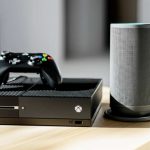
Yes, you can connect a Bluetooth speaker to your Xbox for awesome sound! While it’s not a direct plug-and-play for all speakers, there are super simple ways to get your music, game audio, and movie sound pumping through your favorite Bluetooth speaker. Get ready for an upgraded audio experience without the hassle!
Hey there, tech explorers! Max here from AffTechy.com, your go-to spot for making tech simple and fun. We all love our Xbox, right? It’s our portal to amazing games, movies, and music. But sometimes, the built-in sound just doesn’t cut it. You’ve got this awesome Bluetooth speaker that makes your phone sound incredible, and you’re probably thinking, “Can I get that same amazing sound from my Xbox?”
It’s a question I hear a lot! You want to ditch the headset for a bit, or maybe you want to fill your whole room with the epic sounds of your game. It can feel a little confusing trying to figure out all the different audio connections. But don’t worry, my friend! That’s exactly why I’m here. We’re going to break down exactly how you can connect that Bluetooth speaker to your Xbox.
Think of it like this: your Xbox has all this incredible audio waiting to be unleashed. Your Bluetooth speaker is the perfect way to do it without wires. We’ll explore the easiest methods, so you can enjoy richer, more immersive sound for all your gaming and entertainment. Let’s dive in and make your Xbox sound absolutely fantastic!

Why Better Sound Matters for Your Xbox
We spend hours with our Xbox, right? Whether it’s battling dragons, exploring distant galaxies, or just chilling with some music, audio plays a huge role. Imagine the roar of a T-Rex in Jurassic Park or the subtle rustle of leaves in a stealth game. Good sound makes these moments feel so much more real.
A great speaker can transform your gaming experience. It’s not just about hearing things; it’s about feeling them. Explosions hit harder, dialogue is clearer, and the whole atmosphere of a game or movie just comes alive. And who doesn’t want that?
Sometimes, the standard TV speakers or even a basic headset can feel a bit… well, flat. You know that rich, booming sound your Bluetooth speaker gives your phone? You can totally get that for your Xbox too. It’s like upgrading from a quiet whisper to a full, immersive concert hall.
Let’s Talk About Connecting: The Two Main Paths
So, can you just pair your Bluetooth speaker directly to your Xbox like you do with your phone? Well, it’s a bit more nuanced than that. Xbox consoles (like the Xbox One and Series X/S) don’t have built-in Bluetooth audio output capabilities for speakers. This means you can’t just go into your Xbox settings, find your speaker, and pair it up directly. Bummer, I know!

But don’t pack up your speaker just yet! There are still some fantastic ways to get that wireless audio goodness. The most common and easiest methods involve a little helper: an adapter or a transmitter. Think of these as bridges that connect your Xbox’s audio to your Bluetooth speaker.
We’ll look at two main routes: using a Bluetooth audio transmitter and using your TV as an intermediary. Both are pretty straightforward, and we’ll go through them step-by-step. By the end, you’ll know exactly which path is best for you to get that amazing sound!
Method 1: The Bluetooth Audio Transmitter – Your Wireless Bridge
This is probably the most direct and popular way to get your Xbox audio to your Bluetooth speaker wirelessly. A Bluetooth audio transmitter is a small device that plugs into your Xbox (or your TV, which we’ll get to later) and broadcasts the audio wirelessly to your speaker. It’s like giving your Xbox Bluetooth capabilities for audio output.
Here’s how it generally works: you plug the transmitter into your Xbox using an audio port. Then, you pair your Bluetooth speaker to the transmitter. Once they’re paired, any sound coming from your Xbox will be sent through the transmitter to your speaker. Easy peasy!
There are a few types of transmitters you might see. Some plug into the headphone jack of your controller, but this often means the sound is only for you, not for everyone in the room. For room-filling sound, you’ll want a transmitter that connects to the Xbox itself or your TV.
Choosing the Right Transmitter
When you’re looking for a transmitter, there are a few things to keep in mind. Not all transmitters are created equal, and some features can make a big difference.
Connection Type: How does it plug into your Xbox or TV? Common options are USB ports (for power) and audio ports like 3.5mm auxiliary, optical (S/PDIF), or RCA. You’ll need to make sure your Xbox or TV has a compatible audio output.
Bluetooth Version: Newer Bluetooth versions (like 5.0 or higher) offer better range, stability, and sound quality.
Codec Support: This is a bit more technical, but codecs like aptX Low Latency are great because they minimize delay. This is super important for gaming so the sound matches what you see on screen.
Multiple Device Support: Some transmitters can connect to two Bluetooth devices at once. This is handy if you want to connect two speakers or a speaker and headphones simultaneously.
Let’s look at the physical connections you might use:
Common Audio Output Ports for Transmitters
| Port Type | Description | How it Works for Xbox Audio |
| :—————- | :————————————————————————————————————– | :——————————————————————————————————————————————————- |
| 3.5mm Audio Jack | A small, round port found on many devices, often used for headphones or microphones. | Connects to the headphone jack on your Xbox controller (for headset audio) or an audio output port on your TV/Xbox. |
| Optical Audio (S/PDIF) | A digital audio connection that uses light to transmit sound. Often found on newer TVs and consoles. | Provides a high-quality digital audio signal. You’ll need an Xbox or TV with an optical audio out port and a transmitter with an optical in port. |
| RCA Audio (Red/White) | Two analog audio connectors, typically red for the right channel and white (or black) for the left channel. | Connects to the analog audio output on some older TVs or AV receivers. Less common for direct Xbox connection but possible if going through a receiver. |
| USB (for Power) | Provides power to the transmitter. Some USB ports on the Xbox can also carry audio data. | Many transmitters use USB for power. Some newer USB-based transmitters can directly take audio from a USB port on the Xbox Series X/S or Xbox One. |
What does this mean for you? It means you need to check what audio output ports your Xbox or TV has. Most modern TVs have optical audio out and often a 3.5mm audio out. The Xbox Series X/S and Xbox One have HDMI and optical audio out. A transmitter that uses optical audio usually gives you the best quality.
Setting Up Your Transmitter: Step-by-Step
Here’s a general guide on how to set up a Bluetooth transmitter to your Xbox for wireless speaker sound. The exact steps might vary slightly depending on your transmitter model, so always check the manual that comes with it!
1. Power Up the Transmitter: Most transmitters need power. Plug the included USB cable into the transmitter and then into a USB port on your Xbox or a wall adapter. Some might have their own power adapter.
2. Connect the Audio Cable: This is where you connect the transmitter to your Xbox’s audio source.
For Optical: Connect one end of the optical cable to the transmitter and the other end to the “Optical Out” or “S/PDIF Out” port on your Xbox or TV. You might need to remove protective plastic caps from the cable ends.
For 3.5mm Audio: Connect the 3.5mm cable from the transmitter to the headphone jack on your controller (if you’re using a controller-powered transmitter) or to the “Audio Out” port on your TV.
3. Put Your Speaker in Pairing Mode: Turn on your Bluetooth speaker and put it into its pairing mode. This is usually done by pressing and holding a Bluetooth button until a light blinks or you hear a sound. Check your speaker’s manual if you’re unsure.
4. Pair the Transmitter and Speaker: Most transmitters have a button you need to press to start searching for Bluetooth devices. Press this button, and the transmitter will look for your speaker. Once found, they should automatically connect. A solid light on the transmitter usually indicates a successful connection.
5. Configure Xbox Audio Settings: This is a crucial step! You need to tell your Xbox to send audio out through the correct port.
Go to your Xbox Settings.
Navigate to `General` > `Volume & audio output`.
Under `Speaker audio`, find the `Digital audio` setting.
If you used an optical cable, select `Optical S/PDIF`.
If you used a 3.5mm cable from your TV, you might need to select `HDMI audio` or `Stereo uncompressed` depending on how your TV passes audio. Some TVs might have a specific setting for their headphone/analog out.
You might also need to adjust `HDMI audio` to `Stereo uncompressed` if you’re routing through your TV via HDMI.
Pro-Tip: If you’re using a transmitter that plugs directly into your Xbox controller’s 3.5mm jack, remember that this often only sends audio to your controller, not the whole room. For room-filling sound, focus on transmitters that connect to the Xbox’s digital audio out or your TV.
A Little Story About Latency
I remember setting up my first Bluetooth transmitter. I was so excited! But then I started playing a racing game, and the engine sounds were lagging way behind the on-screen action. It was like watching a silent movie with a delayed soundtrack! That’s called latency, and it’s the enemy of good gaming audio.
That’s why I always look for transmitters that support `aptX Low Latency` (or similar low-latency technologies). This technology is designed to send audio with minimal delay, so what you see and hear are perfectly in sync. It makes a massive difference, especially for fast-paced games or watching movies. If your speaker also supports it, even better!
Fun Fact: Bluetooth Versions Matter!
Did you know that Bluetooth has evolved a lot over the years? Older versions like Bluetooth 2.0 or 3.0 are slower and less stable. Newer versions, like Bluetooth 4.0, 5.0, and even 5.2, offer much better performance. They use less power, have a longer range, and can transfer data more quickly. When picking a transmitter, aiming for Bluetooth 5.0 or higher is a smart move for the best experience.
Method 2: Using Your TV as a Go-Between
What if you don’t want to buy a separate transmitter? Well, if your TV has Bluetooth audio output capabilities, you might be able to connect your speaker directly to your TV! This is a fantastic option if your TV supports it, as it often means fewer cables and simpler setup.
Many smart TVs these days come with built-in Bluetooth. This allows them to connect to wireless headphones, soundbars, and, yes, your Bluetooth speakers! It’s like your TV gains its own wireless superpowers.
Here’s the catch: not all TVs have this feature, and even if they do, the setup process can vary wildly between brands. So, the first step is to check your TV’s manual or settings menu to see if it supports Bluetooth audio output.
How to Connect Your Speaker to Your TV (If Your TV Has Bluetooth)
If your TV does have Bluetooth audio output, here’s a general idea of how you’d set it up:
1. Check Your TV Manual: Seriously, this is step zero. Find out if your TV can send audio via Bluetooth.
2. Put Your Speaker in Pairing Mode: Just like with the transmitter, turn on your Bluetooth speaker and put it into pairing mode.
3. Access TV Bluetooth Settings: Go into your TV’s settings menu. Look for sections like `Sound`, `Audio`, `Network`, or `Connections`. You should find an option related to Bluetooth.
4. Scan for Devices: Select the option to search for new Bluetooth devices. Your TV will start looking for nearby speakers.
5. Pair Your Speaker: Your speaker’s name should appear on the TV screen. Select it to begin the pairing process.
6. Confirm Pairing: You might get a confirmation message on your TV or hear a sound from your speaker indicating a successful connection.
7. Set TV Audio Output: Make sure your TV is set to send audio to the Bluetooth device. You might find this in the same Bluetooth menu or under the main audio output settings.
Important Note: When you connect your speaker to the TV, the Xbox’s audio is sent to the TV via HDMI, and then the TV sends it wirelessly to your speaker. This means any audio coming from your Xbox will now go through your TV’s Bluetooth.
Potential Downsides of the TV Method
While this method can be super convenient, there are a couple of things to be aware of:
Latency: Some TVs have better Bluetooth audio handling than others. You might still experience a slight delay between the video and audio. This is more noticeable in games than in movies or TV shows.
Sound Quality: The Bluetooth implementation on TVs can sometimes be less robust than dedicated transmitters, potentially affecting the overall sound quality.
Feature Availability: As mentioned, not all TVs have this capability. If yours doesn’t, you’ll need to explore the transmitter option.
Let’s see how a dedicated transmitter stacks up against using your TV’s built-in Bluetooth for sound.
Transmitter vs. TV Bluetooth: A Quick Comparison
| Feature | Bluetooth Audio Transmitter | TV’s Built-in Bluetooth Audio Output |
| :—————- | :———————————————————————————————- | :———————————————————————————————— |
| Setup | Requires plugging into Xbox/TV and pairing speaker. | Requires pairing speaker directly to TV settings. |
| Compatibility | Works with almost any TV or Xbox that has the right audio ports. | Only works if your TV model supports Bluetooth audio output. |
| Latency | Can be very low with aptX Low Latency support, ideal for gaming. | Varies by TV model; can sometimes be noticeable, especially in games. |
| Sound Quality | Generally good, especially with optical connections and advanced codecs. | Can vary; might be less optimal than a dedicated transmitter for audiophiles. |
| Cost | Requires purchasing a separate device ($20-$100+). | Free if your TV has the feature. |
| Flexibility | Can be moved between devices (e.g., PC, other consoles). | Limited to the TV it’s paired with. |
| Power | Usually powered by USB from the Xbox, TV, or a wall adapter. | Powered by the TV itself. |
What this table tells us: If you’re serious about minimizing audio lag for gaming, a good quality Bluetooth transmitter is often the superior choice. However, if your TV has built-in Bluetooth and latency isn’t a major concern for you, using your TV’s feature is a super convenient and cost-effective solution!
Beyond Bluetooth: Other Wireless Audio Options
While Bluetooth is the most common wireless method for speakers, it’s worth mentioning a couple of other ways you might get wireless audio to a speaker or sound system. These aren’t direct Bluetooth connections, but they achieve a similar result of wireless sound for your Xbox.
1. Wireless Soundbars and Home Theater Systems
Many modern soundbars and home theater systems connect to your TV via HDMI (Audio Return Channel – ARC/eARC) or optical cable. These systems often come with their own wireless subwoofers or rear speakers, or they can connect wirelessly to other compatible audio devices.
If your soundbar has Bluetooth, you could connect it to your TV (via HDMI/Optical), and then that soundbar might be able to connect to your Bluetooth speaker. It’s a bit of a chain, but it’s possible! Some systems even have proprietary wireless technologies that offer very low latency and high-quality sound.
2. Wi-Fi Based Audio (like Sonos)
Some high-end audio systems use your home Wi-Fi network to stream audio. Devices like Sonos speakers connect to your Wi-Fi and can receive audio from various sources, including your TV (often through a separate Sonos device like the Arc soundbar or Beam soundbar, which then connects to your TV).
This isn’t Bluetooth, but it’s another way to get wireless, room-filling sound. It’s generally more expensive and requires a robust Wi-Fi network, but the audio quality and multi-room capabilities can be amazing.
Tips for the Best Bluetooth Speaker Experience on Xbox
Okay, so you’ve got your connection method sorted. Now, how do you make sure your audio experience is top-notch? Here are a few tips to help you get the most out of your Bluetooth speaker with your Xbox.
Positioning is Key: Don’t just plop your speaker anywhere. Try placing it in a corner or near a wall to get more bass resonance. Experiment with different spots to see where it sounds best in your room.
Keep it Charged: Make sure your Bluetooth speaker is well-charged before a long gaming session. Running out of juice mid-game is never fun!
Minimize Interference: Bluetooth signals can be affected by other wireless devices (like microwaves or some Wi-Fi routers) and physical obstructions. Try to keep a clear line of sight between your transmitter (or TV) and your speaker.
Check Speaker Volume: Don’t forget to adjust the volume on your speaker itself! Sometimes it’s easy to forget it’s not just controlled by your Xbox.
Game vs. Media Audio: Some Xbox consoles allow you to adjust audio output settings differently for games and media (like movies or music). You might find that a certain setting works better for one than the other.
Speaker Placement Matters!
Think about how sound waves work. Placing a speaker against a wall can make the bass sound deeper because the sound waves bounce off the wall and reinforce each other. Putting it in a corner can amplify this effect even further. It’s like giving your speaker a little boost!
On the other hand, placing a speaker in the middle of an open space might give you a clearer, more direct sound but with less bass impact. It’s all about experimentation to find what sounds best for your room and your ears.
Frequently Asked Questions (FAQ)
Got more questions? I’ve got answers! Here are some common things people wonder about connecting Bluetooth speakers to Xbox.
Q1: Can I connect any Bluetooth speaker to my Xbox?
A1: Yes, you can connect most standard Bluetooth speakers! The main thing is that your Xbox (or TV, if you’re using it as a bridge) needs a way to send audio to the speaker. This usually means using a Bluetooth transmitter or your TV’s built-in Bluetooth.
Q2: Will there be a delay (latency) with Bluetooth audio?
A2: There can be, especially with older Bluetooth technology or some TV implementations. For the best experience, look for Bluetooth transmitters that support “aptX Low Latency” (or similar low-latency tech). This significantly reduces the delay between what you see and what you hear.
Q3: Can I connect my Xbox controller’s headphone jack to a Bluetooth transmitter?
A3: Yes, you can! Many transmitters have a 3.5mm audio input, and your Xbox controller has a headphone jack. However, this usually means the sound is only going to your controller, not the whole room. For room-filling sound, it’s better to connect the transmitter to the Xbox’s digital audio output or your TV.
Q4: Do I need to buy a special Bluetooth adapter for my Xbox?
A4: The Xbox itself doesn’t have built-in Bluetooth audio output for speakers, so yes, you’ll likely need an external Bluetooth audio transmitter if your TV doesn’t have Bluetooth. These are readily available online and at electronics stores.
Q5: Can I connect two Bluetooth speakers at once to my Xbox?
A5: Some Bluetooth transmitters are designed to connect to two devices simultaneously. This lets you share audio with a friend or use two speakers for a more immersive sound experience. You’ll need to check the transmitter’s specifications.
Q6: Will this affect my game’s performance?
A6: Generally, no. Using a Bluetooth transmitter or your TV’s Bluetooth is a method of audio output and won’t impact your Xbox’s gaming performance like a complex graphics setting would. Just make sure you have a stable connection!
* Q7: Is the sound quality as good as wired headphones?
A7: With modern Bluetooth technology and good quality speakers/transmitters, the sound quality can be very impressive, often better than basic TV speakers. However, for the absolute highest fidelity and zero latency, high-end wired headphones or speakers still have an edge. But for most users, Bluetooth offers a fantastic upgrade!
Enjoying Your Upgraded Xbox Audio!
So there you have it! Connecting a Bluetooth speaker to your Xbox is totally achievable, and it’s a fantastic way to boost your gaming and entertainment experience. Whether you choose a dedicated Bluetooth transmitter or use your TV’s built-in capabilities, you’re on your way to richer, more immersive sound.
Remember, the key is bridging the gap between your Xbox’s audio signal and your wireless speaker. A good transmitter with low-latency support is often the best bet for gamers, while your TV’s Bluetooth is a super convenient option if available. Don’t be afraid to experiment a little with setup and speaker placement to find what sounds best for you.
You’ve got the knowledge now to make your Xbox sound incredible. No more flat audio – just pure, room-filling sound for all your adventures!
Now go enjoy amazing sound and make every moment louder and better!