
Having trouble with your Bluetooth speaker? A quick reset is often the easiest fix! It’s like giving your speaker a fresh start, solving connection issues and making it work like new again.
Hey there, tech explorers! Max here from AffTechy.com, your go-to spot for making gadgets super simple. You know how much fun a good Bluetooth speaker can be, right? It brings your music to life, makes movie nights epic, and even adds to your gaming adventures. But sometimes, things get a little… glitchy. Maybe your speaker won’t connect, or it’s acting all sorts of weird. It’s frustrating when your sound system decides to take a break!
It can feel like a puzzle trying to figure out why your speaker isn’t playing nice. We’ve all been there, staring at blinking lights and wondering what’s going on. Don’t worry, though! Most of the time, these little tech hiccups have super simple solutions. And guess what? Often, the magic fix is just a reset. It’s like hitting the restart button on your phone when it’s acting up, but for your speaker!
Think of your Bluetooth speaker as a tiny computer that needs to talk to your phone or tablet. Sometimes, that conversation gets a bit jumbled. A reset clears out all the old, confusing messages and lets it start fresh. It’s a powerful tool that can save you a lot of headaches. Today, we’re going to walk through exactly how to reset your Bluetooth speaker, making it easy and quick. Let’s dive in and get that sound back on track!
Why Would You Want to Reset Your Bluetooth Speaker?
So, why bother with a reset? It sounds a bit drastic, maybe? Not at all! Think of it as a little tune-up for your speaker. There are a few common reasons why you might want to do this.
Connection Problems: This is the big one! If your speaker refuses to pair with your device, keeps disconnecting, or shows up erratically in your Bluetooth list, a reset can clear the memory of old connections that might be causing trouble. It’s like telling your speaker, “Forget everyone else, just focus on me!”
Audio Glitches: Is your sound cutting out, crackling, or sounding distorted? Sometimes, the internal software of the speaker can get confused. A reset can help refresh this software and get your audio sounding smooth again.
Forgotten Passcodes: Some speakers have passcodes to connect. If you’ve forgotten it, or if a device is stuck trying to use an old, incorrect one, a reset often reverts it to default settings, allowing you to reconnect.
Selling or Gifting: If you’re passing your speaker on to a new owner, it’s super important to reset it. This wipes your personal pairing history and settings, protecting your privacy and ensuring the new owner can set it up easily as if it were brand new.
It’s always good to try a simple restart first. Just turn the speaker off and then on again. If that doesn’t do the trick, then a reset is your next best step. It’s a surprisingly effective way to solve a lot of common Bluetooth speaker woes without needing to call tech support.
Understanding the “Reset” Process
Before we jump into the how-to, let’s quickly chat about what a reset actually does. It’s not like wiping your computer’s hard drive! When you reset a Bluetooth speaker, you’re essentially telling it to forget all the devices it has been paired with. It also clears out any temporary glitches or errors in its internal software.
Think of it like this: your speaker has a little address book for all the phones, tablets, and laptops it’s met. A reset erases that address book. This means you’ll have to pair it with your devices again, just like the first time you took it out of the box. It’s a fresh start!
This process is usually straightforward, but the exact steps can vary a bit from one brand and model to another. That’s why knowing your specific speaker is helpful, but there are some common methods that work for many. We’ll cover those general steps, and then I’ll show you where to find the exact instructions for yours.
Quick Guide: How to Reset Most Bluetooth Speakers
Most Bluetooth speakers share similar reset mechanisms. The key is usually to press and hold a specific button or a combination of buttons for a certain amount of time. It’s like a secret handshake for your speaker!
Here are the most common ways to reset a Bluetooth speaker:
The Power Button Trick:
Turn on your Bluetooth speaker.
Locate the Power button.
Press and hold the Power button for about 10-15 seconds.
You might hear a beep, see a light flash differently, or the speaker might just turn off and then back on. This usually means it has reset.
The Bluetooth Button Combo:
Make sure the speaker is powered on.
Look for the Bluetooth button.
Often, you’ll need to press and hold the Bluetooth button for 10-15 seconds.
Some speakers require you to press and hold the Bluetooth button AND the Power button simultaneously for about 10 seconds.
Listen for an audible cue or watch for indicator lights to confirm the reset.
The Volume Up/Down Combination:
Power on your speaker.
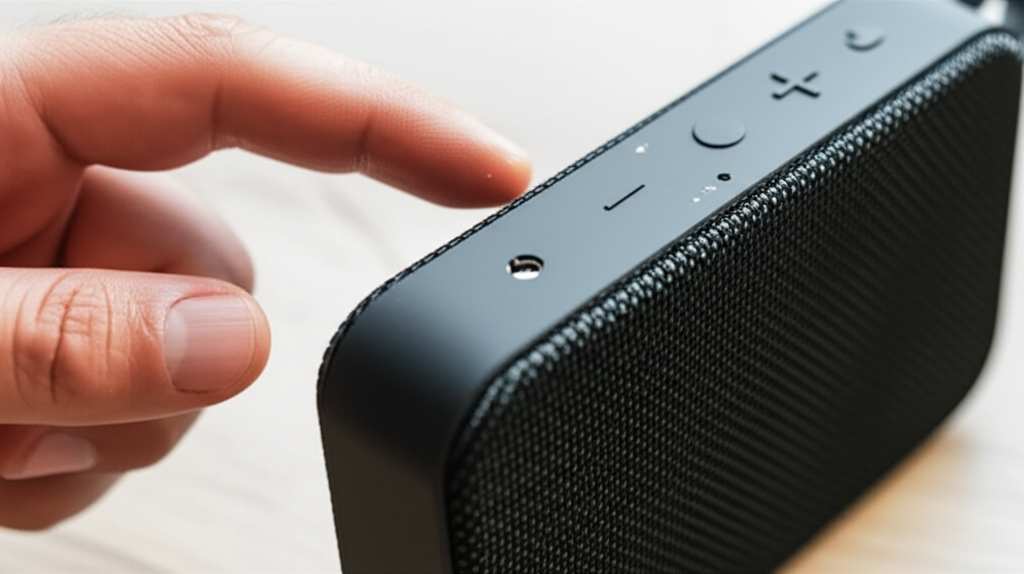
Find the Volume Up (+) and Volume Down (-) buttons.
Press and hold both Volume Up and Volume Down buttons together for 10-15 seconds.
Again, listen for sounds or look for light changes to confirm.
The Dedicated Reset Button (Less Common):
Some speakers, especially higher-end ones, have a tiny, recessed Reset button.
You’ll usually need a paperclip or a pin to press this button.
Make sure the speaker is powered on.
Carefully insert the pin into the reset hole and press and hold the button for about 5-10 seconds.
The speaker might restart or indicate a reset in some way.
Important Note: After performing a reset, your speaker will likely be in pairing mode automatically, or you’ll need to put it into pairing mode manually (usually by pressing the Bluetooth button). You will then need to go into your device’s Bluetooth settings and re-pair your speaker.
Finding the Exact Reset Method for Your Speaker
While the above methods cover most speakers, every brand has its quirks. If you’re unsure or those common tricks don’t work, don’t panic! The best place to find the exact instructions is directly from the source.
Here’s how to find the specific reset steps for your model:
1. Check Your User Manual: This is your speaker’s instruction book. It’s the most reliable source for all its functions, including how to reset it. If you’ve lost the physical copy, don’t worry!
2. Visit the Manufacturer’s Website: Almost all tech companies have support sections on their websites. Search for your speaker model, and you should find downloadable manuals, FAQs, and troubleshooting guides. For example, if you have a JBL speaker, you’d go to the JBL support page.
3. Search Online: A quick Google search can work wonders. Try searching for:
“[Your Speaker Brand] [Your Speaker Model] reset”
“How to factory reset [Your Speaker Brand] speaker”
“Troubleshoot [Your Speaker Brand] [Your Speaker Model] connection”
You’ll often find guides on tech blogs or forums that have already figured it out. Websites like CNET or TechRadar sometimes have helpful articles on popular speaker models.
Let’s say you have a popular brand like Sony. A search for “Sony SRS-XB23 reset” might lead you to a page detailing how to press the Play/Pause and Volume Up buttons simultaneously for a few seconds. Or for a Bose SoundLink speaker, it might involve unplugging it, holding the Bluetooth button, and then plugging it back in. Knowing your model is key!
What to Expect After Resetting
So, you’ve followed the steps, and your speaker has reset. What happens next? It’s pretty simple, actually.
All Paired Devices Are Forgotten: Your speaker will no longer remember any phones, tablets, or computers it was previously connected to. This is good! It means it’s starting fresh.
Return to Factory Settings: It’s like the speaker is brand new again. Any custom EQ settings or personalized modes you might have set up could be erased.
Pairing Mode Activated (Usually): Most speakers will automatically enter Bluetooth pairing mode after a reset. You’ll often see a flashing blue light or hear a specific sound indicating it’s ready to connect to a new device.
You Need to Re-Pair: This is the most important part. You’ll need to go to the Bluetooth settings on your phone, tablet, or computer, scan for new devices, and select your speaker to connect it again.
Don’t be surprised if you have to go through the initial pairing process again. It’s a necessary step to get your speaker back in action and often resolves the very issues that made you reset it in the first place.
Troubleshooting Common Reset Issues
Sometimes, even the reset process can hit a snag. Here are a few things to check if you’re having trouble:
Is the Speaker Charged? Make sure your speaker has enough battery power. Trying to reset a nearly dead battery can sometimes cause issues. Plug it in if you’re not sure.
Holding the Buttons Long Enough? The time required to hold buttons can be precise. Try holding them for a few extra seconds to be sure.
Are You Pressing the Right Buttons? Double-check the button labels or consult your manual. It’s easy to misidentify a button in a hurry.
Is the Speaker Actually On? Some reset methods require the speaker to be powered on. Make sure it’s not just in standby mode.
Firmware Updates: Occasionally, a speaker might need a firmware update to fix persistent issues. This is a more advanced step, usually done through a companion app or the manufacturer’s website, and would be detailed in your speaker’s specific support documentation.
If you’ve tried the common methods and consulted your manual, and it’s still not cooperating, it might be time to contact the manufacturer’s customer support. They can offer model-specific advice or determine if there’s a hardware problem.
A Peek at Popular Speaker Reset Methods
Different brands have their own unique ways of doing things. Here’s a quick look at how a few popular brands handle resets. This can give you a general idea, but always refer to your specific model’s manual!
Table 1: Common Reset Methods for Popular Bluetooth Speaker Brands
| Brand Name | Typical Reset Method | Notes |
| :——— | :——————————————————————————— | :——————————————————————————————————————————- |
| JBL | Power on, then press and hold the “Volume +” and “Play/Pause” buttons simultaneously for 3-5 seconds. | Lights may flash, or you might hear a chime. Speaker will turn off and on. |
| Bose | For some models (like SoundLink), unplugging the speaker, holding the Bluetooth button, and then plugging it back in can trigger a reset. | Always check your specific SoundLink manual, as methods can vary. |
| Sony | Power on, then press and hold the “Play/Pause” and “Volume +” buttons simultaneously for a few seconds. | Look for indicator lights to change or a sound cue. The speaker may restart. |
| UE (Ultimate Ears) | Power on, then press and hold the “Volume -” and “Power” buttons simultaneously for about 10-15 seconds. | The speaker will turn off. You’ll need to turn it back on and re-pair. |
| Anker (Soundcore) | Power on, then press and hold the “Volume +” and “Bluetooth” buttons for about 5-10 seconds. | Listen for a reset sound or look for indicator lights. |
What This Table Means for You: As you can see, holding down a couple of buttons for a few seconds is the most common reset method across many brands. It’s like a universal language for Bluetooth speakers! What’s really useful here is seeing that you often need to press two buttons at once. This is a common way manufacturers ensure you don’t accidentally reset the speaker. Always confirm with your manual, but this table gives you a great starting point for what to look for.
When a Reset Might Not Be Enough
While resetting your Bluetooth speaker is a fantastic first step for many issues, it’s not a magic wand for everything. If you’ve tried resetting, re-pairing, and even checked your device’s Bluetooth settings, and the problem persists, it could be something else.
Device Issues: The problem might not be with your speaker at all, but with the phone, tablet, or computer you’re trying to connect. Try pairing your speaker with a different device to see if the issue follows. If it doesn’t, your original device might be the culprit.
Interference: Bluetooth signals can be affected by other wireless devices (like Wi-Fi routers, microwaves, or even other Bluetooth devices). Try moving your speaker and device away from potential sources of interference.
Physical Damage: If the speaker has been dropped or exposed to water, there could be internal damage that a reset can’t fix.
Software Glitches on Your Device: Sometimes, your phone or tablet’s operating system might have a bug. Restarting your phone or tablet, or even checking for operating system updates, can sometimes help.
Hardware Failure: In rare cases, the Bluetooth module within the speaker itself might have failed. If the speaker is still under warranty, this is when you’d contact the manufacturer for repair or replacement.
Don’t get discouraged if a reset doesn’t solve everything. Tech can be complex, but understanding these possibilities helps you narrow down the problem effectively.
Fun Fact: Bluetooth History!
Did you know Bluetooth technology is named after a Viking king? King Harald “Bluetooth” Gormsson was known for uniting Scandinavian tribes, much like Bluetooth technology aims to unite different devices wirelessly! It was first developed by Ericsson in 1994 and has revolutionized how we connect our gadgets. Pretty cool, right? This technology’s journey from a uniting king to your portable speaker is a fascinating one.
Making the Most of Your Bluetooth Speaker: Beyond the Reset
Once you’ve got your speaker reset and happily paired, here are some tips to keep it running smoothly and sounding great:
Keep Firmware Updated: Some speakers connect to an app on your phone. Check this app occasionally for firmware updates. These updates can improve performance, add features, and fix bugs.
Clean It Gently: Dust and grime can build up. Use a soft, dry cloth to wipe down the speaker. For stubborn marks, a slightly damp cloth (water only!) can work, but make sure no moisture gets into the ports.
Manage Battery Life: Avoid extreme temperatures, as they can affect battery health. Try not to let the battery drain completely too often.
Protect It: If you’re using your speaker outdoors, be mindful of dust, sand, and water, even if it’s water-resistant. A protective case can be a great investment for travel.
Experiment with Placement: Where you put your speaker can significantly impact sound quality. For richer bass, place it near a wall or in a corner. Avoid placing it on surfaces that vibrate excessively.
These little habits can help ensure your speaker continues to deliver fantastic sound for a long time. It’s all about treating your tech with a little care!
Table 2: Bluetooth Speaker Maintenance Checklist
| Task | Frequency | Why It’s Important |
| :——————- | :———— | :——————————————————- |
| Check for Updates| Monthly | Improves performance, adds features, fixes bugs. |
| Wipe Down | Weekly/As needed | Keeps it looking good, prevents dust buildup. |
| Battery Health | Ongoing | Prolongs battery life and speaker lifespan. |
| Protect from Elements| When outdoors | Prevents damage from water, dust, and physical impact. |
| Sound Placement | When setting up | Optimizes audio quality for your environment. |
This simple checklist is like a little reminder to take care of your speaker. Following these steps will help you enjoy clear, crisp sound for years to come. It’s an easy way to get the most bang for your buck with your audio gear.
Frequently Asked Questions (FAQ)
Got more questions about resetting your Bluetooth speaker? Here are some common ones answered in plain English!
Q1: Will resetting my speaker delete my music?
A1: Nope! Resetting only affects the speaker’s connection settings and internal software. Your music is stored on your phone, tablet, or computer, so it’s completely safe.
Q2: How do I put my speaker back into pairing mode after resetting it?
A2: Most speakers automatically go into pairing mode after a reset, often indicated by a flashing light. If not, you usually just need to press and hold the Bluetooth button for a few seconds until you see that flashing light or hear a confirmation sound.
Q3: Can I reset my speaker if it won’t turn on?
A3: Usually, a reset requires the speaker to be powered on. If your speaker won’t turn on at all, try charging it first. If it still won’t power up, there might be a more serious issue, and you might need to contact customer support.
Q4: Is it safe to reset my Bluetooth speaker?
A4: Absolutely! Resetting is a standard troubleshooting step and is perfectly safe. It’s designed to help fix problems, not cause them. Just remember you’ll need to re-pair your devices afterward.
Q5: What if I can’t find the reset button or combination for my specific speaker?
A5: The best bet is to check your speaker’s user manual or visit the manufacturer’s official website. Searching online for “[Your Speaker Brand] [Your Speaker Model] reset instructions” is also very effective.
Q6: My speaker still won’t connect after resetting. What now?
A6: If a reset didn’t fix it, try forgetting the speaker in your device’s Bluetooth settings and then re-pairing. Also, ensure your device’s software is up to date and that there isn’t significant interference. If problems continue, it might be time to reach out to the manufacturer.
* Q7: How often should I reset my Bluetooth speaker?
A7: You don’t need to reset your speaker regularly. Only do it if you’re experiencing connection problems or other glitches. It’s a troubleshooting step, not a routine maintenance task.
Wrapping It Up: Your Speaker, Your Sound!
And there you have it! You’ve learned all about how to reset your Bluetooth speaker, why you might need to, and what to expect afterward. It’s a simple process that can often bring your speaker back to life and solve those annoying connection issues. We’ve covered the common button combinations, how to find specific instructions for your model, and even what to do if a reset doesn’t solve the problem.
Remember, a reset is like giving your speaker a fresh start, clearing out any digital cobwebs that might be slowing it down. It’s empowering to know how to do this yourself! You’ve got the knowledge to tackle many common audio problems with confidence. Don’t be afraid to try it the next time your speaker acts up.
Now go forth and enjoy your music, podcasts, or audiobooks without a hitch! Now go enjoy amazing sound and make every moment louder and better!


