Can’t connect your Bluetooth speaker? A quick reset is often the fix! This guide shows you exactly how to reset your Bluetooth speaker, getting your music back in no time. It’s super easy and saves you from tech headaches.
Hey there, tech explorer! Isn’t it amazing how a little speaker can fill a room with your favorite tunes or make movie nights so much more epic? I totally get it. I love my gadgets, and sometimes, they just don’t play nice. You know that feeling when your Bluetooth speaker suddenly decides to go on strike?
It’s super frustrating when your speaker won’t connect, or it’s acting all glitchy. You just want to jam out or catch up on that show, and suddenly, you’re stuck in tech limbo. Picking the right speaker can feel like a puzzle too, with all those fancy specs. But don’t you worry!
I’m Max, your friendly tech guide from AffTechy.com. My mission is to make technology simple, fun, and totally stress-free for you. We’re going to tackle this Bluetooth speaker mystery together, step by step. It’s way easier than you think!
So, if your speaker is being stubborn, we’ll get it singing again. Let’s dive in and make your audio world awesome once more. Ready? Let’s break it down!
Why Your Bluetooth Speaker Might Be Acting Up
Okay, so your Bluetooth speaker is giving you the silent treatment. Why does this happen? It’s usually not a big deal, and often, a simple fix will sort it out. Think of it like giving your speaker a quick refresh button.
Sometimes, the speaker’s memory gets a little cluttered. It might be trying to connect to an old device you no longer use, or maybe there was a glitch during an update. Other times, interference from other devices can cause connection issues. It’s like too many people talking at once – things get confusing!
A reset clears out all those little digital cobwebs. It’s like starting with a clean slate, making it easier for your speaker to find and connect to your phone or tablet again. This is especially helpful if you’ve tried pairing it with multiple devices.
How Do You Reset A Bluetooth Speaker? The Simple Steps
Alright, let’s get to the good stuff! Resetting your Bluetooth speaker is usually pretty straightforward. Most speakers have a dedicated button or a combination of buttons you need to press. It’s not as scary as it sounds, I promise!
The exact method can vary a bit depending on the brand and model of your speaker. But don’t worry, we’ll cover the most common ways. You’ll be back to enjoying your tunes in no time. It’s all about finding that magic button!
Method 1: The Dedicated Reset Button
Some speakers have a tiny, often recessed, reset button. You might need a paperclip or a pin to press it. This is the most thorough way to reset the speaker to its factory settings. It’s like turning back time for your speaker.
Here’s how you usually do it:
- Turn on your speaker. Make sure it’s powered up.
- Locate the reset button. Check the back, bottom, or sides of your speaker. It might be labeled “Reset” or have a small circular icon. If it’s recessed, you’ll need a pointy object.
- Press and hold the button. Use your paperclip or pin to press and hold the reset button. You might need to hold it for about 5-10 seconds.
- Listen for a sound or look for a light. The speaker might beep, make a clicking sound, or its lights might flash to indicate it has reset.
- Release the button. Once you hear or see the reset confirmation, let go.
- Pair again. Your speaker is now reset! You’ll need to put it back into pairing mode and connect it to your device like you did when it was new.
This method is super effective because it wipes all previous pairings and settings. It’s the ultimate fresh start for your speaker!
Method 2: Button Combinations
Other speakers don’t have a separate reset button. Instead, you’ll use a combination of existing buttons. This is common on speakers where you control playback and volume. It’s like a secret handshake for your speaker!
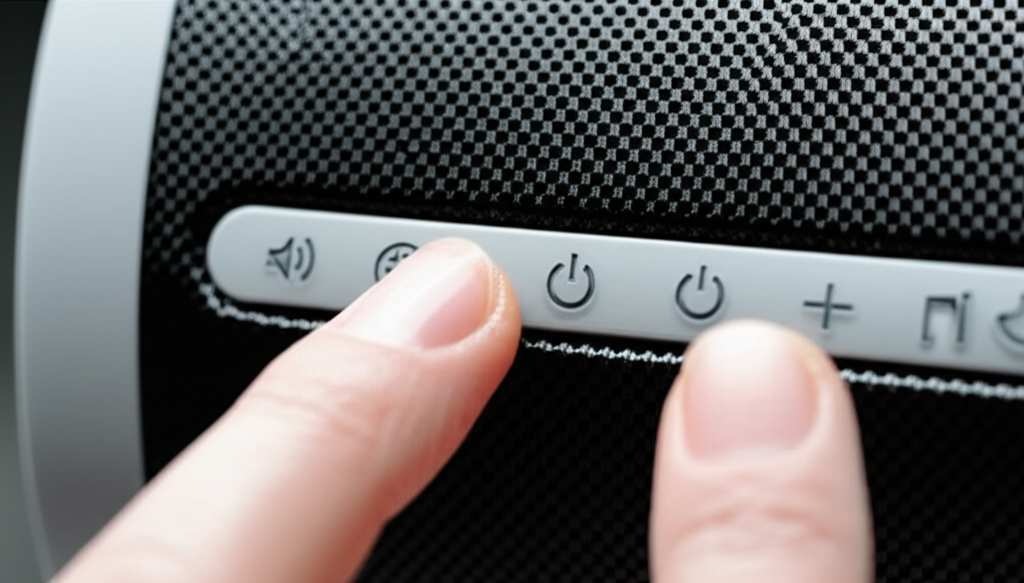
The most common combination involves holding down the Power button and the Bluetooth button simultaneously. Sometimes, it might be the Volume Up and Volume Down buttons. Here’s a typical sequence:
- Turn on your speaker. Power it up first.
- Press and hold two buttons. Find the buttons your speaker manufacturer suggests for a reset. Usually, it’s the Power button and the Bluetooth pairing button.
- Hold for a while. Keep holding these buttons down for about 10-15 seconds.
- Watch and listen. You might hear a sound or see the lights change. This signals the reset is happening.
- Release the buttons. Once you get confirmation, let them go.
- Ready to re-pair. Your speaker is now reset and ready for a new connection. Put it in pairing mode and connect your device.
Pro Tip: Always check your speaker’s manual or the manufacturer’s website for the exact button combination for your specific model. They’re usually easy to find online!
Method 3: Unpairing and Re-pairing (A Soft Reset)
Sometimes, a full factory reset isn’t needed. If your speaker is just having trouble connecting to one device, you can try “forgetting” the speaker on your device and then re-pairing it. This is a less drastic step and often works wonders.
Here’s how to do it on your phone or tablet:
- Go to your device’s Bluetooth settings. On your smartphone or tablet, find the Bluetooth menu.
- Find your speaker in the list. Look for your speaker’s name under “Paired Devices” or “My Devices.”
- “Forget” or “Unpair” the device. There’s usually an “i” icon or a gear icon next to the device name. Tap it and select “Forget Device” or “Unpair.”
- Turn off Bluetooth. Switch your device’s Bluetooth off for about 10 seconds.
- Turn Bluetooth back on. Then, switch it back on.
- Put your speaker in pairing mode. Press the Bluetooth button on your speaker until it flashes, indicating it’s ready to pair.
- Scan for devices. Your device should now find the speaker again. Select it to pair.
This method is great because it doesn’t erase any settings on the speaker itself. It just tells your phone to forget it and start the connection process fresh.
Checking Your Speaker’s Manual: Your Best Friend!
You know, the best place to find out exactly how to reset your specific Bluetooth speaker is its instruction manual. I know, I know, manuals can be a bit… dry. But they are packed with essential info!
If you’ve lost the physical manual, no worries! Most manufacturers have a support section on their website. Just search for your speaker’s model number, and you’ll likely find a downloadable PDF of the manual. It’s like a treasure map to solving your speaker woes!
For example, JBL speakers often have slightly different reset procedures than Bose or Sony. Knowing your brand helps a lot. A quick search for “[Your Speaker Brand] [Your Speaker Model] reset” on Google can also point you in the right direction.
Common Bluetooth Speaker Brands and Their Reset Tips
Every brand has its quirks, right? Let’s look at a few popular ones to give you an idea. This isn’t an exhaustive list, but it’s a great starting point!
JBL Speakers
For many JBL models, like the Flip or Charge series, a common way to reset is to turn the speaker on, then press and hold the Volume Up button and the Play/Pause button simultaneously for about 3-5 seconds. You might hear a chime or see the lights change.
Bose Speakers
Bose often uses a slightly different approach. For some portable speakers, you might need to unplug the speaker from its charging cable, then press and hold the Power button for about 10 seconds. Release it, and the speaker should power off. Turn it back on, and it’s reset.
Sony Speakers
Sony speakers can vary. Some models might have a dedicated reset button that needs a pin. Others might involve holding down the Power button and the Bluetooth button together for a longer period, like 7-10 seconds, until you hear a confirmation sound.
Anker Speakers
Anker often keeps it simple. For many of their Soundcore speakers, you might just need to press and hold the Bluetooth button for about 5-10 seconds while the speaker is on. This usually clears the pairing list.
Here’s a little table to help you visualize common reset actions. Remember, these are general guidelines!
| Speaker Brand | Common Reset Method | What to Expect |
|---|---|---|
| JBL | Volume Up + Play/Pause (hold 3-5 sec) | Chime sound or light change |
| Bose | Unplugged, hold Power button (hold 10 sec) | Speaker powers off, then back on |
| Sony | Power + Bluetooth (hold 7-10 sec) OR Reset button | Confirmation sound or light change |
| Anker (Soundcore) | Bluetooth button (hold 5-10 sec) | Clears pairing list |
See? It’s not so bad! This table gives you a quick peek at what you might need to do. Always double-check your specific model, though. A quick visit to TechRadar’s Bluetooth speaker guides can also give you insights into popular models and their features.
When to Reset Your Bluetooth Speaker
So, when is it time to hit that reset button? It’s not just for when your speaker completely stops working. Here are a few common scenarios:
- Connection Problems: Your speaker won’t pair with your device, or it keeps disconnecting. This is the most frequent reason people reset.
- Multiple Device Issues: If your speaker is connected to too many devices and gets confused about which one to listen to.
- Audio Glitches: Weird buzzing, static, or distorted sound that doesn’t go away with normal troubleshooting.
- Software Hiccups: Sometimes, a speaker’s internal software can get a bit jumbled. A reset can clear these minor bugs.
- Selling or Giving Away: Before you pass your speaker on, a factory reset ensures your personal data (like past pairings) is wiped clean. It’s good digital hygiene!
Think of a reset like restarting your computer when it’s acting slow. It’s a quick way to solve a lot of common issues without needing to be a tech wizard. It’s a fundamental troubleshooting step.
What Happens When You Reset a Bluetooth Speaker?
When you perform a factory reset, it’s like sending your speaker back to the day it left the factory. All the settings you’ve customized, like EQ profiles or saved Wi-Fi networks (if it’s a smart speaker), will be erased.
The most important thing that happens is that all previously paired Bluetooth devices are removed from the speaker’s memory. This means your phone, tablet, laptop, or any other device won’t automatically connect anymore. You’ll have to go through the pairing process again.
It’s a bit like clearing your phone’s cache and cookies. It gets rid of temporary data that might be causing problems. The speaker will then be in its default state, ready to be paired with a new device. It’s a clean slate!
Troubleshooting After a Reset
Most of the time, resetting your speaker solves the problem right away. But what if it doesn’t? Don’t panic! Here are a few things to check:
- Is the speaker charged? A low battery can cause all sorts of weird behavior, even after a reset. Make sure it has enough juice.
- Is your device’s Bluetooth on? Double-check that Bluetooth is enabled on your phone or tablet. Sometimes we forget the simple things!
- Are you in pairing mode? After a reset, your speaker needs to be put back into pairing mode. Usually, this involves pressing and holding the Bluetooth button until a light flashes or you hear a sound.
- Is the speaker too far away? Bluetooth has a limited range. Try bringing your device and speaker closer together, especially during the initial pairing.
- Interference: Other wireless devices like microwaves or Wi-Fi routers can sometimes interfere. Try moving them further apart.
- Check for Firmware Updates: Some speakers can be updated via an app. Check the manufacturer’s app to see if there’s a firmware update available. Updates often fix bugs.
If you’ve tried all these steps and your speaker is still giving you trouble, it might be time to contact the manufacturer’s customer support. They can offer more specific help for your model. You can often find great support articles on sites like CNET’s troubleshooting section.
Comparing Speaker Features: What Matters?
When you’re looking for a new speaker, or just trying to understand your current one better, certain features stand out. Knowing what they mean can help you get the best sound experience. Let’s break down a few key ones:
Bluetooth Version
This is like the speed limit for your wireless connection. Newer versions like Bluetooth 5.0 or 5.1 are faster, more stable, and use less battery than older versions (like 4.0 or 4.2). This means fewer dropouts and better sound quality.
Battery Life
This is how long your speaker can play music on a single charge. Most portable speakers offer anywhere from 6 to 20+ hours. It’s super important if you plan to use it outdoors or for long periods without access to a power outlet.
Water Resistance (IP Rating)
Got an IPX7 rating? That means your speaker can be submerged in up to 1 meter of water for 30 minutes! An IPX4 rating means it can handle splashes. This is crucial for pool parties or using it in the bathroom.
Sound Quality
This is subjective, but generally, look for features like clear highs, solid mids, and good bass. Some speakers have passive radiators for better bass response. Others might have dedicated tweeters for crisp treble.
Let’s look at a quick comparison of some hypothetical speaker types to see how these features stack up:
| Feature | Budget Bluetooth Speaker | Mid-Range Portable Speaker | Premium Outdoor Speaker |
|---|---|---|---|
| Bluetooth Version | 4.2 | 5.0 | 5.1 |
| Battery Life | 8 hours | 12 hours | 18 hours |
| Water Resistance | Splashproof (IPX4) | Waterproof (IPX7) | Waterproof & Dustproof (IP67) |
| Sound Profile | Decent, a bit muddy | Clear mids, balanced bass | Rich bass, crisp highs, good detail |
| Typical Price | $30 – $60 | $70 – $150 | $180 – $300+ |
This table shows you how features often scale with price. If you need something for casual listening at home, a budget speaker might be fine. But if you’re heading to the beach or a camping trip, investing in a waterproof model with longer battery life (like the mid-range or premium options) makes a big difference!
Frequently Asked Questions (FAQ)
Got more questions? No worries, we’ve got you covered!
Q1: Will resetting my Bluetooth speaker delete my music?
A: Nope! Resetting the speaker only erases its settings and Bluetooth pairing history. Your music is stored on your phone or other device, not the speaker itself. So, all your tunes are safe!
Q2: How often should I reset my Bluetooth speaker?
A: You don’t need to reset it regularly. Only reset it if you’re experiencing connection issues, audio problems, or if you’re preparing to sell it. It’s a troubleshooting step, not routine maintenance.
Q3: My speaker still won’t connect after resetting. What else can I do?
A: Make sure your device’s Bluetooth is on and try “forgetting” the speaker in your device’s Bluetooth settings, then re-pair. Also, check if the speaker needs a firmware update via its manufacturer’s app. If issues persist, contact customer support.
Q4: Can I reset my speaker without a paperclip?
A: If your speaker has a dedicated reset button, you’ll need something small and pointy like a paperclip, pen tip, or toothpick. If it uses a button combination, you won’t need any extra tools!
Q5: Does resetting improve sound quality?
A: A reset itself doesn’t usually improve sound quality directly. However, if poor sound quality was caused by software glitches or connection issues, a reset can resolve those problems, leading to clearer audio. It clears out the digital noise!
Q6: Is there a difference between unpairing and factory resetting?
A: Yes! Unpairing (or “forgetting” a device) is done on your phone or tablet and only removes that specific device’s connection to the speaker. A factory reset is done on the speaker itself and clears all paired devices and settings from the speaker.
Q7: My speaker is completely dead and won’t turn on. Can a reset fix this?
A: A reset is for software or connectivity issues, not for a speaker that won’t power on at all. If your speaker is dead, try charging it fully, checking the power cable, or contacting support. It might be a hardware problem.
Conclusion: Get Your Sound Back On Track!
And there you have it! We’ve walked through why your Bluetooth speaker might act up and, more importantly, how to fix it with a simple reset. Whether it’s a dedicated button or a clever button combo, you now know the tricks to get your speaker back in sync.
Remember, technology can be a bit finicky sometimes, but a quick reset is often the magic wand you need. Don’t let a stubborn speaker get you down. You’ve got the power to solve it!
So, next time your speaker decides to play hard to get, you’ll know exactly what to do. Try these steps, and you’ll likely be enjoying your favorite podcasts, music, or movies with clear, crisp sound again in minutes.
Now go enjoy amazing sound and make every moment louder and better!