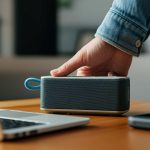
Need to reset your Blackweb Bluetooth speaker? It’s usually a simple process! Just hold down the power and Bluetooth buttons simultaneously for about 10-15 seconds until the lights flash or the speaker turns off. This should clear any connection issues and get your sound back.
Hey there, tech explorers! Max here from AffTechy.com. You know, there’s nothing quite like the freedom of wireless sound. Whether it’s blasting your favorite tunes, diving into a podcast, or making movie nights epic, a good Bluetooth speaker is a total game-changer. I remember when I first got my Blackweb speaker; it was like unlocking a whole new level of awesome for my backyard BBQs!
But let’s be real, sometimes tech throws us a curveball. Maybe your Blackweb speaker isn’t connecting like it used to, or it’s acting a little… strange. It can be super frustrating when your music cuts out or your device just won’t pair. You might feel like you’re shouting into the void, or worse, thinking your speaker is broken. Don’t worry, it happens to the best of us, and usually, it’s a super simple fix.
Picking out the right tech can sometimes feel like navigating a maze, right? So many buttons, so many settings! But when it comes to getting your Blackweb Bluetooth speaker back in tip-top shape, it’s often much easier than you think. We’re going to dive into how to give it a fresh start. It’s like hitting the reset button on your day!
Think of resetting your speaker as giving it a quick nap and a fresh start. It helps clear out any little glitches that might be making it grumpy. We’ll walk through the steps together, nice and easy. Let’s break it down so you can get back to enjoying your sound in no time.
Why Might You Need to Reset Your Blackweb Speaker?
So, why would you even want to reset your Blackweb Bluetooth speaker in the first place? It’s a great question! Think of it like restarting your computer when it’s being a bit slow. A reset can fix a lot of common annoyances.
Sometimes, your speaker might not be discovered by your phone or tablet. Or maybe it’s connected, but no sound is coming out. These little hiccups can be super annoying when you just want to relax and listen to some music. It could also be that your speaker is paired with too many devices, and it’s getting confused about which one to connect to.
Another common reason is if the speaker is behaving erratically. Maybe the volume jumps around on its own, or it keeps disconnecting. These are all signs that a little refresh might be just what the doctor ordered. A reset helps your speaker forget its previous connections and settings, allowing it to start fresh.
Understanding Your Blackweb Speaker Basics
Before we jump into resetting, let’s get friendly with your Blackweb speaker. Most Blackweb speakers have a few key buttons you’ll find on the top or side. You’ll usually see a power button, often marked with a circle and a line (the universal power symbol). Then there’s usually a Bluetooth button, which might look like the Bluetooth logo itself.
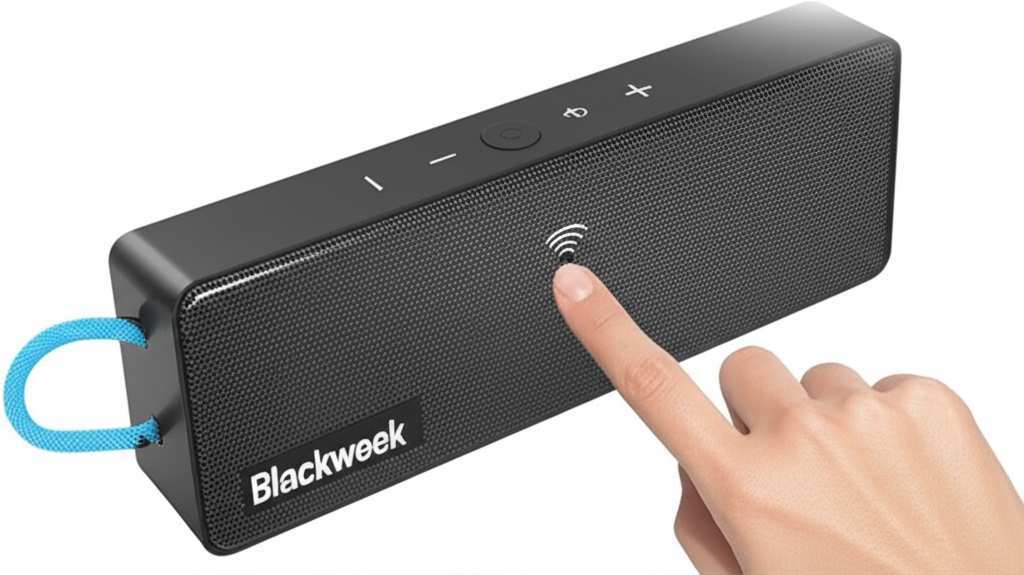
You might also find volume up and down buttons, and sometimes a play/pause button. Knowing where these are is super helpful. It’s like knowing the layout of your kitchen before you start cooking! These buttons are your main tools for controlling your speaker and performing actions like resetting.
The Simple Steps to Reset Your Blackweb Bluetooth Speaker
Alright, ready to make your speaker like new again? It’s a super straightforward process. We’re going to focus on the most common reset method, which usually involves a combination of buttons.
Here’s how to do it, step-by-step:
-
Power Off Your Speaker
First things first, make sure your Blackweb speaker is turned off. If it’s on, press and hold the power button for a few seconds until the lights go out. This ensures you’re starting from a clean slate.
-
Locate the Reset Buttons
Find the Power button and the Bluetooth button on your speaker. They are usually grouped together or easily accessible on the top panel. Take a moment to identify them if you haven’t already.
-
Press and Hold Both Buttons
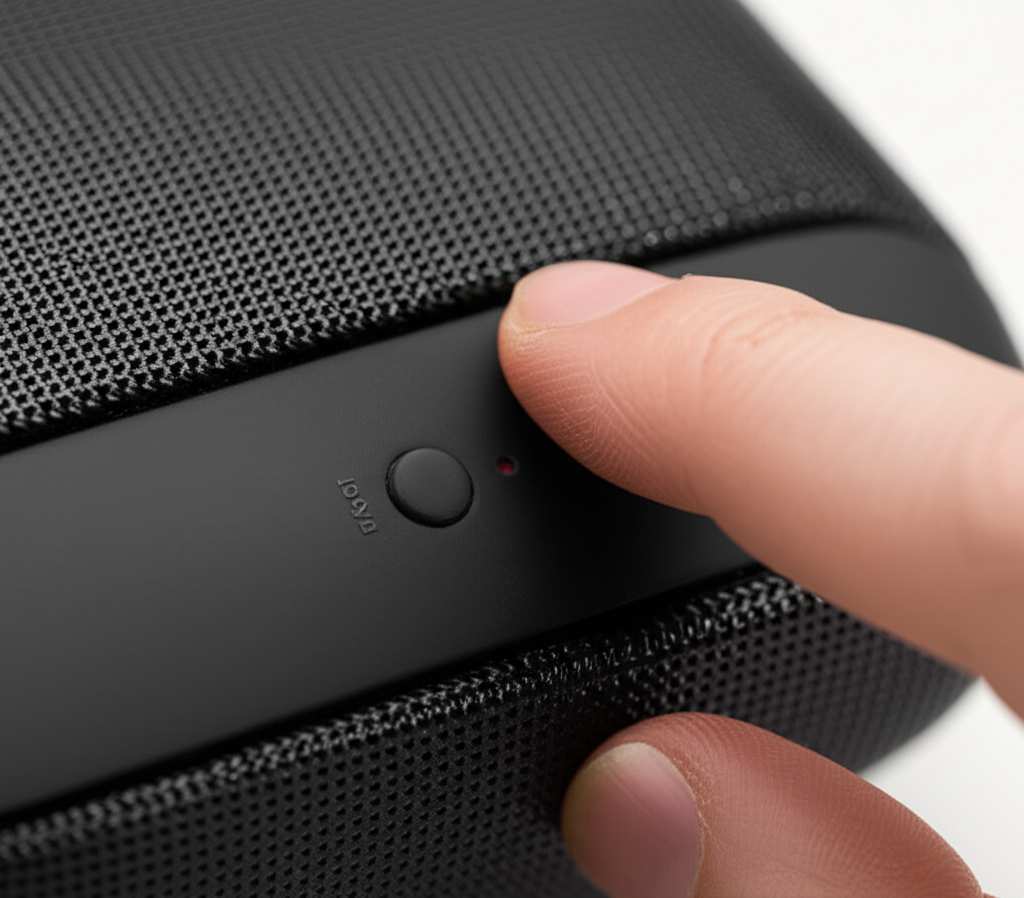
This is the magic step! Press and hold down BOTH the Power button AND the Bluetooth button at the same time. You need to keep them held down.
-
Wait for the Indicator Lights
Keep holding those buttons. You’ll want to watch the indicator lights on your speaker. After about 10 to 15 seconds, you should see the lights flash or change color. Some models might even make a sound or turn off completely.
-
Release the Buttons
Once you see the lights flash or hear a confirmation sound, you can release both buttons. Your speaker has now been reset to its factory settings!
-
Turn Your Speaker Back On
Now, turn your speaker back on by pressing the power button. It should start up like it did when you first got it.
-
Re-Pair Your Devices
Your speaker has forgotten all previous connections. You’ll need to put it back into pairing mode (usually by pressing the Bluetooth button) and then find it on your phone or tablet’s Bluetooth list to connect again. It’s like introducing them for the first time!
See? Not so scary! This method works for many Blackweb models, especially those that don’t have a dedicated reset pinhole. It’s the universal language of resetting Bluetooth devices.
What to Do If the Standard Reset Doesn’t Work
Sometimes, tech can be a little stubborn. If holding the power and Bluetooth buttons doesn’t do the trick, don’t despair! Blackweb, like many brands, might have slightly different models with unique ways to reset.
Some speakers might have a tiny reset pinhole. You’d need a paperclip or a similar thin, pointy object to press it. You usually have to hold this down for a few seconds while the speaker is on or plugged in. Check your speaker’s manual if you have it. It’s the ultimate guide for your specific model.
Another thing to consider is the battery level. A very low battery can sometimes cause weird behavior. Make sure your speaker is charged before attempting a reset. It’s always good practice to have a good charge on your device.
When to Consider a Factory Reset vs. a Simple Re-Pair
It’s good to know the difference between simply unpairing a device and doing a full factory reset. If you’re just having trouble connecting to one specific phone, you might try unpairing the speaker from your phone’s Bluetooth settings and then pairing it again. That’s often enough.
A factory reset is a bit more drastic. It wipes everything clean, including all paired devices and any custom settings. You’d typically go for a factory reset when you’re experiencing persistent connection issues, the speaker is acting up in multiple ways, or you’re giving the speaker to someone else and want to clear your personal data.
Think of it this way: unpairing is like saying goodbye to one friend and hello again. A factory reset is like throwing a big party and inviting everyone to meet for the first time! It’s a clean slate for everyone.
Troubleshooting Common Blackweb Speaker Issues
Let’s talk about some other common issues you might run into with your Blackweb speaker and how a reset might help.
Speaker Won’t Turn On
If your speaker is completely dead, a reset won’t magically bring it to life. First, check if it’s charged. Plug it in using the correct charger and let it juice up for a while. If it still won’t turn on after charging, there might be a hardware issue, and you might need to contact Blackweb support.
Bluetooth Pairing Problems
This is where a reset shines! If your speaker isn’t showing up in your device’s Bluetooth list, or it keeps failing to connect, a factory reset is often the best solution. It clears out any corrupted pairing data. After the reset, make sure your speaker is in pairing mode (usually indicated by a flashing blue light) and try searching for it again on your phone.
Sound Cutting Out or Distorted
This can be due to interference, distance from your device, or software glitches. A reset can help with software glitches. Also, try moving your speaker closer to your device. Obstacles like walls or even other electronics can sometimes interfere with the Bluetooth signal. Keeping a clear line of sight is always best.
Speaker Not Responding to Buttons
If none of the buttons seem to be working, a reset is a good first step. It can help reinitialize the speaker’s control system. If the buttons still don’t work after a reset, it might indicate a physical problem with the button itself or the internal circuitry.
Tips for Keeping Your Blackweb Speaker in Great Shape
A little care goes a long way! Here are some easy tips to keep your Blackweb speaker sounding great and working smoothly.
-
Keep it Clean
Dust and grime can get into buttons and ports. Gently wipe your speaker with a soft, dry cloth. Avoid using liquids or harsh chemicals.
-
Charge Wisely
Avoid letting the battery drain completely too often. Try to charge it when it gets low, but don’t overcharge it constantly. Follow the manufacturer’s guidelines for charging.
-
Protect from the Elements
If your speaker is water-resistant, that’s awesome! But don’t push it. Extreme temperatures, direct sunlight for too long, or submersion beyond its rating can damage it.
-
Update Firmware (If Available)
Some speakers get firmware updates that can improve performance or fix bugs. Check the Blackweb website or app if your model supports updates. It’s like giving your speaker a software tune-up!
-
Store Properly
When you’re not using it for a while, store it in a cool, dry place. A protective case can also be a good investment.
Taking these small steps can really help extend the life of your speaker and ensure you get the best sound experience possible.
Blackweb Speaker Models and Resetting Variations
Blackweb offers a range of Bluetooth speakers, from compact portable units to larger soundbars. While the general button-press reset is common, there might be slight variations.
For instance, some of the older models might have a slightly different button combination. Newer models might integrate more complex functions through a companion app, although a physical reset is usually still available. It’s always worth checking the specific model number of your speaker and looking up its manual online if you’re unsure.
Here’s a quick look at how some common types of Bluetooth speakers are generally reset, which can give you an idea:
| Speaker Type | Common Reset Method | Notes |
|---|---|---|
| Standard Portable Bluetooth Speaker | Hold Power + Bluetooth buttons (10-15 sec) | Most common. Lights flash or speaker powers off. |
| Speaker with Reset Pinhole | Use paperclip on pinhole while powered on | Requires a thin object; usually held for 5-10 sec. |
| Smart Speaker (e.g., with voice assistant) | Often through companion app or specific button combo | May involve muting and Bluetooth buttons, or a dedicated reset button. |
| Soundbar/Home Theater Speaker | May involve holding power and volume down buttons, or using a remote | Check user manual; often more complex than portable units. |
This table gives you a general idea, but remember, your specific Blackweb model might have its own quirks. The key is to look for the power and Bluetooth buttons, as they are almost always involved in a reset.
Where to Find More Help for Your Blackweb Speaker
If you’ve tried everything and your speaker is still giving you trouble, don’t worry! There are places to get more help.
The first stop should always be the official Blackweb support website. They often have FAQs, troubleshooting guides, and contact information. You can also search for your specific speaker model online. Sometimes, other users have encountered the same issue and shared their solutions on tech forums.
For example, sites like CNET often have in-depth reviews and troubleshooting articles for various tech gadgets. You might find helpful tips there too. Getting support from the manufacturer or reliable tech communities is a great way to solve persistent problems.
Frequently Asked Questions (FAQ)
Let’s tackle some common questions beginners might have about resetting their Blackweb Bluetooth speaker.
Q1: How long do I need to hold the buttons to reset my Blackweb speaker?
You’ll typically need to hold the Power and Bluetooth buttons down simultaneously for about 10 to 15 seconds. You’re looking for a sign like flashing lights or the speaker turning off to know the reset has worked.
Q2: Will resetting my Blackweb speaker delete all my music?
No, resetting your speaker will not delete any music files. Your music is stored on your phone, tablet, or computer. The reset only clears the speaker’s settings, like saved Bluetooth pairings.
Q3: What if my Blackweb speaker doesn’t have a Bluetooth button?
Some models might combine functions. Look for buttons that control pairing or mode switching. If you can’t find a specific Bluetooth button, check your speaker’s manual or look for a button that might be labeled with a wireless or connection symbol. Sometimes, holding the power button for a longer duration might trigger a reset.
Q4: Do I need to be connected to my phone to reset the speaker?
No, you do not need to be connected to your phone or any other device to reset your Blackweb speaker. The reset process is done directly on the speaker itself.
Q5: My speaker still won’t connect after resetting. What else can I try?
After a reset, make sure your speaker is in pairing mode (usually indicated by a flashing light). Then, on your phone or tablet, go to Bluetooth settings, “forget” or “unpair” the Blackweb speaker if it’s listed, and then search for it again to pair. Also, ensure your device’s Bluetooth is turned on and try restarting your phone.
Q6: Can I reset my Blackweb speaker while it’s plugged in?
Yes, you can usually perform a reset whether the speaker is running on battery power or plugged in and charging. Some reset methods, especially those using a pinhole, might even require the speaker to be powered on and plugged in.
Q7: Is there a difference between resetting and unpairing?
Yes, there is! Unpairing means you just disconnect the speaker from a specific device. Resetting (or factory resetting) clears all previous pairings and settings from the speaker itself, returning it to its original, out-of-the-box state.
Conclusion: Get Back to the Beat!
So there you have it! You’ve learned how to give your Blackweb Bluetooth speaker a quick and easy reset. It’s a simple trick that can solve a whole host of annoying problems, from connection fails to general weirdness. Remember, it’s usually just a matter of holding down those power and Bluetooth buttons for a bit.
Don’t let a little tech hiccup stop your groove. With these steps, you’re equipped to troubleshoot and get your speaker back to blasting your favorite tunes. Give it a try, and you’ll likely be surprised at how quickly you can get your sound system up and running again.
Now go forth and enjoy that amazing, wireless sound! Make every moment louder, clearer, and more enjoyable. Happy listening!