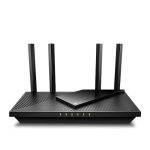
To reset your Wi-Fi router quickly, simply press and hold the reset button on the back of the device for about 10-15 seconds until the lights blink. This simple step will restore your router to its factory settings, often resolving connectivity issues.
Resetting your Wi-Fi router can seem daunting, but it’s often the fastest way to fix stubborn connection problems or erase incorrect settings. Whether you’re experiencing slow speeds, dropped signals, or just want a fresh start, a quick reset might do the trick. In this article, I’ll guide you through the simple steps to reset your router safely and effectively. By understanding the process, you’ll be able to troubleshoot your network issues on your own and get back to seamless internet use in no time.

How to Reset WiFi Router: A Step-by-Step Guide for Better Internet Connection
Why Should You Reset Your WiFi Router?
Resetting your WiFi router can resolve numerous connectivity issues. If your internet is slow, drops frequently, or you cannot connect at all, a reset might be the simplest fix. It also helps clear temporary glitches and restore your router to its default settings, which can solve configuration problems.
Different Types of Router Resets
There are two main types of resets for WiFi routers: soft reset and hard reset. A soft reset reboots the device without erasing any settings. A hard reset restores the router to factory defaults, erasing all customized configurations.
Soft Reset
A soft reset is quick and involves simply restarting your router. It can fix minor temporary issues. Usually, a soft reset is done by turning the router off and on again.
Hard Reset
A hard reset is more comprehensive. It removes all personal settings, including WiFi network names and passwords. This process is useful if you forget your login details or want to refresh your network configuration.
How to Prepare for Resetting Your Router
Before performing a reset, gather some important information and take necessary precautions. Write down your WiFi network name (SSID) and password if you plan to set up your network again. Also, ensure that all your connected devices are saved, as a reset can disconnect them.
Methods to Reset Your WiFi Router
Soft Reset Using Power Button
Most routers have a power button. To perform a soft reset:
- Turn off the router by pressing the power button or unplugging it from the power outlet.
- Wait for about 10 seconds to ensure all internal processes shut down.
- Turn the router back on or plug it in again.
- Allow the router a few minutes to reboot and reconnect to the internet.
This method fixes minor issues and is quick to do.
Hard Reset via Reset Button
Many routers include a physical reset button. Follow these steps:
- Locate the reset button on the back or bottom of your router. It is often a small hole or button labeled “Reset.”
- Use a paperclip or pin to press and hold the reset button for about 10-15 seconds.
- Release the button once the router lights start blinking or after the specified time.
- Wait for the router to restart and restore factory settings.
Note: Some routers may require a longer press for a full reset.
Resetting Using Router’s Web Interface
You can also reset your router through its web settings:
- Connect your device to the router via WiFi or Ethernet cable.
- Open a web browser and type the router’s IP address (commonly 192.168.1.1 or 192.168.0.1).
- Log in with your username and password. Default credentials are often “admin” and “password.”
- Navigate to the “Settings” or “Advanced” tab.
- Find the “Factory Reset” or “Restore Defaults” option.
- Click to confirm and wait for the router to reboot.
This method allows you to reset without physically pressing buttons.
Important Tips Before Resetting
– Backup your current router settings if possible. Many routers allow saving configurations.
– Note down your WiFi name and password if you plan to set up your network again.
– Be aware that resetting will disconnect all devices temporarily.
– Ensure you have access to administrative credentials if needed.
Reconfiguring Your Router After Reset
Once the reset is done, you will need to set up your router again:
- Connect to the default WiFi network or Ethernet.
- Log into the router’s web interface or use the setup wizard.
- Change default login credentials for security.
- Set your preferred WiFi network name and password.
- Configure any other settings like parental controls or guest networks.
Tips for Maintaining Your WiFi Router Performance
To keep your WiFi connection stable:
- Keep your router firmware updated regularly.
- Place your router in a central location.
- Avoid obstacles and interference from other electronic devices.
- Restart your router periodically to refresh the connection.
- Change WiFi channels if you experience interference.
When to Contact Technical Support
If resetting and reconfiguring do not resolve your issues:
- Check for hardware damage or overheating.
- Consult your Internet Service Provider for assistance.
- Replace your router if it is outdated or malfunctioning.
Related Topics for Better Network Management
Beyond resetting your router, consider exploring:
- Upgrading to a higher-speed internet plan.
- Using WiFi extenders or mesh networks for better coverage.
- Securing your WiFi with strong passwords and encryption.
- Monitoring your network for unwanted devices.
By understanding the different methods to reset your WiFi router, you can troubleshoot connectivity issues efficiently. Proper maintenance and configuration will ensure a more reliable and faster internet experience. Remember, regular resets combined with good network practices keep your connection stable and secure.
How to Reset a Router | Internet Setup
Frequently Asked Questions
What steps should I take before resetting my Wi-Fi router?
Before resetting your Wi-Fi router, ensure that all important devices are connected and that you have any login credentials needed for reconfiguration. Save any custom settings or network configurations, as a reset will restore the device to its default state. Also, check your internet connection to confirm if the issue is with the router or your service provider.
How do I perform a soft reset of my Wi-Fi router?
To perform a soft reset, simply unplug the router from the power source, wait for about 10 to 15 seconds, and then plug it back in. This process helps to clear temporary files and refresh the device’s memory, often resolving minor connectivity issues without deleting customized settings.
Can I reset my router using the reset button on the device?
Yes. Locate the reset button on the back or bottom of your router, typically a small hole requiring a paperclip to press. Hold the button down for about 10-15 seconds until the device’s lights flash or it restarts. This will reset all settings to factory defaults. Make sure to note down your configurations if you plan to reapply them later.
What should I do after resetting my Wi-Fi router?
After a reset, reconnect to the router’s default Wi-Fi network if needed. Access the router’s admin panel through a web browser using the default IP address (commonly 192.168.1.1) or URL provided in the manual. Reconfigure your network settings, such as SSID, password, and security options, and test your internet connection to ensure everything works correctly.
How long does it take for a Wi-Fi router to restart after a reset?
The restart process usually takes about 2 to 5 minutes. During this time, the router completes its reboot cycle and applies default settings. Wait until the indicator lights stabilize, signaling that the device is fully operational before attempting to reconnect your devices or modify any settings.
Final Thoughts
To reset your wifi router, locate the reset button usually found at the back of the device. Press and hold this button for about 10-15 seconds using a paperclip or pin. This process restores the router to factory settings, often resolving connectivity issues.
Always ensure your device is powered on before resetting. After the reset, reconfigure your network settings to regain internet access. Remember, how to reset wifi router effectively fixes many common problems with minimal effort.