To quickly configure your Wi-Fi router, connect it to your modem, access the admin panel through a web browser, and follow the setup wizard to customize your network settings like SSID and password. This simple process ensures your Wi-Fi is secure and running efficiently in minutes.
Configuring a Wi-Fi router might seem daunting, but with a few straightforward steps, you’ll have your home network up and running smoothly. First, connect your router to the modem and power it on. Then, open a web browser and enter the router’s IP address to access the admin interface. From there, you can set your network name, secure it with a password, and adjust other settings like guest networks or parental controls. Whether you’re a tech novice or just need a quick refresher, this guide will walk you through the essentials to make your wireless experience secure and reliable.

How to Configure WiFi Router: A Complete Guide
Setting up your WiFi router properly ensures a stable and secure internet connection in your home or office. This guide will walk you through each step of configuring your router with clear instructions. By following these steps, you can optimize your WiFi network for better speed, security, and reliability.
Understanding Your Router Before Configuration
Before diving into setup, it’s important to understand the basic parts of your router. Familiarize yourself with the router’s physical features, like the power button, Ethernet ports, and the reset button. Also, identify the default network name (SSID) and password printed on the router or its original packaging.
Knowing your router’s IP address is key to accessing its admin panel. Usually, routers use IP addresses like 192.168.0.1 or 192.168.1.1. You can find this information in the router’s manual or on a sticker attached to the device.
Connecting Your Router for the First Time
Start by connecting your router to a power source, then use an Ethernet cable to connect it to your modem. Plug one end of the cable into the modem’s Ethernet port and the other into the router’s WAN or Internet port. This setup allows your router to communicate with your internet provider’s network.
Next, turn on your router and wait a few minutes for it to initialize. You’ll notice blinking lights on the device, which indicate network activity. Once the lights stabilize, you’re ready to access the router’s setup interface.
Accessing the Router’s Admin Panel
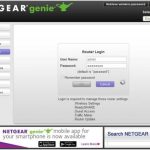
On your computer or smartphone, open a web browser. Type the router’s default IP address into the address bar, then press Enter. You’ll be prompted to enter a username and password. These are typically printed on the router or included in the manual.
Common default credentials include admin/admin or admin/password. If these don’t work, consult your router’s manual or look for a label on the device. Once logged in, you can configure your network settings.
Changing the Default Login Credentials
One of the first security steps is changing your username and password. This prevents unauthorized access to your router’s settings. Navigate to the administration or security section of the interface to update these credentials.
Create a strong password that includes a mix of uppercase and lowercase letters, numbers, and special characters. Remember to save your new login details securely.
Configuring Wireless Settings
Setting the WiFi Network Name (SSID)
Choose a unique network name that’s easy for you to recognize. Avoid using personal information like your name or address. This name helps devices identify your WiFi network among others nearby.
Choosing the WiFi Frequency Band
Modern routers operate on two main bands: 2.4 GHz and 5 GHz. The 2.4 GHz band offers wider coverage but lower speeds, while the 5 GHz band provides faster speeds with a shorter range. Select the band that best fits your needs.
Setting Up a Secure Password
Create a strong password for your WiFi network to prevent unauthorized access. Use at least 12 characters combining uppercase, lowercase, numbers, and symbols. Enable WPA3 or WPA2 encryption for maximum security.
Optimizing Network Security
Enabling Encryption Protocols
Access the wireless security settings and choose the highest encryption available, such as WPA3 if supported. This protects your data from potential intruders.
Disabling WPS
Wi-Fi Protected Setup (WPS) is a feature that simplifies connection setup but can be a security risk. Disable WPS in the router’s settings for added protection.
Updating Firmware
Regularly check the router manufacturer’s website for firmware updates. Updating ensures you have the latest security patches and performance improvements. Follow the manufacturer’s instructions to apply updates safely.
Configuring Advanced Settings
Setting Up Guest Networks
Guest networks allow visitors to connect to the internet without accessing your main network. Enable this feature and assign a separate name and password. This keeps your primary network secure.
Quality of Service (QoS) Settings
QoS prioritizes bandwidth for specific devices or activities, such as streaming or gaming. Adjust these settings to improve performance for your most critical devices.
MAC Address Filtering
This feature lets you specify which devices can connect to your WiFi based on their unique MAC addresses. Use it as an additional layer of security, especially in sensitive environments.
Saving and Applying Your Configuration
After making all necessary changes, click the Save or Apply button in the admin panel. Your router may reboot to implement the new settings. Wait for the process to complete before reconnecting your devices.
Test your WiFi connection on multiple devices to confirm everything works correctly. Ensure your network is secure and performing as expected.
Additional Tips for Maintaining Your WiFi Router
- Regularly change your WiFi password every few months.
- Keep your router firmware up to date.
- Place your router in a central location to maximize coverage.
- Limit the number of devices connected simultaneously.
- Monitor network activity for any suspicious devices or behavior.
Taking these steps will help you maintain a fast, secure, and reliable WiFi network. Remember to document your settings and keep your router in a safe, accessible place for future adjustments.
THE EASIEST WIRELESS ROUTER SETUP GUIDE!
Frequently Asked Questions
How can I change the default password of my Wi-Fi router?
To update the default password, access your router’s admin panel by entering its IP address into your web browser. Log in with the current username and password. Navigate to the wireless or security settings section, locate the password or passphrase field, and enter a new, strong password. Save your changes to ensure your Wi-Fi network remains secure from unauthorized access.
What steps should I follow to set up a new Wi-Fi network name?
First, log into your router’s administrative interface using its IP address. Look for the wireless or network settings section. Find the field labeled SSID or Network Name, delete the current name if necessary, and enter your desired network name. Save the settings, and your router will broadcast the new network name, making it easy for devices to connect.
How do I enable or disable the guest Wi-Fi network?
Access your router’s admin panel through a web browser by entering its IP address. Locate the wireless settings or guest network section. Turn on or off the guest network option depending on your needs. If enabling, you can set a separate password for guests to protect your main network. Save your settings to activate or deactivate the guest network immediately.
What is the process to update the router’s firmware for better performance?
Log into the router’s admin panel using its IP address. Find the firmware update section, which may be under maintenance or system settings. Download the latest firmware file from the manufacturer’s official website. Upload the firmware through the admin interface and follow the prompts to complete the update. Restart your router if required, and check that the firmware version has updated successfully.
How can I prioritize devices on my Wi-Fi network for better bandwidth?
Access the router’s admin page and locate the Quality of Service (QoS) settings. Enable QoS if it isn’t already active. Assign priority levels to specific devices or applications based on your needs. Save the configuration, and the router will allocate bandwidth accordingly, ensuring important devices receive better internet speeds during peak usage.
Final Thoughts
Configuring a WiFi router is a straightforward process that improves your internet experience. First, connect your router to the modem and access the setup page through a web browser. Enter your default login details and customize your network name and password for security.
Adjusting settings like bandwidth and security protocols helps optimize performance. Remember to update firmware regularly to maintain security and stability.
In conclusion, understanding how to configure wifi router allows you to create a secure and efficient network tailored to your needs. Proper setup ensures reliable internet access and protection for your devices.