Secure your WiFi router now to protect your personal data from hackers and unauthorized access. Changing default passwords, enabling WPA3 encryption, and keeping your firmware updated are quick yet powerful steps to fortify your network. With cyber threats on the rise, it’s essential to take proactive measures to keep your online space safe.
To secure your WiFi router effectively, you should change the default login credentials, enable strong encryption like WPA3, and regularly update your router’s firmware. Using a complex, unique password for your WiFi and disabling remote management features adds extra layers of protection. These simple practices can significantly reduce the risk of unauthorized access and ensure your internet connection remains private and secure.
Jumping straight into securing your WiFi router is crucial because your home network is the gateway to all your connected devices and personal information. If left unprotected, hackers can intercept your data, hijack devices, or even launch attacks on your network. Luckily, with just a few tweaks, you can create a robust defense that keeps intruders out and your online life safe. Staying vigilant and proactive is the key to maintaining a secure and worry-free internet experience.

How to Secure Wifi Router: Simple Steps to Protect Your Network
Understanding the Importance of Securing Your Wifi Router
Securing your wifi router is crucial to protect personal data and prevent unauthorized access. Hackers often target unsecured networks to steal sensitive information or cause disruptions. A secure router helps safeguard your online activities and connected devices from cyber threats.
Change the Default Login Credentials
Many routers come with generic usernames and passwords provided by manufacturers. These are easy targets for hackers. Always update your router’s admin username and strong password immediately after setup. Use complex combinations of letters, numbers, and symbols to enhance security.
Creating a Strong Password
A strong password should be at least 12 characters long. Incorporate a mix of uppercase and lowercase letters, numbers, and special characters. Avoid common words or phrases that are easy to guess. Consider using a password generator for added security.
Update Router Firmware Regularly
Manufacturers release firmware updates to fix security vulnerabilities and improve performance. Check your router’s settings for automatic updates or manually download the latest firmware from the manufacturer’s website. Keeping firmware current closes security gaps and enhances reliability.
How to Check and Update Firmware
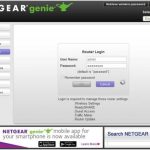
Log into your router’s admin panel through a web browser. Locate the firmware update section, typically under “System” or “Maintenance.” Follow prompts to download and install updates securely. Restart your router after updating to ensure changes take effect.
Enable WPA3 or WPA2 Encryption
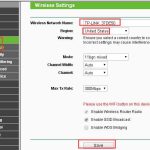
Encryption protects data transmitted over your wifi network. Enable the latest security protocols, such as WPA3 or WPA2, through your router’s wireless settings. Avoid older protocols like WEP, which are vulnerable to attacks.
Selecting the Best Encryption Method
Navigate to wireless security options. Choose WPA3 if your router and devices support it, as it offers better protection. If not, WPA2 is still secure but ensure it uses AES encryption for optimal safety.
Disable WPS to Prevent Unauthorized Access
Wi-Fi Protected Setup (WPS) simplifies connecting devices but introduces security risks. Many hackers exploit WPS vulnerabilities to gain access. Disable WPS via your router’s settings to strengthen security.
How to Disable WPS
Access your router’s admin panel. Find the WPS setting, usually under wireless or advanced settings. Turn WPS off completely and save your settings. This small step can prevent potential hacking attempts.
Set Up a Guest Network
A separate guest network isolates visitors from your main devices, reducing security risks. Enable the guest network feature on your router and assign it a unique password. Limit access rights to prevent guests from changing settings.
Benefits of a Guest Network
Guest networks help keep your primary devices safe from malware or unwanted access by visitors. Use a different SSID and password for guests. Regularly update guest passwords for added security.
Change the Default SSID and Hide Your Network
Default SSIDs often reveal your router model, making it easier for hackers to find vulnerabilities. Customizing your network name adds a layer of obscurity. Hiding your SSID prevents your network from appearing in nearby device scans.
How to Change and Hide SSID
Log into your router’s admin panel and find the wireless settings section. Enter a unique name for your network, avoiding personal information. Enable the option to hide the SSID broadcast to make your network less visible.
Use Strong Firewall Settings
Most routers come with built-in firewalls that monitor incoming and outgoing traffic. Enable and configure your firewall to block suspicious activities. You can also customize rules for added security.
Configuring Firewall Settings
Access your router’s security or firewall menu. Turn on the firewall if it’s off. Set rules to restrict access from unknown IP addresses and monitor activity logs for unusual behavior. Regularly review these settings to maintain security.
Implement Device and Network Monitoring
Regularly check connected devices to identify unauthorized access. Use your router’s management tools or third-party apps to monitor network activity. Promptly disconnect unknown devices to prevent potential threats.
Identifying Unfamiliar Devices
Review the list of connected devices in your router’s dashboard. Look for unfamiliar device names or IP addresses. Change your network password immediately if you notice suspicious activity.
Additional Security Tips
Consider disabling remote management unless necessary, as it can be exploited by hackers. Limit the number of devices connected to your network. Use VPNs for added privacy when browsing online.
Using a Virtual Private Network (VPN)
A VPN encrypts your internet traffic, making it difficult for outsiders to intercept your data. Install a reputable VPN on devices or set one up on your router. This extra layer of security keeps your online activities private.
Securing your wifi router involves multiple proactive steps that significantly reduce security risks. Regularly updating your firmware, changing default credentials, and using strong encryption are foundational. Implementing additional measures like guest networks and device monitoring further shields your digital environment. By actively managing your router’s settings, you maintain control over your network’s safety and protect yourself from cyber threats.
5 EASY Ways to Secure Your Home WiFi Network (& protect your devices!)
Frequently Asked Questions
How can I change my Wi-Fi password to improve security?
Changing your Wi-Fi password regularly helps prevent unauthorized access. Access your router’s admin panel through a web browser, usually by entering its IP address. Log in with your admin credentials, navigate to the wireless or security settings, and choose a strong, unique password. Save the changes, and reconnect your devices using the new password to ensure your network remains protected.
What steps should I take to disable remote management features on my router?
Disabling remote management prevents others from accessing your router’s settings from outside your local network. Log in to your router’s admin interface, locate the remote management or remote access section, and turn off or disable this feature. This action restricts administrative access to your local network only, reducing potential security vulnerabilities.
How do I keep my router’s firmware up to date?
Regularly updating your router’s firmware patches security flaws and improves performance. Visit the manufacturer’s website or access your router’s admin panel, find the firmware update section, and check for available updates. Download and install the latest firmware, following the manufacturer’s instructions. Restart your router after updating to complete the process.
What are some best practices for creating a secure Wi-Fi network name (SSID)?
Choose a network name that doesn’t reveal personal information or the router’s model details. Avoid using default or easily guessable names. Keep the SSID hidden or broadcast it minimally if possible, and consider using a random string of characters if privacy is a concern. This approach makes it more difficult for outsiders to identify or target your network.
Why should I enable network encryption, and which type is most secure?
Enabling network encryption encrypts data transmitted over your Wi-Fi, preventing outsiders from eavesdropping. Use WPA3 encryption if your router supports it, as it provides the strongest security currently available. If WPA3 isn’t available, WPA2 remains secure. Ensure that encryption is enabled in your router’s security settings to protect your data and devices.
Final Thoughts
Securing your wifi router protects your personal data and online activities. Use a strong, unique password and change it regularly to prevent unauthorized access. Keep your firmware updated to fix security vulnerabilities promptly.
Enable WPA3 encryption for enhanced security and consider disabling remote management features if unnecessary. These simple steps make it harder for hackers to compromise your network.
In summary, knowing how to secure wifi router involves simple, proactive measures. Implement these strategies to keep your network safe and protect your digital life effectively.