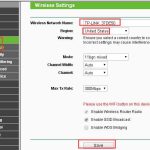
To access your Wi-Fi router, simply connect your device to the router’s network, open a web browser, and enter the router’s IP address (usually 192.168.1.1 or 192.168.0.1). Log in using the default username and password found on the router’s label or in the manual. If you’ve changed these credentials, enter your custom login details to access the settings.
Logging into your Wi-Fi router might sound daunting, but it’s quite straightforward once you know the steps. Whether you want to change your Wi-Fi password, update security settings, or troubleshoot connectivity issues, gaining access to your router’s admin panel is essential. With just a few simple steps—connecting your device to the router, locating the IP address, and entering your login credentials—you can easily manage your network settings from anywhere in your home or office. Keep reading to find out exactly how to do it and ensure your internet remains secure and efficient.

How to Login to WiFi Router: A Step-by-Step Guide
Many people struggle with accessing their WiFi router settings. Whether you want to change your WiFi password or update device permissions, knowing how to log in is essential. This guide will walk you through the process of logging into your router quickly and easily.
Understanding the Importance of Logging into Your Router
Logging into your router allows you to manage your network effectively. You can change your WiFi name, update passwords, and set security options. It also helps troubleshoot connection issues or improve your network’s speed.
Accessing your router’s admin panel is crucial for maintaining a secure and stable WiFi connection. Remember, only authorized users should log in to prevent unauthorized access.
Prerequisites Before Accessing Your Router
Before logging in, ensure you have the following:
- An active internet connection
- A device such as a computer, laptop, tablet, or smartphone
- WiFi network details (network name and password)
- The router’s default IP address, username, and password (usually found on the router or its manual)
If your router has been customized or if you have changed the default settings, make sure you know the current login details.
Finding Your Router’s IP Address
What Is an IP Address?
An IP address is a unique number that identifies your router on the network. This address allows you to access its settings via a web browser.
Methods to Find Your Router’s IP Address
- Using Command Prompt or Terminal: On Windows, press Windows key + R, type cmd, and hit Enter. Then type ipconfig and press Enter. Look for Default Gateway.
- On Mac: Open System Preferences, go to Network, select your active connection, then click Advanced. Under the TCP/IP tab, find the Router address.
- Through Your Smartphone: Access your WiFi settings, tap on the connected network, and look for the Gateway or Router IP address.
Common Default IP Addresses
Most routers use standard IP addresses, such as:
| Router Brand | Default IP Address |
|---|---|
| Linksys | 192.168.1.1 |
| 192.168.0.1 | |
| D-Link | 192.168.0.1 |
| Tp-Link | 192.168.1.1 |
| Asus | 192.168.1.1 |
Accessing the Router Login Page
Steps to Open the Login Page
- Open a web browser on your device.
- Type your router’s IP address into the address bar (like http://192.168.1.1).
- Press Enter to load the login page.
If the page doesn’t load, double-check the IP address and ensure your device is connected to the router’s network.
Logging In to Your Router
Using Default Credentials
Most routers come with default username and password, which are often listed on the device or manual. Typical defaults include admin as username and password, or both being admin.
If Default Credentials Don’t Work
- Reset your router to factory settings if you cannot remember the login details.
- Check your router’s label or manual for updated credentials.
- Contact your Internet Service Provider if the router was provided by them.
Changing Your Router’s Login Details
Secure Your Network
After accessing your router, change the default username and password to something unique and strong. This prevents unauthorized access.
Steps to Change Login Credentials
- Log into your router’s admin panel.
- Navigate to the Administration or System section.
- Find the options for Change Username and Password.
- Enter your new secure login details and save changes.
Additional Router Management Tips
Updating Firmware
Keeping your router’s firmware up-to-date ensures better security and performance. Check for updates regularly via the admin panel.
Configuring WiFi Settings
Change your WiFi network name (SSID) and password regularly to keep your network secure. Use WPA3 or WPA2 encryption for better protection.
Setting Up Guest Networks
Enable guest networks to allow visitors to access WiFi without gaining access to your primary network. This enhances security.
Troubleshooting Common Login Problems
Router Login Page Not Loading
This could be due to incorrect IP address, network issues, or browser problems. Try clearing the cache or resetting your device’s network settings.
Incorrect Username or Password
If you cannot log in, verify your credentials. Reset the router if necessary to restore default login details.
Why Can’t I Connect to the Router?
Ensure your device is connected to the WiFi network. Check physical connections and restart your router if problems persist.
Knowing how to access your WiFi router is an essential skill for managing your network securely. With the right information and steps, you can easily log in and customize your settings to improve your internet experience.
How to login to home WiFi router ?💻💻💻💻 | 4K
Frequently Asked Questions
What steps should I follow to access my Wi-Fi router’s login page?
To access your Wi-Fi router’s login page, connect your device to the router via Wi-Fi or Ethernet cable. Open a web browser and type the router’s default IP address, such as 192.168.1.1 or 192.168.0.1, into the address bar. Press Enter, and the login page should appear. If prompted, enter your username and password, which are often found on the router’s label or in the user manual.
How can I find my router’s IP address for login?
On Windows, open Command Prompt and type “ipconfig,” then press Enter. Look for the “Default Gateway” entry; this is your router’s IP address. On macOS, go to System Preferences > Network, select your network connection, click Advanced, then go to the TCP/IP tab to find the router’s IP address. Use this address to access the login page.
What should I do if I forget my router’s login credentials?
If you forget your login credentials, check the sticker on the router, which often displays the default username and password. If you changed the credentials and can’t remember them, perform a factory reset by pressing and holding the reset button on the back of the router for about 10-30 seconds. This restores all settings to default, including the login details. After resetting, use the default credentials to access the router.
How do I change my Wi-Fi router’s default login password?
First, log into your router using its IP address and current credentials. Once logged in, navigate to the administration or security section of the router’s settings. Find the option to change the password, enter a new strong password, and save your changes. This enhances your network’s security by preventing unauthorized access.
Is it necessary to update router firmware before logging in for the first time?
It is advisable to update your router’s firmware before logging in, especially if you plan to change settings or improve security. To do this, access the router’s admin panel, locate the firmware update section, and follow the instructions to check for and install any available updates. Updating firmware ensures you have the latest features and security patches.
Final Thoughts
To conclude, learning how to login to wifi router involves accessing your device’s IP address and entering your credentials. Ensure your device is connected to the router’s network before attempting to log in. Use the default IP address such as 192.168.1.1 or 192.168.0.1, and enter your username and password. Following these steps accurately makes the process simple and quick.