To restart your Wi-Fi router remotely, access its admin panel through your smartphone or computer and hit the restart or reboot option—it’s easier than you think! You can also automate the process with smart home systems or use dedicated apps provided by your router manufacturer. These methods let you fix connectivity issues or perform maintenance without being physically present near your device.
If you want to restart your Wi-Fi router remotely, simply log into its web interface via a browser or use a dedicated app if your router supports one. Alternatively, with smart home integrations or remote management tools, you can perform a reboot from anywhere in just a few taps. This saves time and ensures your internet remains stable even when you’re away from home.
If your Wi-Fi is acting up or you need to reboot your router but can’t reach it physically, don’t worry—you’re not out of options. With advancements in technology, restarting your router remotely has become straightforward. From accessing your router’s web interface to using apps and smart home integrations, you can quickly and securely reset your device without leaving your seat. This is especially useful for troubleshooting, maintaining network health, or managing your setup when you’re on the go.

How to Restart WiFi Router Remotely: A Complete Guide
Restarting your WiFi router remotely can save you time and hassle. Whether your internet is slow or completely down, knowing how to do this from anywhere makes troubleshooting easier. In this guide, you’ll learn simple steps and tools to restart your router without needing physical access.
Why Restarting Your WiFi Router Remotely Matters
Many common internet issues resolve after a quick restart. Restarting a router clears temporary glitches and refreshes the connection. Doing this remotely is especially helpful if you’re away from home or office and face connectivity problems.
A remote restart can address network congestion, slow speeds, or device disconnections. It also helps to troubleshoot network errors without waiting for support or visiting the location physically.
Prerequisites for Remote Router Restart
Before you can restart your router remotely, certain conditions must be met. These include having access to your router’s settings or a connected device.
- Router with remote management features: Support for remote access is essential.
- Internet connection: Your network must be active to access router controls.
- Device for remote login: A computer, smartphone, or tablet that can connect to the internet.
- Proper credentials: Username and password for router login, or access to management software.
Methods to Restart WiFi Router Remotely
Using Router’s Built-In Remote Management Feature
Many modern routers come with built-in remote management options. This feature allows you to log into the router’s admin panel from anywhere.
To use this, enable remote management in your router settings. Usually, you find this option under administration or advanced settings menu.
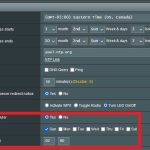
Once enabled, access the router through its IP address from a browser. Login with your admin credentials, then select the restart or reboot option.
Accessing Your Router via a Web-Based Interface
If remote management is activated, you can access your router from any device connected to the internet. Just open a browser and enter your router’s public IP address.
Sometimes, routers require a Dynamic DNS service if your IP address changes often. This service provides a fixed address to access your network remotely.
After logging in, navigate to the reboot or restart section and execute the process. This approach is straightforward and saves time.
Using Mobile Apps from Router Manufacturers
Most major router brands offer mobile applications that allow remote management. These apps are compatible with both Android and iOS devices.
Download the official app for your router brand, such as TP-Link Tether, Netgear Nighthawk, or Asus Router. Log in using your account credentials.
From the app, locate the reboot or restart option to power cycle your WiFi router remotely. This method is convenient and user-friendly.
Remote Power Cycling with Smart Plugs
Another effective method involves using a smart plug with remote control capabilities. This method physically cuts power to the router.
Connect your router to a compatible smart plug, like those from TP-Link Kasa or Amazon Smart Plug.
Control the smart plug through its dedicated app to turn off and turn on the power, effectively restarting your router remotely.
This approach is simple but requires an initial setup of the smart plug and internet connection to the device.
Setting Up for Future Remote Reboots
Enable Remote Management on Your Router
To make future remote restarts easier, ensure remote management is enabled. Access your router’s admin panel and turn on this feature.
Set a strong password and change default credentials to prevent unauthorized access. Also, specify IP addresses or networks permitted for remote login.
Use Dynamic DNS for Easy Access
If your internet connection has a dynamic IP address, Dynamic DNS (DDNS) helps you reach your network no matter the IP change. Many routers support DDNS services like No-IP or DynDNS.
Configure DDNS in your router settings, link it to your account, and use the provided hostname to connect remotely.
Automate Restarts with Scripts or Schedules
Some routers support scheduled restarts or scripting. Set these up in the admin panel to automate rebooting during off-peak hours.
Automation reduces manual effort and can help maintain optimal router performance over time.
Safety Tips and Troubleshooting
Always change default passwords and use strong, unique credentials. This prevents unauthorized access during remote management.
If you struggle to connect remotely, verify your IP address or DDNS configuration. Restarting your router physically may sometimes be faster if remote options aren’t working.
Avoid frequent reboots, which could signal underlying issues. Proper router maintenance helps ensure steady internet performance.
Additional Tips for Maintaining Your Router
- Keep firmware updated: Regular updates improve security and functionality.
- Configure network security: Use WPA3 or WPA2 encryption with strong passwords.
- Monitor connected devices: Keep an eye on authorized devices to prevent unauthorized access.
Related Topics to Explore
- How to improve WiFi signal strength
- Best routers for remote management
- Secure your home network
- How to troubleshoot common WiFi issues
Understanding how to restart your WiFi router remotely provides a quick and efficient way to troubleshoot and maintain your network. With the right setup—whether using built-in features, apps, or smart devices—you can control your internet connection seamlessly from anywhere. This skill becomes especially valuable during network outages or slowdowns, saving you time and frustration in managing your home or office network.
How To Remotely Restart Your Router from Any Browser
Frequently Asked Questions
What are the essential steps to restart my Wi-Fi router remotely using a smartphone app?
To restart your Wi-Fi router remotely via a smartphone app, first ensure your router supports remote management and you have the corresponding app installed. Log into the app using your account credentials, navigate to the device management section, and select your router. Look for an option like ‘Restart’ or ‘Reboot,’ then tap it to initiate the process. The router will shut down and turn back on automatically, restoring your internet connection without physical access.
How can I restart my Wi-Fi router remotely through a web-based interface?
If your router offers a web-based management interface, access it by opening a browser and entering your router’s IP address. Log in with your administrator credentials. Once logged in, locate the ‘System’ or ‘Maintenance’ menu, and find the ‘Reboot’ or ‘Restart’ option. Clicking this will safely restart your router. Make sure your device is connected to the internet or local network when performing this action.
Are there specific settings in my router that allow automatic restart or scheduled reboots?
Many routers include features for automatic restarts or scheduled reboots to maintain performance. Check your router’s admin panel for options like ‘Scheduled Tasks’ or ‘Reboot Schedule.’ Enable the feature, set your preferred reboot times, and save the settings. This automation helps keep your network running smoothly without manual intervention, especially during off-peak hours.
Can I restart my router remotely through a command-line interface or SSH?
If your router supports SSH access, you can connect to it remotely using a terminal or command-line interface. Log in with administrator credentials, then use specific commands such as ‘reload’ or ‘restart’ to initiate a reboot. Ensure SSH access is enabled in your router settings, and use secure connections to protect your network. This method offers a direct way to manage your router remotely.
What precautions should I take before restarting my Wi-Fi router remotely?
Before restarting your router remotely, save any ongoing work and inform other users connected to the network. Make sure you have administrator access to the router’s management interface or app. Confirm that your device has a stable internet connection to avoid interruptions during the process. Performing routine reboots can enhance performance, but do so during appropriate times to minimize disruption.
Final Thoughts
To conclude, knowing how to restart wifi router remotely simplifies maintaining your internet connection. You can use router management apps or remote desktop tools to turn your device off and back on effortlessly. This method helps resolve connectivity issues quickly without physical access. Practicing this skill ensures a smoother online experience and minimizes downtime.