To change your Wi-Fi router settings quickly, log into the router’s admin panel through your web browser, usually by entering the router’s IP address like 192.168.1.1 or 192.168.0.1, then enter your username and password. From there, you can customize your network name, password, security protocols, and more.
In just a few steps, you can easily access and modify your Wi-Fi router settings to improve security, boost performance, or set up a new network. This process generally involves connecting your device to the router, opening a web browser, and navigating to the admin interface. No need to be a tech expert—changing these settings is straightforward once you know where to look. Keep reading to learn exactly how to do it and optimize your home Wi-Fi experience.

How to change WiFi router settings
Changing your WiFi router settings might seem complicated at first, but it is straightforward once you understand the process. This guide will walk you through every step needed to update your router’s settings effectively. Whether you want to improve security, change your WiFi name, or update passwords, this article covers all the essential information.
Understanding the basics of WiFi router settings
Before making any changes, it is important to know what settings are available on your router. The main settings include network name (SSID), password, security type, and firmware updates. These options help protect your network and improve performance.
Most routers come with a default username and password. It is recommended to change these credentials after initial setup for better security. Familiarize yourself with your specific router brand and model to find detailed instructions.
Accessing your router’s admin panel
The first step to changing your WiFi settings is to access the router’s admin panel. Use a computer or smartphone connected to your network. Open a web browser and type the router’s IP address into the address bar.
Common default IP addresses include 192.168.1.1 and 192.168.0.1. If these do not work, check your router’s manual or look for a sticker on the device that shows the IP address.
Logging into the router
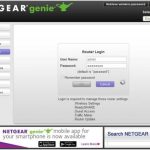
After entering the IP address, a login prompt will appear. Enter the username and password. Default credentials are often ‘admin’ for both fields, but check your device documentation or label for specifics.
If you have previously changed the credentials, use the updated login information. For security, change the default username and password once logged in.
Understanding router interface layout
Once logged in, you’ll see the router’s admin interface. The layout varies by manufacturer, but common sections include Wireless, Security, Network, and Administration.
Familiarize yourself with each section to easily locate the settings you wish to modify. Use the menu or tabs to navigate through the options.
Changing WiFi network name and password
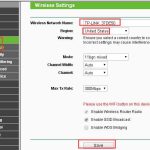
One of the most common reasons to access router settings is to change your WiFi name and password. Locate the wireless or WiFi section in the admin interface.
Updating the network name (SSID)
The SSID is the visible name of your WiFi network. Change it to something memorable but not personally identifying. Save your settings after editing.
Setting or changing the password
Always select a strong password that includes a mix of uppercase, lowercase, numbers, and symbols. This helps keep your network secure. Save your new password and reconnect your devices with the updated credentials.
Adjusting security settings for your WiFi
Security is vital to prevent unauthorized access. The most common security protocol is WPA3, but WPA2 is still widely used. Always choose the latest security standard your devices support.
Enabling WPA3 or WPA2 security
Navigate to wireless security settings and select the preferred protocol. Avoid WEP, as it is outdated and easily compromised.
Setting up a guest network
If you want visitors to access the internet without accessing your main network, enable a guest network. Allocate a different SSID and password for guests. This keeps your primary network safe and private.
Updating firmware for optimal performance
Firmware updates improve your router’s functionality and security. Check your router’s interface for a firmware update option.
Steps to update firmware
- Download the latest firmware from the manufacturer’s website.
- Access the firmware update section in the admin panel.
- Upload the downloaded file and follow on-screen instructions.
- Do not turn off the router during the process.
Updating firmware regularly ensures your router remains secure and performs well.
Configuring advanced settings
Advanced settings include port forwarding, Quality of Service (QoS), and parental controls. These features enhance your network’s flexibility and security.
Setting up port forwarding
Port forwarding allows external devices to access specific services in your network, such as gaming servers or cameras. Enter the device’s IP address and the port number required by the service.
Using QoS to prioritize traffic
QoS settings help allocate bandwidth for certain devices or applications, like video calls or gaming. Enable QoS and specify priorities to improve your experience.
Implementing parental controls
Parental controls restrict device access to certain websites or limit internet usage times. Set rules based on device or user profile for safer browsing.
Saving and applying your changes
After making any modifications, always click the Save or Apply button. Some routers might restart automatically, while others require a manual reboot.
Verify the changes by reconnecting your devices and testing the network performance and security.
Resetting to factory settings if needed
If you encounter issues or forget your login credentials, a factory reset restores default settings. Locate the reset button on your router, typically a small hole.
Use a paperclip to press and hold the reset button for about 10 seconds. The device will reboot and revert to factory defaults. Remember to reconfigure your settings afterward.
Best practices for changing router settings
- Always secure your admin login with a strong, unique password.
- Regularly check for firmware updates to keep your network safe.
- Change your WiFi password periodically to maintain security.
- Disable remote management unless necessary for added security.
- Document your custom settings for easy recovery in case of issues.
Troubleshooting common issues
If you cannot access your router, double-check the IP address and credentials. Restart your router if the interface is unresponsive.
Slow WiFi speeds may indicate interference or outdated firmware. Adjust WiFi channels or upgrade your router firmware to improve performance.
When changing settings, always save and reboot the router. Consult your device manual or support website for model-specific instructions.
In summary, changing your WiFi router settings empowers you to enhance network security, improve speed, and manage device access more effectively. Take your time to explore the options and customize your network to fit your needs.
✅ THE TRICK – Change/Replace Your WiFi Router Without Changing All Your Devices' Settings!
Frequently Asked Questions
How can I access my Wi-Fi router’s settings for the first time?
To access your router’s settings, connect your computer or device to the router via Ethernet cable or Wi-Fi. Open a web browser and type the router’s default IP address, usually 192.168.1.1 or 192.168.0.1, into the address bar. Enter the default username and password provided in the router’s manual or on the label. Once logged in, you can modify settings such as Wi-Fi name, password, and security options.
What steps should I follow to change my Wi-Fi network name (SSID)?
Log into your router’s admin panel using your web browser. Navigate to the wireless settings or Wi-Fi section. Find the field labeled SSID or Network Name, and enter your preferred name. Save your changes, and your router will restart or apply the new name. Devices will disconnect temporarily and need to reconnect using the new network name.
How do I update my Wi-Fi password for better security?
Access your router’s settings through a web browser. Locate the wireless security or Wi-Fi settings section. Select the security mode, typically WPA2 or WPA3, then enter a strong, unique password in the password or passphrase field. Save the settings and reconnect your devices using the new password. Remember to update the password on all devices that connect to your Wi-Fi.
What should I do if I forget my router’s login credentials?
If you forget your login details, check the router’s manual or look for a label on the device that shows the default username and password. If you changed the login credentials and can’t remember them, you can perform a factory reset by pressing and holding the reset button on the router for about 10-15 seconds. This action restores default settings, allowing you to access the router with the default credentials.
How can I optimize my Wi-Fi settings for better performance?
Login to your router’s admin panel and ensure your firmware is up to date. Change the Wi-Fi channel to avoid interference from neighboring networks, preferably choosing a less congested channel. Enable Quality of Service (QoS) features to prioritize bandwidth for essential activities. Adjust the wireless mode to match your device capabilities and disable unused features to reduce network load. Save your settings and restart the router if necessary for changes to take effect.
Final Thoughts
To change wifi router settings, you need to access the router’s admin interface through a web browser. Enter the router’s IP address, log in with your credentials, and navigate to the settings menu. Adjust the desired options such as network name, password, or security settings.
Always save your changes before exiting to ensure they take effect. Knowing how to change wifi router settings can improve your network’s security and performance. Choose your updates carefully and keep your router’s firmware up to date for optimal operation.