Quick answer: To change your Wi-Fi router password, log into your router’s admin panel through a web browser, navigate to the wireless settings, and update the password. Make sure to save the changes, and reconnect your devices using the new password.
Changing your Wi-Fi password might sound daunting, but it’s a straightforward process that can boost your network security and give you peace of mind. If your Wi-Fi has been feeling sluggish or you’re worried about unauthorized users, updating the password is a smart move. Usually, you just need to access your router’s administrative settings—just a few clicks away—then locate the wireless or security section to change the password. This article walks you through each simple step, so you can secure your network quickly and easily, regardless of your tech skills. Stay tuned to learn how to keep your Wi-Fi safe and your internet running smoothly.

How to Change WiFi Router Password: A Step-by-Step Guide
Changing your WiFi router password is an important step to keep your home network secure. Whether you want to improve your existing security or have forgotten your password, this guide will walk you through each step. Having a strong, unique password helps protect your personal information from unauthorized users. Let’s look at how you can easily update your WiFi password.
Understanding Why Changing Your WiFi Password Is Important
Many people overlook the importance of regular password updates. An outdated password can make your network vulnerable to hacking attempts and unauthorized access. Regularly changing your WiFi password helps prevent potential security breaches and ensures only trusted users stay connected.
Another reason to update your password is if you suspect someone else has gained access. People who share your WiFi password might leave or forget to log out, leaving your network exposed. Updating the password keeps your network safe and under your control.
Preparing to Change Your WiFi Password
Before making any changes, gather important information about your router. You’ll need the default IP address, admin username, and password. Often, these are printed on a label on your router or found in the router’s manual.
It’s also helpful to decide on a new, strong, and easy-to-remember password. Use a mix of uppercase, lowercase, numbers, and special characters for added security. Avoid common words or simple sequences like “password” or “123456.”
Accessing Your Router’s Settings
Step 1: Connect to Your Router
Make sure your device is connected to the WiFi network you want to change. You can also connect directly using an Ethernet cable for more stability. Open a web browser like Chrome, Firefox, or Safari.
Step 2: Enter Router IP Address
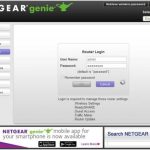
Type your router’s IP address into the address bar. Common IPs include 192.168.1.1 or 192.168.0.1. If these don’t work, check your router’s manual or look at the label on the device.
Step 3: Log In to the Admin Panel
Enter your admin username and password. The default is often “admin” for both. If you have changed these before, use your custom credentials. If you forgot, you may need to reset your router or look up the default login details for your brand.
Understanding Router Admin Interfaces
Many router brands have different interfaces, but most have similar features. Once logged in, look for sections labeled “Wireless,” “WiFi,” or “Network.” This is where you will find your password settings.
Changing Your WiFi Password Step-by-Step
Locating the Wireless Settings
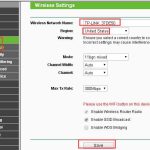
Navigate to the wireless or WiFi section in your router’s admin page. It might be labeled “Wireless Security” or “WiFi Settings.”
Updating the Password
Find the field marked “Password,” “Passphrase,” or “Wireless Key.” Enter your new, strong password here. Ensure it meets security recommendations, such as at least 8 characters with a mix of symbols, numbers, and letters.
Saving the Changes
Click the “Save” or “Apply” button to update the settings. Your router may restart, or you might need to manually reboot it for changes to take effect. Remember, after changing the password, you’ll need to reconnect your devices using the new credentials.
Verifying Your New WiFi Password
Once the router restarts, go to your device’s WiFi settings. Select your network name and enter the new password. If it connects successfully, the change was successful.
If you encounter trouble, double-check your password for typos and ensure your device is connecting to the correct network. Restart your router if necessary.
Changing the WiFi Name (Optional)
While updating your password, you might consider changing your WiFi network name, also known as SSID. It helps distinguish your network from others around you. Use a unique name that’s easy to identify but does not reveal personal details.
Resetting Your Router if You Cannot Access the Admin Panel
When to Reset
If you forget your login credentials or cannot access your router’s interface, performing a factory reset can help. This reverts all settings to default, including the password.
How to Reset
Locate the small reset button usually at the back of the router. Use a paperclip or pin to hold it down for about 10-15 seconds. The router will reboot and restore factory settings.
After Reset
Revisit the default IP address and login credentials to access your router’s admin panel. Remember, after resetting, you will need to set a new password and network details.
Best Practices for Creating and Managing WiFi Passwords
- Use a long, complex password with at least 12 characters.
- Include a combination of uppercase and lowercase letters, numbers, and special symbols.
- Avoid common words, names, or easily guessable sequences.
- Change your password regularly, ideally every three to six months.
- Do not reuse passwords from other accounts for your WiFi.
Enhancing Your WiFi Security Beyond Changing Your Password
Besides updating your password, consider enabling other security features. Turn on WPA3 or WPA2 encryption, disable WPS, and keep your router’s firmware updated. These steps further protect your network from attacks.
Using a Password Manager
Managing strong passwords can be challenging. Use a password manager to generate and store complex passwords safely. This prevents using weak or reused passwords that compromise security.
Additional Tips for a Secure Home Network
- Place your router in a central location to ensure coverage and control access.
- Disable remote access unless necessary.
- Set up a guest network for visitors to prevent access to your main devices.
- Regularly update your router’s firmware from the manufacturer’s website.
Changing your WiFi password is a simple yet vital step to safeguard your online presence. By following these detailed instructions, you can effectively update your security settings and enjoy peace of mind. Remember to choose strong passwords, keep your firmware updated, and manage your network safely.
how to change Router Wi-Fi password in your phone
Frequently Asked Questions
What steps should I follow to access my router’s settings page?
Start by connecting your device to the router via Wi-Fi or an Ethernet cable. Open a web browser and type the default IP address, such as 192.168.1.1 or 192.168.0.1, into the address bar. Log in using your username and password, which are often printed on the router or provided by your internet service provider. Once logged in, navigate to the wireless settings to change your password.
How can I ensure I choose a strong new Wi-Fi password?
Create a password that combines uppercase and lowercase letters, numbers, and special characters. Make it at least 12 characters long to enhance security. Avoid using common words, personal information, or easily guessable sequences. A strong password prevents unauthorized access and protects your network from potential threats.
What should I do if I cannot remember my new router password later?
Write down your new password and store it in a safe location. Alternatively, you can use a password manager to keep track of it securely. If you forget the password, you can reset the router to factory settings by pressing and holding the reset button, which restores default credentials. Then, you will need to set up your network again.
Are there differences in changing passwords for various router brands?
Yes, different router brands and models may have unique interfaces and login procedures. Typically, you access the settings through a web browser using the default IP address, but the menu layout can vary. Consult your specific router’s manual or manufacturer’s website for detailed instructions tailored to your device.
How often should I update my Wi-Fi password for better security?
Update your Wi-Fi password at least every three to six months, especially if you suspect unauthorized access or if someone else knew your previous password. Regular changes help maintain network security and reduce the risk of unauthorized users connecting to your network.
Final Thoughts
To change wifi router password, log into your router’s admin panel using a web browser. Locate the wireless settings or security section. Enter a new, strong password and save the changes. Doing so enhances your network security and prevents unauthorized access.
Remember, changing your wifi router password regularly keeps your network safe. Follow the simple steps outlined to ensure your connection remains protected. How to change wifi router password is a straightforward process that anyone can do with a few clicks.