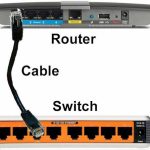
To connect two routers, you’ll need to link them either via Ethernet cable or wirelessly, making sure they’re configured correctly to work together seamlessly. This setup can extend your Wi-Fi range, improve network performance, or create a separate network for guests or IoT devices. The key is understanding whether you’re setting up one as a primary router connected to your modem, and the other as a secondary, or creating a mesh network, depending on your needs.
In short, connecting two routers involves configuring one as the main access point linked to your modem and setting the second router either to extend the network via Ethernet or wirelessly. Proper setup ensures a stable, expanded network that caters to your connectivity needs.
If you’re looking to boost your home Wi-Fi or create a separate network, connecting two routers is an effective solution. It’s simpler than you might think, and with a few basic steps, you’ll have your network running smoothly. Whether you’re using Ethernet or Wi-Fi, understanding the right configurations will help you achieve the best performance and coverage.

How to Connect Two Routers
Connecting two routers can help expand your home or office network, improve Wi-Fi coverage, and create a more flexible setup. Whether you want to extend your internet range or set up a dedicated network for specific devices, knowing how to connect two routers properly is essential. In this guide, we’ll go through each step clearly and provide tips to ensure your setup runs smoothly.
Understanding the Different Types of Router Connections
Before starting, it’s important to know the two main ways to connect two routers: **LAN-to-LAN** and **LAN-to-WAN**. Each method serves a different purpose and influences how your network functions.
LAN-to-LAN Connection
This method links both routers on the same network, creating a seamless connection. It allows devices connected to either router to communicate freely.
LAN-to-WAN Connection
Here, the second router creates a separate network. Devices on this network can’t directly access those on the primary router. This setup is useful for isolating specific devices or creating guest networks.
Preparing Your Equipment
Before connecting, gather the necessary equipment. You will need two routers, Ethernet cables, and access to each router’s admin settings. Ensure your routers support the connection type you plan to use.
Check Compatibility
Make sure both routers support features like DHCP and have available Ethernet ports. Most modern routers do, but it’s good to verify.
Update Firmware
Updating each router’s firmware guarantees compatibility and enhances security. Visit the manufacturer’s website for the latest updates.
Configuring the Primary Router
Start with the main router, which will connect directly to your modem. This router manages your internet connection and assigns IP addresses to devices.
Set a Fixed IP Address
Assign a static IP address to avoid conflicts. For example, set the primary router to use 192.168.1.1. This helps when configuring the second router.
Enable DHCP
DHCP should be enabled on the primary router. It automatically assigns IP addresses to connected devices, simplifying network management.
Connecting Two Routers Using LAN-to-LAN Method
This is the most common and straightforward way to extend your network. Here’s how to do it:
Step 1: Connect the Routers
Use an Ethernet cable to connect one of the LAN ports on the primary router to a LAN port on the second router. Ensure you do not use the WAN port on the second router for this connection.
Step 2: Configure the Second Router
Access the admin interface of the second router via a web browser. Change its IP address to be within the same subnet as the primary router but outside its DHCP range.
Step 3: Disable DHCP on the Second Router
Turn off DHCP on the second router to prevent IP conflicts. The primary router will handle all IP address assignments.
Step 4: Save Settings and Reboot
Apply the changes, save the configuration, and reboot the second router. Once restarted, devices connected to either router will be on the same network.
Connecting Two Routers Using LAN-to-WAN Method
This method creates two separate networks but can be useful for guest access or network segmentation.
Step 1: Connect the Routers
Use an Ethernet cable to connect a LAN port on the primary router to the WAN port on the second router.
Step 2: Configure the Second Router
Access the second router’s admin panel and set its IP address outside the primary router’s DHCP range but within the same subnet.
Step 3: Enable DHCP on the Second Router
Allow the second router to assign IP addresses within its own network. Devices connected here will be on a separate network.
Step 4: Set Up Wi-Fi and Security
Configure the Wi-Fi settings for the second router. Use different SSIDs and passwords if you want to distinguish the networks.
Troubleshooting Common Issues
Sometimes, connecting two routers can lead to issues like IP conflicts or slow speeds. Here are some tips to troubleshoot.
Check IP Address Conflicts
Ensure each router has a unique IP address within the network. Clashes cause connectivity problems.
Verify Cable Connections
Use working Ethernet cables and ensure they are connected to the correct ports (LAN to LAN or LAN to WAN).
Disable Duplicate DHCP Servers
Only one router should handle DHCP unless you’re intentionally creating separate networks. Enable DHCP only on the primary router.
Optimize Wireless Settings
Assign different channels to each router’s Wi-Fi to prevent interference and improve performance.
Additional Tips for a Better Network Setup
Enhance your network with these tips to maximize performance and security.
Use Quality Ethernet Cables
Cat 5e or higher cables offer better speed and reliability, reducing connection issues.
Place Routers Strategically
Position routers in central locations, away from obstructions and interference sources like microwaves and cordless phones.
Set Up Guest Networks
Create separate Wi-Fi networks for guests to protect your main network from potential security risks.
Update Wi-Fi Security Settings
Use strong passwords and WPA3 encryption where available to safeguard your network.
Related Topics to Explore
Understanding how to set up **mesh networks**, **Wi-Fi extenders**, or **powerline adapters** can further improve your connectivity. These solutions complement the process of connecting two routers and provide more flexible options.
Connecting two routers can be simple once you understand the methods and configuration steps. Whether you choose LAN-to-LAN or LAN-to-WAN, each setup offers benefits suited to different needs. Proper planning and careful setup ensure your network functions efficiently and securely.
HOME NETWORKING 101- HOW TO CONNECT 2 ROUTERS IN ONE HOME NETWORK
Frequently Asked Questions
How can I set up a second router to extend my Wi-Fi coverage?
To extend your Wi-Fi coverage, connect the second router to your primary router using an Ethernet cable. Disable the DHCP server on the second router to prevent IP conflicts. Set the IP address of the second router within the same subnet as the primary router but outside its DHCP range. Switch the second router to access point mode if available. This configuration allows the second router to act as an extension of your main network, providing additional coverage seamlessly.
What is the best way to connect two routers wirelessly?
Connecting two routers wirelessly involves creating a wireless bridge or repeating connection. Access the settings of your secondary router and enable its WDS or bridging mode if supported. Configure the secondary router to connect to the primary router’s SSID and use the same wireless security settings. Keep in mind that a wireless connection may reduce speed, so positioning the second router close to the primary router helps maintain optimal performance.
How do I ensure my two routers are on the same network?
Ensure both routers are on the same IP subnet by assigning static IP addresses to each one within the same range, typically ending with different last octets. Turn off DHCP server on the secondary router to avoid conflicts with the primary router. Connect the routers using an Ethernet cable through their LAN ports. This setup keeps both devices on the same network, allowing devices connected to either router to communicate freely.
What settings should I change on the second router to prevent interference?
Assign the second router a different wireless channel from the primary router, especially if they are close together. Use the same security type and password for both routers, but ensure SSID names are distinct enough for easy identification. Disable any features like QoS or firewall settings that could conflict between the two devices. Properly configuring these settings minimizes interference and optimizes overall network performance.
Can I connect two routers via Wi-Fi to create a mesh network?
While traditional routers can be linked wirelessly, setting up a mesh network requires compatible mesh systems or routers with mesh capabilities. If your routers support mesh features, enable mesh mode and follow the manufacturer’s instructions to pair them wirelessly. This approach simplifies management and provides seamless coverage across larger areas, but not all routers support this feature without specific firmware or hardware.
Final Thoughts
Connecting two routers allows you to expand your network and improve coverage. First, decide whether to connect them via Ethernet cable or wirelessly. Using an Ethernet cable provides a faster, more reliable connection, while wireless setup offers convenience.
Configure the primary router with your internet settings and set up a different IP address range for the second router. Then, connect the routers either through a LAN port or by setting the second router as an access point.
How to connect two routers involves configuring them correctly and choosing the appropriate connection method. Proper setup ensures seamless internet access across your space and efficient network performance.