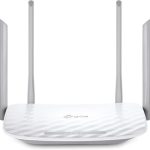
To bridge two routers, connect their LAN ports with an Ethernet cable, disable DHCP on one router, and assign it a static IP within the main router’s network. This setup extends your network seamlessly without creating conflicts, allowing devices on both routers to communicate easily.
Bridging two routers might seem tricky, but it’s a straightforward way to expand your home or office network. Whether you want better Wi-Fi coverage or to connect multiple wired devices, bridging ensures that both routers work together harmoniously. In this guide, I’ll walk you through the simple steps to set up a bridge between two routers, making your network more efficient and robust. Once you get the hang of it, you’ll enjoy a stronger, more reliable connection throughout your space without the hassle of complex configurations.

How to Bridge Two Routers Effectively for Better Network Coverage
Bridging two routers can significantly improve your home or office network by expanding its coverage area. Many people ask how to connect two routers to create a seamless internet experience. This process, when done correctly, allows you to enjoy a faster, more reliable connection across multiple rooms or floors.
Understanding What It Means to Bridge Two Routers
Bridging two routers involves linking them to work together to extend your network. Instead of having two separate networks, bridging combines their signals, making them act as one. This setup is perfect for large homes or spaces with weak Wi-Fi signals in certain areas.
In simple words, bridging helps eliminate dead zones and improves overall internet stability. It’s a way to maximize your existing equipment without needing to buy new, expensive devices.
Different Ways to Bridge Two Routers
There are several methods to connect two routers, each suited for different circumstances. The main options include:
- Wireless Bridge Mode: Connecting two routers wirelessly without any physical cables. Ideal when running Ethernet cables is difficult.
- Ethernet Connection: Using a physical Ethernet cable to link the routers. This provides the most stable and fastest connection.
- Access Point Mode: Converting one router into an access point to extend Wi-Fi coverage efficiently.
Each method offers unique benefits, and your choice depends on your environment and needs.
Preparing Your Equipment Before Bridging
Before starting, ensure both routers are compatible with bridging modes. Check the router models and their firmware to see if they support bridge or access point modes. Also, gather Ethernet cables if you plan to use wired connections. Having a computer nearby makes configuration easier.
Updating your router firmware is important, as newer firmware versions often improve bridging features and security. Take a moment to read the manual or visit the manufacturer’s website for specific instructions on your router models.
Configuring the Primary Router
The primary router is usually the one connected directly to your internet source, such as a modem. Begin by logging into its admin panel through a web browser using its IP address. Common addresses include 192.168.1.1 or 192.168.0.1.
Set your network name (SSID) and password, ensuring they are distinct from the secondary router if not bridging wirelessly. Disable DHCP on the secondary router once you set it up to avoid IP conflicts. Save all settings before proceeding to the next step.
Setting Up the Secondary Router for Bridging
Option 1: Wired Ethernet Bridge
Connect the second router to the primary router using an Ethernet cable. Access its admin panel and change its operation mode to ‘Access Point’ or ‘Bridge Mode.’ Assign it a static IP within the primary router’s subnet to prevent IP conflicts. Disable its DHCP server to avoid overlapping IP address pools.
Configure its Wi-Fi settings to match or extend the main network. Save the changes and restart both routers. The wired connection ensures maximum speed and stability.
Option 2: Wireless Bridge Mode
If Ethernet cables are not feasible, enable wireless bridge mode on the secondary router. Still, ensure both routers support this feature. Access the secondary router’s admin panel, look for ‘Wireless Settings,’ then select ‘Bridge Mode’ or ‘Repeater Mode.’
Follow prompts for pairing the router with the main network, often involving selecting the main network SSID. Once connected, verify that both routers broadcast the same network name, providing seamless coverage.
Verifying the Bridge Connection
After configuration, check if the secondary router is correctly linked. Use a device connected to the extended network and perform a speed test. Movement across the primary and secondary routers should be smooth, with no disconnections or significant speed drops.
Navigate to the secondary router’s admin interface and look for connected devices or status pages. Confirm that the IP address is within the network range and that bridging mode is active.
Troubleshooting Common Issues
Some typical problems include IP conflicts, weak signal strength, or inconsistent connections. Ensure firmware on both routers is up to date. Reset and reconfigure the routers if problems persist.
Check the placement of the secondary router. Keep it within a good range of the primary to maintain a strong connection, especially for wireless bridging.
Enhancing Your Bridge Setup for Optimal Performance
For better coverage, place the secondary router in a central location, avoiding thick walls or interference sources like microwaves or cordless phones. Use dual-band routers to reduce congestion by separating devices across 2.4 GHz and 5 GHz bands.
Regularly update your router firmware and change Wi-Fi channels to minimize interference. These steps help maintain a reliable and fast network extension.
Related Topics for Improving Your Network
- Setting Up a Mesh Network: A modern alternative that creates a seamless, large coverage area with multiple nodes.
- Using Powerline Adapters: Extending your network via electrical wiring when Ethernet runs are impractical.
- Upgrade to Dual-Band or Tri-Band Routers: For handling more devices and reducing Wi-Fi congestion.
Exploring these options can further enhance your network experience, especially in large or complex spaces.
Bridging two routers offers an effective way to boost your home or office Wi-Fi coverage. Following the steps carefully ensures a stable and extensive connection. With patience and proper setup, you can enjoy a seamless internet experience across all areas of your space.
HOME NETWORKING 101- HOW TO CONNECT 2 ROUTERS IN ONE HOME NETWORK
Frequently Asked Questions
What are the essential steps to connect two routers for extending your network?
Begin by configuring the primary router’s network settings, ensuring DHCP is enabled. Connect the secondary router to the primary router using an Ethernet cable, plugging it into one of the LAN ports. Access the secondary router’s admin panel and assign it a static IP address within the primary router’s network range but outside its DHCP scope. Disable DHCP on the secondary router to prevent IP conflicts. Save your settings, and your two routers should now work together to broaden your network coverage.
How do I set up a wireless bridge between two routers?
First, verify that both routers support wireless bridging or repeating modes. Access the admin panel of the primary router and enable the wireless bridging feature, noting the network name and password. On the secondary router, select the wireless bridge or repeater mode, then scan for available networks. Choose the primary router’s network, then input the password. Save the configuration, and the secondary router will wirelessly connect, expanding your Wi-Fi coverage without additional cables.
What should I do if my routers don’t have a bridge mode option?
If your routers lack a dedicated bridge mode, you can set up a manual bridge by disabling DHCP on the secondary router and assigning it a static IP address within the primary router’s range. Connect the routers via Ethernet, then configure the secondary router to operate as a access point. Turn off its DHCP server, and connect devices to the secondary router’s LAN ports. This setup extends your network without creating separate subnets or causing IP conflicts.
How can I ensure my network remains secure when bridging two routers?
Use strong, unique passwords for both routers’ Wi-Fi networks and admin panels. Enable WPA3 encryption if available, or WPA2 at minimum. Keep both routers updated with the latest firmware to patch security vulnerabilities. Disable remote management features unless necessary, and disable WPS to prevent unauthorized access. Regularly review connected devices to identify any suspicious activity. These steps help maintain a secure and reliable network extension.
Final Thoughts
To bridge two routers, connect them with an Ethernet cable from the LAN port of the primary router to the LAN port of the secondary router. Configure the secondary router’s IP address to avoid conflicts and disable its DHCP server. This setup allows devices to communicate seamlessly across both networks.
In summary, understanding how to bridge two routers helps expand your network efficiently. Proper configuration ensures stable connectivity and easy access to devices. Following these steps makes expanding your network straightforward and effective.