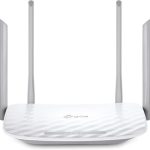
To turn your WiFi router into a repeater, simply access its settings, enable the repeater mode, and connect it to your existing network. This way, you can extend your WiFi coverage without buying a new device. It’s an easy and cost-effective way to boost your internet signal across your home or office.
If you want to use your WiFi router as a repeater, the key is to access your router’s admin panel, find the wireless settings, and switch it to repeater or range extender mode. Then, connect it to your main router’s network. This process can generally be done quickly with a few simple steps.
Getting a strong WiFi signal everywhere in your space can be a hassle, especially in large homes or offices. Fortunately, many routers have the ability to be repurposed as repeaters, helping you extend your existing network without additional hardware. By configuring your router to act as a repeater, you can eliminate dead zones, improve internet speeds in distant rooms, and make your WiFi coverage more uniform. Whether you’re tech-savvy or just a casual user, this method offers an affordable and straightforward solution to improve your wireless experience.

How to Use WiFi Router as Repeater
Using your WiFi router as a repeater is a smart way to extend your internet coverage without buying new equipment. It helps eliminate dead zones in your home or office, making sure every corner gets a strong signal. In this guide, we will explore step-by-step how to set up your existing router as a repeater and what factors to consider for the best results.
Understanding What a WiFi Repeater Does
A WiFi repeater, also known as a WiFi extender, is a device that boosts your wireless signal by receiving it and then rebroadcasting it. You can use an extra router as a repeater to expand your network range. This setup is economical and convenient, especially if you already have unused routers lying around.
Prerequisites for Using Your Router as a Repeater
Before beginning, ensure you have these items ready:
- An extra WiFi router compatible with repeater mode
- A stable internet connection from your main router
- A computer or smartphone to access router settings
- Ethernet cable (optional, for initial setup)
Checking your router’s specifications is essential. Not all routers support repeater or WDS (Wireless Distribution System) modes. Verify this in your router’s user manual or online specifications.
Step-by-Step Guide to Set Up Your Router as a Repeater
Step 1: Access Your Router’s Admin Settings
Connect your computer or smartphone to the router’s network using WiFi or an Ethernet cable. Launch a web browser and type the IP address of your router, often something like 192.168.0.1 or 192.168.1.1. Log in with your username and password, usually found on the device label.
Step 2: Locate the Wireless Settings
Within the admin panel, navigate to wireless settings. Look for options like Wireless Mode, Operation Mode, or Wireless Repeating. The exact nomenclature varies by manufacturer.
Step 3: Enable Repeater or WDS Mode
If your router supports it, select Repeater Mode or WDS. Some routers may have a dedicated setting called Wireless Repeater. Enable this setting to proceed.
Step 4: Scan for Your Main Router’s Network
The router should display available WiFi networks. Select your primary router from the list. Enter the WiFi password of your main network when prompted.
Step 5: Assign a Static IP Address
Configure your router with a static IP that is within your main network’s IP range but outside its DHCP pool. This prevents IP conflicts and ensures stable connectivity.
Step 6: Save Settings and Restart
Apply your changes and restart the router. The device should now act as a repeater, extending your WiFi coverage.
Additional Configuration Tips
For optimal performance, consider the following:
- Place the repeater router halfway between your main router and the area with weak signal.
- Avoid obstacles like thick walls or metal furniture that can obstruct WiFi signals.
- Ensure both routers operate on the same WiFi channel for better synchronization.
- Use different network names (SSIDs) if you want to identify the extended network more easily.
Configuring the Router in Different Brands and Models
Different routers have varying menus and options, but the core process is similar. Here are tips for popular brands:
For TP-Link Routers
- Look for the Wireless → Wireless Settings menu.
- Select Operation Mode and switch to Repeater Mode.
- Scan and connect to your main WiFi network, then save and restart.
For ASUS Routers
- Navigate to Advanced Settings → Wireless.
- Enable Wireless Repeating Function.
- Select your network and insert the password.
For Netgear Routers
- Access Advanced Settings → Setup → Wireless Repeating.
- Follow the on-screen instructions for WDS setup.
Understanding Limitations and Troubleshooting
While using a router as a repeater can be effective, some issues may arise. A common problem is reduced internet speed because each hop decreases bandwidth. Ensure your routers are on the same frequency band to minimize interference.
Common Troubleshooting Tips
- Update firmware on both routers to improve compatibility.
- Reboot both devices after configuration changes.
- Check for signal interference from other electronic devices.
- Ensure correct security settings, especially if using WDS mode.
Alternative Methods to Extend Your WiFi
If your router does not support repeater mode, consider these options:
- Use Powerline adapters to extend internet via electrical wiring.
- Install a dedicated WiFi extender or access point.
- Upgrade to a mesh WiFi system for seamless coverage.
Benefits of Using Your Router as a Repeater
Reusing your existing router saves money and reduces clutter. It provides flexible placement options and can be easily configured for different areas. Plus, it allows you to customize your network for better performance and coverage.
Important Factors for a Successful Setup
Keep these points in mind to get the best results:
- Choose a location with minimal obstructions for the repeater.
- Ensure both routers support compatible modes like WDS or repeater mode.
- Use a strong WiFi signal from your main router to connect reliably.
- Regularly check for firmware updates for security and performance improvements.
With the right setup, turning your spare router into a repeater can significantly improve your WiFi experience. It’s a practical way to cover every corner of your home or workspace with reliable internet access. Patience and proper placement are key to getting the best coverage and speed from your reconfigured device.
HOW TO TURN AN OLD ROUTER INTO A WIRELESS ACCESS POINT
Frequently Asked Questions
What are the necessary steps to configure my router as a repeater?
To set up your router as a repeater, you need to access its configuration page through a web browser. Find the IP address of the router, typically 192.168.1.1 or 192.168.0.1, and log in with your credentials. Then, locate the wireless settings and enable the repeater or bridge mode if available. Enter the main Wi-Fi network’s SSID and password to connect your router to the existing network. Save the settings and restart the device to extend your Wi-Fi coverage.
How can I ensure my router successfully repeats the existing Wi-Fi signal?
Ensure your router supports repeater or bridge mode by checking the manufacturer’s documentation. Place your repeater-enabled router within a good signal range of your primary Wi-Fi source. Use the configuration settings to connect it to your main network using the correct SSID and password. After setup, verify that the router is extending the network by checking if devices can connect to the new extended network and receive a strong signal.
Are there any limitations when using a Wi-Fi router as a repeater?
Using a router as a repeater can sometimes reduce overall network speed due to the nature of wireless extenders sharing bandwidth. The performance also depends on the compatibility of your devices and the quality of your main Wi-Fi signal. Additionally, not all routers support repeater mode, so you need to confirm this feature beforehand. Proper placement is crucial to avoid dead zones and ensure effective signal extension.
Can I use a different brand router as a repeater for my main Wi-Fi network?
Yes, you can use a different brand router as a repeater, but compatibility depends on the device’s features. Some routers support universal repeater or bridge modes, making them compatible with other brands. If your router lacks this support, consider using third-party firmware like DD-WRT or OpenWRT, which can enable repeater functionality across various devices. Always check the router’s specifications and documentation to confirm compatibility.
What are the common troubleshooting steps if the repeater setup doesn’t work?
Start by verifying that both routers are within range and have matching wireless security settings. Double-check the network credentials entered during setup. Restart both devices to refresh their connections. Ensure that the firmware on your router is up-to-date, as outdated software can cause configuration issues. If problems persist, reset the router to factory settings and reconfigure the repeater mode carefully, following the manufacturer’s guidelines.
Final Thoughts
Using a wifi router as a repeater extends your network without extra cost. Connect the router to your main network and access its admin settings. Change the operation mode to repeater or range extender.
Configure the SSID and password to match your main network for seamless connectivity. Place the router in a central location to maximize coverage. Test the connection to ensure it works effectively.
In conclusion, how to use wifi router as repeater involves switching modes, configuring settings, and choosing an optimal location. Follow these steps for a simple, effective way to expand your Wi-Fi coverage.