Yes, Alexa can totally act as a Bluetooth speaker! It’s a super easy way to stream music and audio from your phone or tablet straight to your Echo device. Get ready for amazing sound without extra gadgets!
Hey there, tech explorer! Ever wish your smart speaker could do even more? Like, play all that awesome music from your phone without fiddling with apps or wires? I get it. Sometimes, technology can feel like a puzzle. You just want to enjoy your favorite tunes, podcasts, or even movie audio, right?
Well, get ready for some seriously cool news! Your trusty Alexa-powered device, like an Echo Dot or Echo Show, can actually become your go-to Bluetooth speaker. It’s like unlocking a secret superpower for your smart home gadget. No need to buy another speaker; your Alexa is probably already ready to rock!
Imagine this: You’re chilling at home, and your phone has that perfect playlist. Instead of playing it through your phone’s tiny speaker, you can beam it directly to your Alexa. The sound will fill the room, making your music sound so much richer and fuller. It’s incredibly simple, and I’m here to show you exactly how to do it. Let’s dive in and make your Alexa sing!
Alexa as a Bluetooth Speaker: What’s the Buzz?
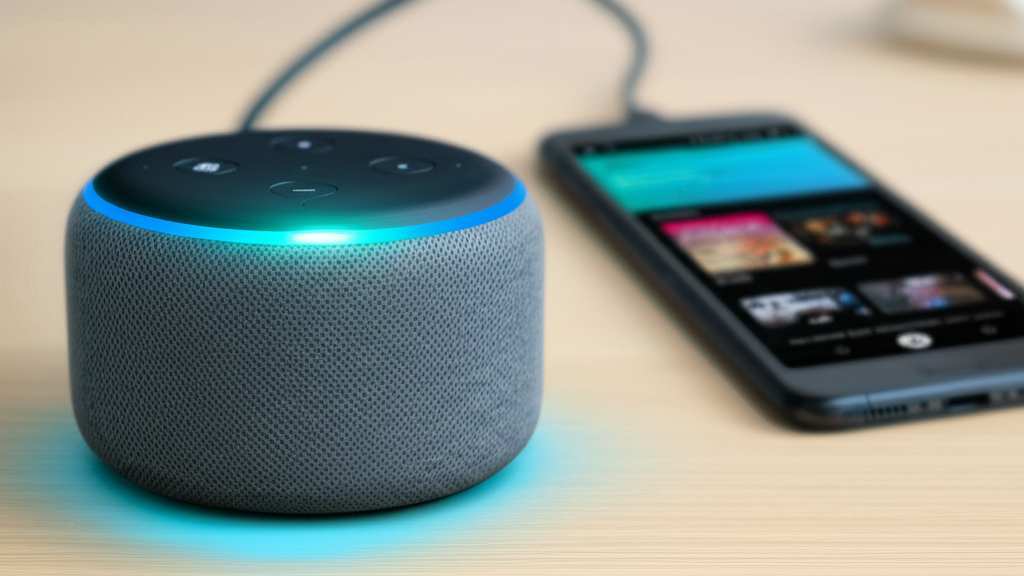
So, can Alexa actually act as a Bluetooth speaker? The short answer is a resounding YES! This feature is a game-changer for anyone who loves their music and podcasts but also wants the convenience of smart home tech. Think about it: you’ve already got Alexa ready to play music from streaming services, but what about all the audio on your phone?
This Bluetooth magic lets you connect your smartphone, tablet, or even your laptop to your Echo device. Once connected, your Echo acts just like any other Bluetooth speaker. You can stream audio from any app on your connected device directly through your Alexa. It’s an amazing way to boost your listening experience without buying extra gear.
Why Use Alexa as a Bluetooth Speaker?
You might be wondering, “Why bother when I can just use my phone or a dedicated Bluetooth speaker?” Great question! There are a few really compelling reasons why this feature is so awesome.
Amazing Sound Upgrade: Let’s be honest, phone speakers are usually pretty small. They’re okay for quick calls, but for music or movies, they often fall flat. Your Echo device, on the other hand, is designed to produce fuller, room-filling sound. Connecting your phone to Alexa instantly upgrades your audio quality.
Simplicity and Convenience: Instead of juggling multiple devices or apps, you can control your audio from your phone and have it play through your Alexa. It’s a streamlined way to enjoy your content. Plus, if your phone’s battery is running low, you can keep it plugged in and still enjoy great sound.
No Extra Cost: You likely already have an Alexa-enabled device. This feature means you don’t need to go out and buy another Bluetooth speaker. You’re using the tech you already own to its full potential. It’s smart and budget-friendly!
Versatility: Need to listen to an audiobook you bought elsewhere? Have a podcast that isn’t on Spotify or Apple Podcasts? Want to share a funny video with friends and have everyone hear it clearly? Alexa as a Bluetooth speaker handles all of that seamlessly.
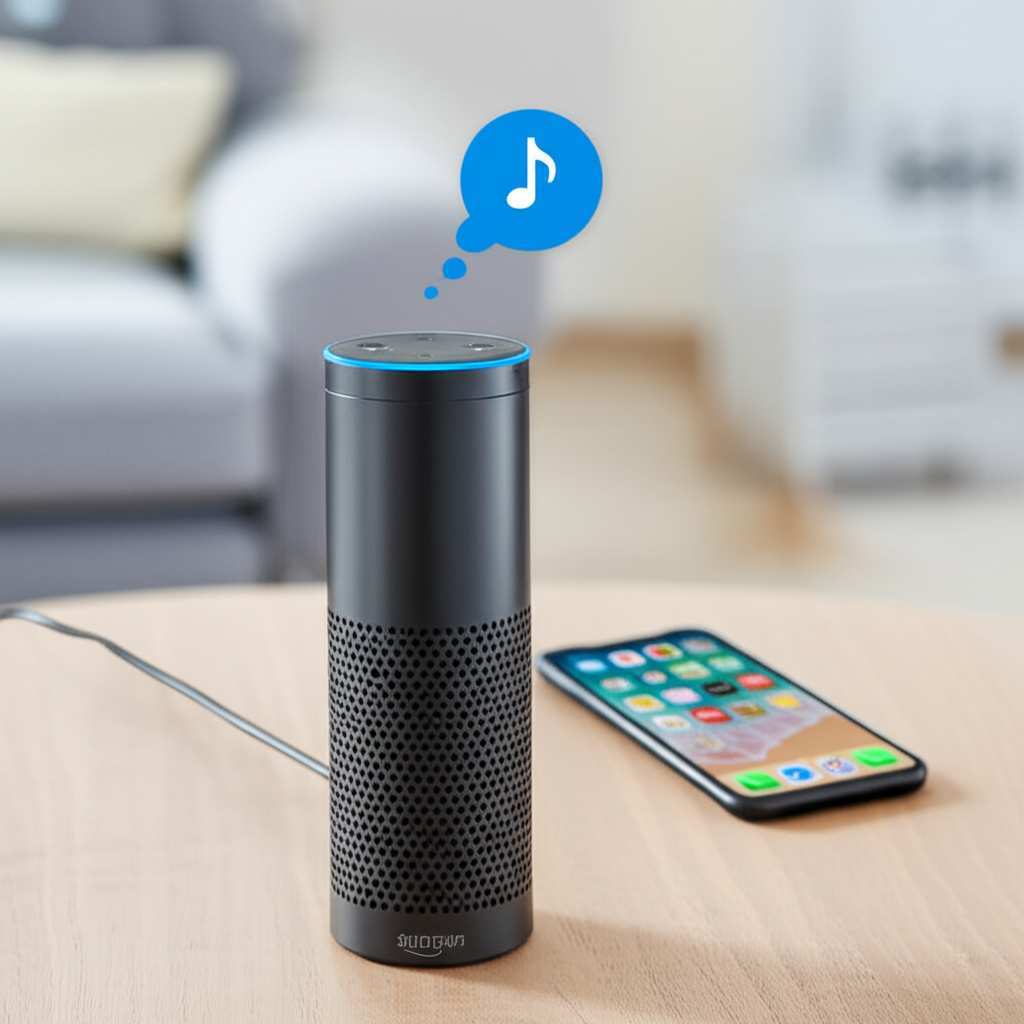
Let’s Get Connected: How to Pair Your Device with Alexa
Ready to unleash your Alexa’s inner boombox? Pairing your phone or tablet is super straightforward. Amazon designed this to be as easy as possible, so don’t worry if you’re not a tech wizard. We’ll go through it step-by-step.
Step 1: Get Your Alexa Ready
First things first, make sure your Alexa device is powered on and connected to your Wi-Fi network. It should be set up and working with the Alexa app on your phone already. If it’s brand new, you’ll need to go through the initial setup in the Alexa app.
Step 2: Open the Alexa App
Grab your smartphone or tablet and open the Amazon Alexa app. This is where you control most of your Alexa settings. If you don’t have it yet, you can download it for free from the App Store (for iOS) or Google Play Store (for Android).
Step 3: Navigate to Device Settings
Once the app is open, you’ll see a few options at the bottom. Tap on “Devices.” This section shows all your connected Amazon devices, including your Echo speakers.
Step 4: Select Your Echo Device
In the “Devices” menu, you should see your Echo device listed. Tap on its name. For example, if you have an Echo Dot, you’ll tap on “Echo Dot.” This takes you to the settings page for that specific device.
Step 5: Find the Bluetooth Settings
Scroll down the device settings page. You’re looking for an option that says “Bluetooth” or “Bluetooth Devices.” Tap on it.
Step 6: Put Alexa in Pairing Mode
On the Bluetooth screen, you’ll see options to “Pair a New Device” or similar. Tap on that. Alexa will then go into pairing mode, meaning it’s ready to discover new Bluetooth connections. You might hear a chime or Alexa might say, “You are now in pairing mode, and your device will be discoverable by other Bluetooth devices.”
Step 7: Pair Your Phone or Tablet
Now, go to the Bluetooth settings on your phone or tablet. Make sure your phone’s Bluetooth is turned ON. You should see a list of available devices. Look for the name of your Echo device in the list. It will usually be something like “Echo Dot” or “Echo Show,” followed by a few letters or numbers. Tap on your Echo device’s name to connect.
Step 8: Confirm the Connection
Your phone or tablet will attempt to pair with your Echo device. You might see a confirmation code appear on your phone’s screen. If it matches what Alexa says, confirm it. Once successfully paired, Alexa will usually announce, “Connected to [Your Device Name].”
Step 9: Play Your Audio!
That’s it! Now, open any app on your phone or tablet that plays audio (like Spotify, YouTube, Audible, or your default music player). Start playing your music, podcast, or video. The sound should now be coming out of your Alexa device. You can control the volume using your phone or by saying, “Alexa, volume up/down.”
Troubleshooting: When Things Go a Little Wonky
Sometimes, technology doesn’t play nice right away. If you’re having trouble pairing or connecting, don’t sweat it! Here are a few common issues and how to fix them.
Can’t Find Echo Device:
Make sure your Echo device is powered on and close to your phone.
Ensure Bluetooth is enabled on your phone.
Try putting Alexa back into pairing mode by saying, “Alexa, pair Bluetooth.”
Pairing Fails:
Turn off Bluetooth on your phone, wait a few seconds, and turn it back on.
Restart both your phone and your Echo device. Unplug the Echo, wait 10 seconds, and plug it back in.
If your Echo is already paired to another device, you might need to disconnect it from that device first.
No Sound After Connecting:
Check the volume on both your phone and your Echo device.
Make sure your phone’s audio output is set to the Echo device. Sometimes, phones try to play audio through their own speakers even when connected.
Disconnect and re-pair the devices.
Disconnecting Alexa from Bluetooth
When you’re done using Alexa as a Bluetooth speaker, you can easily disconnect.
Via Your Phone/Tablet: Go to your device’s Bluetooth settings. Find your Echo device in the list of paired devices and tap “Disconnect” or “Forget Device.”
Via Voice Command: Simply say, “Alexa, disconnect Bluetooth.” Alexa will confirm that the connection has been terminated.
You can also tell Alexa to forget a device permanently by saying, “Alexa, forget Bluetooth devices.” This is useful if you want to clear out old pairings.
Advanced Tips for Alexa Bluetooth Power Users
Want to get even more out of your Alexa Bluetooth experience? Here are some handy tips and tricks:
Multi-Point Pairing: Some newer Echo devices support multi-point Bluetooth pairing. This means they can stay connected to two devices at once. For example, you could have your phone and your laptop connected simultaneously. You’ll need to check your specific Echo model’s capabilities.
Using Alexa Commands While Connected: Even when connected via Bluetooth, you can still use Alexa’s voice commands! You can ask Alexa to set timers, check the weather, or control smart home devices, all while your phone’s audio is playing through it. However, Alexa’s own voice responses might interrupt your Bluetooth audio temporarily.
Improving Sound Quality: For the best audio experience, ensure your Echo device is placed in an open area, away from walls or corners that can muffle sound. Experiment with volume levels on both your phone and Alexa to find the sweet spot.
Battery Life on Your Phone: Streaming audio via Bluetooth can use more battery on your phone than usual. Keep your phone charged if you plan on listening for extended periods.
Alexa Bluetooth vs. Dedicated Bluetooth Speakers: A Quick Comparison
It’s helpful to know how Alexa stacks up against devices made purely for Bluetooth audio. Here’s a little table to give you an idea:
| Feature | Alexa as Bluetooth Speaker | Dedicated Bluetooth Speaker |
|---|---|---|
| Primary Function | Smart Assistant with Bluetooth Capability | Audio Playback |
| Sound Quality (General) | Good to Very Good (depending on Echo model) | Varies Widely (from basic to audiophile) |
| Portability | Limited (requires power outlet) | High (often battery-powered) |
| Smart Features | Excellent (voice control, smart home integration) | Limited to None |
| Setup Ease | Easy (via Alexa app) | Very Easy (simple pairing) |
| Cost | Often already owned | Varies widely, can be an additional expense |
As you can see, Alexa offers a fantastic blend of smart capabilities and decent sound. If you’re looking for the absolute best audio fidelity or need something portable for outdoor parties, a dedicated Bluetooth speaker might be better. But for everyday use, upgrading your phone’s sound, and enjoying music around the house, Alexa is an amazing option!
Understanding Alexa’s Bluetooth Capabilities
It’s worth noting that not all Alexa devices are created equal when it comes to Bluetooth. Most Echo devices, from the Echo Dot to the Echo Studio, support Bluetooth audio streaming. However, older models or very basic smart speakers might have limitations.
For instance, the Echo Studio is designed for premium audio and offers excellent Bluetooth sound. Even the smaller Echo Dot models provide a significant sound improvement over your phone’s speaker. If you’re unsure about your specific device, a quick check on Amazon’s website or the product manual will confirm its Bluetooth capabilities.
Here’s a quick look at some popular Echo models and their Bluetooth relevance:
| Echo Model | Bluetooth Audio Support | Notes |
|---|---|---|
| Echo Dot (all generations) | Yes | Great for personal listening or small rooms. |
| Echo (various generations) | Yes | Offers a fuller sound than the Dot, good for general use. |
| Echo Show (all models) | Yes | Screen adds visual benefits, sound quality varies by model. |
| Echo Studio | Yes | Premium sound, supports spatial audio, best for music lovers. |
| Echo Auto | Yes | Designed for car use, connects your phone to car speakers via Bluetooth. |
The key takeaway is that if you have a relatively recent Echo device, chances are it can absolutely function as your Bluetooth speaker. This flexibility is one of the most underrated features of these smart devices.
Real-World Scenarios: Where Alexa Shines as a Speaker
Let’s paint a picture of how this feature can make your life easier and more enjoyable.
Kitchen Companion: Cooking and listening to music or podcasts is a classic combo. Instead of balancing your phone precariously on the counter, connect it to your Alexa in the kitchen. You get great sound while keeping your phone clean and safe.
Living Room Vibes: Having friends over? Stream your shared party playlist from your phone to your Echo device. It’s a quick way to fill the room with music without needing a complex sound system.
Bedroom Background: Want to listen to a calming audiobook or a sleep playlist? Connect your phone to your bedside Echo Dot for a much more pleasant listening experience than your phone’s speaker.
Home Office Boost: If your laptop’s speakers are a bit tinny, connect it to your Echo device. Your conference calls will sound clearer, and your background music will be more enjoyable.
Movie Night Audio: While not a replacement for a full surround sound system, connecting your tablet to an Echo device can significantly improve the audio for movies or YouTube videos, especially for dialogue.
These are just a few examples. The possibilities are endless, and it all comes down to making your existing tech work smarter for you.
Fun Fact Alert!
Did you know that Bluetooth technology was named after a Viking king? Harald “Bluetooth” Gormsson united Danish tribes in the 10th century. The technology’s inventor, Jim Kardach, thought the protocol would unite communication protocols much like King Harald united the tribes. Pretty cool, right? This bit of history is now powering seamless audio connections in millions of homes!
For more in-depth tech insights, you can check out resources like CNET’s comprehensive reviews and guides. They often cover how different smart devices integrate and perform.
Frequently Asked Questions (FAQ)
Here are some common questions beginners have about using Alexa as a Bluetooth speaker.
Can I use my Alexa device as a Bluetooth speaker for my TV?
While most smart TVs have Bluetooth, connecting an Alexa device directly as a TV speaker can be tricky and isn’t directly supported for most setups. Alexa is primarily designed to stream audio from phones, tablets, and computers. Some workarounds might exist for specific TV models or with additional hardware, but it’s not a standard feature.
Will Alexa stop listening for commands when it’s acting as a Bluetooth speaker?
No, Alexa will continue to listen for its wake word (“Alexa”) even when playing audio via Bluetooth. You can interrupt your music to ask Alexa a question or give a command. Just be aware that Alexa’s response might momentarily pause or lower the Bluetooth audio.
How do I connect multiple phones to my Alexa Bluetooth speaker?
Most Echo devices can remember multiple Bluetooth pairings. However, they typically only play audio from one device at a time. To switch between phones, you’ll usually need to disconnect the current phone and then connect the new one through your phone’s Bluetooth settings or by asking Alexa to disconnect. Some newer models support multi-point pairing, allowing two devices to be connected simultaneously, but only one will be actively playing audio at a time.
Can I control the music playback (play, pause, skip) from Alexa?
Yes, once connected via Bluetooth, you can use voice commands to control playback. You can say things like:
“Alexa, pause.”
“Alexa, play.”
“Alexa, next song.”
“Alexa, previous song.”
“Alexa, stop music.”
What’s the range of the Bluetooth connection for Alexa?
The typical Bluetooth range is about 30 feet (9 meters) in open spaces. Walls and other obstructions can reduce this range. For the best connection, keep your phone or tablet relatively close to your Alexa device.
Does using Alexa as a Bluetooth speaker drain my phone’s battery faster?
Yes, using Bluetooth to stream audio generally uses more battery power on your phone or tablet than normal. It’s a good idea to keep your device plugged in if you’re listening for a long time.
How do I make Alexa’s Bluetooth speaker sound better?
To improve sound quality:
Ensure your Echo device is placed in an open area.
Adjust the volume on both your phone and Alexa.
For higher-end Echo models like the Echo Studio, explore any available audio settings in the Alexa app.
Experiment with different music genres and audio sources.
Conclusion: Your Alexa Just Got Louder!
So there you have it! Your Alexa-enabled device is much more than just a voice assistant; it’s a capable Bluetooth speaker waiting to be unleashed. You’ve learned how to pair your phone or tablet in just a few simple steps, troubleshoot common issues, and even compare its capabilities to dedicated speakers.
This simple trick can significantly enhance your daily listening experience, from your morning podcast to your evening playlist. It’s a fantastic way to get more value out of the technology you already own. No need for fancy setups or extra purchases – just a few taps and a voice command, and you’re ready to go.
Now go enjoy amazing sound and make every moment louder and better! Experiment with it, connect your favorite devices, and rediscover your music and audio content with a richer, fuller sound. Happy listening!