Yes, you absolutely can use your Alexa device as a Bluetooth speaker! It’s a fantastic way to stream music, podcasts, or anything else from your phone or tablet directly to your Echo’s great sound. Let’s dive in!
Hey there, tech explorers! Max here from AffTechy.com, your go-to spot for making tech simple and fun. Ever feel like your phone’s speaker just doesn’t cut it for your favorite tunes or that exciting movie scene? You’re not alone! We all love great sound, and sometimes, the speakers built into our everyday gadgets just don’t hit the mark. Picking out a new speaker can feel like a puzzle with all those confusing specs.
But what if I told you that your friendly voice assistant, Alexa, could actually double as a super-powered Bluetooth speaker? It’s true! That smart speaker sitting on your counter or bedside table is probably capable of much more than just telling you the weather or playing music on command. It can become the heart of your personal sound system, wirelessly connecting to your phone or tablet.
We’re going to make this super easy. No jargon, no confusing steps. Just a clear, friendly guide to unlock this awesome feature. Think of it like discovering a hidden superpower for your Alexa device! So, grab your favorite device, and let’s get ready to boost your audio experience.

Can You Use Alexa as a Bluetooth Speaker? The Short Answer!
So, to get straight to the point: Can you use an Alexa as a Bluetooth speaker? Yes, you can! It’s one of the most useful features many Alexa-enabled devices have. You can pair your phone, tablet, or any other Bluetooth-enabled gadget with your Echo device. This lets you stream audio from your device directly to your Echo. It’s like giving your phone a direct line to a much better sound system.
Why Would You Want to Use Alexa as a Bluetooth Speaker?
Let’s think about why this is such a cool trick. Your phone or tablet is great for on-the-go, but its speakers are often small and not designed for rich audio. Your Alexa device, especially the larger Echo speakers, usually has much better sound quality. They’re built to fill a room with music.
Imagine you’re getting ready for a party, and you want to play your curated playlist from your phone. Instead of fiddling with cables or dealing with tinny phone audio, you can just connect your phone via Bluetooth to your Echo. Boom! Instant party sound. Or maybe you’re watching a movie on your tablet and want to immerse yourself in the sound. Your Echo can handle that too.
It’s all about enhancing your listening experience without buying a separate Bluetooth speaker. Your Alexa device is already there, so why not put it to work for you in this awesome way? It’s a smart way to get more bang for your buck from the tech you already own.
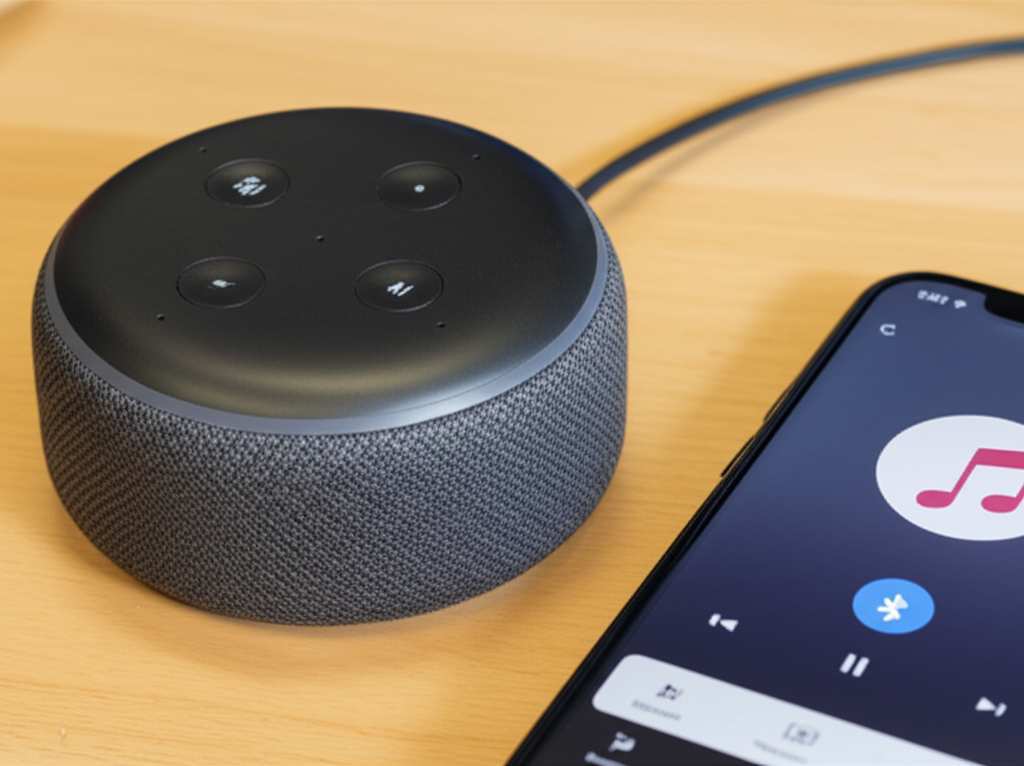
What Alexa Devices Can Be Used as Bluetooth Speakers?
This is a great question! Most Amazon Echo devices are equipped with Bluetooth capabilities. This includes a wide range of popular models.
Here are some common Alexa devices that work as Bluetooth speakers:
Amazon Echo (all generations)
Echo Dot (all generations)
Echo Plus
Echo Show (all models)
Echo Studio
Echo Spot
Echo Input
Essentially, if your device has the Alexa voice assistant built-in and it’s an Amazon Echo product, there’s a very high chance it supports Bluetooth streaming. You can usually check the product specifications on Amazon’s website or the device’s packaging if you’re unsure about a specific model. It’s good to know that even the smaller Echo Dots can significantly improve your phone’s audio output.
Let’s Get Connected: How to Pair Your Device with Alexa
Okay, ready to make the magic happen? Connecting your phone or tablet to your Alexa device via Bluetooth is super straightforward. Amazon designed this feature to be as user-friendly as possible. You’ll be streaming in no time!
Step 1: Wake Up Your Alexa
First things first, make sure your Alexa device is powered on and connected to Wi-Fi. You can usually tell by the light ring on top of the device. If it’s on, it’s ready to go.
Step 2: Put Alexa in Pairing Mode
There are a couple of ways to get Alexa ready to find your device. The easiest is usually with a voice command.
Try saying: “Alexa, pair Bluetooth.”
Or try: “Alexa, turn on Bluetooth.”
Alexa will then tell you that it’s trying to pair or that it’s in pairing mode. You’ll often hear a sound cue, and the light ring might change color to show it’s actively searching.
Step 3: Open Bluetooth Settings on Your Phone/Tablet
Now, grab your smartphone or tablet. You need to go into its Bluetooth settings.
On iOS (iPhones/iPads): Go to Settings > Bluetooth. Make sure Bluetooth is toggled on.
On Android: Go to Settings > Connections > Bluetooth. Or sometimes it’s Settings > Bluetooth. Ensure Bluetooth is enabled.
Your phone or tablet will start scanning for available Bluetooth devices.
Step 4: Find and Select Your Alexa Device
In the list of available devices on your phone or tablet, you should see your Alexa device appear. It will likely be named something like “Echo [your device name]” or “Amazon Echo.”
Tap on your Alexa device’s name in the list.
Your phone or tablet will attempt to connect. You might hear Alexa say something like, “Connected to [your device name].” You’ll also likely see a confirmation on your phone or tablet screen.
Step 5: Play Your Audio!
That’s it! Your device is now paired. Open your favorite music app, podcast player, or any app that plays audio. The sound should now come out of your Alexa device instead of your phone or tablet.
You can control the volume using your voice command to Alexa (e.g., “Alexa, turn up the volume”) or by using the volume controls on your phone or tablet. To disconnect, you can either turn off Bluetooth on your phone/tablet or say, “Alexa, disconnect Bluetooth.”
Using the Alexa App for Bluetooth Pairing (Alternative Method)
Sometimes, using the app can be a bit more visual and might be helpful if voice commands aren’t working perfectly.
1. Open the Alexa App: Make sure you’re logged into your Amazon account.
2. Go to Devices: Tap the “Devices” icon in the bottom right corner.
3. Select Your Echo Device: Tap on the specific Echo device you want to pair.
4. Tap the Settings Gear: Look for the gear icon (usually in the top right corner) and tap it.
5. Find Bluetooth: Scroll down until you see the “Bluetooth Connectivity” section.
6. Pair New Device: Tap “Pair a New Device.”
7. Follow On-Screen Prompts: The app will guide you, and your Echo device will enter pairing mode. Then, follow Step 3 and 4 from the voice command method on your phone/tablet.
This method offers a clear visual path if you prefer it.
Unpairing Devices: When You Need to Disconnect
Need to switch to a different speaker or device? Unpairing is just as easy.
Voice Command: Simply say, “Alexa, disconnect Bluetooth.” Your Alexa device will confirm it’s disconnected.
From Your Phone/Tablet: Go back to your Bluetooth settings on your phone or tablet. Find your Alexa device in the list of paired devices and tap “Disconnect” or “Unpair.”
From the Alexa App: Go to your Echo device’s settings in the Alexa app, tap the gear icon, and under “Bluetooth Connectivity,” you should see your connected device. You can tap it to disconnect or manage the pairing.
Alexa as a Bluetooth Speaker: The Cool Features and What They Mean
Using Alexa as a Bluetooth speaker isn’t just about getting sound from your phone to your Echo. There are some neat features that make this even better.
Hands-Free Control
This is a big one! Since it’s Alexa, you can often control your music playback using voice commands, even when it’s connected via Bluetooth.
“Alexa, play music.” (This might start playing from a service linked to Alexa, but sometimes it can resume your Bluetooth audio.)
“Alexa, pause.”
“Alexa, skip song.”
“Alexa, what song is this?”
While not all playback controls work perfectly through Alexa when Bluetooth is active (sometimes it prioritizes Alexa’s own skills), many basic commands do. It’s worth trying! This means you can keep your phone in your pocket and still manage your tunes.
Volume Control Flexibility
You have two main ways to control the volume:
Voice Commands: “Alexa, volume up,” “Alexa, set volume to 5,” or “Alexa, mute.”
Device Controls: Use the volume buttons on your phone or tablet.
Both methods usually work in tandem. Adjusting volume on your phone will change the audio signal level, and Alexa’s volume controls adjust the speaker’s output. It’s great to have options!
Multi-Room Audio (with some limitations)
If you have multiple Echo devices, you can set up Multi-Room Music. However, when using Bluetooth, this feature is limited. You can’t typically stream the same Bluetooth audio to multiple Echo devices simultaneously. Multi-Room Music is designed for music played through Alexa’s native streaming services. But, if you have an Echo Studio or a soundbar with Alexa built-in, you might have more advanced audio options.
Connecting to Multiple Devices (Limited)
Most Alexa devices can only be actively paired and connected to one Bluetooth source at a time. If you want to switch from your phone to your tablet, you’ll need to disconnect the first device before pairing the second. Alexa remembers previously paired devices, so reconnecting is usually quick.
Alexa as a Bluetooth Speaker vs. Dedicated Bluetooth Speakers
It’s natural to wonder how using Alexa as a Bluetooth speaker stacks up against a dedicated Bluetooth speaker. Here’s a quick look at the pros and cons.
Pros of Using Alexa as a Bluetooth Speaker:
Convenience: You’re likely already using an Alexa device, so there’s no need to buy another gadget.
Sound Quality: Often better than your phone or tablet speakers, especially with larger Echo models.
Hands-Free Potential: Voice control can be a nice bonus.
Cost-Effective: Utilizes existing hardware.
Cons of Using Alexa as a Bluetooth Speaker:
Portability: Alexa devices are generally not portable. They need to be plugged into power.
Limited Multi-Device Streaming: Can’t easily stream to multiple speakers at once from a single Bluetooth source.
Bluetooth Version: Older Alexa devices might have older Bluetooth versions, potentially affecting range or stability compared to newer dedicated speakers.
Audio Quality Nuances: While good, a high-end dedicated Bluetooth speaker might offer superior audio fidelity for audiophiles.
Table: Alexa vs. Dedicated Bluetooth Speakers – Key Differences
Let’s break down some key comparison points.
| Feature | Alexa as Bluetooth Speaker | Dedicated Bluetooth Speaker |
| :—————- | :———————————————————- | :————————————————————– |
| Portability | Low (Requires power outlet) | High (Battery-powered, designed for travel) |
| Setup Ease | Very Easy (Voice or App pairing) | Easy (Typically button press and phone pairing) |
| Sound Quality | Good to Excellent (Varies by Echo model) | Good to Audiophile-grade (Wide range of options) |
| Power Source | AC Power | Rechargeable Battery |
| Multi-Room | Limited for Bluetooth source (Not supported for Bluetooth) | Some models offer stereo pairing or multi-speaker sync |
| Voice Control | Yes (Alexa voice commands) | Typically none (unless it’s a smart speaker itself) |
| Connectivity | Bluetooth | Bluetooth, often Wi-Fi, sometimes Aux-in |
| Price | Utilizes existing device (cost already incurred) | Varies widely, from $20 to $400+ |
When you look at this table, you can see that if you need something to take to the beach or a picnic, a dedicated Bluetooth speaker is the way to go. But for great sound at home from your phone, your Alexa device is a fantastic, often overlooked, option.
Tips for the Best Bluetooth Experience with Alexa
Want to make sure your audio streaming is as smooth as possible? Here are a few tips:
Keep Devices Close: For the best connection, keep your phone or tablet relatively close to your Alexa device. Bluetooth has a decent range, but walls and distance can interfere.
Update Your Devices: Make sure both your Alexa device and your phone/tablet have the latest software updates installed. This can improve performance and stability.
Restart If Needed: If you encounter any connection issues, try restarting both your Alexa device (unplug it, wait 30 seconds, plug it back in) and your phone/tablet.
Clear Paired Devices (If Problems Persist): If Alexa isn’t showing up or connecting, you might need to tell Alexa to forget your device. Say, “Alexa, forget Bluetooth devices.” Then, re-pair as usual. You might also need to “forget” your Echo from your phone’s Bluetooth settings.
Check Your Wi-Fi: While Bluetooth doesn’t rely on Wi-Fi for the audio stream itself, a stable Wi-Fi connection is crucial for Alexa to function properly and manage the Bluetooth pairing.
Fun Facts About Bluetooth Technology
Did you know Bluetooth technology is named after a Viking king? Harald “Bluetooth” Gormsson united Danish tribes in the 10th century. The technology was developed to unite communication protocols. Pretty cool, right? This wireless technology allows devices to communicate over short distances using radio waves. It’s a standard feature on most modern smartphones, tablets, and computers, making it incredibly versatile. For more on how Bluetooth works, you can check out resources from sites like CNET.
Troubleshooting Common Bluetooth Issues with Alexa
Sometimes, tech doesn’t cooperate perfectly. If you’re having trouble, don’t worry! Here are some common issues and how to fix them.
Issue 1: Alexa won’t go into pairing mode.
Try saying: “Alexa, turn on Bluetooth” or “Alexa, pair Bluetooth” more clearly.
Check the app: Use the Alexa app to manually put the device into pairing mode as described earlier.
Restart Alexa: Unplug your Echo, wait a bit, and plug it back in.
Issue 2: My phone/tablet can’t find the Alexa device.
Make sure Bluetooth is on: Double-check your phone/tablet’s Bluetooth settings.
Ensure Alexa is in pairing mode: Listen for the confirmation sound or check the light ring.
Forget other devices: If your phone is connected to many devices, try turning off Bluetooth briefly and then on again.
Move closer: Bring your phone/tablet right next to the Echo.
Issue 3: The audio is choppy or cuts out.
Reduce distance: Move your phone/tablet closer to the Echo.
Minimize interference: Other wireless devices (microwaves, some routers) can interfere. Try moving away from them.
Restart both devices: A simple restart can often clear temporary glitches.
Check for updates: Ensure all software is current.
Issue 4: Alexa says it’s connected, but no sound plays.
Check volume: Make sure the volume is up on both Alexa and your phone/tablet.
Verify audio source: Ensure the audio is actually playing on your phone/tablet app.
Disconnect and reconnect: Try telling Alexa, “Alexa, disconnect Bluetooth,” and then re-pair your device.
* Check app settings: Sometimes, the app you’re using might have its own audio output settings.
Most of the time, a simple restart or re-pairing will solve these issues. It’s rare for an Alexa device to have a hardware problem with its Bluetooth if it’s working otherwise.
Frequently Asked Questions (FAQ)
Q1: Can I use my Echo Dot as a Bluetooth speaker for my TV?
A1: You can connect your phone or tablet to an Echo Dot via Bluetooth, but you generally cannot connect a TV directly to an Echo Dot via Bluetooth for audio output. Some higher-end Echo devices (like Echo Studio) or specific Fire TV devices might have more advanced audio connection options, but direct TV-to-Echo Dot Bluetooth audio streaming is not a standard feature.
Q2: Will my voice commands work when Alexa is acting as a Bluetooth speaker?
A2: Yes, you can still use voice commands to control Alexa’s functions like timers, alarms, and asking for information. Basic music playback commands like pause, play, and skip might also work, but it depends on the specific app and Alexa’s interpretation.
Q3: How do I disconnect my phone from Alexa when I’m done?
A3: You can say, “Alexa, disconnect Bluetooth,” or simply turn off Bluetooth on your phone or tablet. You can also unpair the device from your phone’s Bluetooth settings.
Q4: Can I stream audio from my computer to Alexa via Bluetooth?
A4: Absolutely! Most laptops and desktop computers have Bluetooth capabilities. You can pair your computer with your Alexa device just like you would a phone or tablet to stream audio.
Q5: Does using Alexa as a Bluetooth speaker drain its battery faster?
A5: Since Alexa devices are always plugged into a power outlet, battery drain isn’t a concern. The Bluetooth radio does use a small amount of power, but it’s negligible when the device is powered by AC.
Q6: What happens if I have multiple Alexa devices? Can I stream to all of them?
A6: When using Bluetooth, you can only connect one device (like your phone) to one Alexa speaker at a time. You cannot stream the same Bluetooth audio source to multiple Echo devices simultaneously. For multi-room audio with a single source, you’d typically use Alexa’s native music services.
Q7: Is the sound quality good enough for critical listening?
A7: For casual listening, podcasts, and general music enjoyment, the sound quality from most Echo devices is very good and a significant upgrade from phone speakers. However, for true audiophiles seeking the highest fidelity, a dedicated, high-end Bluetooth speaker or a home audio system might be preferred.
Making Your Alexa Your Go-To Speaker
See? Using your Alexa device as a Bluetooth speaker is a super handy trick that many people overlook. It’s an easy way to boost the sound for your music, podcasts, or even movie audio from your phone or tablet without needing to buy extra equipment. Just a few simple steps, and you’ve got a much richer listening experience right in your home.
You’ve learned how to pair, unpair, and even troubleshoot common issues. You know the benefits and when a dedicated Bluetooth speaker might be a better choice. This knowledge empowers you to get the most out of your smart home devices.
So go ahead, give it a try! Connect your phone, crank up your favorite playlist, and enjoy the difference. Now go enjoy amazing sound and make every moment louder and better!