Yes, you absolutely can use your Amazon Echo device as a Bluetooth speaker! It’s a fantastic way to stream music, podcasts, or audio from any device that supports Bluetooth. Let’s dive into how easy it is to connect and enjoy your favorite sounds.
Hey there, tech adventurer! Max here from AffTechy.com, your go-to buddy for all things tech that don’t make your head spin. Have you ever been chilling at home, wanting to blast your favorite tunes or catch up on a podcast, and thought, “Man, I wish my Echo could just play this from my phone?” Well, I’ve got some awesome news for you! It totally can, and it’s simpler than you might think.
We all love our smart speakers for their voice commands and handy info. But sometimes, you just want to play something specific from your phone or tablet without fussing with apps or subscriptions. That’s where the magic of Bluetooth comes in. It’s like giving your Echo a direct line to your phone’s audio library.
Picking the right speaker can feel like a puzzle sometimes, with all the specs and features. But don’t worry! My goal is to make technology feel super approachable. We’re going to walk through how to turn your Echo into the best Bluetooth speaker for your needs, step-by-step. Think of me as your friendly guide, making sure you get the best sound experience.
Ready to unlock this cool feature? Let’s break it down and get your Echo singing your favorite tunes.
Your Echo: More Than Just a Smart Assistant
So, you’ve got your Amazon Echo – maybe it’s a Dot, a Show, or a full-blown Studio. It’s amazing at telling you the weather, setting timers, and playing music on command. But did you know it’s also a pretty sweet Bluetooth speaker? It’s like having a secret superpower you didn’t even know about!
This means you can connect your phone, tablet, or even your laptop to your Echo. Then, anything you play on that device – music from your streaming app, that funny podcast you love, or even the audio from a movie you’re watching – will come out of your Echo’s speakers. Pretty neat, right?
It’s a fantastic way to get better sound for your devices without buying a separate Bluetooth speaker. Plus, you get to keep all the smart features of your Echo. It’s a win-win!
Let’s Talk About Sound: Why Bluetooth Matters
Think about it: we carry our music libraries and favorite audio content right in our pockets on our phones. But the speakers on most phones are… well, they’re okay. They’re small, and they can’t fill a room with rich sound. That’s where a dedicated speaker like your Echo shines.
When you connect your phone to your Echo via Bluetooth, you’re essentially using your Echo as an external speaker. This means you get the benefit of its larger speaker drivers and better acoustics. The sound quality is usually a big upgrade! It makes music sound fuller, podcasts clearer, and movie audio more immersive.
This connection is super useful for parties, casual listening at home, or just enjoying your audio content at a higher quality. You’re taking the best of both worlds: the convenience of your phone and the superior sound of your Echo.
Connecting Your Device: The Step-by-Step Magic
Alright, ready to make the magic happen? Connecting your device to your Echo as a Bluetooth speaker is a breeze. Amazon designed this to be super user-friendly, so don’t sweat it. You’ll be streaming in no time.
First things first, make sure your Echo is powered on and connected to your Wi-Fi. This is how it gets its smarts. You’ll also need your phone or tablet ready, with Bluetooth turned on.
Here’s the simple process, broken down into easy steps:
Step 1: Put Your Echo in Pairing Mode
This is the crucial first step. You need to tell your Echo, “Hey, I want to connect a new device.”
Using Your Voice: The easiest way is to just ask Alexa. Say, “Alexa, pair Bluetooth.” Your Echo will then tell you it’s in pairing mode and ready to connect. You might hear a little chime or a voice saying, “Now discoverable for Bluetooth devices.”
Using the Alexa App: If you prefer using the app, open it on your phone or tablet. Tap “Devices” at the bottom. Then, select your Echo device from the list. Scroll down and tap on “Bluetooth Connections.” Here, you’ll see an option to “Pair a New Device.” Tap that, and Alexa will start searching.
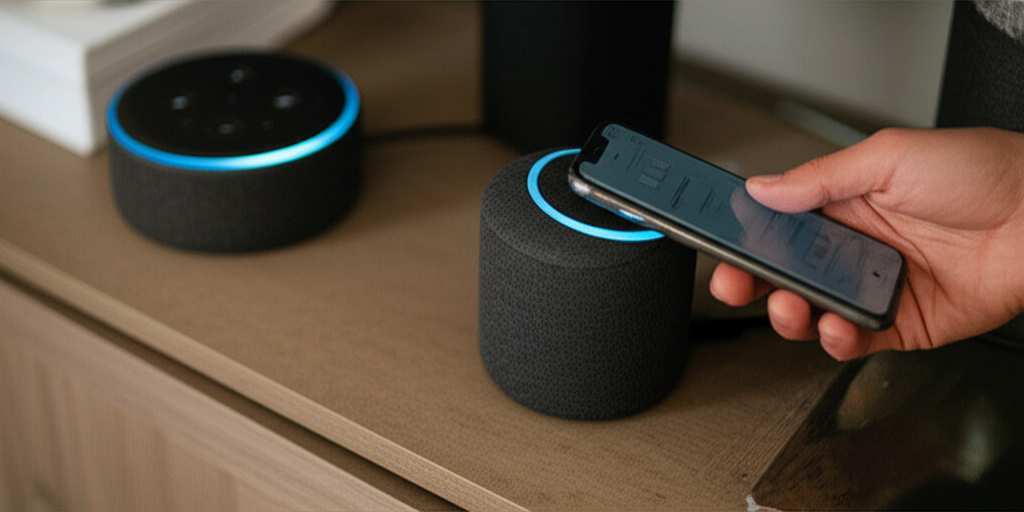
You’ll know your Echo is in pairing mode when its light ring (if it has one) turns blue or pulses blue. This tells you it’s actively looking for a device to connect to.
Step 2: Find Your Echo on Your Phone or Tablet
Now, it’s time to find your Echo from your phone or tablet’s Bluetooth settings.
On iOS (iPhones/iPads): Go to “Settings,” then tap “Bluetooth.” Make sure Bluetooth is switched on. Your device will start scanning for nearby Bluetooth devices.
On Android: Go to “Settings,” then “Connected devices” or “Connections,” and tap “Bluetooth.” Ensure Bluetooth is toggled on. Your phone will then search for available devices.
On Windows: Click the Start button, go to Settings (the gear icon), then “Devices,” and select “Bluetooth & other devices.” Make sure Bluetooth is on. Click “Add Bluetooth or other device” and choose “Bluetooth.”
On macOS: Click the Apple menu, go to “System Preferences,” then “Bluetooth.” Make sure Bluetooth is turned on. Your Mac will search for nearby devices.
Look for your Echo device’s name in the list of available devices. It will usually be something like “Echo Dot,” “Echo Show,” or just “Amazon Echo,” followed by a series of letters and numbers.
Step 3: Select Your Echo to Connect
Once you see your Echo’s name in the list on your phone or tablet, tap on it.
Your phone or tablet will then attempt to connect to your Echo. You might see a confirmation message on both your device and hear Alexa say something like, “Connected to [Your Device Name].”
If it asks for a PIN or pairing code, it’s usually not needed for Echo devices. If it does, try “0000” or check your Echo’s specific model. But most of the time, it connects seamlessly without any codes.
Step 4: Play Your Audio!
That’s it! You’re connected. Now, open any app on your phone or tablet that plays audio. Go to your music app, podcast player, or video. Start playing something, and the sound should now come out of your Echo speaker instead of your device.
You can control the volume from your phone or tablet, or by using your voice with Alexa. Just say, “Alexa, volume up,” or “Alexa, set volume to 5.”
Managing Your Bluetooth Connections: Easy Peasy
Once you’ve paired a device, your Echo remembers it. This makes reconnecting super simple in the future.
When you want to connect your phone again, you usually just need to:
1. Turn on Bluetooth on your phone.
2. Say, “Alexa, connect my phone.”
Your Echo should automatically connect to the last device it was paired with. If you have multiple devices paired, you might need to be a little more specific. You can say, “Alexa, connect to [Your Device Name].”
Disconnecting Your Device
When you’re done listening or want to connect a different device, you can disconnect easily:
Using Your Voice: Say, “Alexa, disconnect Bluetooth.”
Using the Alexa App: Go to your Echo device in the app, tap “Bluetooth Connections,” and then tap “Disconnect” next to your connected device.
On Your Phone/Tablet: Go to your Bluetooth settings and “forget” or “disconnect” from your Echo device.
Forgetting a Device
If you’re having trouble connecting or want to remove a device from your Echo’s memory, you can “forget” it.
Using Your Voice: Say, “Alexa, forget Bluetooth.” This will clear all paired Bluetooth devices. You’ll need to re-pair them if you want to connect them again.
Using the Alexa App: Go to your Echo device in the app, tap “Bluetooth Connections,” and then tap “Forget” next to the device you want to remove.
What Can You Connect? The Possibilities Are Huge!
The beauty of Bluetooth is its versatility. You can connect almost any device that has Bluetooth capability to your Echo.
Here’s a quick rundown of common devices you can pair:
Smartphones (iPhone, Android): Stream music from Spotify, Apple Music, YouTube Music, or any other audio app.
Tablets (iPad, Android Tablets): Perfect for watching videos or listening to audiobooks with better sound.
Laptops (Windows, macOS): Turn your Echo into a much better external speaker for your computer. Great for online meetings or watching streaming services.
MP3 Players: If you have an older MP3 player with Bluetooth, you can bring those playlists to life.
Smart TVs (some models): Some smart TVs allow Bluetooth audio output. Check your TV’s settings.
It’s important to note that not all devices might be compatible, but the vast majority of modern gadgets with Bluetooth will work just fine.
Echo Models and Bluetooth Capabilities
Most Amazon Echo devices released in recent years come with Bluetooth audio streaming capabilities. This is a standard feature now.
Here’s a general idea, though it’s always good to check your specific model’s specs if you’re unsure:
| Echo Model Family | Bluetooth Audio Support | Notes |
| :—————— | :———————- | :——————————————————————– |
| Echo (all generations) | Yes | Standard feature for most models. |
| Echo Dot (all generations) | Yes | Excellent for smaller rooms; pairs easily. |
| Echo Show (all generations) | Yes | Great for video content, as the sound quality is usually better. |
| Echo Studio | Yes | Top-tier audio; pairs for an even more immersive experience. |
| Echo Plus | Yes | Often includes enhanced audio features. |
| Echo Input/Link | Yes | Designed to add smarts and Bluetooth to existing speakers. |
As you can see, if you have a relatively modern Echo device, the chances are very high that it can function as a Bluetooth speaker. Amazon has made this a core feature for a good reason – it adds so much value!
Sound Quality: What to Expect
Let’s be real, an Amazon Echo isn’t going to replace a high-end audiophile sound system. However, for most people, the sound quality is a significant upgrade from their phone’s built-in speaker.
Bass and Clarity: You’ll notice richer bass and clearer mids and highs. This is because Echo devices have larger speaker drivers than most phones.
Room Filling Sound: An Echo can fill a medium-sized room with sound much more effectively than a phone.
Echo Studio: If you have an Echo Studio, you’re in for a treat. It’s designed for premium sound and offers the best audio experience among Echo devices.
Echo Show: Models with screens, like the Echo Show, often have surprisingly good sound for their size, making them great for casual listening and watching videos.
For everyday listening, podcasts, or background music, the Bluetooth audio from an Echo is more than adequate and very enjoyable. It’s a fantastic way to get more out of your existing tech.
Troubleshooting Common Issues
Sometimes, technology likes to throw a little curveball. If you’re having trouble connecting your device to your Echo, don’t panic! Here are a few common fixes:
Ensure Both Devices Are Close: Bluetooth has a limited range. Make sure your phone/tablet is within about 30 feet (10 meters) of your Echo.
Restart Both Devices: The classic IT solution works wonders. Turn off your Echo (unplug it for 10 seconds), and restart your phone/tablet. Then, try pairing again.
Check for Interference: Other wireless devices can sometimes interfere with Bluetooth signals. Try moving away from microwaves, other Bluetooth devices, or Wi-Fi routers if possible.
Forget and Re-pair: If your device shows as connected but isn’t playing audio, or if you’re having persistent connection issues, try forgetting the Echo from your phone’s Bluetooth settings and then re-pairing it from scratch.
Update Your Alexa App: Make sure you have the latest version of the Alexa app installed on your phone or tablet. Sometimes, app updates fix bugs.
Check Alexa’s Status: Make sure your Echo is online and responding to voice commands. If it’s having Wi-Fi issues, it might not be able to manage Bluetooth connections properly.
If you’ve tried these steps and are still stuck, Amazon’s support pages are a great resource, or you can always search online tech forums for your specific issue.
Fun Facts & Cool Uses
Did you know that Bluetooth technology was named after a Viking king? Harald Bluetooth was famous for uniting Danish tribes, and the technology was meant to unite different communication protocols. Pretty cool historical tidbit for your next party!
Here are some fun ways to use your Echo as a Bluetooth speaker:
Movie Nights: Connect your laptop or tablet to your Echo for a richer movie audio experience.
Gaming Sessions: If you’re playing a mobile game that has great sound effects or music, connect your phone to your Echo for more immersive gameplay.
Podcast Powerhouse: Enjoy your favorite podcasts with crystal-clear audio that fills the room.
Music for Gatherings: Easily stream a playlist from your phone for a party or casual get-together without needing to ask Alexa to play specific songs.
* Accessibility: For users who find voice commands challenging, Bluetooth provides a direct way to play audio content.
Comparing Echo Models for Bluetooth Audio
While most Echos support Bluetooth, there are some differences in sound quality that might matter if you’re a discerning listener or looking to buy a new device.
| Feature | Echo Dot (5th Gen) | Echo (4th Gen) | Echo Show 8 (2nd Gen) | Echo Studio |
| :—————— | :—————– | :————- | :——————– | :———- |
| Speaker Size | Compact | Mid-size | Mid-size with screen | Large |
| Bass Response | Decent | Good | Good | Excellent |
| Clarity & Detail | Good | Very Good | Very Good | Outstanding |
| Room Filling Ability | Small to Medium | Medium to Large | Medium to Large | Large |
| Best For | Casual Listening | Everyday Use | Video & Music | Premium Audio |
What this means for you: If you just want a basic upgrade for podcasts or casual music in a small room, an Echo Dot is perfect. For a more robust sound that can handle larger spaces, the standard Echo or Echo Show is a great choice. And if you’re serious about audio quality and want a truly immersive experience, the Echo Studio is the king of Echo sound.
For pure Bluetooth speaker functionality, the standard Echo (4th Gen) and Echo Show models offer a fantastic balance of size, sound, and features. The Echo Studio, of course, leads the pack for audio fidelity.
Frequently Asked Questions (FAQs)
Here are some common questions beginners have about using their Echo as a Bluetooth speaker.
Q1: Can I use my Echo as a Bluetooth speaker if it’s not connected to Wi-Fi?
A: No, your Echo needs to be connected to Wi-Fi to function and manage Bluetooth connections. Bluetooth pairing and streaming rely on the Echo’s internal processing, which requires an internet connection.
Q2: Can I use multiple Bluetooth devices with my Echo at the same time?
A: No, an Echo device can only be actively paired and playing audio from one Bluetooth device at a time. You can pair multiple devices to your Echo, but only one can be connected for playback at any given moment.
Q3: Will Alexa still work when my Echo is connected to Bluetooth?
A: Yes! Alexa remains fully functional. You can still ask Alexa questions, set timers, or control smart home devices even when your Echo is connected via Bluetooth to stream audio. It’s like having two amazing functions working together.
Q4: Can I use my Echo as a Bluetooth speaker for my TV?
A: This depends on your TV. If your TV supports Bluetooth audio output, you can pair it with your Echo. However, many older or basic TVs do not have this feature. You might need a separate Bluetooth transmitter for your TV if it lacks built-in Bluetooth.
Q5: How do I switch back from Bluetooth audio to Alexa music services?
A: When you’re done with Bluetooth, you can simply disconnect your phone or tablet. Then, you can ask Alexa to play music from services like Amazon Music or Spotify. Or, if you connect your phone again, you can ask Alexa to stop the Bluetooth audio playback.
Q6: Is the sound quality as good as a dedicated Bluetooth speaker?
A: For most everyday use, the sound quality is comparable to or better than many dedicated portable Bluetooth speakers, especially for compact models. High-end dedicated speakers might offer superior bass or clarity, but for convenience and an upgrade from your phone, the Echo is excellent.
Q7: How do I update my Echo’s firmware for better Bluetooth performance?
A: Echo devices update their firmware automatically when connected to Wi-Fi. You don’t need to do anything special. Amazon pushes updates periodically to improve performance, security, and add new features, including enhancements to Bluetooth connectivity.
Conclusion: Your Echo, Your New Favorite Speaker!
See? It’s not complicated at all! You’ve learned how to easily turn your Amazon Echo into a fantastic Bluetooth speaker, transforming how you enjoy audio from your phone, tablet, or laptop. From setting up the connection with a simple voice command or a few taps in the app, to understanding what kind of sound quality to expect, you’re now equipped to get the most out of your device.
Think about all the times you’ll use this! Louder music for your cooking sessions, clearer podcasts while you’re tidying up, or even a more engaging movie experience. Your Echo is more versatile than you might have realized.
So go ahead, give it a try! Connect your favorite device and experience the difference. It’s a simple step that adds a lot of enjoyment to your daily life.
Now go enjoy amazing sound and make every moment louder and better! Happy listening!