Connecting your Google Bluetooth speaker is super easy! Just follow these simple steps to get your music playing in minutes. No tech headaches, just great sound.
Hey there, fellow tech adventurers! Max here from AffTechy.com. So, you’ve got that awesome Google Bluetooth speaker, right? Maybe you just got it, or perhaps it’s been sitting on a shelf, waiting for its moment to shine. We all love the idea of filling our rooms with music, podcasts, or movie sound, and Bluetooth speakers are total game-changers for that. But sometimes, getting them hooked up can feel like trying to solve a puzzle in the dark. Don’t you worry, though! I’m here to break down exactly how to connect your Google Bluetooth speaker, making it as simple as, well, turning up the volume.
Think about it: that speaker can turn a quiet afternoon into a dance party, make your video calls clearer, or add that extra punch to your favorite shows. It’s like having a portable concert hall or a mini cinema. But before the magic can happen, we need to get your speaker talking to your phone or tablet. And that’s where this guide comes in. I promise we’ll go through it together, step by step, with no confusing jargon. We’ll make sure your speaker is singing its song in no time. Ready to dive in? Let’s make this super simple!
What Are Google Bluetooth Speakers, Anyway?
So, what exactly are we talking about when we say “Google Bluetooth Speaker”? It’s pretty straightforward, actually! These are speakers that use Bluetooth technology to wirelessly connect to your devices, like your smartphone, tablet, or laptop. The “Google” part usually means they are either made by Google (like the Google Home or Nest speakers, which have Bluetooth capabilities) or are designed to work seamlessly with Google Assistant or other Google services. They’re all about convenience and great sound without the tangle of wires.
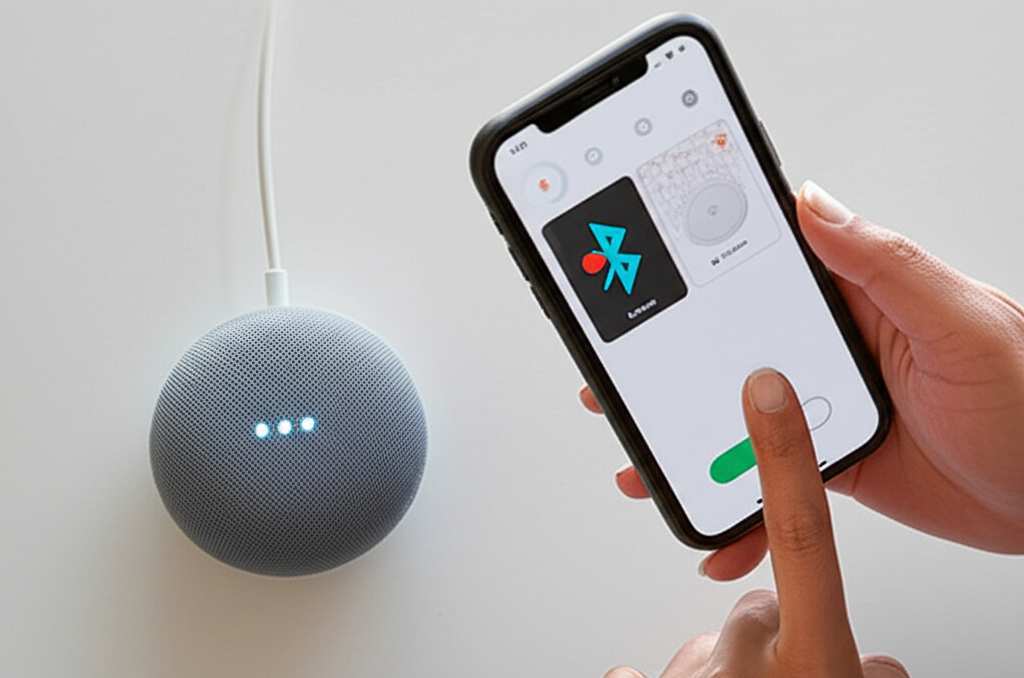
The beauty of these speakers lies in their simplicity. You don’t need any special apps or complicated setup for basic Bluetooth pairing. Just a few clicks, and you’re ready to stream your favorite tunes. It’s the kind of tech that makes life a little easier and a lot more fun. They’re perfect for parties, chilling at home, or even just adding some background music to your workday.
Why Connecting Your Speaker Is a Big Deal
Let’s talk about why this connection matters so much. Imagine you’re getting ready for a get-together, and you want to play that perfect party playlist. Or maybe you’re settling in for a movie night and want that immersive sound experience. Without a good connection, your speaker is just a pretty paperweight. Getting that Bluetooth link solid means you unlock all the awesome audio power your speaker holds.
It’s also about freedom! No more being tethered to your device with cables. You can wander around your room, grab snacks, or dance without your music cutting out. This simple connection transforms how you enjoy audio content. It’s the first step to unlocking a world of better sound, and honestly, it’s not as tricky as it might seem.
Common Reasons Why Your Speaker Might Not Be Connecting
Sometimes, technology throws us a curveball, and our Bluetooth speaker decides to play hard to get. It happens to the best of us! One of the most common culprits is simply that Bluetooth isn’t turned on on your device. It sounds basic, but it’s an easy oversight when you’re excited to get things rolling.
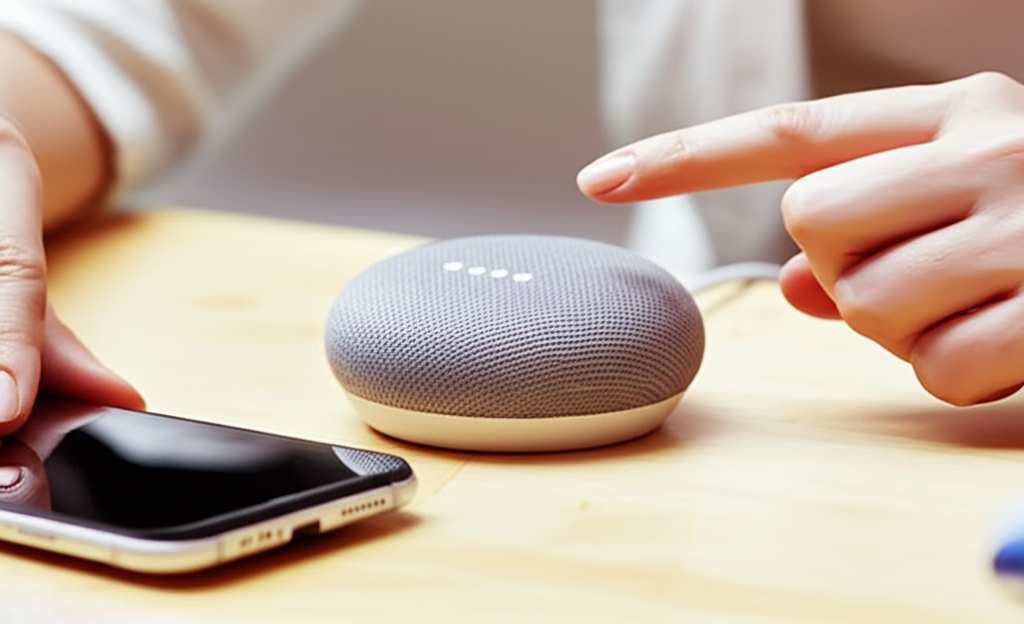
Another frequent issue is distance. Bluetooth has a range, and if your speaker and device are too far apart, they might lose their connection or struggle to pair. Low battery on either the speaker or your device can also cause pairing problems. And sometimes, the simplest fix is just to restart both devices – a classic tech solution that works wonders!
Your Step-by-Step Guide to Connecting Your Google Bluetooth Speaker
Alright, let’s get down to business! Connecting your Google Bluetooth speaker is usually a straightforward process. We’ll go through it together, and you’ll have your tunes flowing in no time.
Step 1: Power Up Your Speaker
First things first, make sure your Google Bluetooth speaker is charged and turned on. Most speakers have a power button, often located on the top or back. Press and hold it for a few seconds until you see a light or hear a sound indicating it’s powered on. Some speakers might automatically go into pairing mode when you first turn them on, especially if they haven’t been paired before.
Step 2: Make Your Speaker Discoverable
This is a crucial step. Your speaker needs to be in “pairing mode” so your phone or tablet can find it. How you do this can vary slightly depending on the specific Google speaker model you have.
For most Google Nest or Home speakers: While they are primarily Wi-Fi devices, many also support Bluetooth audio streaming. To put them into Bluetooth pairing mode, you usually need to use a voice command. Try saying, “Hey Google, turn on pairing mode” or “Hey Google, pair Bluetooth.” The speaker should respond, letting you know it’s ready to connect.
For other Google-branded or compatible Bluetooth speakers: Look for a dedicated Bluetooth button on the speaker. It might have a Bluetooth symbol on it. Press and hold this button until you hear a sound or see a blinking light. This signals that it’s in pairing mode and ready to be discovered.
Step 3: Enable Bluetooth on Your Device
Now, let’s get your phone or tablet ready to find the speaker.
On Android devices: Go to your device’s Settings app. Tap on “Connected devices” or “Connections.” Then, select “Bluetooth.” Make sure the Bluetooth toggle is switched on.
On iOS (iPhones/iPads): Open the Settings app. Tap on “Bluetooth.” Ensure the Bluetooth toggle is switched to the “On” position.
Step 4: Scan for Devices and Connect
Once Bluetooth is enabled on your device, it will start scanning for available devices.
Your Google Bluetooth speaker should appear in the list of available devices. It might show up with its model name (e.g., “Google Nest Mini,” “JBL Google Speaker,” or a specific model number).
Tap on the name of your speaker in the list.
Your device might ask you to confirm a pairing code or simply say “Pairing.” Confirm if prompted.
Step 5: Confirm the Connection
You should hear a confirmation sound from your speaker, or see a message on your device indicating that the connection is successful. The light on your speaker might also change from blinking to solid. Congratulations, you’re connected!
Step 6: Play Your Audio!
Now for the fun part! Open your favorite music app, podcast player, or video and start playing. The audio should now be coming from your Google Bluetooth speaker. If you have multiple audio devices connected, you might need to select your speaker as the audio output source within the app you are using.
Troubleshooting Common Connection Hiccups
Even with the simplest steps, sometimes things don’t go as planned. Don’t sweat it! Here are some quick fixes for common connection problems:
Speaker Not Appearing in List:
Make sure the speaker is still in pairing mode. You might need to re-initiate pairing mode.
Ensure your device’s Bluetooth is on and that it’s close enough to the speaker.
Try turning Bluetooth off and then on again on your device.
Connection Fails or Drops:
Distance: Move your device closer to the speaker. Walls and other electronic devices can interfere with the signal.
Interference: Other Bluetooth devices or Wi-Fi signals can sometimes cause interference. Try turning off other nearby Bluetooth devices temporarily.
Low Battery: Check the battery levels on both your speaker and your device.
Software Glitch: Turn off Bluetooth on both devices, wait a few seconds, and then turn them back on. A full restart of both your device and the speaker can also help.
Audio Stuttering or Choppy:
This is often a signal strength issue. Get closer to the speaker.
Close other apps running in the background on your device that might be using a lot of processing power.
Ensure your speaker’s firmware is up to date (this usually happens automatically via Wi-Fi for Google Nest speakers, but check the Google Home app if you suspect an issue).
Understanding Bluetooth Pairing Modes
Let’s quickly touch on what “pairing mode” really means. Think of it like a speaker saying, “I’m open to meeting new devices right now!” When a speaker is in pairing mode, it broadcasts a signal that your phone or tablet can detect. It’s like the speaker is holding up a sign saying, “Find me!”
Most Bluetooth speakers have a specific way to enter this mode, as we discussed in the steps. For Google Nest or Home speakers, it’s often a voice command. For other standalone Bluetooth speakers, it’s usually a button you press and hold. Once paired, your device and speaker will remember each other, and connecting in the future should be automatic. But to make that initial connection, the speaker must be in that discoverable, pairing mode.
Advanced Tips for Google Speaker Users
If you have a Google Nest or Home speaker, you can do even more than just basic Bluetooth streaming!
Use the Google Home App: While not strictly for Bluetooth pairing, the Google Home app is essential for managing your Google speakers. You can check speaker settings, update firmware, and even link them to your Google account for voice commands.
Set as Default Speaker: For a seamless experience, you can set your Google speaker as the default Bluetooth speaker for your phone. This means audio will automatically play through it when connected. You can usually find this option in your device’s Bluetooth settings under the connected speaker’s details.
Multi-Room Audio (with Wi-Fi): While Bluetooth is great for one-to-one connections, if you have multiple Google speakers, you can create speaker groups for synchronized audio playback throughout your home using Wi-Fi. This is a fantastic feature for parties!
Comparing Google Bluetooth Speaker Features
When you’re looking at Google-compatible Bluetooth speakers, there are a few key things that make them stand out. Here’s a quick look at what you might find:
| Feature | What It Means | Why It Matters |
|---|---|---|
| Bluetooth Version | The technology standard for wireless connection (e.g., Bluetooth 5.0, 5.1). | Newer versions offer faster speeds, better range, and more stable connections. |
| Battery Life | How long the speaker can play on a single charge. | Crucial for portability and enjoying music away from a power outlet. |
| Sound Quality | The clarity, bass, and overall richness of the audio. | The most important factor for enjoying your music or podcasts. |
| Water Resistance | Ability to withstand splashes or immersion in water (e.g., IPX rating). | Great for outdoor use, by the pool, or in the kitchen. |
| Google Assistant Integration | Built-in support for voice commands via Google Assistant. | Allows you to control music, get information, and manage smart home devices with your voice. |
Understanding these features can help you pick the best speaker for your needs. For instance, if you plan on taking your speaker to the park, battery life and water resistance are super important. If you’re mostly using it at home and want the full Google experience, strong Google Assistant integration is key.
Popular Google-Compatible Bluetooth Speakers
While Google’s own Nest speakers offer Bluetooth, many other brands create speakers that work beautifully with the Google ecosystem. Here are a few examples you might come across:
| Speaker Brand/Model | Key Features | Best For |
|---|---|---|
| Google Nest Mini | Compact size, voice control via Google Assistant, decent sound for its size. | Small rooms, smart home control, basic audio streaming. |
| JBL Link Series (e.g., Link Portable) | Robust sound, Google Assistant built-in, often water-resistant. | Outdoor use, parties, users wanting strong Google Assistant features. |
| Sony (Various Models with Google Assistant) | Excellent audio fidelity, stylish design, reliable connectivity. | Audiophiles, home use, users who value sound quality. |
| Bose (Various Models with Google Assistant) | Premium sound, balanced audio, sleek design. | Discerning listeners, home entertainment, premium audio experience. |
When choosing, think about where you’ll use the speaker most and what features are non-negotiable for you. Reading reviews on sites like CNET or TechRadar can give you a great idea of real-world performance. For example, CNET often has detailed reviews that compare sound quality and ease of use for many popular models.
Keeping Your Speaker in Top Shape
Just like any gadget, a little care goes a long way for your Google Bluetooth speaker. Here are some quick tips to keep it sounding great and working smoothly:
Clean Gently: Use a soft, dry cloth to wipe down the speaker. Avoid harsh chemicals or abrasive materials. For speaker grilles, a soft brush or compressed air can help remove dust.
Charge Smart: Don’t let the battery drain completely too often if it’s a rechargeable speaker. Most modern batteries are fine with partial charges.
Update Firmware: For Google Nest speakers, firmware updates usually happen automatically over Wi-Fi. Ensure your speaker is connected to your home Wi-Fi network regularly. For other brands, check the manufacturer’s app or website for update instructions.
* Store Properly: If you’re storing the speaker for an extended period, make sure it’s in a cool, dry place.
Frequently Asked Questions About Connecting
Q1: Do I need an app to connect my Google Bluetooth speaker?
For basic Bluetooth connection, you usually don’t need a special app. You’ll use your phone or tablet’s built-in Bluetooth settings. However, for Google Nest or Home speakers, the Google Home app is used for initial setup and advanced features, but Bluetooth pairing itself can often be done via voice command.
Q2: My speaker is paired, but no sound is coming out. What should I do?
First, check the volume on both your device and the speaker. Make sure your device is actually outputting sound to the speaker (sometimes you can select the audio output in the app you’re using). If that doesn’t work, try disconnecting and reconnecting the speaker. A restart of both devices is also a good idea!
Q3: Can I connect my speaker to multiple devices at once?
Most Bluetooth speakers can only be actively connected to one device for audio playback at a time. However, many can remember several paired devices. You might need to disconnect from one device before connecting to another. Some advanced multi-point Bluetooth connections exist, but they are less common for basic speakers.
Q4: How far can my device be from the speaker?
The typical range for Bluetooth is about 30 feet (10 meters) in an open area with no obstructions. Walls, furniture, and other electronic devices can significantly reduce this range, so it’s best to keep your device relatively close to the speaker for a stable connection.
Q5: What does it mean if my speaker light is blinking?
A blinking light on a Bluetooth speaker usually means it’s in pairing mode and ready to connect. A solid light typically indicates that it’s successfully connected to a device or is powered on normally.
Q6: I forgot my speaker’s name. How do I find it?
If it’s a Google Nest or Home speaker, you can ask “Hey Google, what’s your name?” If it’s another brand, check the speaker itself for a model name or number. When it’s in pairing mode, it will often appear in your device’s Bluetooth list with its name, so you might be able to spot it that way.
Conclusion: Your Sound Adventure Awaits!
And there you have it! Connecting your Google Bluetooth speaker should now feel like a breeze, not a battle. We’ve walked through powering it up, making it discoverable, pairing it with your devices, and even tackled a few common troubleshooting tips. You’ve learned how to make that little gadget sing, whether it’s for your morning playlist, an evening movie, or a gathering with friends.
Remember, the goal is to enjoy your audio without the fuss. Don’t be afraid to try connecting different devices or exploring the features your speaker offers. With these simple steps, you’re all set to experience richer sound and more freedom. So go ahead, crank it up, and let the good times roll! Now go enjoy amazing sound and make every moment louder and better!