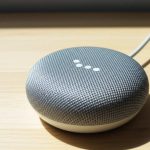
Yes, you absolutely can use your Google Home as a Bluetooth speaker! It’s a super easy way to stream music and audio from your phone or tablet directly to your smart speaker, giving you great sound without extra cables.
Hey there, tech explorers! Max here from AffTechy.com, your go-to spot for making technology feel like a friendly chat. You know, sometimes we just want to blast our favorite tunes or listen to that podcast we love without fussing over complicated setups. Speakers are awesome for that, right? They fill our rooms with sound, making music more exciting and movies more immersive. But picking the right one or figuring out how to connect everything can feel like a puzzle.
That’s where your trusty Google Home smart speaker might just surprise you! It’s not just for asking about the weather or setting timers. It can actually be your go-to Bluetooth speaker, and it’s way simpler than you might think. We’re going to break down exactly how to do it, so you can ditch those tinny phone speakers and enjoy richer sound.
So, if you’ve ever wondered, “Can I use my Google Home as a Bluetooth speaker?” the answer is a big, resounding YES! Let’s dive in and make your Google Home sing with all your favorite audio.
Google Home: More Than Just a Smart Assistant
It’s easy to think of Google Home (and its friends like Google Nest Mini, Google Nest Audio, and Google Nest Hub) as just voice-activated helpers. They’re brilliant at answering questions, controlling smart lights, and playing music when you ask. But these little gadgets pack a lot more punch than meets the eye. They have built-in speakers designed to fill your room with clear, quality sound.
Think about all the audio you enjoy on your phone or tablet: music streaming apps, podcasts, audiobooks, even the sound from videos. Normally, you’d listen through your device’s speakers, which can be a bit… well, small. Your Google Home speaker has a much more robust audio system. Connecting it via Bluetooth means you can send that phone audio directly to your Google Home, transforming it into a powerful, room-filling speaker for anything you want to listen to.
Why Would You Want to Use Google Home as a Bluetooth Speaker?
This is where the “amazing” part really kicks in! Imagine you’ve got a new song you’re obsessed with, and you want to share it with friends. Instead of everyone crowding around your phone, you can effortlessly stream it to your Google Home for a party-ready sound system. Or maybe you’re following a recipe and want to listen to a podcast without having to hold your phone in the kitchen. Bluetooth makes it a breeze.
It’s also a fantastic way to get more out of the Google Home device you already own. If you’re not using its smart features all the time, turning it into a high-quality Bluetooth speaker for your other devices is a brilliant second act. Plus, it’s a super simple alternative to buying a separate Bluetooth speaker. You’re essentially getting two devices in one!
Let’s Talk Sound: Google Home vs. Phone Speakers
Here’s a little secret: the speakers in most smartphones and tablets are tiny. They have to be to fit inside your sleek device! This means they’re often limited in volume and clarity. They’re great for notifications and quick calls, but for really enjoying music or movies, they can fall a bit flat.
Your Google Home speaker, on the other hand, is designed specifically for audio playback. Even the smaller models like the Nest Mini offer a much fuller sound than most phones. Larger ones, like the Google Nest Audio, are built to deliver impressive bass and crisp highs. When you stream audio to it via Bluetooth, you’re tapping into that superior sound engineering. It’s like upgrading from a whisper to a clear, rich voice.
How to Connect Your Phone to Google Home via Bluetooth: A Step-by-Step Guide
Alright, enough talking about it – let’s get this done! Connecting your phone or tablet to your Google Home speaker via Bluetooth is remarkably simple. You’ll mainly be using the Google Home app on your smartphone or tablet. Make sure you have it installed and that your Google Home device is already set up and connected to your Wi-Fi.
Here’s the magic:
Step 1: Open the Google Home App
First things first, grab your smartphone or tablet. Find the Google Home app icon – it looks like a little house with a colorful Wi-Fi symbol. Tap it to open. This app is your control center for all things Google Home.
Step 2: Select Your Google Home Device
Once the app is open, you’ll see a list of your connected smart devices. Find the Google Home speaker you want to use as a Bluetooth speaker. It might be named something like “Living Room Speaker” or “Kitchen Mini.” Tap on its name.
Step 3: Access Device Settings
After tapping on your device, you’ll see its control screen. Look for the gear icon (⚙️) in the top right corner. This is your gateway to the device’s settings. Tap that gear icon.
Step 4: Find the Bluetooth Settings
Scroll down the settings menu until you see an option that says “Bluetooth” or “Paired devices.” Tap on it. This is where you manage Bluetooth connections for your Google Home.
Step 5: Put Your Google Home in Pairing Mode
You’ll see an option to “Enable pairing mode” or “Pair new device.” Tap this. Your Google Home speaker will now be discoverable by your phone or tablet. You might even hear a little chime or voice prompt from your speaker saying it’s ready to pair.
Step 6: Open Bluetooth Settings on Your Phone/Tablet
Now, switch over to your phone or tablet’s main Bluetooth settings. This is usually found in your device’s general settings menu. Make sure Bluetooth is turned on.
Step 7: Scan for Devices and Select Your Google Home
Your phone or tablet will start scanning for nearby Bluetooth devices. Look for the name of your Google Home speaker in the list of available devices. It might appear as “Google Home XXX” or “Nest Mini XXX.” Tap on its name to connect.
Step 8: Confirm the Connection
If prompted, confirm the pairing. Your phone or tablet should now show that it’s connected to your Google Home speaker. You might hear a confirmation sound from the speaker itself.
Step 9: Play Your Audio!
That’s it! Now, go to your favorite music app, podcast player, or any app that plays audio on your phone or tablet. When you start playing something, the sound should automatically come out of your Google Home speaker. Amazing, right?
Alternative Method: Using Voice Commands
Google is all about making things easy with voice, so you can often initiate Bluetooth pairing using just your voice! This can be a bit faster if you prefer not to navigate the app.
Here’s how you can try it:
1. Say the magic words: Just say, “Hey Google, pair Bluetooth.”
2. Listen for the confirmation: Your Google Home speaker should respond by saying it’s in pairing mode and ready to connect.
3. Follow steps 6-9 from above: Go to your phone or tablet’s Bluetooth settings, scan for devices, select your Google Home, and start playing your audio.
It’s that simple! This voice command method is a favorite for many because it feels so natural with a smart assistant.
Unpairing and Switching Devices
What if you want to connect a different device, or disconnect your current one? It’s just as easy.
To unpair your current device:
Via the Google Home App: Go back to the Bluetooth settings for your Google Home device in the app. You should see your currently connected device listed. There will usually be an option to “Disconnect” or “Forget” the device.
Via Voice Command: You can say, “Hey Google, disconnect Bluetooth.” Your speaker will then disconnect from the current device.
To pair a new device:
Follow the pairing steps again. When you put your Google Home in pairing mode, it will usually allow a new device to connect, or you might need to “forget” the old device first if you’re having trouble.
Troubleshooting Common Bluetooth Connection Issues
Sometimes, tech doesn’t play perfectly right away. Don’t worry, we can fix most common Bluetooth hiccups with your Google Home!
Here are a few tips:
Restart Everything: The classic IT solution! Try turning off Bluetooth on your phone/tablet, then turning it back on. Also, try unplugging your Google Home speaker for about 30 seconds and plugging it back in.
Check Your Distance: Bluetooth has a range. Make sure your phone or tablet is relatively close to your Google Home speaker, ideally within 30 feet (about 10 meters). Walls and other electronic devices can sometimes interfere.
Forget and Re-pair: If your phone or tablet shows it’s connected but no sound is coming out, try “forgetting” the Google Home speaker in your phone’s Bluetooth settings. Then, go through the pairing process again from scratch.
Update Your Apps: Ensure your Google Home app and your phone’s operating system are up to date. Software updates often fix bugs that could be causing connection problems.
Check Google Home Speaker Status: Make sure your Google Home speaker is powered on and connected to Wi-Fi. If it’s offline, it won’t be able to establish a Bluetooth connection.
Google Home Models and Their Bluetooth Capabilities
Most Google Home and Google Nest devices can function as Bluetooth speakers. This includes:
Google Home: The original smart speaker.
Google Home Mini: The compact, budget-friendly option.
Google Home Max: The larger, more powerful speaker designed for serious audio.
Google Nest Mini (2nd gen): An improved version of the Home Mini.
Google Nest Audio: The successor to Google Home Max, offering balanced sound.
Google Nest Hub & Nest Hub Max: These smart displays also have speakers and can be used for Bluetooth audio.
The main difference you’ll notice between models is sound quality and volume. A Nest Audio will provide a much richer and louder experience than a Nest Mini.
Here’s a quick look at some popular Google Home/Nest speaker models and their general Bluetooth suitability:
| Speaker Model | Bluetooth Support | Typical Use Case | Sound Quality (General) |
|---|---|---|---|
| Google Nest Mini (2nd Gen) | Yes | Small rooms, background music, podcasts | Decent for its size, clear but lacks bass |
| Google Nest Audio | Yes | Medium to large rooms, music listening, movies | Excellent, balanced sound with good bass |
| Google Home Max | Yes | Large rooms, parties, audiophile enthusiasts | Superior, powerful, room-filling sound |
| Google Nest Hub (1st/2nd Gen) | Yes | Kitchen, bedside table, general use | Good for voice and general audio, not primary music speaker |
| Google Nest Hub Max | Yes | Living room, central hub | Very good, better bass than smaller models |
As you can see, all these devices are equipped with Bluetooth, meaning you have options depending on the room size and your sound preferences. The Nest Audio and Home Max are definitely the stars if you’re looking for the best sound quality for music playback.
Bluetooth Audio vs. Casting: What’s the Difference?
You might already be casting music to your Google Home from apps like Spotify or YouTube Music. It’s worth understanding the difference between Bluetooth and casting, as they work in slightly different ways.
Bluetooth:
How it works: Your phone or tablet sends the audio signal directly to the Google Home speaker over a Bluetooth connection. The Google Home speaker then plays the audio. Your phone still controls the playback (play, pause, skip).
Pros: Works with any app on your phone that plays audio, even ones that don’t have built-in casting capabilities. Simple to set up for universal audio streaming.
Cons: Sound quality can sometimes be slightly compressed compared to casting. If you move your phone too far away or the connection drops, the audio stops.
Casting:
How it works: When you cast, your phone or tablet tells the Google Home speaker (which is connected to your Wi-Fi) to go and fetch the audio stream directly from the internet (e.g., from Spotify’s servers). Your phone essentially acts as a remote control.
Pros: Generally offers higher audio quality as it’s an uncompressed stream over Wi-Fi. Your phone can be put away or moved further away once casting has started, as the speaker is fetching the stream itself.
Cons: Only works with apps that specifically support Google Cast (like Spotify, YouTube Music, Pandora, Netflix, etc.). It won’t work for all audio from your phone.
So, while casting is often preferred for supported apps due to its quality and independence from your phone’s proximity, Bluetooth is your universal ticket for streaming any audio from your device. It’s the flexibility of Bluetooth that makes it so amazing for this purpose!
Tips for the Best Bluetooth Audio Experience
Want to make your Google Home sound even better as a Bluetooth speaker? Here are a few pro tips:
Placement Matters: Don’t hide your Google Home in a corner! Placing it in an open area, ideally at ear level, will help the sound fill the room more effectively. Avoid placing it too close to walls, which can sometimes muffle bass.
Use the Right Google Home for the Job: If you’re an avid music listener, consider using a Google Nest Audio or Google Home Max for the best audio fidelity. A Nest Mini is great for podcasts or casual listening.
Keep it Updated: Regularly check for updates for both your Google Home app and your phone’s operating system. These updates can improve Bluetooth performance and fix bugs.
Control Volume Wisely: You can control the volume from your phone or tablet, but you can also use voice commands like “Hey Google, turn up the volume” or “Hey Google, set volume to 5.” Sometimes, adjusting the volume on both your phone and the speaker can yield the best results.
Fun Fact: Bluetooth Technology’s Humble Beginnings
Did you know Bluetooth technology is named after a Viking king? Harald Bluetooth united Danish tribes in the 10th century, and the technology’s creator, Jim Kardach, thought it was a fitting name for a technology that would unite different communication protocols. Pretty cool, right? It’s been connecting our gadgets wirelessly ever since!
Comparing Bluetooth Speaker Options: Google Home vs. Dedicated Bluetooth Speakers
While using your Google Home as a Bluetooth speaker is fantastic, it’s worth noting how it stacks up against dedicated Bluetooth speakers.
Here’s a quick comparison:
| Feature | Google Home (as Bluetooth Speaker) | Dedicated Bluetooth Speaker |
|---|---|---|
| Versatility | Smart assistant + Bluetooth speaker | Primarily Bluetooth speaker |
| Setup | Requires Google Home app, Wi-Fi setup initially | Usually simple pairing, no Wi-Fi needed |
| Sound Quality | Varies by model (good to excellent) | Varies widely, some are audiophile-grade |
| Portability | Requires power outlet, not portable | Many are battery-powered and portable |
| Cost | Can be part of existing smart home setup | Wide price range, from budget to premium |
| Connectivity | Bluetooth, Wi-Fi (for smart features) | Bluetooth, sometimes NFC, Wi-Fi on some models |
What does this mean for you? If you already have a Google Home and prioritize convenience and smart features alongside Bluetooth playback, it’s a no-brainer. You get two functions in one! If ultimate portability or the absolute highest fidelity sound without Wi-Fi is your main goal, a dedicated Bluetooth speaker might be a better fit. However, for everyday use and maximizing what you already own, your Google Home is a champion. For more on dedicated Bluetooth speakers, check out reviews from sites like CNET.
Frequently Asked Questions (FAQ)
Q1: Can I use my Google Home as a Bluetooth speaker without Wi-Fi?
No, your Google Home speaker needs to be connected to Wi-Fi for its initial setup and to function as a smart device. However, once it’s set up and paired via Bluetooth with your phone, you can stream audio even if your Wi-Fi goes down, as the Bluetooth connection itself doesn’t rely on your home internet. But to initiate the Bluetooth pairing, Wi-Fi is usually required.
Q2: Does using Google Home as a Bluetooth speaker affect its smart capabilities?
Not at all! Your Google Home will continue to work as a smart assistant even when it’s connected to your phone via Bluetooth. You can still ask it questions, set timers, or control other smart devices while it’s playing audio from your phone.
Q3: Can I connect multiple devices to my Google Home via Bluetooth at the same time?
Typically, a Google Home speaker can only be actively paired and playing audio from one Bluetooth device at a time. If you want to connect a new device, you’ll need to disconnect the current one first.
Q4: What’s the range of the Bluetooth connection for Google Home?
The standard Bluetooth range is usually around 30 feet (about 10 meters). This can be affected by obstacles like walls, furniture, and other electronic devices that might cause interference.
Q5: Can I use Google Home for gaming audio from my phone?
Yes! You can absolutely use your Google Home as a Bluetooth speaker for gaming audio from your phone or tablet. Just pair it up and enjoy the immersive sound. Keep in mind there might be a very slight delay (latency) compared to your phone’s built-in speakers, which is common with Bluetooth, but it’s usually unnoticeable for casual gaming.
Q6: How do I know if my specific Google Home model supports Bluetooth?
All Google Home and Google Nest branded smart speakers and displays that have been released support Bluetooth connectivity. This includes models like the original Google Home, Nest Mini, Nest Audio, Nest Hub, and Nest Hub Max.
Q7: Can I use my Google Home as a Bluetooth speaker for my computer?
Yes, absolutely! If your computer has Bluetooth capabilities, you can pair it with your Google Home speaker just like you would with your phone. Go to your computer’s Bluetooth settings, enable pairing mode on your Google Home, and select it from the list of available devices. Enjoy your computer audio on a bigger, better speaker!
Conclusion: Unleash Your Google Home’s Sound Potential!
See? It’s not complicated at all! You’ve learned that your Google Home is a versatile gadget, ready to do more than just answer questions. It can transform into a fantastic Bluetooth speaker with just a few simple steps. We’ve walked through how to pair your phone or tablet, covered some troubleshooting, and even looked at how it compares to dedicated speakers.
This is your chance to experience your music, podcasts, and videos with richer, fuller sound without buying new gear. It’s about making the technology you already have work harder and smarter for you. So, go ahead, give it a try! Pair up your device, crank up your favorite playlist, and enjoy the amazing sound.
Now go enjoy amazing sound and make every moment louder and better!