Connect your Alexa device to a Bluetooth speaker easily for bigger, better sound! This guide makes it simple to pair your devices and enjoy your music, podcasts, or calls anywhere.
Hey there, tech adventurer! Ever wish your favorite tunes could sound just a little bit bigger, a little bit richer? Or maybe you’ve got a fantastic Bluetooth speaker just sitting there, and you’re wondering, “Can my Alexa join the party?” Well, guess what? It absolutely can! It’s like giving your smart speaker a superpower boost for amazing audio.
I remember when I first got my smart speaker. It was cool, no doubt. But then I got this awesome portable Bluetooth speaker. I loved it for picnics and beach days. For a while, they were separate stars in my tech galaxy. Then, I had this “aha!” moment. What if they could work together? What if Alexa could use my Bluetooth speaker to fill the whole room with sound?
It sounds a bit complicated, right? Like you need to be a tech wizard or have a secret handshake with your gadgets. But trust me, it’s way simpler than you think. I’m here to walk you through it, step by step, with no confusing jargon. We’ll make sure your Alexa and your Bluetooth speaker become the best audio buddies.
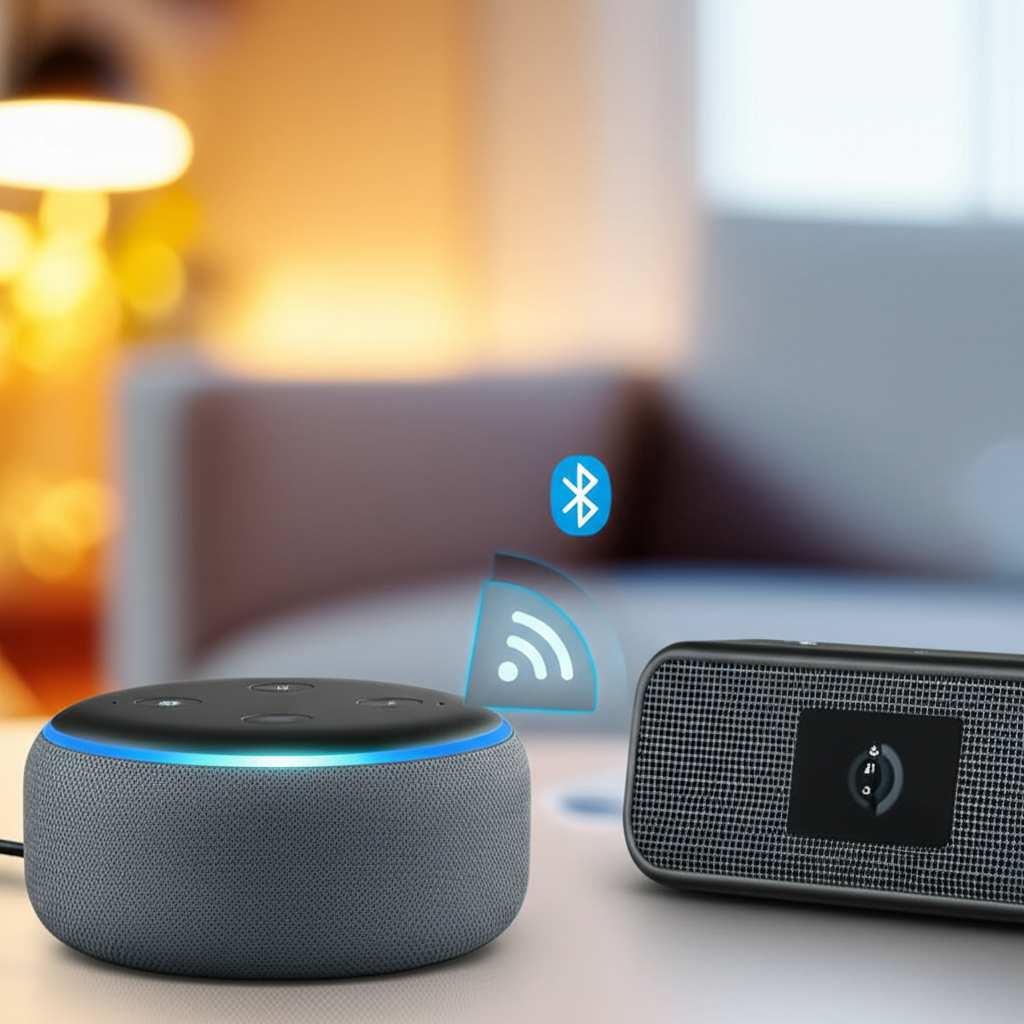
So, get ready to unlock some seriously awesome sound. Let’s break down how to connect Alexa to your Bluetooth speaker and make your music sound incredible. It’s going to be fun, easy, and totally worth it!
Why Connect Alexa to a Bluetooth Speaker? The Sound Upgrade You Need!
Let’s be honest, the sound from a smart speaker is often good. It’s great for casual listening or hearing the news. But sometimes, you want more. You want that deep bass that makes your music thump. You want crisp highs that make vocals shine. And you want a sound that fills the whole room, not just a corner.
That’s where your trusty Bluetooth speaker comes in! Many Bluetooth speakers are designed with audio quality as their top priority. They might have bigger drivers, better bass ports, or just a more robust build. When you connect Alexa to one of these, you’re essentially giving Alexa a premium sound system. Think of it as upgrading Alexa from a nice compact car to a powerful sound system on wheels.
This connection isn’t just for music lovers, either. If you use Alexa for calls, connecting to a Bluetooth speaker can make conversations much clearer. Or if you’re watching a movie with Alexa controlling your smart TV, a better speaker can make the audio more immersive. It’s all about enhancing your everyday experiences with richer, more powerful sound.
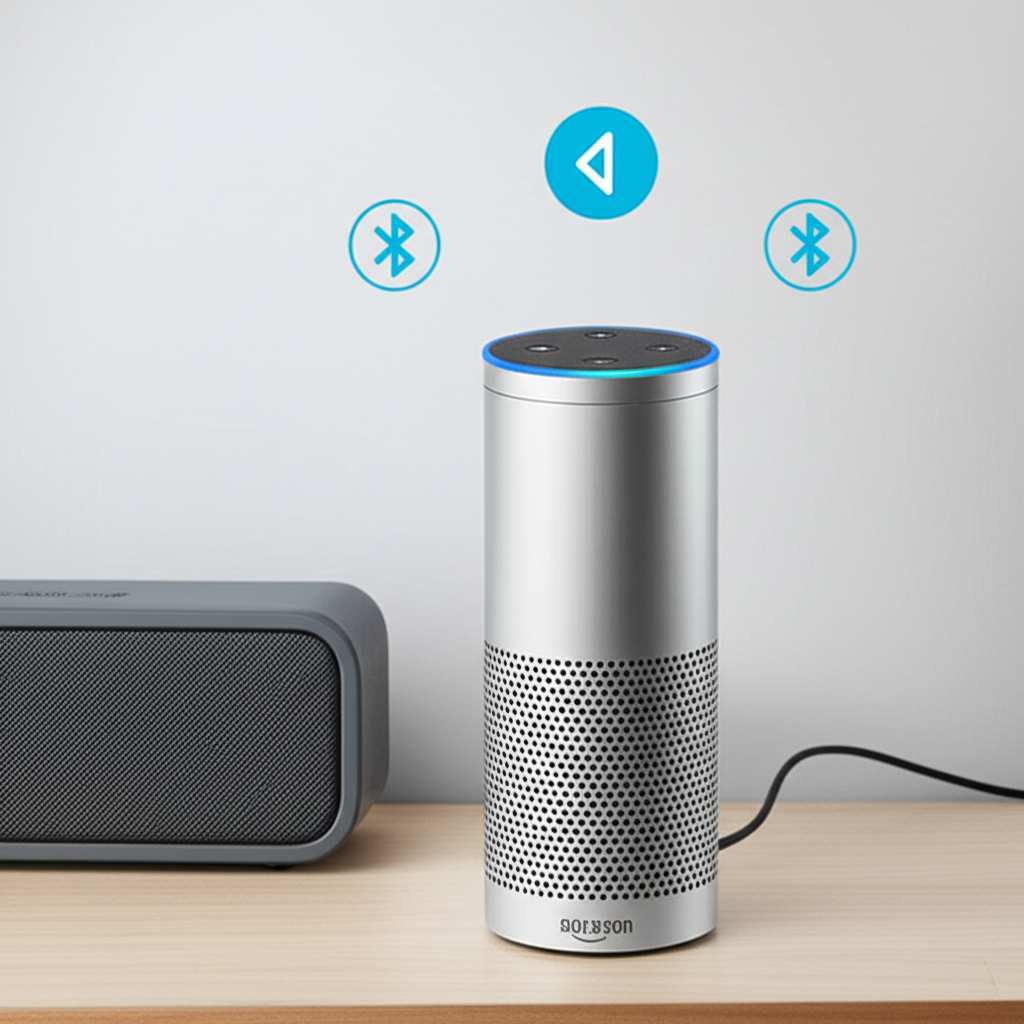
Getting Started: What You’ll Need for the Perfect Pair
Before we dive into the actual connection process, let’s make sure you have everything ready. It’s like preparing your ingredients before you start cooking – it makes the whole process smoother.
Here’s your quick checklist:
Your Alexa-enabled device: This could be an Echo Dot, Echo Show, Echo Studio, or any other Alexa device.
Your Bluetooth speaker: Make sure it’s charged and turned on.
Your smartphone or tablet: You’ll need the Alexa app for this. It’s your control center!
A stable Wi-Fi connection: Both your Alexa device and your phone/tablet need to be on the same network.
That’s it! See? Nothing too complicated. Most of us have these things lying around already. The Alexa app is free and available for both iOS and Android devices. If you haven’t downloaded it yet, now’s the perfect time. You can find it in your device’s app store.
Step-by-Step Guide: How to Connect Alexa as a Bluetooth Speaker
Alright, let’s get down to business! This is the part where we actually make the magic happen. I’ll guide you through the Alexa app, and you’ll see just how easy it is.
Step 1: Put Your Bluetooth Speaker in Pairing Mode
This is a crucial first step. Your Bluetooth speaker needs to be discoverable so your Alexa device can find it. How you do this varies by speaker.
Look for a Bluetooth button: Many speakers have a dedicated button with the Bluetooth symbol (it looks like a little ‘B’). Press and hold it until you hear a sound or see a flashing light.
Check your speaker’s manual: If you’re unsure, your speaker’s instruction manual is your best friend. It will tell you exactly how to activate pairing mode.
Some speakers pair automatically: Newer speakers might go into pairing mode automatically when they’re turned on and not connected to anything.
You’ll usually know it’s in pairing mode when a light on the speaker starts blinking, or you hear a little chime. This tells you it’s ready to be found!
Step 2: Open the Alexa App and Navigate to Devices
Now, grab your smartphone or tablet.
Open the Amazon Alexa app.
Tap on the “Devices” icon in the bottom right corner of the screen.
This is where you’ll manage all your smart home gadgets connected to Alexa. It’s like your digital command center.
Step 3: Select Your Alexa Device
In the “Devices” menu, you’ll see a list of your Alexa-enabled devices.
Find and tap on the Alexa device you want to connect to your Bluetooth speaker. This is usually one of your Echo speakers or displays.
For example, if you want to use your Echo Dot in the living room, select “Echo Dot.”
Step 4: Go to Bluetooth Connections
Once you’ve selected your Alexa device, you’ll see its settings page.
Scroll down and tap on “Bluetooth Devices.”
This section is where you manage all the Bluetooth connections for that specific Alexa device. It’s like a little Bluetooth hub for your speaker.
Step 5: Pair a New Device
Now it’s time to find your speaker!
Tap on “Pair a New Device.”
Alexa will start searching for any Bluetooth devices that are in pairing mode nearby. This might take a few seconds.
Step 6: Select Your Bluetooth Speaker from the List
Your Alexa app will show a list of available Bluetooth devices.
Look for the name of your Bluetooth speaker in the list. It usually appears under “Available Devices.”
Tap on your speaker’s name to initiate the pairing process.
If you don’t see your speaker, don’t worry! Make sure it’s still in pairing mode and try tapping “Pair a New Device” again. Sometimes a quick refresh is all it needs.
Step 7: Confirm the Connection
Your Alexa device and Bluetooth speaker will now attempt to connect.
You might hear a confirmation sound from your Alexa device or your speaker.
The Alexa app will also update to show that your speaker is “Connected” under the Bluetooth Devices list.
Congratulations! You’ve successfully paired your Alexa device with your Bluetooth speaker. Now you can start enjoying enhanced audio.
Using Your Connected Bluetooth Speaker with Alexa
Okay, the hard part is over! Now for the fun part – actually using your awesome new sound setup. It’s super straightforward once everything is connected.
Playing Music and Audio
Once paired, your Bluetooth speaker becomes the primary audio output for your Alexa device. This means anything Alexa plays – music, podcasts, audiobooks, even her own voice – will come out of your Bluetooth speaker.
Just ask Alexa to play something: Say, “Alexa, play my ‘Chill Vibes’ playlist on Spotify,” or “Alexa, play the latest episode of the ‘Tech Talk’ podcast.” The sound will automatically stream through your connected Bluetooth speaker.
Control playback with your voice: You can still use voice commands to adjust the volume, skip tracks, pause, or resume. “Alexa, turn the volume up,” or “Alexa, pause.”
Changing the Default Speaker (If You Have Multiple)
If you have multiple Bluetooth speakers or you sometimes want to use the Alexa device’s built-in speaker, you can switch between them.
Go back to your Alexa device’s settings in the app.
Tap on “Bluetooth Devices.”
You’ll see your connected speaker. If you want to disconnect it, tap “Disconnect.” If you want to connect a different Bluetooth speaker, follow the pairing steps again.
To use the Alexa device’s original speaker, simply disconnect the Bluetooth speaker.
Managing Connections
Your Alexa device can remember multiple Bluetooth speakers. You can manage these connections in the same “Bluetooth Devices” section.
Disconnecting: If you want to use your Bluetooth speaker with another device (like your phone), it’s a good idea to disconnect it from Alexa first. Just tap “Disconnect” in the app.
Forgetting a device: If you no longer want Alexa to connect to a specific speaker, you can “Forget” it. This removes it from Alexa’s memory. You’ll need to re-pair it if you want to use it again later.
Here’s a quick tip: If you want to reconnect a previously paired Bluetooth speaker, you can often just say, “Alexa, connect to [Your Speaker Name].” It’s usually much faster than going through the app!
Troubleshooting Common Connection Issues
Sometimes, tech doesn’t play nice right away. Don’t panic! Most connection problems are easy to fix with a few simple steps.
My Bluetooth Speaker Isn’t Showing Up in the App
Check Pairing Mode: Is your speaker definitely in pairing mode? Double-check the blinking light or listen for the sound.
Proximity: Make sure your speaker is close to your Alexa device (within about 30 feet or 10 meters).
Restart Devices: Try turning both your Alexa device and your Bluetooth speaker off and then back on again. Sometimes a simple reboot fixes everything.
Forget Other Devices: If your Bluetooth speaker is already paired with your phone or another device, it might not be available. Disconnect it from other devices first.
Alexa Says “Couldn’t Connect”
Wi-Fi Connection: Ensure both your Alexa device and your smartphone (running the app) are connected to the same Wi-Fi network.
Speaker Battery: Is your Bluetooth speaker charged? A low battery can sometimes cause connection issues.
Re-Pair: Try forgetting the Bluetooth speaker from Alexa’s list and then pairing it again from scratch.
Sound is Choppy or Cutting Out
Distance: Are you too far from your Alexa device or Bluetooth speaker? Try moving them closer together.
Interference: Other wireless devices (like microwaves or other Bluetooth devices) can sometimes interfere. Try moving them away from your speaker setup.
App Update: Make sure your Alexa app is updated to the latest version.
For more in-depth troubleshooting, Amazon provides extensive support for Alexa devices. You can often find helpful guides and forums on their website.
Choosing the Right Bluetooth Speaker for Your Alexa Setup
Not all Bluetooth speakers are created equal, and the one you choose can significantly impact your audio experience. Think about what you’ll use it for most.
Here are a few things to consider:
Sound Quality: Do you want deep bass for parties, or clear vocals for podcasts? Look for speakers with good reviews on sound reproduction.
Portability: Do you plan to move the speaker around the house or take it outdoors? Consider battery life and durability.
Size and Design: Some speakers are compact and discreet, while others are larger and make a statement.
Water Resistance: If you plan to use it near the pool or in the bathroom, look for water-resistant (IPX rating) speakers.
Brand Reputation: Established audio brands often offer reliable quality and better sound.
Let’s look at a quick comparison of different types of Bluetooth speakers you might consider:
| Speaker Type | Best For | Key Features | Price Range (Approx.) |
|---|---|---|---|
| Compact Portable | On-the-go listening, small rooms | Lightweight, long battery life, often water-resistant | $30 – $100 |
| Mid-Size Home Speaker | Everyday listening, enhancing Alexa’s sound | Better bass, richer sound profile, stable connection | $80 – $200 |
| High-Fidelity/Smart Speaker | Audiophiles, immersive listening experiences | Exceptional sound quality, premium materials, advanced features | $200+ |
This table gives you a general idea of what to expect. For example, if you’re just looking to make your Alexa sound a bit fuller for casual listening at home, a mid-size home speaker might be your sweet spot. If you’re a music enthusiast who wants the best possible sound, you might invest in a higher-end model.
Fun Fact: The Bluetooth Technology
Did you know Bluetooth technology was named after a Viking king? King Harald Bluetooth united Denmark and Norway in the 10th century. The technology’s inventor, Jim Kardach, thought it was fitting because the technology aimed to unite different communication protocols. Pretty cool, right?
Alexa as a Bluetooth Speaker: What It Means for You
When you connect your Bluetooth speaker to Alexa, you’re essentially telling Alexa, “Hey, use this speaker to play everything for me.” This is different from using Alexa as a Bluetooth speaker for your phone.
What you’ve done is made your Bluetooth speaker an output device for your Alexa. So, when you ask Alexa for music, the sound travels from Amazon’s servers, to your Alexa device, and then wirelessly to your Bluetooth speaker.
This is fantastic because it means you can keep your Bluetooth speaker anywhere in the room, or even in another room (as long as it’s within Bluetooth range of your Alexa device, typically around 30 feet/10 meters). You still control everything with your voice through Alexa.
It’s important to note that you cannot typically use your Alexa device itself as a Bluetooth speaker for your phone or tablet. While some newer Alexa devices have auxiliary ports that allow you to connect other speakers to Alexa, or connect Alexa to* a stereo system, they aren’t designed to act as a standalone Bluetooth receiver for your phone’s audio. Always check your specific Alexa device’s capabilities for these advanced audio setups.
Frequently Asked Questions (FAQ)
Got more questions? No worries, I’ve got answers!
Can I connect multiple Bluetooth speakers to one Alexa device?
Generally, most Alexa devices can only connect to one Bluetooth speaker at a time for audio output. However, some newer models or specific setups might allow for multi-room audio via Wi-Fi or other technologies, but not directly through standard Bluetooth pairing.
How do I disconnect my Bluetooth speaker from Alexa?
It’s super easy! Just open the Alexa app, go to Devices, select your Alexa device, tap on Bluetooth Devices, and then tap “Disconnect” next to your speaker’s name. You can also often just tell Alexa, “Alexa, disconnect from my Bluetooth speaker.”
Will Alexa’s voice come out of the Bluetooth speaker too?
Yes! Once your Bluetooth speaker is connected and set as the primary audio output, all sound from your Alexa device, including its voice responses, will play through the Bluetooth speaker.
What if my Bluetooth speaker is already connected to my phone?
Your Bluetooth speaker can usually only be actively connected to one device at a time. If it’s connected to your phone, you’ll need to disconnect it from your phone first before you can pair it with your Alexa device.
Does connecting to a Bluetooth speaker improve Alexa’s response time?
No, connecting to a Bluetooth speaker affects the audio output, not how quickly Alexa processes your commands. Alexa’s response time depends on your internet connection and Amazon’s servers.
Can I use my Bluetooth speaker for Alexa calls?
Absolutely! If you make calls through Alexa (like Alexa-to-Alexa calling or calling contacts), the audio will come through your connected Bluetooth speaker, making conversations much clearer.
How do I reconnect my Bluetooth speaker if it gets disconnected?
If your speaker gets disconnected, you can usually reconnect it by simply saying, “Alexa, connect to [Your Speaker Name].” If that doesn’t work, you might need to go back into the Alexa app and pair it again.
Conclusion: Your Sound Experience Just Got an Upgrade!
See? Connecting your Alexa to a Bluetooth speaker is a fantastic way to boost your audio game. You’ve gone from good sound to great sound, all with a few simple steps and your trusty Alexa app. Now you can enjoy your music with richer bass, clearer highs, and more immersive sound filling your space.
Whether you’re hosting a party, enjoying a quiet evening with a podcast, or just want your favorite songs to sound their absolute best, this setup has you covered. You’ve unlocked a new level of audio enjoyment for your smart home.
Don’t be afraid to experiment! Try connecting different Bluetooth speakers if you have them, or explore the various music services Alexa can access. The possibilities for amazing sound are endless.
Now go enjoy amazing sound and make every moment louder and better! Happy listening!