Yes, Alexa can absolutely be used as a Bluetooth speaker! It’s a super handy way to play music or audio from your phone, tablet, or computer directly through your Echo device.
Hey there, tech explorers! Ever find yourself wanting to blast your favorite tunes from your phone, but the built-in speaker just isn’t cutting it? We’ve all been there. It’s like trying to enjoy a blockbuster movie with tinny audio – it just doesn’t have the same punch!
Sometimes, figuring out how to connect devices and get the best sound can feel like cracking a secret code. You see all these technical terms and wonder, “Is this really for me?” But don’t worry, that’s where I come in. My goal is to make technology feel as easy and fun as listening to your favorite playlist.
Today, we’re diving into something really cool: using your Amazon Echo, which usually listens for your commands, as a fantastic Bluetooth speaker. It’s simpler than you think! We’ll go through it step-by-step, so you’ll be streaming in no time. Ready to make your Alexa device sing? Let’s break it down!
Alexa as a Bluetooth Speaker: What’s the Big Deal?
Imagine this: You’re getting ready for a party, or maybe just chilling with some background music while you cook. You have all your favorite songs on your phone. But your phone’s speaker is a bit… well, quiet. That’s where your trusty Alexa device swoops in to save the day!
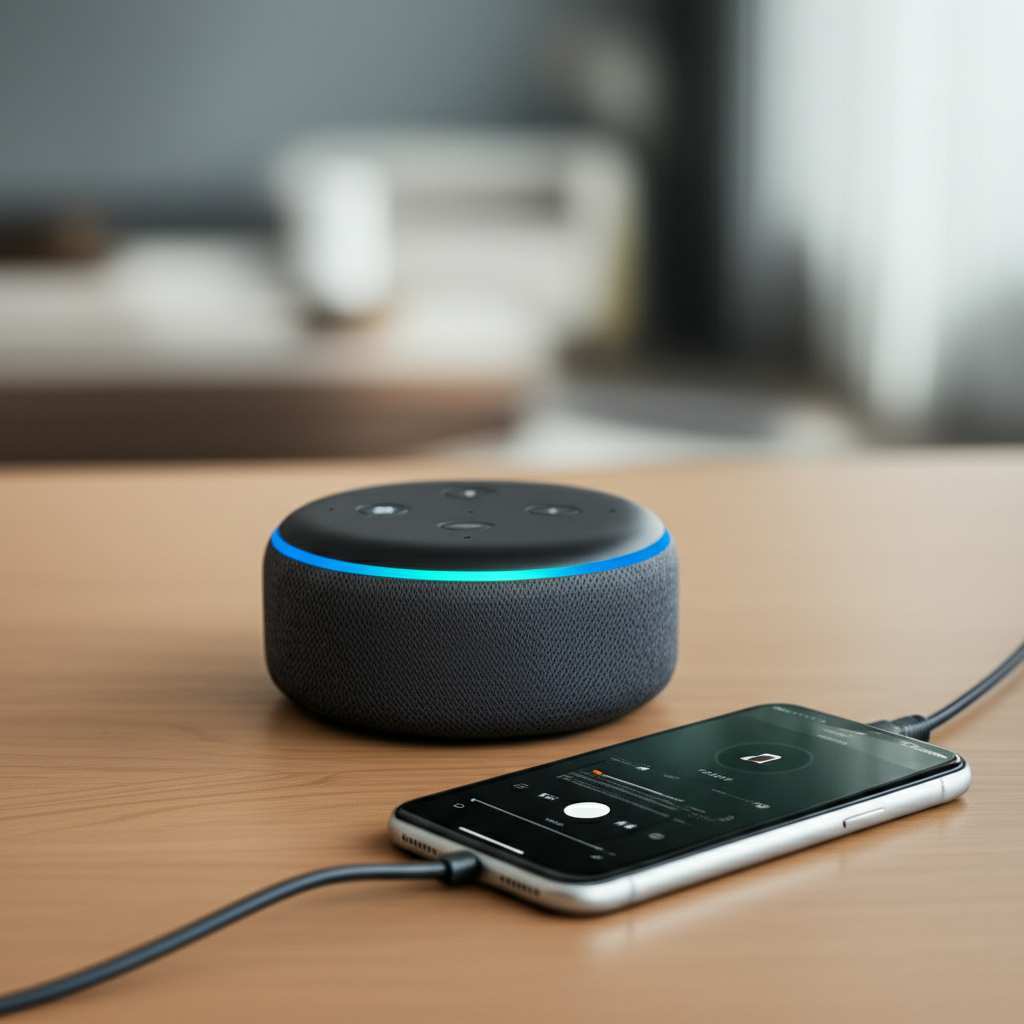
Your Amazon Echo devices are more than just voice assistants. They are pretty capable speakers too! When you connect your phone or tablet to Alexa via Bluetooth, you’re essentially turning your Echo into a high-quality wireless speaker. This means you can play anything from your device – music, podcasts, audiobooks, even the sound from a YouTube video – through your Alexa’s speaker.
It’s a fantastic way to get better sound without buying a separate Bluetooth speaker. Plus, it’s super convenient! No more fiddling with wires or complicated setups. Just a quick voice command or a few taps on your phone, and you’re good to go.
Why Use Alexa as a Bluetooth Speaker?
So, why would you want to use Alexa as a Bluetooth speaker instead of just playing audio from your phone? Great question! There are a few awesome reasons:

- Better Sound Quality: Let’s be honest, most phones and tablets don’t have the best speakers. Alexa devices, especially the larger Echo models, are designed to produce richer, fuller sound. You’ll notice the difference, especially with music!
- Convenience: Once set up, it’s incredibly easy. You can ask Alexa to pair with your device, or do it quickly through the Alexa app. Then, you can control playback from your phone.
- Hands-Free Control (Sort Of): While you control the playback (play, pause, skip) from your phone or tablet, you can still use Alexa for other things while connected. For example, you can ask it for the weather while your music is playing in the background.
- No Extra Cost: If you already have an Alexa device, you don’t need to buy another speaker. You’re using something you already own!
- Multi-Room Audio (with some devices): If you have multiple Echo devices, you can set up speaker groups. This means you can play the same audio across several rooms, creating a whole-home sound system.
Think of it like this: your phone is the DJ, and Alexa is the amazing sound system at the party. The DJ plays the music, but the sound system makes everyone want to dance!
Which Alexa Devices Can Be Used as Bluetooth Speakers?
The good news is, most Amazon Echo devices can work as Bluetooth speakers! This includes:
- Echo Dot (all generations)
- Echo (various sizes)
- Echo Show (all models with screens)
- Echo Studio
- Echo Plus
- Echo Auto (for your car!)
Basically, if it’s an Amazon Echo device that can play audio, chances are it can do Bluetooth. Even the smaller ones like the Echo Dot can provide a decent sound boost over your phone’s speaker.
The sound quality will vary depending on the Echo model. For example, an Echo Studio or a larger Echo speaker will generally sound much better than an Echo Dot. But for casual listening or boosting your phone’s volume, any of them will do a great job.
How to Pair Your Device with Alexa: Step-by-Step Guide
Ready to get this party started? Connecting your phone, tablet, or computer to your Alexa device via Bluetooth is super straightforward. We’ll cover two main ways: using voice commands and using the Alexa app. Both are easy peasy!
Method 1: Using Voice Commands (The Quickest Way!)
This is my favorite method because it’s so fast. You don’t even need to grab your phone or open an app.
-
Put Alexa in Pairing Mode: Say, “Alexa, pair Bluetooth.”
Your Alexa device will respond, usually saying something like, “You’re in pairing mode. Go to the Bluetooth settings on your device to connect.”
-
Open Bluetooth Settings on Your Device: On your phone, tablet, or computer, go to your Bluetooth settings. This is usually found in the main Settings menu.
For example, on an iPhone, it’s Settings > Bluetooth. On Android, it’s Settings > Connections > Bluetooth. On a Windows PC, it’s Settings > Devices > Bluetooth & other devices.
-
Select Your Alexa Device: You should see your Alexa device appear in the list of available devices. It will usually be named something like “Echo Dot,” “Echo Show,” or just “Amazon Echo” followed by a number.
Tap on the name of your Alexa device to connect.
-
Confirm Connection: Alexa will usually say, “Connected to [Your Device Name].” Your device will also show it’s connected to your Alexa. You might hear a little chime too!
And voilà! You’re connected. Now, anything you play on your device will come out of your Alexa speaker. Pretty neat, right?
Method 2: Using the Alexa App (For When You Prefer Taps)
If you prefer using the app or want to manage your Bluetooth connections, this method works just as well.
-
Open the Alexa App: Make sure you have the Amazon Alexa app installed on your smartphone or tablet and that you’re logged into your Amazon account.
-
Go to Devices: Tap on the “Devices” icon at the bottom of the app screen. It looks like a little house.
-
Select Your Echo Device: You’ll see a list of all your Alexa devices. Tap on the specific Echo device you want to use as a speaker.
-
Find Bluetooth Settings: On the device’s settings page, scroll down until you see “Bluetooth Connectivity” or something similar. Tap on it.
-
Pair New Device: Tap “Pair a New Device.” Alexa will then enter pairing mode, just like in the voice command method.
-
Connect from Your Device: Now, go to the Bluetooth settings on your phone, tablet, or computer (as described in Method 1, Step 2) and select your Alexa device from the list to pair.
-
Confirmation: Once connected, your Alexa device will confirm, and your phone/tablet will show it’s paired.
See? Super simple. You can also manage paired devices from this section of the app. If you want to connect a different device, you can unpair the current one and then pair the new one.
Connecting Your Computer to Alexa via Bluetooth
The process for connecting your laptop or desktop computer is very similar to connecting a phone or tablet. Here’s a quick rundown:
-
Enable Bluetooth on Your Computer: Make sure your computer’s Bluetooth is turned on. You can usually find this in your computer’s Settings or System Preferences.
-
Put Alexa in Pairing Mode: Say, “Alexa, pair Bluetooth,” or use the Alexa app as described above.
-
Find Alexa in Your Computer’s Bluetooth List: On your computer, search for Bluetooth devices. Your Alexa device should appear. Click “Connect” or “Pair.”
-
Confirm: Alexa will announce it’s connected, and your computer should show the connection status. Now you can play any audio from your computer through your Alexa speaker!
This is awesome for watching movies on your laptop and getting that bigger sound, or for listening to music from your computer’s library. It really elevates the experience!
Playing Audio: What Happens Next?
Once your device is paired with Alexa, playing audio is a breeze. You don’t need to say any special commands to Alexa to start playing music from your phone.
Simply open any app on your phone, tablet, or computer that plays audio (like Spotify, Apple Music, YouTube, Audible, or any podcast app) and start playing your content. The sound will automatically stream to your connected Alexa device.
You can control the volume using your phone’s volume buttons, or you can ask Alexa to adjust the volume. For example, you can say, “Alexa, turn the volume up” or “Alexa, set volume to 5.”
To pause, play, skip tracks, or go back, you’ll use the controls within the app on your phone or tablet. This is because your phone is now the source of the audio. Alexa is just acting as the speaker.
Disconnecting Alexa from Your Device
When you’re done listening, you’ll want to disconnect your device from Alexa. You have a couple of options:
-
Via Voice Command: Simply say, “Alexa, disconnect Bluetooth.” Alexa will confirm that it has disconnected from your device.
-
Via Alexa App: Go to Devices > Your Echo Device > Bluetooth Connectivity. Tap on your connected device and select “Disconnect.”
-
Via Your Device’s Bluetooth Settings: On your phone, tablet, or computer, go to your Bluetooth settings. Find your Alexa device in the list of connected devices and tap “Disconnect” or “Forget Device.”
If you forget the device from your phone’s settings, you’ll need to re-pair it later. Disconnecting is usually enough if you plan to connect again soon.
Managing Multiple Bluetooth Connections
Your Alexa device can remember multiple Bluetooth devices. This is super handy if different people in your household want to connect their phones, or if you use both your phone and your tablet.
When you put Alexa in pairing mode, it will try to connect to the last device it was connected to. If that device isn’t available, it will then look for other previously paired devices.
If you want to connect a new device, you can either tell Alexa to “pair Bluetooth” or go into the Alexa app and tap “Pair a New Device.” If you want to connect to a previously paired device that isn’t connecting automatically, you can usually do so from your phone’s Bluetooth settings by tapping on the Alexa device name. Alexa will announce, “Connected to [Your Device Name].”
If you ever run into issues or want to start fresh, you can tell Alexa, “Alexa, forget all Bluetooth devices.” This will clear its memory, and you’ll have to re-pair everything from scratch.
Alexa as Bluetooth Speaker vs. Dedicated Bluetooth Speaker
It’s great that Alexa can double as a Bluetooth speaker, but how does it stack up against a speaker designed just for that? Let’s look at some pros and cons.
| Feature | Alexa as Bluetooth Speaker | Dedicated Bluetooth Speaker |
|---|---|---|
| Sound Quality | Varies by Echo model; generally good to very good. Larger Echos sound better. | Often excellent, with many models specifically tuned for music. Can be very powerful. |
| Portability | Requires Wi-Fi and power outlet. Not portable. | Usually battery-powered, designed for easy carrying. |
| Ease of Use | Easy setup via voice or app. Playback controlled by source device. | Simple pairing. Playback controlled by source device. |
| Extra Features | Voice assistant capabilities, smart home control, multi-room audio groups. | Often water-resistant, durable designs, speakerphone functions. |
| Cost | Free if you already own an Echo. | Ranges from affordable to expensive, depending on brand and features. |
As you can see, if portability and ruggedness are your top priorities, a dedicated Bluetooth speaker is usually the way to go. Think about taking music to the beach or camping – a dedicated speaker is perfect for that. However, for great sound around the house without buying extra gear, Alexa shines!
Can Alexa Play Audio Without Bluetooth?
Absolutely! Alexa is designed to stream music and audio directly from various online services without needing a Bluetooth connection at all. This is often how people use Alexa for music daily.
You can link music streaming services like Spotify, Apple Music, Amazon Music, Pandora, and more to your Alexa account through the Alexa app. Then, you can simply ask Alexa to play songs, artists, playlists, or radio stations:
- “Alexa, play ‘Bohemian Rhapsody’ by Queen.”
- “Alexa, play my ‘Chill Vibes’ playlist on Spotify.”
- “Alexa, play the latest episode of the ‘Stuff You Should Know’ podcast.”
This method uses your Alexa device’s internet connection and its built-in access to these services. It often provides the best sound quality and allows Alexa to manage the playback fully through voice commands. So, while Bluetooth is great for playing audio from your phone, Alexa can handle a lot of audio requests on its own!
Tips for the Best Sound Experience
Want to make sure you’re getting the most out of your Alexa as a Bluetooth speaker? Here are a few tips:
-
Placement Matters: Try placing your Echo device on a flat, stable surface. Avoid corners or enclosed spaces, as this can sometimes muffle the sound. Experimenting with placement can make a surprising difference!
-
Check the Volume on Both Devices: Ensure the volume is turned up on both your phone/tablet and your Alexa device. Sometimes, one might be set low, making it seem like the connection isn’t working well.
-
Use the Right Echo for the Job: If you have multiple Echo devices, choose the one with the best speaker for your listening needs. An Echo Studio or a larger Echo will offer a richer sound experience than an Echo Dot.
-
Keep Your Devices Updated: Make sure both your Alexa device’s software and your phone/tablet’s operating system are up to date. Updates often include performance improvements.
-
Restart if Needed: If you’re experiencing connection issues or poor sound, try restarting both your Alexa device and your phone/tablet. Unplug your Echo for 30 seconds, then plug it back in. For your phone, a simple restart can often fix glitches.
These little tweaks can really enhance your listening sessions. It’s all about getting that perfect vibe!
Troubleshooting Common Bluetooth Issues
Sometimes, technology doesn’t play nice. If you’re having trouble connecting or staying connected, don’t panic! Here are some common issues and how to fix them.
Issue 1: Alexa won’t pair or connect.
- Solution: Ensure Alexa is in pairing mode (say “Alexa, pair Bluetooth”). Make sure your phone’s Bluetooth is on and that Alexa is listed as an available device. Try forgetting the device from your phone’s Bluetooth settings and re-pairing.
Issue 2: Audio is choppy or cutting out.
- Solution: Bluetooth has a limited range, typically around 30 feet (10 meters). Make sure your phone or tablet is close to your Alexa device. Other wireless devices or Wi-Fi interference can also cause issues, so try moving away from microwaves or other strong signals.
Issue 3: Sound is distorted or muffled.
- Solution: Check the volume levels on both devices. Ensure your Alexa device isn’t placed in an enclosed space or directly against a wall. Try a different placement.
Issue 4: Alexa won’t disconnect from a previous device.
- Solution: You might need to tell Alexa explicitly to disconnect. Try saying, “Alexa, disconnect Bluetooth.” If that doesn’t work, you can use the Alexa app to disconnect, or even say, “Alexa, forget all Bluetooth devices” to reset its connections.
Most connection problems can be solved with a simple restart or by re-pairing the devices. It’s like giving them a fresh start!
A Quick Look at Alexa Sound Capabilities
Amazon has made significant strides in the audio quality of its Echo devices. While an Echo Dot is great for voice responses and casual music listening, models like the Echo Studio are designed for audiophiles. The Echo Studio boasts Dolby Atmos and 360-degree sound, making it a serious contender for home audio.
When using Bluetooth, you’re essentially using your phone’s audio output. However, the quality of the final sound depends heavily on the Alexa device’s internal speakers and audio processing. For the richest experience when streaming from your phone, you’ll want to use one of the larger Echo speakers.
For more in-depth reviews and comparisons of Echo device sound quality, sites like CNET and TechRadar often have excellent articles that can help you understand the nuances of their audio performance.
Frequently Asked Questions (FAQ)
Q1: Can I use Alexa as a Bluetooth speaker for my TV?
A: Generally, no. Most Alexa devices don’t have Bluetooth input capabilities for audio streaming from external sources like a TV. They can often output audio to a Bluetooth speaker, but not receive it from a TV. Some newer Echo devices might have limited audio-in options, but Bluetooth audio input for TV sound isn’t a standard feature.
Q2: Does using Alexa as a Bluetooth speaker drain its battery faster?
A: Most Alexa devices, like the Echo Dot and Echo Show, need to be plugged into a power outlet, so battery life isn’t a concern. Devices like the Echo Auto, which are designed for cars, will use your car’s power. If you have a battery-powered portable Echo (which are less common), Bluetooth streaming would use more power than just listening for voice commands.
Q3: Can I use Alexa to control music playback when connected via Bluetooth?
A: You can control the volume with voice commands (“Alexa, turn up the volume”), but for play, pause, skip, and other playback functions, you’ll need to use the controls on your phone, tablet, or computer. Alexa is the speaker, but your device is the controller.
Q4: What’s the difference between asking Alexa to play music and using it as a Bluetooth speaker?
A: When you ask Alexa to play music (e.g., “Alexa, play my favorite songs”), it streams the music directly from online services like Spotify or Amazon Music using its internet connection. When you use it as a Bluetooth speaker, you’re streaming audio from your phone or tablet to the Alexa device, which then plays it through its speakers.
Q5: Can I pair multiple phones to Alexa at once via Bluetooth?
A: No, an Alexa device can only be actively connected to one Bluetooth device at a time for audio playback. However, it can remember multiple paired devices, and you can switch between them.
Q6: Do I need an Amazon Prime subscription to use Alexa as a Bluetooth speaker?
A: Nope! You don’t need any specific subscription to use Alexa as a Bluetooth speaker. The Bluetooth pairing process itself is free. Any audio you play from your device will be transmitted, regardless of your subscriptions.
Q7: Is the sound quality good enough for parties?
A: For smaller gatherings or background music, yes! If you have a larger Echo device like an Echo Studio or a standard Echo, the sound can be quite impressive. For very large parties or if you need booming bass, you might still consider a dedicated, more powerful Bluetooth speaker, but for most home use, Alexa is fantastic.
Your Alexa, Now a Sound Machine!
So there you have it! Your Alexa device isn’t just for asking questions or controlling smart lights. It’s a versatile gadget that can also be your go-to Bluetooth speaker. Whether you’re setting the mood for dinner, enjoying a podcast, or blasting your workout playlist, using Alexa as a Bluetooth speaker is a fantastic way to get great sound without extra hassle or cost.
You’ve learned how to pair your devices using voice commands or the app, how to connect different gadgets, and even how to troubleshoot if things get a little tricky. You’re now equipped to turn your living room into a concert hall, your kitchen into a dance floor, or simply enjoy clearer audio from your favorite content.
Don’t be afraid to experiment! Try connecting your tablet for a movie night or your laptop for some background tunes while you work. You might be surprised at how much better your audio experience can be. Now go enjoy amazing sound and make every moment louder and better!