Yes, you absolutely can use Alexa as a Bluetooth speaker! It’s a fantastic way to stream music, podcasts, or anything else from your phone or tablet directly to your Echo device, turning it into a high-quality wireless speaker. It’s super easy to set up and makes your Alexa even more useful.
Hey there, tech explorer! So, you’ve got an Amazon Echo device, right? Maybe it’s an Echo Dot, a full-sized Echo, or even a fancy Echo Show. These little (or not so little!) gadgets are pretty amazing on their own, helping you set timers, get the weather, or even control your smart lights. But what if I told you your Alexa can do even more? What if it could become the star speaker for all your favorite tunes from your phone?
It’s true! Many people think Alexa is just for voice commands, but it’s also a super handy Bluetooth speaker. Imagine this: you’re chilling at home, you’ve got a killer playlist on your phone, and instead of the tinny sound from your phone’s speaker, you get rich, room-filling sound from your Echo. Pretty cool, huh?
Sometimes, figuring out all the techy stuff can feel a bit overwhelming. Like, what’s Bluetooth anyway? And how does it connect to Alexa? Don’t worry, that’s where I come in! I’m Max, your friendly tech guide from AffTechy.com, and I’m here to make this super simple. We’ll go through it all, step-by-step, so you can unlock this awesome feature without any headaches. Ready to make your Alexa sing with your music? Let’s dive in!

What Exactly Is Alexa, and How Does Bluetooth Fit In?
Think of Alexa as the smart brain inside your Amazon Echo device. It’s the part that listens for your commands, processes them, and then does what you ask. It can answer questions, play music from services like Amazon Music or Spotify, and even tell you jokes. Alexa is all about voice interaction.
Now, Bluetooth is a different kind of technology. It’s like an invisible, short-range radio connection. It lets different devices talk to each other wirelessly. Your phone, your headphones, your car stereo – many things use Bluetooth to share audio or data without needing cables. It’s super convenient for cutting down on wires.
So, when we talk about using Alexa as a Bluetooth speaker, we’re essentially telling your Echo device to use its Bluetooth capabilities. This allows it to receive audio signals from another device, like your smartphone or tablet. Your phone sends the music wirelessly via Bluetooth, and Alexa plays it out loud. It’s a brilliant combo!
Can You Use Alexa As A Bluetooth Speaker? The Amazing Answer!
The short answer is a resounding YES! It’s one of the most popular and useful features of Amazon Echo devices. You don’t need any special skills or complicated setups. It’s designed to be straightforward. You can connect almost any device that has Bluetooth to your Alexa. This means your phone, your tablet, or even your laptop can send audio to your Echo.
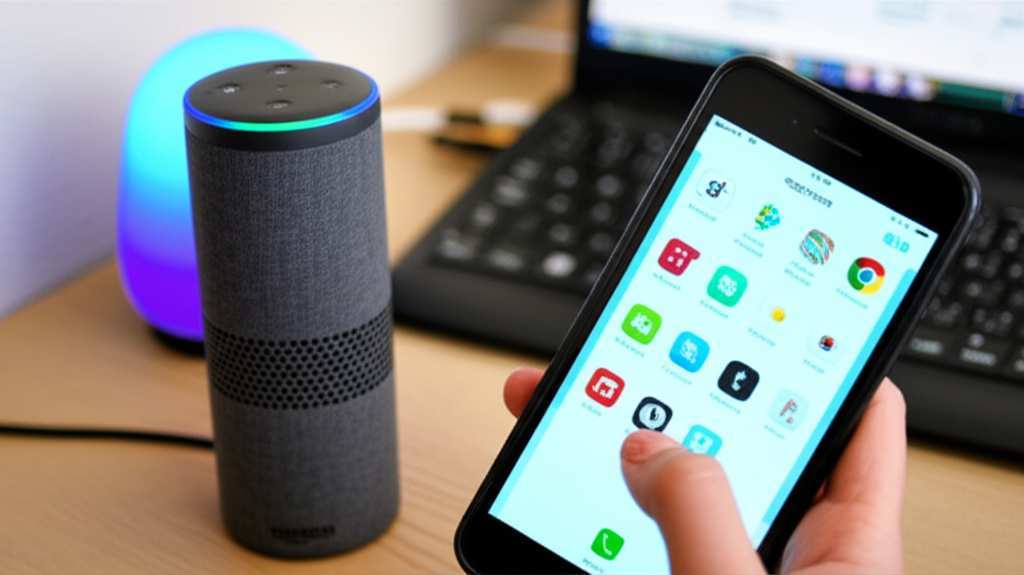
This feature is a game-changer for a few reasons. First, it often gives you better sound quality than your phone’s built-in speaker. Echo devices are designed to produce decent audio, filling a room with sound. Second, it frees up your phone. You can play music from your phone, then put it down or walk away, and the music keeps playing through Alexa. It’s perfect for parties, cooking in the kitchen, or just relaxing.
Setting Up Your Alexa as a Bluetooth Speaker: A Step-by-Step Guide
Ready to make some noise? Connecting your phone or tablet to Alexa via Bluetooth is super simple. I’ll walk you through it. You can do this using the Alexa app on your smartphone or tablet, or even just by using your voice. Let’s start with the voice command method, because who doesn’t love talking to their tech?
Method 1: Using Voice Commands (The Super Easy Way!)
This is my favorite method because it’s so quick.
1. Say the magic words: Start by saying, “Alexa, pair Bluetooth.”
2. Alexa will respond: Your Echo device will tell you it’s ready to pair. It might say something like, “You’re in pairing mode. Go to the Bluetooth settings on your phone or tablet and select your Echo device.”
3. Open your phone’s Bluetooth settings: On your smartphone or tablet, go to your settings and find the Bluetooth menu.
4. Find your Echo device: You should see your Echo device listed there. It usually has a name like “Echo Dot,” “Echo Studio,” or whatever you named your device.
5. Tap to connect: Select your Echo device from the list.
6. Confirmation: You’ll hear a confirmation sound from your Echo device, and it will usually say something like, “Connected to [Your Phone’s Name].”
That’s it! Your phone is now connected to Alexa via Bluetooth. You can start playing any audio from your phone, and it will come out of your Echo speaker. To disconnect, just say, “Alexa, disconnect Bluetooth.”
Method 2: Using the Alexa App (For a Visual Touch)
If you prefer a visual guide or the voice command doesn’t work for some reason, the Alexa app is your friend.
1. Open the Alexa App: Make sure you have the Amazon Alexa app installed on your smartphone or tablet and that you’re logged into your Amazon account.
2. Go to Devices: Tap on the “Devices” icon, usually found at the bottom of the app screen.
3. Select Your Echo Device: You’ll see a list of all your Alexa-enabled devices. Tap on the specific Echo device you want to use as a speaker.
4. Find Bluetooth Connections: Scroll down the device settings page until you see “Bluetooth Connections” or something similar. Tap on it.
5. Pair a New Device: Tap on “Pair a New Device.”
6. Put Your Echo in Pairing Mode: Your Echo device will now enter pairing mode. You can also use the voice command “Alexa, pair Bluetooth” here if you prefer.
7. Connect from Your Phone/Tablet: On your phone or tablet, go to your Bluetooth settings and look for your Echo device in the list of available devices. Tap on it to connect.
8. Confirmation: Once connected, the Alexa app will show it as connected, and your Echo device will usually announce that it’s connected.
See? Not so scary! Both methods get you to the same amazing result: great sound from your Alexa.
Exploring Alexa’s Bluetooth Features: What Else Can It Do?
Once your device is paired, you’re not just limited to music. Alexa can play pretty much any audio your phone or tablet can output. This includes:
Music Streaming Services: Spotify, Apple Music, Amazon Music, Pandora, and more. Just start playing your favorite playlist or song on your phone, and it’ll stream to Alexa.
Podcasts and Audiobooks: Listen to your latest podcast obsession or that audiobook you’ve been meaning to finish.
YouTube Videos: If you’re watching a video on your phone, you can send the audio to Alexa for a more immersive experience.
Notifications and Alerts: Sometimes, even your phone’s notification sounds can be routed through Alexa, though this can be a bit hit-or-miss depending on your phone’s settings.
It’s all about turning your Echo into a versatile wireless speaker for whatever you want to listen to.
Connecting Multiple Devices: A Little Trick for Your Gadgets
Here’s a neat bit of info: your Alexa can remember multiple Bluetooth devices. This means you can pair your phone, your partner’s tablet, or even your laptop without having to re-pair them every time. However, your Echo can only be actively connected to one device at a time for playing audio.
If you want to switch from your phone to your tablet, you have a couple of options:
Disconnect the current device: Say, “Alexa, disconnect Bluetooth,” then go to your tablet’s Bluetooth settings and pair it.
Turn off Bluetooth on the current device: If you turn off Bluetooth on your phone, Alexa will automatically disconnect from it. Then you can pair your tablet.
Use the Alexa app: You can manage paired devices in the Alexa app. Sometimes you can select which device is actively playing.
It’s handy to know that your Echo can store a list of paired devices, making it quicker to reconnect to your favorites.
Choosing the Right Alexa Device for Your Bluetooth Needs
While most Amazon Echo devices can function as Bluetooth speakers, some offer a better audio experience than others. If sound quality is a big deal for you, consider these points:
Echo vs. Echo Dot: The standard Echo devices (like the Echo, Echo Studio, Echo Plus) generally have larger speakers and better bass than the smaller Echo Dots. If you want room-filling sound for music, a standard Echo is usually a better choice.
Echo Studio: This is Amazon’s premium speaker. It boasts superior sound quality with Dolby Atmos and 360-degree audio. If you’re an audiophile, this is the one to go for.
Echo Show Devices: These have screens, but they also have decent speakers. They can double as a Bluetooth speaker while still offering visual information.
Think about where you’ll use it and what kind of sound you’re after. For casual listening or background music, an Echo Dot is often perfectly fine. For a more immersive music experience, you might want to step up to a larger Echo model.
Here’s a quick look at how some popular Echo devices stack up for Bluetooth audio:
| Feature | Echo Dot (Latest Gen) | Echo (Latest Gen) | Echo Studio |
| :————— | :——————– | :—————- | :———- |
| Speaker Size | Small | Medium | Large |
| Bass Response | Basic | Good | Excellent |
| Room Filling | Small to Medium Rooms | Medium to Large Rooms | Large Rooms |
| Audio Clarity | Good | Very Good | Exceptional |
| Price Range | $40 – $60 | $100 – $150 | $200 |
| Best For | Convenience, Casual Listening | General Music, Smart Home Control | Serious Audiophiles, Immersive Sound |
As you can see, while all of them can act as Bluetooth speakers, the sound quality and power vary. The Echo Studio, for example, is built for premium sound, offering a richer bass and more detailed audio. The standard Echo provides a good balance of features and sound for most users. Even the humble Echo Dot is surprisingly capable for its size, perfect for a bedroom or office.
Troubleshooting Common Bluetooth Connection Issues
Sometimes, tech doesn’t play nice right away. If you’re having trouble connecting your device to Alexa via Bluetooth, don’t panic! Here are a few common issues and how to fix them:
Device Not Appearing in Bluetooth List:
Make sure your Echo is in pairing mode: Say “Alexa, pair Bluetooth” again.
Restart your Echo device: Unplug it for 10 seconds, then plug it back in.
Restart your phone/tablet: A simple restart can often fix Bluetooth glitches.
Check your phone’s Bluetooth: Make sure Bluetooth is turned on and that you’ve previously forgotten (removed) other paired devices if your list is full.
Connection Fails or is Interrupted:
Reduce the distance: Make sure your phone or tablet is close to your Echo device. Bluetooth has a range, usually around 30 feet (10 meters), but walls and interference can shorten it.
Clear the cache (App): In the Alexa app, sometimes clearing the cache can help. Go to your phone’s app settings, find Alexa, and look for a “Clear Cache” option.
Unpair and Re-pair: Go to your phone’s Bluetooth settings, “forget” your Echo device, and then start the pairing process over. Also, in the Alexa app, under Bluetooth Connections, you can “Forget Device” and re-pair.
Check for interference: Other wireless devices, like microwaves or some cordless phones, can sometimes interfere with Bluetooth signals.
No Sound After Connecting:
Check volume levels: Make sure the volume is turned up on both your phone/tablet and your Alexa device.
Confirm audio output: On your phone, ensure that the audio is actually being sent to the Bluetooth device (your Echo).
Play different audio: Try playing a different song or app to see if the issue is with a specific audio source.
A quick tip: If you’re really stuck, Amazon’s support pages are a great resource. For example, this page on Amazon’s support site offers detailed troubleshooting steps for Alexa devices.
Fun Facts About Alexa and Bluetooth
Did you know that Bluetooth is named after a Viking king? Harald Bluetooth Gormsson united Danish tribes and introduced Christianity to Denmark around the 10th century. The technology’s name was chosen because Bluetooth technology also unites different communication protocols. Pretty cool historical tie-in for your tech!
Also, Amazon is constantly updating Alexa. Newer Echo devices often have improved Bluetooth capabilities, including support for newer Bluetooth versions that can offer better stability and range. So, if you have an older Echo, upgrading might even give you a smoother Bluetooth experience!
Comparing Alexa’s Bluetooth Speaker Functionality
It’s helpful to know what to expect when you use Alexa as a Bluetooth speaker compared to a dedicated Bluetooth speaker. Here’s a little breakdown:
| Feature | Alexa as Bluetooth Speaker | Dedicated Bluetooth Speaker |
| :——————- | :———————————————– | :——————————————- |
| Primary Function | Voice assistant with added speaker capability | Primarily a portable speaker |
| Sound Quality | Varies by model (Dot good, Studio excellent) | Varies widely by brand and model |
| Portability | Requires Wi-Fi and power outlet | Often battery-powered, highly portable |
| Setup | Simple pairing via app or voice | Simple pairing, no Wi-Fi needed |
| Smart Features | Full Alexa voice assistant capabilities | Limited or no smart features |
| Battery | None (requires AC power) | Built-in rechargeable battery |
| Cost | Included with Echo device purchase | Varies; can range from cheap to premium |
So, while a dedicated Bluetooth speaker might offer more portability and battery life, Alexa brings the added bonus of being a smart assistant. If you already have an Echo, using it as a Bluetooth speaker is a fantastic way to get more value out of it without buying another device.
Frequently Asked Questions (FAQ)
Q1: Do I need an Amazon Prime subscription to use Alexa as a Bluetooth speaker?
Nope! You don’t need Amazon Prime at all to connect your phone or tablet via Bluetooth and play audio. The Bluetooth pairing function is available to all Echo device owners.
Q2: Can I use my Alexa as a Bluetooth speaker for my TV?
This is a bit tricky. Most Echo devices don’t natively support acting as a Bluetooth receiver for TV audio in the way you might expect. Some newer Echo devices or specific setups might allow this via Bluetooth, but it’s not as straightforward as connecting your phone. For seamless TV audio, you might need a dedicated Bluetooth transmitter for your TV or a soundbar with Bluetooth input. You can, however, ask Alexa to play content from certain streaming apps directly, which bypasses the need for Bluetooth from your TV.
Q3: How do I know if my Echo device supports Bluetooth?
Almost all Amazon Echo devices released in the last several years have Bluetooth capabilities. This includes Echo Dot (all generations), Echo (all generations), Echo Show (all generations), Echo Plus, Echo Studio, and Echo Spot. If you have a fairly recent model, it’s almost certainly Bluetooth-enabled!
Q4: Can I use two Echo devices as a stereo Bluetooth speaker pair?
This is a great question! You can create a stereo pair with two identical Echo devices (like two Echo Dots or two standard Echos) for music playback. However, this stereo pairing works with music played through Alexa directly (e.g., “Alexa, play music on Spotify”). It does not typically work for audio streamed via Bluetooth from your phone. When you stream via Bluetooth, the audio goes to one Echo device at a time.
Q5: What’s the difference between using Alexa for music and using it as a Bluetooth speaker?
When you ask Alexa to play music directly (e.g., “Alexa, play my workout playlist on Spotify”), Alexa accesses that music service through its own internet connection and skills. When you use it as a Bluetooth speaker, you’re sending the audio signal from your phone or tablet to the Echo device wirelessly. This means you can play anything from your phone, not just content from services Alexa has built-in skills for.
Q6: How do I disconnect my phone from Alexa without turning off Bluetooth on my phone?
The easiest way is to simply tell Alexa to disconnect. Say, “Alexa, disconnect Bluetooth.” Your Echo device will confirm that it’s disconnected, and your phone will no longer be paired. You can also do this through the Alexa app by going to Devices > your Echo device > Bluetooth Connections and selecting “Disconnect” or “Forget Device” if you want to remove it completely.
Q7: Can I use Alexa as a Bluetooth speaker when it’s not connected to Wi-Fi?
No, you can’t. Your Alexa device needs an active Wi-Fi connection to function as a smart assistant and to initiate Bluetooth pairing. While Bluetooth itself doesn’t require Wi-Fi, the Echo device uses its Wi-Fi connection to process commands and manage its features, including Bluetooth connectivity.
Bringing It All Together: Amazing Sound Awaits!
So there you have it! You’ve learned that your Alexa is way more than just a voice assistant – it’s a fully capable Bluetooth speaker. You know how to pair your devices using simple voice commands or the handy Alexa app. You understand the differences between various Echo models for the best sound experience, and you’re ready to tackle any minor connection hiccups.
Using Alexa as a Bluetooth speaker is such a simple yet powerful way to enhance your listening experience. It’s about making your existing tech work harder for you, giving you better sound quality without needing to buy extra gadgets. Whether you’re hosting a party, enjoying a quiet evening with a podcast, or just want to blast your favorite tunes, your Echo device is ready to deliver.
Don’t be afraid to experiment! Try connecting different devices, playing various types of audio, and see just how versatile your Alexa can be. It’s all about making technology work for you in the easiest and most enjoyable way possible.
Now go enjoy amazing sound and make every moment louder and better! Happy listening!