Yes, you can connect a Bluetooth speaker to your Roku TV! It’s a fantastic way to boost your TV’s sound and enjoy movies or music with richer audio. We’ll show you how to do it easily.
Hey there, tech adventurers! Max here from AffTechy.com, your go-to buddy for making technology simple and fun. You know how sometimes the sound from your TV is just… okay? Maybe it’s a little tinny, or you can’t quite hear the dialogue over the action scenes. That’s where a good speaker comes in! But then comes the question: can my awesome new Bluetooth speaker actually talk to my Roku TV?
It’s a question many of us have asked when looking to upgrade our home entertainment. You’ve got this great speaker that works perfectly with your phone, and you’re wondering if it can bring that same magic to your TV viewing experience. It can feel a bit like trying to fit a square peg in a round hole sometimes, right? Don’t worry, though! I’m here to tell you that with a few simple steps, you can absolutely get your Roku TV and Bluetooth speaker singing the same tune.
We’ll break down everything you need to know, from checking if your TV has Bluetooth to pairing your devices. No confusing jargon, just clear, friendly steps to get you enjoying better sound in no time. Let’s dive in and make your movie nights, game sessions, and music listening way more awesome!

Let’s Talk About Sound: Why Better Audio Matters
Imagine watching your favorite action movie. The explosions are booming, the chase scenes are heart-pounding, and the subtle whispers of characters are crucial to the plot. If your TV’s built-in speakers are struggling, you miss out on all that immersive audio goodness. That’s why enhancing your TV’s sound is such a game-changer.
A good Bluetooth speaker can transform your viewing experience. It adds depth, clarity, and power that built-in TV speakers often can’t match. Think about streaming your favorite playlist or having friends over for a gaming tournament – you want that sound to fill the room and make everything feel more alive. It’s not just about volume; it’s about the richness and detail of the audio.
Plus, Bluetooth technology makes it super convenient. No more messy wires snaking across your living room! You can place your speaker just about anywhere to get the best sound. It’s all about making your entertainment more enjoyable without adding a headache.
Can My Roku TV Actually Connect to Bluetooth Speakers?
This is the big question, and the answer is… it depends on your Roku TV model! Not all Roku TVs have built-in Bluetooth audio support. This is a key detail, and it’s good to know upfront. Some older models or specific brands might not have this feature directly integrated.
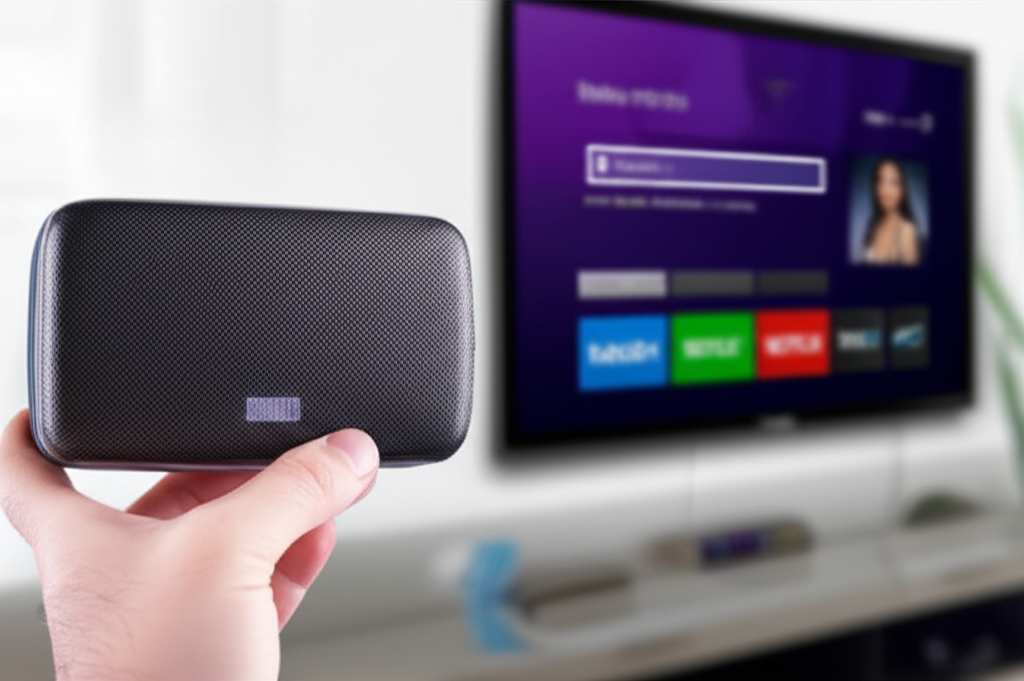
However, don’t let that stop you! Even if your Roku TV doesn’t have built-in Bluetooth for speakers, there are still ways to connect. We’ll explore those options too. The most straightforward way is if your TV has Bluetooth built-in, but there are workarounds if it doesn’t.
The good news is that many newer Roku TV models, especially those from brands like TCL, Hisense, and Sharp that use the Roku OS, do come with Bluetooth audio capabilities. So, the first step is to check if your TV is one of them. It’s usually pretty easy to find out.
How to Check if Your Roku TV Has Built-In Bluetooth
Finding out if your Roku TV is ready for Bluetooth audio is simple. You just need to navigate through your TV’s settings menu. Think of it like checking if your phone has Wi-Fi – it’s a standard feature you look for in the settings.
Here’s the usual path to find it:
Press the Home button on your Roku remote.
Scroll down to Settings.
Look for Remotes & Devices.
Inside this menu, you should see an option for Bluetooth devices or Pair Bluetooth device.
If you see these options, congratulations! Your Roku TV is ready to pair with a Bluetooth speaker. If you don’t see anything related to Bluetooth audio pairing in this section, your TV likely doesn’t have this feature built-in. But don’t worry, we have solutions for that later!
Connecting Your Bluetooth Speaker: The Easy Way (If Your TV Has Bluetooth)
Alright, so you’ve confirmed your Roku TV has Bluetooth. Awesome! Now, let’s get that speaker hooked up. This process is very similar to pairing your phone with a Bluetooth device. It’s all about putting both devices in pairing mode and letting them find each other.
Here’s a step-by-step guide to get you started:
Step 1: Put Your Bluetooth Speaker in Pairing Mode
This is the most important first step. Every Bluetooth speaker is a little different, but there’s almost always a button or a combination of buttons you need to press.
Check your speaker’s manual: If you’re unsure, your speaker’s user manual is your best friend. It will tell you exactly how to activate pairing mode.
Look for a Bluetooth icon: Often, there’s a dedicated Bluetooth button, sometimes with a little Bluetooth symbol on it.
Press and hold: You usually need to press and hold the Bluetooth button for a few seconds until you hear a sound or see a light flashing. This flashing light is usually blue, indicating it’s ready to connect.
Some speakers might enter pairing mode automatically when they are turned on and not connected to any device. Others might require a specific button press.
Step 2: Put Your Roku TV in Bluetooth Pairing Mode
Now it’s time to tell your Roku TV to start looking for nearby Bluetooth devices.
Go back to your Roku TV’s Settings.
Navigate to Remotes & Devices.
Select Pair Bluetooth device.
Your TV will then start scanning for available Bluetooth devices. You’ll usually see a message like “Searching for devices” on your TV screen.
Make sure your speaker is still in pairing mode while your TV is searching. It needs to be discoverable.
Step 3: Select Your Speaker on the Roku TV
Once your Roku TV finds your Bluetooth speaker, it will appear in a list of available devices on your screen.
Use your Roku remote to highlight your speaker’s name in the list. The name is usually the brand or model of your speaker.
Press OK on your remote to select it.
Your Roku TV will then attempt to connect to your speaker. You might hear a confirmation sound from your speaker, or see a message on your TV indicating that the connection was successful.
Step 4: Enjoy the Sound!
That’s it! Your Bluetooth speaker should now be connected to your Roku TV. Try playing some content – a movie, a show, or some music – and you should hear the audio coming through your speaker.
If you’re watching something and the sound isn’t coming through yet, double-check that your speaker is still connected. You might need to go back into the Bluetooth settings on your TV and select your speaker again to ensure it’s the active audio output.
What If My Roku TV Doesn’t Have Built-In Bluetooth? No Problem!
So, you checked your Roku TV’s settings, and there’s no Bluetooth audio option. Bummer! But don’t pack up that speaker just yet. There are still fantastic ways to get that great Bluetooth sound for your TV. It just requires a little extra gadget.
The most common solution is a Bluetooth transmitter/receiver. These small devices can be plugged into your TV and then broadcast audio via Bluetooth to your speaker. It’s like giving your TV Bluetooth superpowers!
Using a Bluetooth Transmitter
A Bluetooth transmitter is a device that takes an audio signal from your TV and sends it wirelessly to a Bluetooth speaker. You’ll want to make sure the transmitter you choose is compatible with your TV’s audio output ports.
Here’s how it generally works:
Choose the Right Transmitter: Look for a transmitter that has an audio output that matches your TV. Common options are 3.5mm headphone jack, RCA (red and white audio ports), or optical (digital audio out). Many transmitters can do all of these!
Connect the Transmitter to Your TV: Plug the transmitter into your TV’s audio output port. For example, if your TV has a headphone jack, use a 3.5mm cable to connect it to the transmitter. If it has RCA ports, use an RCA cable.
Power the Transmitter: Most transmitters need power, usually via a USB cable. You can often plug this into a USB port on your TV or use a standard USB power adapter.
Put the Transmitter in Pairing Mode: Just like your speaker, the transmitter will have a pairing mode you need to activate. Follow its manual.
Pair Your Speaker with the Transmitter: Put your Bluetooth speaker in pairing mode. The transmitter will then scan for and connect to your speaker.
Once paired, the audio from your TV will be sent to the transmitter, which will then beam it wirelessly to your Bluetooth speaker. It’s a neat little workaround that works surprisingly well!
Choosing the Right Bluetooth Speaker for Your Roku TV
Now that you know how to connect, let’s talk about choosing a speaker that’s right for you. There are tons of options out there, from tiny portable ones to massive soundbars. What should you look for?
Here are a few things to consider:
Sound Quality: This is probably the most important. Do you want deep bass for movies, or clear mids and highs for dialogue and music? Reading reviews can help a lot here.
Battery Life (for portable speakers): If you plan to move your speaker around or use it away from a power outlet, battery life is key. Some speakers last just a few hours, while others go for 20+ hours.
Connectivity Options: While we’re focusing on Bluetooth, some speakers also offer Wi-Fi or wired connections, which can be useful.
Durability and Water Resistance: If you’re an outdoorsy type or have a busy household, a rugged, water-resistant speaker might be a good idea.
Price: Bluetooth speakers range from budget-friendly options to premium models. Set a budget and find the best bang for your buck within it.
Let’s look at a quick comparison of some popular types of Bluetooth speakers you might consider:
| Speaker Type | Best For | Typical Sound Quality | Portability | Price Range |
|---|---|---|---|---|
| Portable Bluetooth Speaker | Casual listening, moving around the house, outdoor use | Good to Very Good | High | $30 – $200 |
| Home Bluetooth Speaker | Dedicated listening in one room, higher fidelity | Very Good to Excellent | Low to Medium | $80 – $300+ |
| Soundbar with Bluetooth | Enhancing TV audio specifically, immersive home theater feel | Excellent | Low (designed to stay near TV) | $100 – $500+ |
As you can see, a portable speaker is great if you want flexibility, but a dedicated home speaker or soundbar will generally offer a more robust audio experience for your Roku TV setup. Think about where you’ll use it most!
Troubleshooting Common Connection Issues
Sometimes, technology doesn’t play nice right away. If you’re having trouble getting your Bluetooth speaker and Roku TV to connect, don’t panic! Here are a few common issues and how to fix them.
Speaker Not Appearing in List:
Make sure your speaker is still in pairing mode.
Ensure the speaker is close enough to the TV. Bluetooth has a range, usually around 30 feet (10 meters).
Try turning both the speaker and the TV’s Bluetooth off and then on again.
Audio Lag or Sync Issues:
This can be a common problem with Bluetooth, especially for action movies or games where timing is critical. Some Roku TVs and Bluetooth transmitters have settings to adjust audio delay.
Ensure you have the latest firmware updates for both your TV and your speaker.
Try a different Bluetooth codec if your transmitter supports it. Some codecs are better for low latency.
Speaker Connects but No Sound:
Check the volume on both your Roku TV and your Bluetooth speaker.
Make sure your Roku TV’s audio output is set to Bluetooth. You can usually find this in the audio settings.
Try disconnecting and re-pairing the devices.
Connection Drops Frequently:
Too many Bluetooth devices active in the area can cause interference. Try moving away from other wireless devices.
Ensure your speaker is fully charged. Low battery can sometimes cause unstable connections.
* Check if your Roku TV or speaker has any firmware updates available.
For more in-depth troubleshooting specific to your Roku TV model, you can always check out the official Roku support site or the support pages for your TV manufacturer.
Fun Facts About Bluetooth and Audio!
Did you know that Bluetooth technology is named after a Viking king? Harald Bluetooth was known for uniting tribes in Denmark and Norway, much like Bluetooth technology aims to unite devices wirelessly! Pretty cool, right?
Also, the average human ear can detect sounds in a frequency range of about 20 Hz to 20,000 Hz. Good speakers aim to reproduce as much of this range as possible to give you a full, rich sound experience. When you connect a good Bluetooth speaker, you’re often getting a wider and more detailed frequency response than your TV’s internal speakers can provide. This makes a huge difference in how you experience movies and music!
If you’re curious about the technical side of audio, sites like CNET offer fantastic reviews and explanations of audio technology. They often dive deep into things like speaker drivers, impedance, and frequency response, which can help you understand what makes a speaker sound great.
Frequently Asked Questions (FAQ)
Let’s quickly answer some common questions folks have about connecting Bluetooth speakers to Roku TVs.
Q1: Will any Bluetooth speaker work with my Roku TV?
A1: Generally, yes! As long as your Roku TV has Bluetooth audio support (or you’re using a Bluetooth transmitter), most standard Bluetooth speakers should pair without an issue. The main thing is that both devices use the Bluetooth standard.
Q2: Can I connect multiple Bluetooth speakers to my Roku TV at once?
A2: Most Roku TVs and standard Bluetooth speakers only support connecting one Bluetooth audio device at a time. Some advanced Bluetooth transmitters might offer dual-pairing, allowing two speakers, but this is less common and might introduce sync issues.
Q3: What’s the difference between a Bluetooth transmitter and a receiver?
A3: A transmitter sends audio out (from your TV to a speaker), while a receiver takes audio in (from a source like a phone to an older speaker system). For connecting a Bluetooth speaker to a non-Bluetooth TV, you need a transmitter.
Q4: How can I tell if my Roku TV has Bluetooth?
A4: The easiest way is to go to Settings > Remotes & Devices on your Roku TV. If you see an option for “Bluetooth devices” or “Pair Bluetooth device,” your TV supports it.
Q5: Is there a delay when using a Bluetooth speaker with my TV?
A5: Sometimes, yes. This is called audio latency. Newer Bluetooth versions and some specific devices are better at minimizing this. If you notice a delay, check your TV or transmitter settings for an audio delay adjustment.
Q6: Can I connect my Bluetooth headphones to my Roku TV?
A6: Yes! The process is exactly the same as connecting a Bluetooth speaker. Just put your headphones in pairing mode and pair them through your Roku TV’s Bluetooth settings.
Q7: What if my speaker is connected but I can’t hear anything?
A7: Double-check that the volume is turned up on both your TV and your speaker. Also, make sure your TV’s audio output is set to Bluetooth in the audio settings. Sometimes a simple disconnect and reconnect can fix it!
Level Up Your Roku TV Sound Experience!
See? Connecting a Bluetooth speaker to your Roku TV is totally doable and a fantastic way to get more out of your entertainment system. Whether your TV has built-in Bluetooth or you use a handy transmitter, the result is richer, more immersive sound that makes movies more exciting and music more vibrant.
You’ve learned how to check your TV, pair your devices, and even what to do if your TV isn’t Bluetooth-ready. You’re now equipped to ditch those weak TV speakers and step up your audio game. It’s all about making technology work for you, so you can relax and enjoy your favorite shows and tunes.
So go ahead, grab that Bluetooth speaker, follow these simple steps, and prepare to be blown away by the difference great sound makes. Now go enjoy amazing sound and make every moment louder and better!