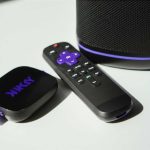
Yes, you can absolutely connect your Roku to a Bluetooth speaker! It’s easier than you think and a fantastic way to boost your TV’s sound. Get ready for richer audio for movies, shows, and music.
Hey there, tech explorers! Max here from AffTechy.com. You know, sometimes the sound from your TV just doesn’t cut it. Maybe the dialogue is hard to hear, or the explosions aren’t as booming as they should be. That’s where a good speaker comes in, and if you’ve got a favorite Bluetooth speaker lying around, you might be wondering if it can team up with your Roku. Great question!
It’s totally understandable to feel a bit puzzled by all the different gadgets and how they connect. We all want that awesome home theater experience without needing a degree in computer science, right? Well, good news! Connecting your Roku to a Bluetooth speaker is totally doable, and I’m here to walk you through it, step by step. We’ll make sure you get that amazing sound you’re looking for.
Let’s break down how you can get your Roku and your Bluetooth speaker singing the same tune. It’s going to be fun, easy, and you’ll be enjoying upgraded audio in no time. Ready to dive in and make your entertainment louder and clearer?

Let’s Talk Sound: Why Upgrade Your Roku’s Audio?
Think about your favorite movie scene or that song you love to blast. Great sound makes a huge difference, doesn’t it? It pulls you into the story and makes everything feel more alive. The built-in speakers on most TVs are okay, but they’re often designed for clarity, not for that deep, immersive feel.
This is where external speakers shine. And if you already own a Bluetooth speaker, why not use it? It’s a super convenient way to get better sound without buying a whole new sound system. Plus, Bluetooth means no messy wires to trip over. Pretty neat, huh?
Can My Roku Actually Do This?
This is the big question! And the answer is… it depends on your Roku model. Many newer Roku TVs and some Roku streaming devices have built-in Bluetooth capabilities. This means they can directly connect to Bluetooth headphones, speakers, or even soundbars. It’s like having a hidden superpower!
However, not all Roku devices have this feature. Older models or some specific streaming sticks might not have native Bluetooth audio support. But don’t worry, there are often workarounds! We’ll cover that too. So, first things first, let’s figure out if your specific Roku device is ready to go Bluetooth.

How to Check if Your Roku Supports Bluetooth Audio
Here’s how you can quickly find out if your Roku device is Bluetooth-ready. It’s a simple check right in your Roku’s settings menu. You don’t need to be a tech wizard for this!
Follow these steps:
- Turn on your Roku device and navigate to the Home screen.
- Scroll down and select Settings.
- In the Settings menu, look for Remotes & devices.
- Within Remotes & devices, see if you find an option like Bluetooth or Add Bluetooth device.
If you see a Bluetooth option, congratulations! Your Roku can directly connect to Bluetooth speakers. If you don’t see this option, don’t despair. There are still ways to get that sweet Bluetooth sound, and we’ll get to those later in the article.
Step-by-Step: Connecting Your Roku to a Bluetooth Speaker (Directly)
So, you’ve confirmed your Roku has Bluetooth. Awesome! Now, let’s get that speaker paired up. This process is pretty straightforward, just like pairing your phone to your speaker.
Step 1: Prepare Your Bluetooth Speaker
First, make sure your Bluetooth speaker is ready to connect. You’ll need to put it into pairing mode. How you do this varies by speaker, but most have a dedicated button. Look for a Bluetooth symbol or a button labeled “Pair” or “Bluetooth.” Press and hold it until a light starts flashing, usually blue, indicating it’s searching for a device.
Pro Tip: Check your speaker’s manual if you’re unsure how to activate pairing mode. It’s usually quite simple!
Step 2: Put Your Roku in Pairing Mode
Now, head back to your Roku. You’ll need to navigate to the Bluetooth settings you found earlier.
- Go to Settings on your Roku.
- Select Remotes & devices.
- Choose Add Bluetooth device or a similar option.
Your Roku will start searching for nearby Bluetooth devices. It might take a moment, so be patient.
Step 3: Select Your Speaker
Once your Roku finds your speaker, its name should appear on the list of available devices. It might look something like “JBL Flip 5” or “Sony SRS-XB23.” Use your Roku remote to highlight your speaker’s name.
Then, select it. Your Roku will attempt to connect to the speaker. You might see a confirmation message on your TV screen.
Step 4: Confirm the Connection
If the pairing is successful, your Roku will likely show a “Connected” status next to your speaker’s name. You might also hear a confirmation sound from the speaker itself. Now, play some content on your Roku!
The audio should now be coming from your Bluetooth speaker instead of your TV. If you don’t hear anything, double-check that the volume on both your Roku and your speaker is turned up. Sometimes, you might need to select the speaker as the audio output device within your Roku’s audio settings, though most modern Rokus handle this automatically.
Troubleshooting Common Connection Issues
It’s not always a perfectly smooth ride, is it? If your Roku and speaker aren’t connecting, don’t get frustrated. Here are a few common hiccups and how to fix them:
- Speaker Not Appearing: Make sure your speaker is still in pairing mode and close enough to your Roku. Try turning your speaker off and on again, and then re-enter pairing mode.
- Connection Failed: Sometimes, devices just need a fresh start. Try restarting both your Roku device and your Bluetooth speaker. Unplug them for about 30 seconds, then plug them back in and try pairing again.
- No Sound After Connecting: Check the volume on both devices. Also, go into your Roku’s Settings > Audio and ensure the correct audio output is selected. You might need to disable any TV speakers if there’s an option for that.
- Intermittent Audio/Dropping Connection: This can be due to interference. Try moving your speaker closer to your Roku, or ensure there are no major obstructions or other wireless devices causing signal disruption.
A quick restart often solves a surprising number of tech problems! It’s like giving your gadgets a little nap to reset.
When Your Roku Doesn’t Have Built-in Bluetooth: The Workarounds
Okay, so what if your Roku device doesn’t have that handy Bluetooth setting? Don’t worry, you’re not out of luck. There are still fantastic ways to get that enhanced audio experience. The key here is an external Bluetooth transmitter.
What is a Bluetooth Transmitter?
A Bluetooth transmitter is a small device that plugs into your TV or audio system and broadcasts the audio signal wirelessly via Bluetooth. Your Bluetooth speaker (or headphones) can then pick up this signal. It’s like a bridge for your audio!
How to Use a Bluetooth Transmitter with Your Roku
This method involves an extra piece of hardware, but it’s still quite simple.
- Get a Bluetooth Transmitter: You can find these online or at electronics stores. Look for one that has an audio input port compatible with your Roku TV (usually an optical audio port or a 3.5mm headphone jack).
- Connect the Transmitter: Plug the transmitter into the appropriate audio output port on your Roku TV. If your Roku TV has a headphone jack, that’s usually the easiest. If it has an optical audio port, you might need a specific cable and adapter.
- Power the Transmitter: Most transmitters are powered via a USB cable, which you can often plug into a USB port on your TV or a USB wall adapter.
- Put the Transmitter in Pairing Mode: Just like your speaker, the transmitter will have a pairing button. Press and hold it until its indicator light starts flashing.
- Pair Your Speaker: Put your Bluetooth speaker into pairing mode. The transmitter should find and connect to your speaker.
- Select Audio Output on TV: You might need to go into your Roku TV’s audio settings to tell it to send sound through the transmitter (e.g., select “Headphone” or “Optical Out” as the audio output).
This setup effectively adds Bluetooth capability to any TV or device with a compatible audio output. It’s a great solution for older TVs or devices that weren’t designed with Bluetooth audio in mind.
Choosing the Right Bluetooth Speaker for Your Roku
If you’re in the market for a new Bluetooth speaker to pair with your Roku, it’s good to know what to look for. While most speakers will work, some features can make your experience even better.
Key Features to Consider:
- Sound Quality: This is subjective, but look for speakers known for clear highs, balanced mids, and decent bass. Reviews can be very helpful here.
- Battery Life: If you plan to move your speaker around or use it for long movie nights, a longer battery life is a big plus.
- Connectivity Range: How far can the speaker be from your Roku and still maintain a stable connection?
- Durability/Water Resistance: If you’re using it in different rooms or outdoors, this can be important.
- Ease of Pairing: Some speakers connect almost instantly, while others can be a bit fiddly.
Speaker Options for Different Budgets
The world of Bluetooth speakers is vast, with options for every pocket. Here’s a quick look at what you might find:
| Speaker Type | Typical Price Range | Key Benefits | Best For |
|---|---|---|---|
| Portable Mini Speakers | $20 – $70 | Compact, very affordable, good for personal listening | Small rooms, on-the-go |
| Mid-Range Portable Speakers | $70 – $150 | Better sound quality, longer battery life, often more durable | Living rooms, small gatherings |
| Premium Portable Speakers | $150 – $300+ | Excellent sound, robust build, advanced features | Audiophiles, immersive home entertainment |
| Smart Speakers (with Bluetooth) | $50 – $200+ | Voice assistant integration, multi-room audio capabilities | Smart home users, music streaming |
When looking at these prices, remember that you can often find great deals, especially during sales events. A mid-range speaker can offer a fantastic balance of performance and value for enhancing your Roku viewing experience. Check out reviews from sites like CNET for detailed comparisons.
Understanding Bluetooth Versions
You might see terms like “Bluetooth 4.0,” “Bluetooth 5.0,” or “Bluetooth 5.2” when looking at speakers or transmitters. What does this mean for your Roku connection?
- Newer is Generally Better: Higher Bluetooth versions (like 5.0 and above) typically offer faster pairing, a more stable connection, lower power consumption, and a longer range compared to older versions.
- Compatibility: Bluetooth is backward compatible. This means a Bluetooth 5.0 speaker can connect to a device with Bluetooth 4.0, but it will operate using the older, less efficient standard.
- For Roku: If your Roku supports Bluetooth, it likely uses a relatively modern version. Pairing it with a speaker that also uses Bluetooth 4.0 or higher should provide a good experience. If you’re using a transmitter, ensure it matches or exceeds your speaker’s Bluetooth version for best results.
Think of it like Wi-Fi. Newer Wi-Fi standards offer better speed and reliability. Bluetooth versions work similarly, making your wireless audio smoother and more dependable.
Audio Settings on Your Roku: Fine-Tuning the Sound
Once connected, you might want to tweak your Roku’s audio settings for the best experience. This is especially true if you’re using a Bluetooth transmitter or if the sound isn’t quite right.
Here are some settings you might find and what they do:
- Surround Sound: If your speaker supports surround sound, you can enable this option. It helps create a more immersive audio experience.
- Advanced Audio Settings: Some Rokus offer advanced options like Lip Sync (to correct audio delay) or volume leveling. If you notice dialogue is slightly out of sync with the picture, the Lip Sync setting is your friend.
- Audio Mode: You might see options like “Auto,” “Stereo,” or “Surround.” “Auto” is usually the best bet, letting your Roku detect the best format.
To access these settings:
- Go to Settings on your Roku.
- Select Audio & video.
- Explore the options available here.
Experimenting with these settings can make a noticeable difference in how clear and impactful your audio sounds. It’s all about getting that perfect balance for your ears!
Fun Fact: The Evolution of Bluetooth
Did you know Bluetooth technology was named after a Viking king? Harald Bluetooth united Danish tribes and, centuries later, his nickname inspired the name for this wireless technology that unites devices. It’s pretty cool how history and tech can intersect!
Can I Connect Multiple Bluetooth Speakers to My Roku?
This is a common question for those who want to fill a larger space with sound or create a stereo effect. For most Roku devices that support direct Bluetooth audio, the answer is typically no. Native Bluetooth connections on consumer devices like Roku usually only support one audio output device at a time. You can’t typically pair two separate Bluetooth speakers simultaneously for stereo sound directly through the Roku’s built-in Bluetooth.
However, some high-end Bluetooth speakers or specific transmitter devices might offer a “multi-point” or “stereo pairing” feature where two identical speakers can be linked together. You would then connect your Roku (or transmitter) to this linked pair. Always check the specifications of your speaker or transmitter for this capability.
Alternative: Roku Wireless Speakers
Roku also offers its own line of wireless speakers, like the Roku Wireless Speakers. These are designed to work seamlessly with compatible Roku TVs and Roku Streambar devices. They connect wirelessly using Roku’s own technology, not standard Bluetooth. This often provides a very stable connection and can be a great option if you want a simple, integrated audio upgrade for your Roku setup.
They are usually sold in pairs and can offer a true surround sound experience. If you have a Roku TV that supports them, they are definitely worth considering for a hassle-free setup. You can learn more about them on the Roku website.
Frequently Asked Questions (FAQ)
Q1: My Roku TV shows it’s connected to the Bluetooth speaker, but I still don’t hear any sound. What should I do?
A: First, check the volume on both your Roku TV and your Bluetooth speaker – make sure they are turned up! Also, go into your Roku’s audio settings and ensure that the Bluetooth speaker is selected as the audio output. Sometimes, you might need to specifically turn off the TV speakers in the settings.
Q2: How close does my Bluetooth speaker need to be to my Roku?
A: For the best and most stable connection, it’s recommended to keep your Bluetooth speaker within about 30 feet (10 meters) of your Roku device. Walls and other electronic devices can sometimes interfere with the signal, so a direct line of sight or shorter distance is usually ideal.
Q3: Can I use any Bluetooth speaker with my Roku?
A: If your Roku device has built-in Bluetooth audio support, you can generally connect to most standard Bluetooth speakers. The pairing process is similar to how you’d connect any other Bluetooth device, like your smartphone. If you’re using a Bluetooth transmitter, ensure it’s compatible with your speaker.
Q4: Will connecting a Bluetooth speaker drain my Roku’s battery faster?
A: If you have a Roku streaming stick or a Roku remote that has Bluetooth audio capabilities (some do for private listening), then yes, using Bluetooth will use more power than not using it. For Roku TVs or streaming boxes, the power consumption for Bluetooth is generally negligible as they are plugged into an outlet.
Q5: Is there a delay when using a Bluetooth speaker with my Roku?
A: Sometimes, there can be a slight audio delay, often called “lip sync” issues, with Bluetooth connections. Modern Bluetooth versions (like 5.0 and newer) are much better at minimizing this. Your Roku likely has a “Lip Sync” or “Audio Delay” setting in its audio menu that you can adjust to fix any noticeable lag.
Q6: What if my Roku remote is also Bluetooth? Can it interfere?
A: Most Roku remotes use a different type of wireless connection (often RF or Wi-Fi Direct) that doesn’t interfere with Bluetooth audio connections. If your Roku remote is Bluetooth, and you experience issues, try ensuring both devices are running the latest firmware updates. Sometimes, unpairing and re-pairing the remote can also help.
Conclusion: Enjoy Your Enhanced Audio Experience!
See? Connecting your Roku to a Bluetooth speaker is totally achievable, whether your device has built-in Bluetooth or you use a handy transmitter. You’ve learned how to check your Roku’s compatibility, pair your devices step-by-step, troubleshoot common issues, and even what to look for in a new speaker. It’s all about making your entertainment sound incredible without all the fuss.
Now you can transform your living room into a mini-cinema or a concert hall. Enjoy clearer dialogue, richer sound effects, and your favorite music with a whole new level of depth. Don’t be afraid to experiment with settings and explore different speaker options. You’ve got this!
Now go enjoy amazing sound and make every moment louder and better! Happy streaming!