Quick Summary: Connecting your Bluetooth speaker to Apple TV is super simple! Just go to your Apple TV settings, find Bluetooth, and pair your speaker. Soon, you’ll be enjoying awesome sound without the wires.
Hey there, tech adventurer! Ever found yourself wishing your favorite shows or music on your Apple TV sounded a bit… bigger? You know, that rich, room-filling sound that makes movies epic and playlists pop. It’s amazing how much better a good speaker can make things, right? But sometimes, getting that sound to where you want it can feel like a puzzle. Trying to figure out which speaker to get or how to connect it can be a little overwhelming. But don’t worry, I’m here to make it super easy!
We’re going to walk through connecting your Bluetooth speaker to your Apple TV step-by-step. It’s easier than you think! You’ll be enjoying your favorite content with fantastic audio in no time. Let’s dive in and make that sound magic happen.
Why Connect a Bluetooth Speaker to Your Apple TV?
Think about your Apple TV. It’s your gateway to endless entertainment – movies, shows, games, and music. Now, imagine that experience amplified. Connecting a Bluetooth speaker can transform your viewing or listening sessions from good to absolutely incredible. It’s like upgrading from a small screen to a giant cinema experience, but for your ears!
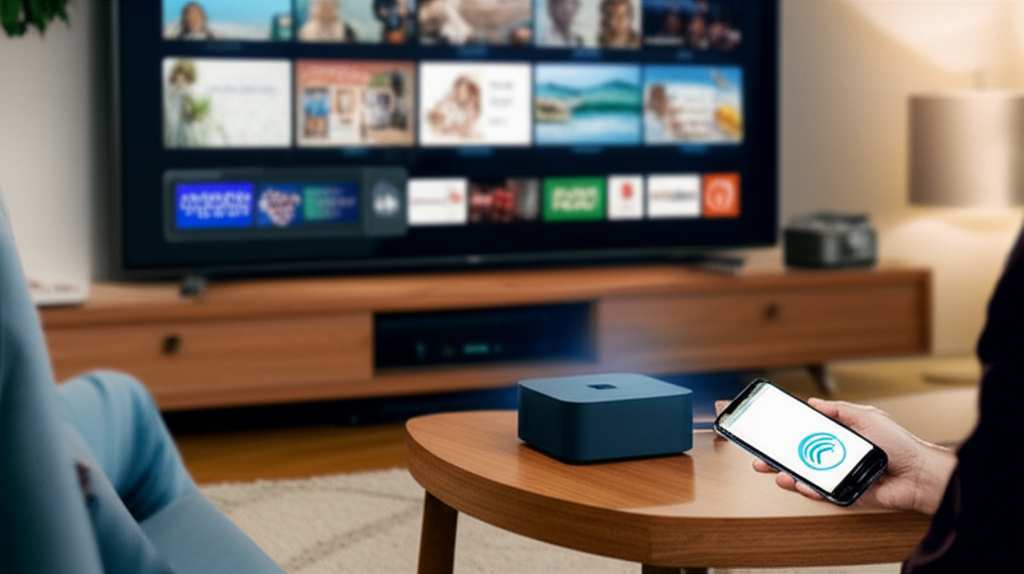
The built-in speakers on your TV or soundbar are okay, but they often lack the depth and power that a dedicated Bluetooth speaker can offer. Whether you’re trying to feel the rumble of an action movie explosion or get lost in the subtle nuances of a symphony, a good speaker makes all the difference. Plus, with Bluetooth, you get the freedom of wireless audio, meaning no messy cables cluttering up your living space.
It’s all about enhancing your enjoyment and creating a more immersive atmosphere. And the best part? You probably already have a Bluetooth speaker that can do the job. Let’s get it hooked up!
What You’ll Need
Before we jump into the setup, let’s make sure you have everything ready. It’s a pretty short list, which is good news!
- Your Apple TV (any model that supports Bluetooth audio output).
- Your Bluetooth speaker.
- Your speaker needs to be charged or plugged in and turned ON.
- Your Bluetooth speaker should be in pairing mode. We’ll cover how to do this in a bit!
That’s really it! No special cables, no complicated software downloads. Just your Apple TV, your speaker, and a few simple steps. It’s designed to be straightforward, so you can get to the fun part – listening – as quickly as possible.
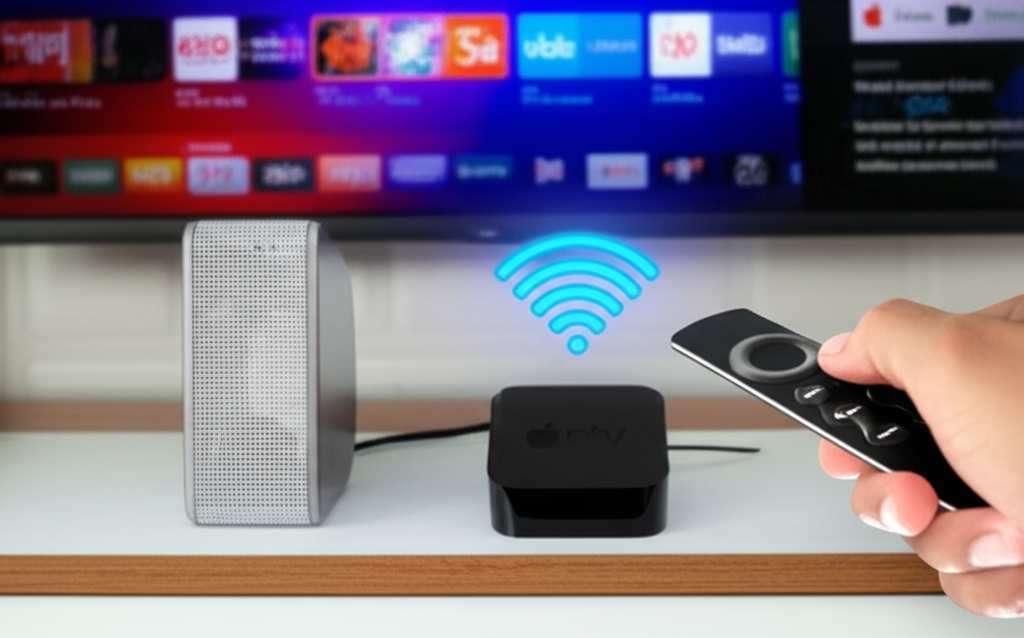
Putting Your Bluetooth Speaker in Pairing Mode
This is a super important first step. Your Apple TV needs to find your speaker, and your speaker needs to be ready to be found. This is what “pairing mode” is all about. It’s like your speaker is saying, “I’m ready to connect!”
Every speaker is a little different, so the exact button or sequence might vary. Usually, you’ll look for a button that has the Bluetooth symbol on it, or it might be labeled “Pair,” “Connect,” or something similar. Press and hold this button for a few seconds.
You’ll often hear a little beep, a chime, or see a light on the speaker start to flash. This flashing light is usually a sign that it’s in pairing mode and actively looking for devices to connect to. If you’re not sure, quickly check your speaker’s user manual. It’s usually a small booklet that came with it, or you can often find it online by searching for your speaker’s model number.
Connecting Your Bluetooth Speaker to Apple TV: Step-by-Step
Alright, let’s get down to business! This is where the magic happens. Follow these easy steps, and you’ll be streaming audio in no time. It’s like following a recipe, but way more fun because the result is awesome sound!
Step 1: Turn On Your Apple TV and Navigate to Settings
First things first, make sure your Apple TV is on and you’re at the main home screen. You know, the one with all your apps? Now, grab your Apple TV remote. You’ll need to go into the settings menu. It usually looks like a gear icon. Just navigate to it and click to open it up.
Step 2: Find the Remote and Devices Menu
Once you’re in Settings, you’ll see a list of options. We’re looking for something related to remotes or other devices. Scroll down until you find an option that says “Remotes and Devices.” Click on that to go into the next menu.
Step 3: Select Bluetooth
Inside the “Remotes and Devices” menu, you’ll find a few different choices. You want to look for “Bluetooth.” This is where your Apple TV manages all its wireless connections. Select “Bluetooth” to see what’s available.
Step 4: Make Sure Bluetooth is On
When you select Bluetooth, you’ll see an option to turn it on or off. Make sure it’s set to ON. If it’s off, your Apple TV won’t be able to see any Bluetooth devices, including your speaker. Once it’s on, your Apple TV will start scanning for nearby Bluetooth devices that are in pairing mode.
Step 5: Select Your Bluetooth Speaker from the List
Now for the exciting part! On your Apple TV screen, you should see a list of available Bluetooth devices. Look for the name of your Bluetooth speaker. It might be something like “JBL Flip 5” or “Sony SRS-XB23.” When you see your speaker’s name, highlight it and press the center of your Apple TV remote’s touch surface to select it.
Step 6: Wait for the Connection to Complete
Your Apple TV will now try to connect to your speaker. You might see a “Connecting…” message. Give it a moment. If everything is set up correctly, you’ll soon see a confirmation that your speaker is connected. Sometimes it will just show up as “Connected” next to its name in the Bluetooth list.
Once it’s connected, you should hear a confirmation sound from your speaker, or any audio playing on your Apple TV will now come through it. Congratulations, you’ve done it!
Troubleshooting Common Connection Issues
Sometimes, things don’t connect perfectly the first time. Don’t get frustrated! Most issues are pretty easy to fix. Let’s look at a few common problems and how to solve them.
- Speaker Not Appearing in the List: This usually means the speaker isn’t in pairing mode, or it’s too far away. Double-check that your speaker is powered on and actively in pairing mode (look for that flashing light!). Try moving the speaker closer to your Apple TV.
- Connection Fails or Drops: If the connection is unstable, try turning both your Apple TV and your speaker off and then on again. Sometimes a simple restart clears up glitches. Also, ensure there aren’t too many other Bluetooth devices active nearby, as this can sometimes cause interference.
- No Sound After Connecting: Even if it says “Connected,” you might not hear sound. Go back to your Apple TV’s Audio Output settings. Make sure your Bluetooth speaker is selected as the primary audio output. You can usually find this in Settings > Audio & Video > Audio Output.
- Speaker Connected to Another Device: Most Bluetooth speakers can only connect to one device at a time. If your speaker is already connected to your phone or tablet, it won’t be able to connect to your Apple TV. Disconnect it from the other device first.
Remember, patience is key! A little bit of troubleshooting can go a long way. And if you get stuck, don’t hesitate to consult your speaker’s manual or Apple’s support pages.
Understanding Bluetooth and Apple TV Compatibility
It’s great that Apple TV supports Bluetooth, but not all Bluetooth versions are created equal. Apple TV uses Bluetooth technology to connect wirelessly to various accessories, including headphones and speakers. This is fantastic because it means you can ditch the wires and enjoy more flexible audio setups.
Most modern Bluetooth speakers use Bluetooth 4.0 or newer, which is perfectly compatible with Apple TV. Apple TV 4K and Apple TV HD (4th generation) both support Bluetooth 4.0. This version offers a good balance of speed, range, and energy efficiency. Older Apple TV models might have limitations, but if you’re using a recent model, you should be good to go.
The range of your Bluetooth connection is also something to consider. While Bluetooth 4.0 typically offers a range of about 30 feet (around 10 meters), this can be affected by walls, furniture, and other electronic devices. For the best experience, keep your speaker within a reasonable distance of your Apple TV.
Choosing the Right Bluetooth Speaker for Your Apple TV
So, you’ve got your Apple TV, and you’re ready for some amazing sound. But with so many Bluetooth speakers out there, how do you pick the best one? It can feel like a jungle, but let’s break it down into what really matters for your Apple TV experience.
First, think about where you’ll be using it. If it’s for your living room, you might want something with a bit more power and richer bass. If it’s for a smaller bedroom or office, a more compact speaker might be perfect. Battery life is also a big one – do you want to be constantly recharging, or do you prefer a speaker that can last through an entire movie marathon?
Sound quality is obviously key. Look for speakers that offer clear highs, distinct mids, and satisfying bass. Many reviews will talk about the sound profile, so reading up on what others say can be helpful. Some speakers are also designed to be more portable, while others are built for stationary use with better acoustics.
Speaker Features to Consider
When you’re shopping around, here are some features that can make a big difference for your Apple TV setup:
- Sound Quality: This is subjective, but look for balanced audio. Some speakers excel at bass, others at clarity.
- Battery Life: Essential if you plan to move the speaker around or don’t want to keep it plugged in.
- Connectivity Options: While Bluetooth is our focus, some speakers also offer AUX input or even Wi-Fi for other uses.
- Durability and Water Resistance: If you’re prone to spills or using it near a kitchen, this can be a lifesaver.
- Portability: Does it have a handle? Is it lightweight? Useful if you want to take your Apple TV experience elsewhere.
- Companion App: Some speakers come with apps that let you tweak EQ settings or update firmware, which can enhance your listening experience.
Here’s a quick look at how some popular speaker types might stack up:
| Speaker Type | Pros for Apple TV | Cons for Apple TV | Best For |
|---|---|---|---|
| Portable Bluetooth Speaker | Easy to move, wide variety, good battery life. | Sound quality can vary, might lack deep bass on smaller models. | Casual viewing, adding sound to any room. |
| Smart Speaker (with Bluetooth) | Often better sound, can integrate with voice assistants (though not directly via Apple TV). | Can be more expensive, might require Wi-Fi for full features. | Users who want better audio and potential for other smart home features. |
| Soundbar (with Bluetooth) | Designed for TV audio, immersive sound, often sleek design. | Less portable, can be pricier, might require specific setup. | Dedicated home theater enthusiasts seeking a sound upgrade. |
Choosing the right speaker really depends on your personal needs and budget. Don’t be afraid to read reviews on sites like CNET or TechRadar to get a better feel for how different speakers perform in real-world scenarios.
Making the Most of Your Bluetooth Audio Experience
Once your speaker is connected and you’re enjoying the sound, there are a few little tricks to make the experience even better. It’s all about fine-tuning!
First, consider the placement of your speaker. Putting it on a hard, flat surface can often improve bass response. Experimenting with its position in the room can make a surprising difference in how the sound fills the space. Avoid corners if the bass becomes too boomy, or try elevating it if it sounds muffled.
If your speaker has an app, check out its settings. You might be able to adjust the equalizer (EQ) to tailor the sound to your liking. Want more bass for action movies? Or clearer dialogue for dramas? An EQ can help you achieve that. Also, keep your speaker’s firmware updated. Manufacturers often release updates that can improve performance or fix minor bugs.
And don’t forget about latency. Sometimes, there can be a slight delay between the video on your screen and the audio from your Bluetooth speaker. This is known as latency. Most modern Bluetooth devices and Apple TV have minimized this, but if you notice it, try moving the speaker closer or restarting the connection. For most users, this isn’t an issue with Apple TV, but it’s good to be aware of!
Fun Facts About Bluetooth Audio
Did you know Bluetooth technology is named after a Viking king? Yes, King Harald Bluetooth united the Danish tribes back in the 10th century. The technology was named this because it was intended to unite different devices wirelessly, just like the king united the tribes. Pretty cool, right?
Also, Bluetooth uses radio waves to communicate. It operates in a specific frequency band that’s shared with other devices like Wi-Fi routers and microwave ovens. That’s why sometimes interference can occur, especially if many devices are using the same frequencies in a small area. But the technology is smart and can switch channels to find the clearest path for your audio signal.
The latest Bluetooth versions are incredibly power-efficient, which is why your portable speakers can last for so many hours on a single charge. This efficiency is crucial for small, battery-powered devices. It’s a testament to how far wireless technology has come!
Frequently Asked Questions (FAQ)
Here are some quick answers to questions you might have:
Q1: Can I connect more than one Bluetooth speaker to my Apple TV at once?
A1: Not directly through Bluetooth for stereo audio. Apple TV allows you to connect one Bluetooth audio device at a time. If you want to play audio on multiple speakers, you might need to explore third-party solutions or AirPlay if your speakers support it.
Q2: Will my old Bluetooth speaker work with Apple TV?
A2: As long as your Bluetooth speaker uses a standard Bluetooth profile for audio (like A2DP), and your Apple TV is a recent model (4th gen or later), it should work just fine. Very old Bluetooth versions might have compatibility issues.
Q3: How do I disconnect my Bluetooth speaker from Apple TV?
A3: Go back to Settings > Remotes and Devices > Bluetooth on your Apple TV. Select your speaker from the list and choose “Disconnect.” You can also just turn off your speaker or put it out of range.
Q4: What’s the difference between Bluetooth and AirPlay for Apple TV?
A4: Bluetooth is a direct wireless connection between your Apple TV and a single device. AirPlay is Apple’s proprietary wireless streaming protocol, often used for audio and video. AirPlay can sometimes offer better audio quality and may allow streaming to multiple devices (like AirPlay-compatible speakers) simultaneously, but it requires a Wi-Fi network.
Q5: Is there a delay when using Bluetooth speakers with Apple TV?
A5: Sometimes there can be a slight delay (latency). Modern Bluetooth and Apple TV hardware minimize this. If you notice a significant delay, try restarting both devices or moving the speaker closer. For critical listening or gaming, wired connections or AirPlay might be preferred if latency is an issue.
Q6: Can I use my Bluetooth speaker for gaming audio on Apple TV?
A6: Absolutely! You can connect your Bluetooth speaker to your Apple TV and enjoy the sound effects and music from your games. Just be mindful of any potential latency, especially in fast-paced games.
Q7: What if my Apple TV doesn’t show the Bluetooth option?
A7: The Bluetooth audio output feature is available on Apple TV HD (4th generation) and Apple TV 4K. If you have an older model (like the Apple TV 3rd gen or earlier), it does not support connecting Bluetooth speakers for audio output. You might need to look into other solutions like an external Bluetooth transmitter if you have an older Apple TV.
Conclusion: Enjoy Your Upgraded Sound!
And there you have it! Connecting your Bluetooth speaker to your Apple TV is a straightforward process that can seriously level up your entertainment. We’ve walked through putting your speaker in pairing mode, navigating your Apple TV settings, and even troubleshooting common hiccups.
You’ve learned why a good speaker makes such a difference, what features to look for when buying one, and how to make the most of your new audio setup. It’s all about making your favorite movies, shows, and music sound as amazing as they deserve to be. Now you have the knowledge to connect and enjoy!
Don’t hesitate to experiment and find the perfect speaker for your needs. The world of sound is waiting for you. Now go enjoy amazing sound and make every moment louder and better!