Connect your Bluetooth speaker to any device in minutes! This guide makes pairing easy, so you can enjoy your music, podcasts, or calls wirelessly. Let’s get that amazing sound flowing!
Hey there, tech explorer! Ever get that feeling when you unbox a shiny new Bluetooth speaker? It looks so cool, promising awesome sound for your music, movies, or even just to chat on a hands-free call. But then comes the moment of truth: connecting it. Sometimes, it feels like a puzzle, right?
You might wonder, “Is this going to be complicated?” or “Will it even work with my phone or laptop?” I totally get it. Tech can sometimes feel a bit overwhelming, with all the buttons and settings. But don’t worry, that’s exactly why I’m here!
Think of me as your friendly guide through the world of gadgets. We’re going to break down how to connect your Bluetooth speaker step-by-step. It’s going to be super simple, I promise. You’ll be jamming out in no time!
So, let’s dive in and make connecting your speaker as easy as, well, listening to your favorite song!
Why Bluetooth Speakers Are Awesome
Bluetooth speakers have changed the way we enjoy sound. They’re super convenient. You can take them anywhere without worrying about tangled wires. Imagine having a party outdoors or relaxing on the beach with your favorite tunes filling the air!
These little powerhouses are also surprisingly versatile. They’re not just for music anymore. Many people use them for clearer conference calls, to enhance movie sound on a tablet, or even to get better audio for their gaming sessions. The freedom from cables makes a huge difference in how and where you can listen.
The magic of Bluetooth is that it creates a wireless connection between two devices. Your phone, tablet, or computer can talk to your speaker without needing any cables. It’s like a secret handshake that lets them share sound easily. This technology has made life so much simpler and more enjoyable for many of us.
Getting Your Speaker Ready to Pair
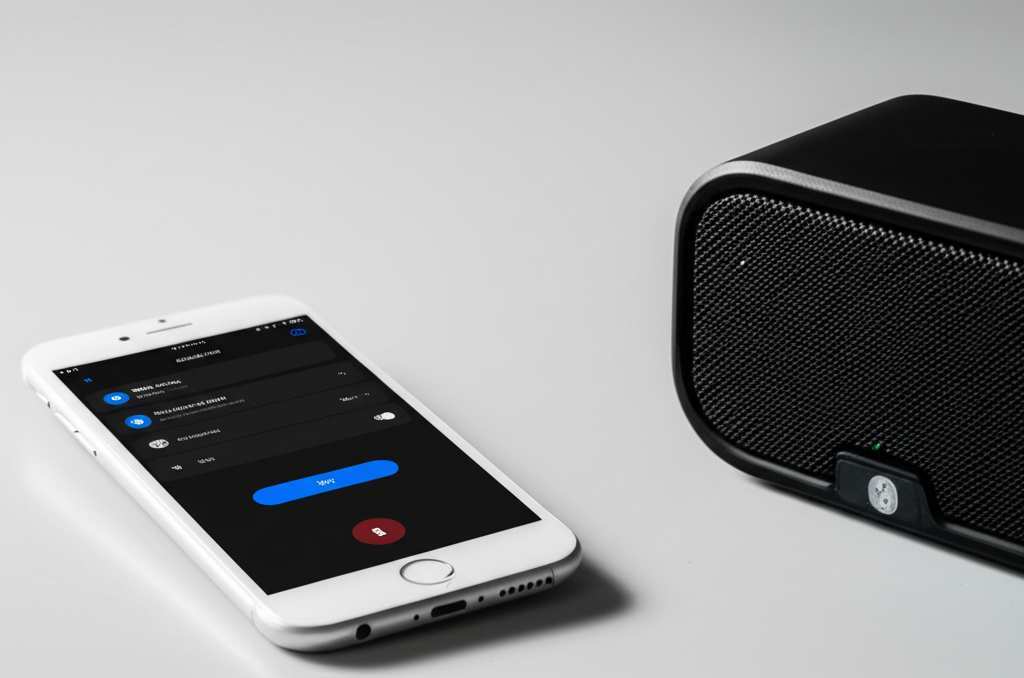
Before you can connect, your speaker needs to be ready to find and be found. This usually means putting it in a special mode. Think of it like the speaker waving a little flag saying, “I’m available for connection!”
Most Bluetooth speakers have a dedicated button for this. It might be labeled with the Bluetooth symbol (a stylized “B”) or say “Pairing” or “Bluetooth.” You usually need to press and hold this button for a few seconds. Keep holding it until you hear a little chime or see a light flashing.
That flashing light is your signal! It means the speaker is now discoverable by other devices. It’s like the speaker is shouting, “Here I am! Come find me!” If you don’t see a flashing light or hear a sound, don’t worry. Just check your speaker’s manual for the exact steps. Every speaker is a little bit different.
Connecting to Your Phone or Tablet (The Most Common Way!)
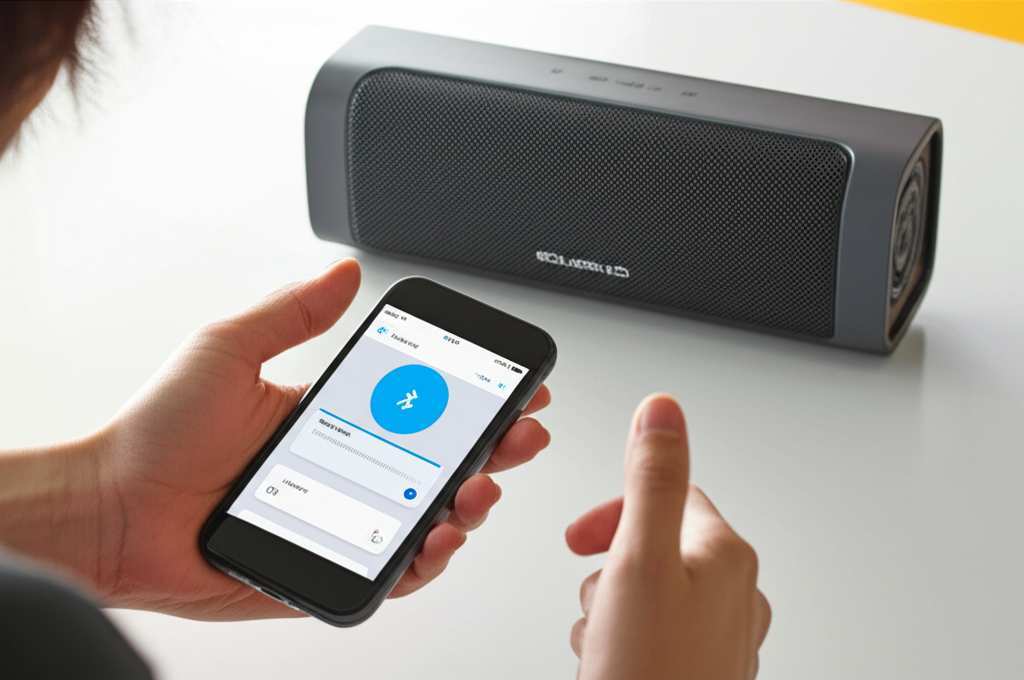
This is where most people start. Connecting to your smartphone or tablet is usually a breeze. You’ll be using your phone’s Bluetooth settings to find the speaker. It’s like finding a new friend in a crowded room.
First things first, make sure your Bluetooth speaker is powered on and in pairing mode. Remember that flashing light we talked about? That’s what you’re looking for. Now, grab your phone or tablet.
You’ll need to go into your device’s settings menu. Look for the “Bluetooth” option. Tap on it. You’ll see a list of available devices. Your speaker’s name should pop up there! It might sound something like “JBL Flip 5” or “Sony SRS-XB23.”
Tap on your speaker’s name in the list. Your phone or tablet will then try to connect. Sometimes, it might ask you to confirm a code, but this is rare for speakers. Once it’s connected, you’ll usually hear a confirmation sound from the speaker, and the flashing light will turn solid. Boom! You’re connected!
Connecting to Your Computer (Windows and Mac)
Connecting your speaker to a laptop or desktop computer is just as straightforward, though the steps look a little different depending on your operating system. But don’t worry, it’s still super friendly!
For Windows Users:
First, make sure your speaker is on and in pairing mode. On your Windows computer, click the Start button. Then, click on the Settings gear icon. In the Settings window, click on “Devices.”
Next, click on “Bluetooth & other devices” in the left-hand menu. Make sure Bluetooth is turned on. You’ll see a button that says “Add Bluetooth or other device.” Click that.
A new window will pop up. Click on “Bluetooth.” Your computer will start searching for nearby Bluetooth devices. Your speaker’s name should appear in the list. Click on it, and Windows will connect them. Easy peasy!
For Mac Users:
For Mac users, it’s just as simple. Power on your speaker and put it into pairing mode. On your Mac, click the Apple menu in the top-left corner. Then, click on “System Settings” (or “System Preferences” on older Macs).
In the System Settings, find and click on “Bluetooth.” Make sure Bluetooth is turned on. Your Mac will automatically scan for nearby devices. You should see your speaker’s name appear in the list of devices.
Click the “Connect” button next to your speaker’s name. Your Mac will pair with the speaker. You’ll get a confirmation once it’s connected. Now you can enjoy your Mac’s audio through your new speaker!
Connecting to Other Devices (Smart TVs, Game Consoles, etc.)
Many other devices now come with Bluetooth capabilities, opening up a world of wireless audio possibilities. This can be fantastic for making your TV sound more immersive or improving your gaming experience.
Smart TVs:
Most modern Smart TVs have built-in Bluetooth. You’ll typically find the Bluetooth settings within the TV’s main settings menu, often under “Sound,” “Audio,” or “Connections.” Turn on Bluetooth on your TV and put your speaker in pairing mode. Then, select your speaker from the list of available devices on the TV.
Some older TVs might require a separate Bluetooth transmitter dongle, but it’s worth checking your TV’s settings first! A good transmitter can make any device Bluetooth-enabled.
Game Consoles:
Some game consoles, like the PlayStation 5 or Xbox Series X/S, also support Bluetooth audio devices. The process is similar: navigate to the audio or accessories settings on your console, enable Bluetooth, and pair your speaker. Keep in mind that for gaming, some users prefer a wired connection for zero latency (delay), but for casual listening or party chat, Bluetooth is great!
Troubleshooting Common Connection Issues
Sometimes, even with the best intentions, things don’t connect perfectly on the first try. Don’t get frustrated! Most problems are super easy to fix.
Speaker Not Showing Up: Make sure your speaker is definitely in pairing mode. That flashing light is key! Also, check that Bluetooth is enabled on your phone or computer. Sometimes, moving the devices closer together helps.
Connection Dropping: This can happen if the devices are too far apart or if there’s a lot of interference. Try moving your speaker and device closer. Walls and other electronics can sometimes get in the way.
No Sound: Double-check that your speaker is selected as the audio output device on your phone or computer. Sometimes, even after pairing, your device might still be set to play sound through its internal speaker. Also, check the volume on both your device and the speaker!
Pairing Fails: Try turning both your speaker and your device off and then on again. This is like giving them a quick restart. You might also need to “forget” the speaker in your device’s Bluetooth settings and try pairing again from scratch.
If you’re still stuck, a quick search for your specific speaker model and the issue often brings up helpful tips from other users.
Quick Guide: Speaker Pairing Modes Explained
Different speakers might have slightly different ways of entering pairing mode. Here’s a quick rundown of what to look for:
Dedicated Pairing Button: This is the most common. Look for a button with the Bluetooth symbol. Press and hold it until the light flashes.
Power Button: On some very simple speakers, you might need to press and hold the power button for an extended time to enter pairing mode.
Automatic Pairing: Some speakers automatically enter pairing mode the first time you turn them on or if they don’t detect a previously paired device.
App-Controlled Pairing: A few advanced speakers might require you to use a dedicated app on your smartphone to initiate pairing.
Always check your speaker’s manual if you’re unsure. It’s usually a small booklet or available online on the manufacturer’s website.
Fun Fact: How Far Can Bluetooth Reach?
Bluetooth technology has different classes that determine its range. Most portable speakers use Bluetooth Class 2, which typically offers a range of about 10 meters (around 33 feet) in an open space. Class 1 devices can reach much further, up to 100 meters (330 feet), but these are less common in small speakers. So, keep your speaker and device relatively close for the best connection!
Comparing Popular Bluetooth Speaker Features
Choosing a Bluetooth speaker can be fun! Here’s a quick look at some common features and what they mean for you.
| Feature | What It Means | Why It Matters to You |
| :————– | :————————————————————————- | :—————————————————————————————- |
| Battery Life | How long the speaker plays on a single charge. | Longer life means more music without needing to plug in. Great for parties and trips. |
| Waterproof/Water-Resistant Rating (IP Rating) | How well it protects against water and dust. (e.g., IPX7 means it can be submerged.) | Perfect for poolside, beach, or even shower use without worry. |
| Sound Quality | The clarity, bass, and overall richness of the audio. | A good speaker makes music sound amazing and movies more immersive. |
| Portability | How easy it is to carry. Size, weight, and design play a role. | If you plan to move it around a lot, a lighter, smaller speaker is ideal. |
| Connectivity Options | Besides Bluetooth, does it have an AUX-in port or USB playback? | AUX-in lets you connect non-Bluetooth devices. USB can play music directly from a drive. |
| Speakerphone Function | Can you use it to take calls? | Handy for hands-free conversations. |
Understanding these features helps you pick the perfect speaker for your lifestyle. For example, if you love outdoor adventures, a high IP rating and long battery life are probably your top priorities.
Let’s Talk About Sound!
The actual sound quality of a Bluetooth speaker can vary a lot. Some tiny speakers might sound a bit tinny, while larger ones can produce deep bass and rich audio. When you’re looking at speakers, check reviews that talk about the sound.
Many speakers are designed for specific uses. Some are built for powerful bass to get a party going. Others focus on clear vocals for podcasts or audiobooks. Think about what you’ll be listening to most often.
For a truly immersive experience, especially with movies or games, you might even find stereo pairing options. This means you can connect two identical speakers to create a left and right channel, just like a home stereo system! It’s a game-changer for home entertainment.
Keeping Your Speaker in Top Shape
Just like any gadget, a little care goes a long way for your Bluetooth speaker.
Cleaning: Gently wipe the exterior with a soft, dry cloth. If it’s gotten dirty, a slightly damp cloth can work, but make sure no moisture gets into the ports or speaker grilles.
Charging: Don’t let the battery completely drain too often. Most modern lithium-ion batteries prefer to be kept somewhat charged.
Storage: When not in use for long periods, store your speaker in a cool, dry place. Avoid extreme temperatures, as they can damage the battery and electronics.
Firmware Updates: Some speakers can be updated via an app. These updates can sometimes improve performance or add new features. Check your manufacturer’s website or app for details.
Following these simple tips will help your speaker sound great and last for years to come.
A Peek at Wireless Audio Trends
The world of wireless audio is always evolving. You might hear terms like “True Wireless Stereo” (TWS) or “multi-room audio.” TWS is what we talked about with stereo pairing – two speakers working together as one system.
Multi-room audio systems, like Sonos or Google Cast, let you play music on many speakers throughout your home, all controlled from one app. While not strictly Bluetooth, these systems build on the convenience of wireless sound. Bluetooth is fantastic for portable, on-the-go audio, but these other technologies offer whole-home sound experiences.
For more on the latest in audio tech, sites like CNET often have great reviews and guides on what’s new and noteworthy.
Frequently Asked Questions (FAQ)
Here are some common questions beginners have about connecting Bluetooth speakers.
Q1: Do I need an app to connect my Bluetooth speaker?
Most of the time, no! You can usually connect your speaker directly through your phone or computer’s Bluetooth settings. Some advanced speakers might have an app for extra features or setup, but it’s not required for basic connection.
Q2: Can I connect my speaker to two devices at once?
Some speakers support “multi-point pairing,” meaning they can be connected to two devices simultaneously. However, they can usually only play audio from one device at a time. You might need to pause playback on one device before starting it on another.
Q3: Why does my speaker keep disconnecting?
Disconnections often happen if the devices are too far apart, there’s a lot of wireless interference, or the speaker’s battery is low. Try moving closer, turning off other nearby Bluetooth devices, and ensuring your speaker is charged.
Q4: Is Bluetooth audio quality as good as wired?
For most everyday listening, the difference is barely noticeable. Newer Bluetooth versions (like Bluetooth 5.0 and higher) offer improved sound quality and stability. For audiophiles seeking the absolute best, wired connections can still offer a slight edge, but Bluetooth is excellent for convenience.
Q5: What does “pairing mode” mean?
Pairing mode is a special state where your Bluetooth device (like a speaker) is actively searching for and ready to connect with other Bluetooth devices. You usually activate it by pressing and holding a specific button until an indicator light flashes.
Q6: Can I use my Bluetooth speaker with an older phone that doesn’t have Bluetooth?
You can’t directly connect a Bluetooth speaker to a device without Bluetooth. However, you can use a Bluetooth transmitter plugged into your older device’s headphone jack. This transmitter will then send the audio wirelessly to your speaker.
Q7: How do I update my Bluetooth speaker’s software?
Check the speaker’s user manual or the manufacturer’s website. Many brands offer a companion app for your smartphone that allows you to check for and install firmware updates. These updates can improve performance and fix bugs.
You’re Now a Bluetooth Pro!
See? Connecting your Bluetooth speaker is totally doable, and I hope this guide made it feel even easier. You’ve learned how to get your speaker ready, how to pair it with your phone, tablet, and computer, and even how to troubleshoot if something goes a little wonky.
Remember, the goal is simple: great sound, no fuss. Whether you’re setting up for a backyard barbecue, a cozy movie night, or just want to listen to your favorite podcast in a different room, your Bluetooth speaker is ready to go.
Don’t be afraid to experiment and try connecting to different devices. You’ve got this! Now go enjoy amazing sound and make every moment louder and better!