Connecting your Sonos speaker via Bluetooth is super easy! This guide shows you the simple steps to get your music playing wirelessly in minutes. No tech headaches, just great sound.
Hey there, tech explorer! Ever get that feeling? You’ve just unboxed a shiny new Sonos speaker, ready to fill your room with awesome music, but then you see all these buttons and apps, and your brain goes, “Whoa, what now?” It happens to the best of us. We all love great sound, whether it’s for rocking out to your favorite playlist, diving into an epic movie, or just creating a chill vibe at home.
Sometimes, figuring out how to get your gadgets to talk to each other can feel like cracking a secret code. But don’t you worry! That’s exactly why I’m here. I believe that technology should be fun and accessible, not confusing. Think of me as your friendly guide, here to help you navigate the world of gadgets without any of the fuss.
Today, we’re tackling something super common and incredibly useful: connecting your Sonos speaker using Bluetooth. It’s one of the quickest ways to get your tunes flowing. We’ll walk through it together, step by simple step. Let’s make this easy and get your music playing!
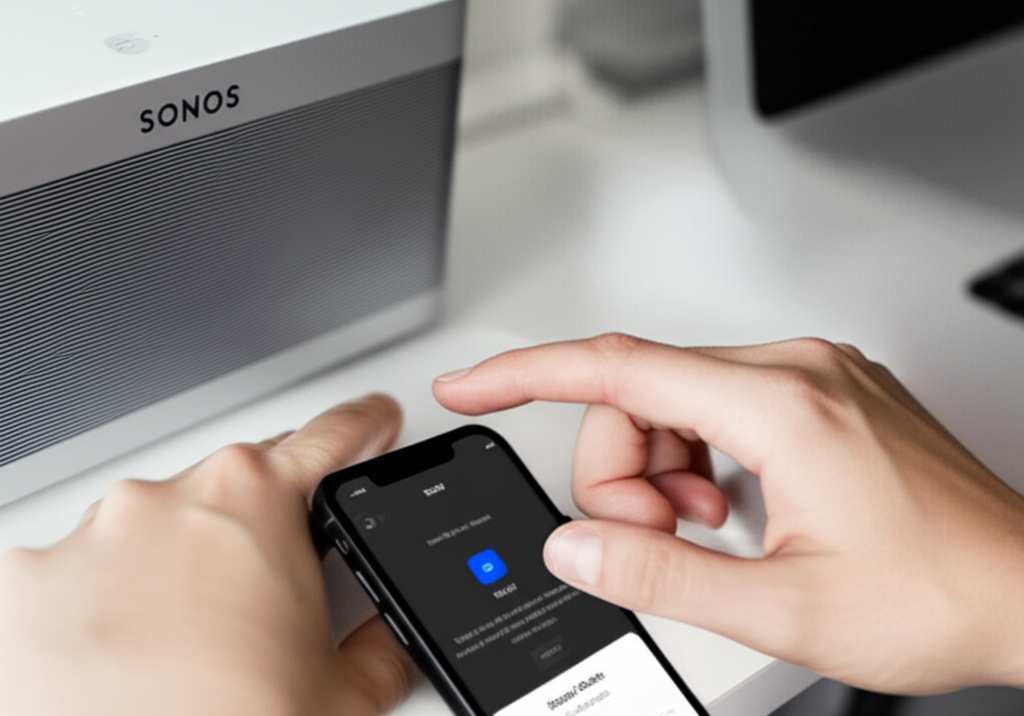
Let’s Talk About Sound: Why Bluetooth Matters
Sonos speakers are amazing for their incredible sound quality and smart features. They can fill your home with music, connect to Wi-Fi for all your streaming needs, and even work together to create a whole-home audio experience. It’s pretty cool stuff, right?
But what if you’re not on your home Wi-Fi, or you just want to play something from your phone super fast? That’s where Bluetooth comes in. It’s like a personal, invisible cable that lets your phone, tablet, or computer beam music directly to your speaker.
Think about those moments: a picnic in the park, a backyard barbecue, or just wanting to quickly share a song with a friend. Bluetooth makes it happen. It’s that reliable, go-to connection for instant audio enjoyment. Plus, it means you don’t always need to mess with Wi-Fi settings or apps to get your sound system fired up.
What Kind of Sonos Speaker Do You Have?
Now, before we dive into connecting, it’s good to know that not all Sonos speakers connect via Bluetooth. Sonos has a fantastic range of products, and some are designed with Bluetooth as a primary connection method, while others rely more on Wi-Fi. This is a key difference!
Speakers like the Sonos Roam and Sonos Move are built for flexibility. They’re portable and have Bluetooth built right in, making them perfect for taking your music anywhere. They’re like the adventurers of the Sonos family!
Other speakers, like the Sonos One, Beam, Arc, or Five, are primarily Wi-Fi speakers. They offer incredible sound and smart home integration through your home network. While they don’t have Bluetooth for playing music directly, they can still connect to your phone or computer through the Sonos app or AirPlay. So, the connection method really depends on the specific speaker model you have.
To make sure you’re on the right track, check the product name or the back of your speaker. If it says “Roam” or “Move,” you’re golden for Bluetooth! If it’s another model, don’t worry, we’ll touch on how those work later, but this guide focuses on the Bluetooth-enabled stars.
Step-by-Step: Connecting Your Sonos Roam or Move via Bluetooth
Alright, let’s get down to business! If you have a Sonos Roam or Sonos Move, connecting via Bluetooth is a breeze. Seriously, it’s about as simple as it gets. We’ll go through it together.
Step 1: Power Up Your Speaker
First things first, make sure your Sonos Roam or Move is turned on. If it’s been a while, you might need to plug it in using its charging cable or make sure its battery is charged. A quick press of the power button should bring it to life.
You’ll usually see a light come on, indicating it’s ready to go. Some speakers might even give you a little sound or voice prompt to let you know they’re powered up and waiting for instructions.
Step 2: Put Your Speaker in Bluetooth Pairing Mode
This is the most important step! Your speaker needs to know you want to connect a new device via Bluetooth. On your Sonos Roam or Move, you need to press and hold the power button for a few seconds.
Keep holding it until you hear a chime or the status light on the speaker starts flashing. This flashing light is the signal that your speaker is now discoverable and ready to pair. It’s like it’s waving a little flag saying, “Hey, I’m ready to connect!”
Step 3: Open Bluetooth Settings on Your Device
Now, grab the device you want to play music from – usually your smartphone or tablet. Go into its settings menu and find the Bluetooth section. Make sure Bluetooth is turned ON.
Your device will start scanning for available Bluetooth devices nearby. This is where it looks for all the gadgets that are ready to connect. It’s like a little digital treasure hunt!
Step 4: Select Your Sonos Speaker from the List
After a moment, you should see your Sonos speaker appear in the list of available devices. It will likely be named something like “Sonos Roam” or “Sonos Move.” Tap on its name to select it.
Your device will then attempt to connect to the speaker. You might see a “Connecting…” message. Once it’s successful, you’ll usually hear another chime from the speaker, and the status light will change (often turning solid white or green), indicating a successful connection.
Step 5: Play Your Music!
That’s it! You’re connected. Now you can open any music app on your phone or tablet – Spotify, Apple Music, YouTube, podcasts, whatever you like – and start playing. The sound will come out of your Sonos speaker.
It’s that simple! You can now control the volume and playback directly from your device. Enjoy your tunes!
Troubleshooting Common Bluetooth Connection Issues
Sometimes, technology doesn’t play nice right away. If you’re having trouble connecting, don’t get frustrated! Here are a few common hiccups and how to fix them:
- Speaker Not Showing Up: Make sure your Sonos speaker is still in pairing mode (flashing light). If not, repeat Step 2. Also, ensure your phone/tablet’s Bluetooth is on and it’s close enough to the speaker.
- Connection Failed: Try turning Bluetooth off and then on again on your device. You can also try restarting both your device and your Sonos speaker. Sometimes, a fresh start is all it takes.
- Sound Cutting Out: Bluetooth has a limited range, usually around 30 feet (10 meters). Try moving your device closer to the speaker. Also, other wireless devices or thick walls can sometimes interfere.
- Already Connected to Another Device: A Sonos speaker can only be actively connected to one device via Bluetooth at a time for audio playback. If it’s connected to another phone or tablet, you’ll need to disconnect that device first before you can connect a new one.
- Still No Luck? Visit the official Sonos support page for more detailed troubleshooting steps specific to your model. They have a wealth of information!
When Bluetooth Isn’t the Main Event: Other Sonos Connection Methods
As we mentioned, not all Sonos speakers use Bluetooth for everyday music playback. If you have a Sonos One, Beam, Arc, or other Wi-Fi-focused models, you’ll be connecting them through the Sonos app and your home Wi-Fi network. This opens up a world of features!
Connecting via the Sonos App (Wi-Fi Setup)
This is the standard way to set up and use most Sonos speakers. It’s all done through the Sonos app, available for iOS and Android devices.
- Download the Sonos App: If you haven’t already, download the free Sonos app from your device’s app store.
- Power On and Plug In: Make sure your Sonos speaker is plugged in and powered on.
- Open the App and Add Product: In the Sonos app, look for an option to add a new product. The app will guide you through connecting the speaker to your home Wi-Fi network.
- Follow On-Screen Prompts: The app will help you find your speaker, enter your Wi-Fi password, and complete the setup. It’s a very straightforward process.
Once connected via Wi-Fi, your speaker can access streaming services directly, be controlled from anywhere in your house, and even group with other Sonos speakers for multi-room audio.
AirPlay 2 for Apple Users
If you have an Apple device (iPhone, iPad, Mac) and a Wi-Fi enabled Sonos speaker that supports AirPlay 2, you can stream audio directly from your device to your speaker. It works much like Bluetooth but uses your Wi-Fi network.
When playing audio on your Apple device, you’ll see an AirPlay icon. Tap it, select your Sonos speaker from the list, and your audio will stream wirelessly. It’s a fantastic option for Apple users who want high-quality, integrated audio.
Sonos Roam vs. Move: A Quick Comparison
Since the Roam and Move are the primary Bluetooth-enabled Sonos speakers, it’s helpful to know a bit about them. They both offer Bluetooth, but they have different strengths.
| Feature | Sonos Roam | Sonos Move |
|---|---|---|
| Size | Compact, fits in a bag | Larger, more substantial |
| Battery Life | Up to 10 hours | Up to 10 hours |
| Charging | USB-C, Qi-compatible wireless charging | Charging base, USB-C |
| Durability | IP67 water and dust resistant | IP56 water and dust resistant |
| Sound | Impressive for its size | More powerful, room-filling sound |
| Bluetooth | Yes | Yes |
| Wi-Fi | Yes | Yes |
As you can see, both are excellent portable options that can connect via Bluetooth. The Roam is super portable and durable, great for adventures. The Move is bigger, offering a more powerful sound experience and a convenient charging base, making it ideal for backyard parties or moving around the house.
Why Sonos Bluetooth is So Handy
There are so many reasons why having Bluetooth on your Sonos speaker is a game-changer. It’s not just about convenience; it’s about flexibility and accessibility.
- Guest Access: Friends visiting? They can easily connect their phone and share their favorite tunes without needing your Wi-Fi password or account logins.
- On-the-Go Audio: Take your Sonos Roam or Move outside – to the patio, the garden, or even the beach (if it’s safe for the speaker!). Bluetooth lets you keep the music going without Wi-Fi.
- Quick Setup: Sometimes, you just want music now. Bluetooth bypasses the whole Wi-Fi setup process, letting you get straight to the sound.
- Device Compatibility: Most devices today have Bluetooth, making it a universal way to connect and share audio.
It’s these little touches that make Sonos speakers so versatile. They’re not just for home listening; they’re designed to fit into your lifestyle, wherever you are.
Fun Fact: The Evolution of Bluetooth
Did you know Bluetooth technology has been around since the late 90s? It was originally conceived as a wireless alternative to RS-232 cables. Over the years, it’s evolved through many versions, getting faster, more power-efficient, and capable of connecting more devices simultaneously. The Bluetooth you use today is a far cry from its early days, making seamless connections like the ones with your Sonos speaker possible!
Frequently Asked Questions (FAQ)
Q1: Can I connect any Sonos speaker via Bluetooth?
Not all Sonos speakers have Bluetooth for audio playback. Currently, only the Sonos Roam and Sonos Move models offer Bluetooth connectivity. Other Sonos speakers connect via Wi-Fi.
Q2: How do I know if my Sonos speaker supports Bluetooth?
Check the model name! If it’s a Sonos Roam or Sonos Move, it has Bluetooth. You can also find this information in the product’s manual or on the Sonos website.
Q3: My Sonos speaker won’t pair with my phone. What should I do?
First, ensure your speaker is in Bluetooth pairing mode (usually by holding the power button until it chimes and the light flashes). Then, make sure Bluetooth is enabled on your phone and that the phone is close to the speaker. If it still doesn’t work, try restarting both devices and trying again.
Q4: Can I use my Sonos speaker for phone calls via Bluetooth?
While the Sonos Roam and Move support Bluetooth audio streaming, they are not designed to function as hands-free calling devices. You’ll need to use your phone for calls.
Q5: What is the range of Bluetooth for my Sonos speaker?
The typical Bluetooth range is about 30 feet (10 meters). For the best and most stable connection, keep your phone or device within this range of your Sonos speaker. Obstacles like walls can reduce this range.
Q6: Can I connect my Sonos speaker to my TV via Bluetooth?
Sonos Roam and Move can connect to devices that support Bluetooth audio transmission, like a phone or tablet. They are not designed to directly replace a soundbar for TV audio via Bluetooth. For TV audio, Sonos soundbars like the Beam or Arc connect via HDMI or optical cables.
Q7: What’s the difference between connecting via Bluetooth and Wi-Fi on my Sonos?
Bluetooth is great for quick, direct connections from your phone or tablet, perfect for on-the-go or guest use. Wi-Fi connections, managed through the Sonos app, offer access to more features like multi-room audio, higher quality streaming, and direct access to music services without needing your phone nearby.
Conclusion: Your Music, Your Way
See? Connecting your Sonos speaker via Bluetooth is totally doable and incredibly convenient. Whether you’ve got the adventure-ready Sonos Roam or the room-filling Sonos Move, getting your favorite tunes playing wirelessly is just a few simple steps away. You’ve learned how to pair, troubleshoot, and even understand when to use Bluetooth versus Wi-Fi for your Sonos system.
Now you can easily share music with friends, take your tunes outside, or just enjoy spontaneous listening sessions without any fuss. Technology is all about making life easier and more enjoyable, and mastering Bluetooth on your Sonos is a perfect example of that.
So go ahead, give it a try! Play that song you’ve been meaning to share, start that podcast, or just crank up your favorite playlist. Now go enjoy amazing sound and make every moment louder and better!