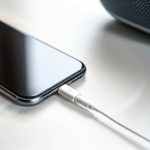
Connecting your iPhone to a Bluetooth speaker is super simple! Just follow these quick steps to unlock great sound for your music, movies, and calls. You’ll be jamming in minutes with this easy guide.
Hey there, tech explorers! Max here from AffTechy.com, your go-to spot for making technology feel like a breeze. Today, we’re diving into something that makes life a whole lot more fun: getting your iPhone to play nice with a Bluetooth speaker. Imagine your favorite songs filling up your room, or that movie sounding epic, all without a mess of wires. That’s the magic of Bluetooth speakers, and connecting them to your iPhone is easier than you might think.
Have you ever looked at a speaker and thought, “How does this little box make such big sound?” Or maybe you’ve fiddled with settings, trying to get your phone and speaker to “talk” to each other, only to feel a bit lost. I totally get it! Tech can sometimes feel like a secret language. But don’t worry, that’s what I’m here for. My goal is to break down these cool gadgets and connections so they make perfect sense.
We’ll go through connecting your iPhone to a Bluetooth speaker step-by-step. You’ll learn how to make them find each other and pair up. Think of it like introducing two friends who are going to have a great time together. By the end of this, you’ll be a pro at setting up wireless audio for any occasion. Ready to make some noise? Let’s get started!
Why Bluetooth Speakers Are Awesome
Bluetooth speakers are fantastic for so many reasons. They let you take your music anywhere, from your kitchen to a picnic in the park. Plus, they get rid of those annoying cables that always seem to get tangled. It’s all about freedom and great sound, wirelessly!
Think about your last get-together or just a chill evening at home. Having a portable speaker means you can easily share your favorite playlist with friends. Or, when you’re watching a movie on your iPad or iPhone, a good Bluetooth speaker can make the experience so much more immersive. It’s like bringing the cinema or concert hall to your living room!
The technology behind Bluetooth is pretty neat. It allows devices to communicate wirelessly over short distances. This means your iPhone can send audio signals to your speaker without needing any physical connection. It’s like a secret handshake that only your devices know, making them play together seamlessly. It’s no wonder they’ve become such popular gadgets!
Getting Your Speaker Ready
Before we connect your iPhone, we need to make sure your Bluetooth speaker is ready to go. Most speakers have a simple process for this. You usually need to turn them on and put them into “pairing mode.” This is like telling the speaker, “Hey, I’m looking for a new friend to connect with!”
How do you know if it’s in pairing mode? Most speakers have a little light that blinks, often blue, or you might hear a specific sound. It’s the speaker’s way of saying, “I’m available for connection!” If you’re not sure, your speaker’s manual is the best place to check. It’ll have the exact steps for your model.
Some speakers might require you to press and hold a button for a few seconds to enter pairing mode. Others might do it automatically when you first turn them on. It’s a small step, but it’s key to getting everything set up smoothly. Once it’s in pairing mode, your speaker will be waiting for your iPhone to find it.
Step-by-Step: How to Connect iPhone to Speaker Bluetooth
Alright, let’s get down to business! Connecting your iPhone to a Bluetooth speaker is a straightforward process. We’ll walk through it together, so you’ll be enjoying your audio in no time. Think of these as your trusty roadmap to wireless sound.
Step 1: Turn on Your Bluetooth Speaker
First things first, make sure your Bluetooth speaker is charged and turned on. You’ll usually see a power button somewhere on the speaker. Press it, and it should light up or make a sound to let you know it’s on. Easy peasy!
Step 2: Put Your Speaker in Pairing Mode
This is the most important step for connecting. Your speaker needs to be discoverable by your iPhone. Look for a button that’s often labeled with the Bluetooth symbol (it looks like a little sideways asterisk) or says “Pair.” You might need to press and hold this button for a few seconds. The speaker will usually give you a visual cue, like a blinking light, or an audio cue, like a beep, to show it’s in pairing mode.
Pro Tip: If you can’t find the pairing button, check the manual that came with your speaker. It’s usually a quick read and will tell you exactly what to do for your specific model. Sometimes, speakers enter pairing mode automatically when they’re first turned on or if they aren’t already connected to another device.
Step 3: Open Your iPhone’s Settings
Now, let’s grab your iPhone. Go to the “Settings” app. You know, the one with the gray gear icon on your home screen? Tap on that to open it up.
Step 4: Navigate to Bluetooth Settings
Once you’re in Settings, look for the “Bluetooth” option. It’s usually right near the top, under “Wi-Fi” and “Cellular.” Tap on “Bluetooth.”
Step 5: Turn Bluetooth On
On the Bluetooth screen, you’ll see a toggle switch. Make sure it’s switched to the “On” position. The switch will turn green when it’s on. This tells your iPhone to start looking for nearby Bluetooth devices.
Step 6: Wait for Your Speaker to Appear
Your iPhone will now scan for available Bluetooth devices. Under the “Devices” or “Other Devices” section, you should see the name of your speaker appear. This might take a few seconds. If you don’t see it right away, make sure your speaker is still in pairing mode and that your iPhone’s Bluetooth is on.
Step 7: Select Your Speaker to Pair
Once you see your speaker’s name in the list, tap on it. Your iPhone will attempt to connect to the speaker. You might hear a confirmation sound from the speaker, or the blinking light might turn solid, indicating a successful connection.
Step 8: Confirm Pairing (If Necessary)
Sometimes, for security, your iPhone might ask you to confirm a pairing code or PIN. This is rare for speakers, but if it happens, just follow the on-screen prompts. Usually, it’s just a matter of tapping “Pair” or “Connect.”
Step 9: Enjoy Your Music!
That’s it! Your iPhone and Bluetooth speaker are now connected. You can now play any audio from your iPhone, and it will come out of your speaker. Open up your favorite music app, start a song, and enjoy the sound!
Troubleshooting Common Connection Issues
Sometimes, tech doesn’t work perfectly the first time. It happens to all of us! If your iPhone isn’t connecting to your speaker, don’t worry. Here are a few common fixes that usually sort things out.
First, double-check that both your iPhone and speaker are charged. A low battery can sometimes mess with Bluetooth connections. Also, make sure your speaker is still in pairing mode. If the pairing mode timed out, you’ll need to re-enter it. Just press and hold that pairing button again!
Another quick fix is to simply turn Bluetooth off and then back on again on your iPhone. This can refresh the connection. If that doesn’t work, try restarting both your iPhone and your speaker. A fresh start often solves many little glitches. It’s like giving them a quick reboot!
If you’ve connected the speaker to other devices before, it might be trying to connect to one of those. Try turning off Bluetooth on those other devices. This way, your speaker will be free to connect to your iPhone. Sometimes, it’s just a matter of telling the speaker which device it should be talking to right now.
Tips for the Best Bluetooth Experience
To get the most out of your Bluetooth speaker and iPhone connection, here are a few handy tips. These little tricks can make a big difference in how smoothly everything works and how good the sound is.
- Keep Devices Close: Bluetooth has a limited range, usually around 30 feet (10 meters). For the best signal, try to keep your iPhone and speaker relatively close to each other.
- Avoid Interference: Other electronic devices, like microwaves or some Wi-Fi routers, can sometimes interfere with Bluetooth signals. If you notice choppy audio, try moving your speaker and iPhone away from potential sources of interference.
- Update Your iPhone: Make sure your iPhone’s software is up to date. Apple regularly releases updates that can improve Bluetooth performance and fix bugs. Go to Settings > General > Software Update.
- Check Speaker Firmware: Some higher-end Bluetooth speakers have their own firmware that can be updated via an app. Check the speaker manufacturer’s website or app to see if there are any updates available for your model.
- Manage Paired Devices: If your speaker is paired with multiple devices, it can sometimes get confused. On your iPhone, you can go to Settings > Bluetooth, tap the “i” icon next to your speaker’s name, and choose “Forget This Device” if you’re having persistent issues. You’ll then need to re-pair it.
Understanding Bluetooth Versions
You might hear people talking about different Bluetooth versions, like Bluetooth 4.0, 5.0, or 5.3. This might sound confusing, but it’s actually quite simple. Newer versions generally mean better performance!
Think of it like different generations of Wi-Fi. Each new Bluetooth version usually brings improvements in speed, range, and power efficiency. For example, Bluetooth 5.0, which is common in many modern speakers and iPhones, offers longer range and faster data transfer compared to older versions like Bluetooth 4.2.
What does this mean for you? A speaker with a newer Bluetooth version, paired with an iPhone that also supports it, can provide a more stable connection with less lag. This is especially noticeable if you’re watching videos, as it reduces the delay between the video and the audio. For just listening to music, even older versions work great, but newer ones are just that much better!
Here’s a quick look at how some versions stack up:
| Bluetooth Version | Approximate Range | Key Improvements |
|---|---|---|
| Bluetooth 4.0 | Up to 33 feet (10 meters) | Introduced Bluetooth Low Energy (BLE) for better power efficiency. |
| Bluetooth 4.2 | Up to 33 feet (10 meters) | Improved speed and security over 4.0. |
| Bluetooth 5.0 | Up to 80 feet (24 meters) in open space | Much greater range, faster speeds, and improved power efficiency. Better for streaming. |
| Bluetooth 5.1 | Up to 80 feet (24 meters) | Added direction-finding capabilities for better location services. |
| Bluetooth 5.2 | Up to 80 feet (24 meters) | Enhanced power efficiency and better audio quality support (LE Audio). |
| Bluetooth 5.3 | Up to 80 feet (24 meters) | Further improvements in reliability, power efficiency, and connection speed. |
As you can see, the jump to Bluetooth 5.0 and beyond offers significant advantages, especially in terms of range and speed. Most iPhones released in the last several years support at least Bluetooth 5.0, so you’re likely in good shape! When choosing a new speaker, looking for a Bluetooth 5.0 or higher version is a great idea for the best experience.
Comparing Speaker Types
There are tons of Bluetooth speakers out there, and they come in all shapes and sizes. Knowing a bit about them can help you pick the perfect one for your needs. Here’s a quick rundown of some popular types:
- Portable Speakers: These are the most common. They’re small, lightweight, and often water-resistant, making them perfect for taking to the beach, a park, or just moving around the house.
- Smart Speakers: These speakers have voice assistants built-in, like Siri, Alexa, or Google Assistant. You can control music, get information, and even control smart home devices with just your voice.
- Waterproof Speakers: Designed for use near water, like in the shower, by the pool, or on a boat. They have special seals to keep water out.
- Stereo Speakers: Some speakers can be paired together to create a true stereo sound experience, giving you left and right channels for more immersive audio.
When you’re looking at speakers, consider where you’ll use it most. If it’s for outdoor adventures, look for ruggedness and water resistance. If it’s for your home office, a compact speaker with good sound quality might be best. And if you love having everything hands-free, a smart speaker is a game-changer.
Speaker Features to Consider
Beyond just Bluetooth, there are other features that can make a Bluetooth speaker even better. Let’s break down what to look for when you’re shopping around.
- Battery Life: How long can the speaker play music on a single charge? This is super important for portability. Look for speakers that offer at least 8-10 hours of playback.
- Sound Quality: This is subjective, but generally, you want a speaker that has clear highs, rich mids, and decent bass. Read reviews to get an idea of how it sounds.
- Durability and Water Resistance: If you plan on using your speaker outdoors or near water, look for an IP rating (like IPX7) which indicates its level of protection against water and dust.
- Connectivity Options: While Bluetooth is key, some speakers also offer an AUX-in port for wired connections or even USB ports for charging other devices.
- Size and Portability: Do you need something tiny that fits in a pocket, or a larger speaker that might offer better sound but is less portable?
It’s amazing how much technology is packed into these little sound machines! For instance, some speakers use advanced audio processing to make small drivers sound like much larger ones. It’s all about clever engineering to give you the best listening experience.
FAQ: Your Burning Questions Answered
Got more questions? No problem! Here are some common things people ask when connecting their iPhone to a Bluetooth speaker.
Q: How do I know if my iPhone supports Bluetooth?
A: Almost every iPhone model made in the last decade has Bluetooth! If you can go to Settings > Bluetooth and see the option, your iPhone has it. Newer iPhones typically support the latest Bluetooth versions for the best performance.
Q: My speaker won’t connect. What should I do?
A: First, make sure your speaker is in pairing mode and your iPhone’s Bluetooth is on. Try turning both devices off and on again. Also, “forget” the device on your iPhone (Settings > Bluetooth, tap ‘i’, then ‘Forget This Device’) and re-pair it.
Q: Can I connect my iPhone to two Bluetooth speakers at once?
A: Yes, you can! Newer iPhones (iPhone 11 and later) support “Audio Sharing,” which lets you send audio to two compatible Bluetooth headphones or speakers simultaneously. You can set this up in Settings > Bluetooth, tap the “i” next to one speaker, and look for the “Share Audio” option.
Q: How far can my iPhone be from the speaker?
A: The range varies by Bluetooth version. Typically, Bluetooth 4.0 and 5.0 can reach about 30-80 feet (10-24 meters) in open spaces without obstructions. Walls and other objects can reduce this range.
Q: Will connecting to a Bluetooth speaker drain my iPhone battery faster?
A: Yes, using Bluetooth does use a bit of battery power, but it’s usually quite minimal, especially with newer Bluetooth versions. You’ll likely notice a bigger drain from having the screen on or running demanding apps.
Q: What is pairing mode?
A: Pairing mode is a special state where a Bluetooth device (like your speaker) is actively searching for and ready to connect to a new device (like your iPhone). It’s usually activated by pressing and holding a specific button until a light blinks or a sound plays.
Q: Do I need an app to connect my iPhone to a speaker?
A: For basic connection, no. You only need to use your iPhone’s built-in Bluetooth settings. Some speaker brands offer companion apps that allow for firmware updates, EQ adjustments, or multi-speaker pairing, but they aren’t required for the initial Bluetooth connection.
Conclusion: Enjoy Your New Wireless Sound!
And there you have it! Connecting your iPhone to a Bluetooth speaker is a fantastic way to boost your listening experience. We’ve covered how to get your speaker ready, walk through the simple steps on your iPhone, and even touched on some common troubleshooting tips and features to look for.
You’ve learned how to make your devices find each other and pair up, turning your iPhone into a wireless music remote. It’s all about making technology work for you, making your favorite tunes sound even better, and making your movie nights more epic. Remember, it’s just a few taps in your iPhone settings!
So go ahead, try it out with your own speaker. Explore different music apps or podcasts and hear the difference. Maybe this guide has inspired you to look into a new, even better Bluetooth speaker! Whatever you do, I hope you have a blast enjoying amazing sound. Now go make every moment louder and better!