Connect your iPhone to a Bluetooth speaker in minutes! This guide makes pairing super simple, so you can enjoy your music, podcasts, or calls with great sound, no wires needed. Let’s get your iPhone and speaker singing together!
Hey there, tech explorers! Max here from AffTechy.com, your go-to buddy for all things tech that make life easier and way more fun. You know, sometimes the simplest things can be a little tricky, right? Like getting your awesome iPhone to talk to that cool Bluetooth speaker you just got. Suddenly, all those buttons and flashing lights can seem a bit much.
But guess what? It doesn’t have to be complicated at all! Think of it like meeting a new friend – a little introduction, a handshake, and voilà! Your iPhone and speaker will be best buds, ready to blast your favorite tunes or make your movie nights epic. We’re talking about hassle-free audio bliss, and I’m here to show you exactly how to get there, step-by-step.
This isn’t going to be a dry, tech-manual kind of thing. Nope! We’re going to chat about it, just like you’re sitting next to me, and I’m holding your iPhone and speaker. We’ll make sure you understand everything, from finding that magic button to enjoying crystal-clear sound. Ready to unlock a world of wireless audio? Let’s dive in and make this connection happen!
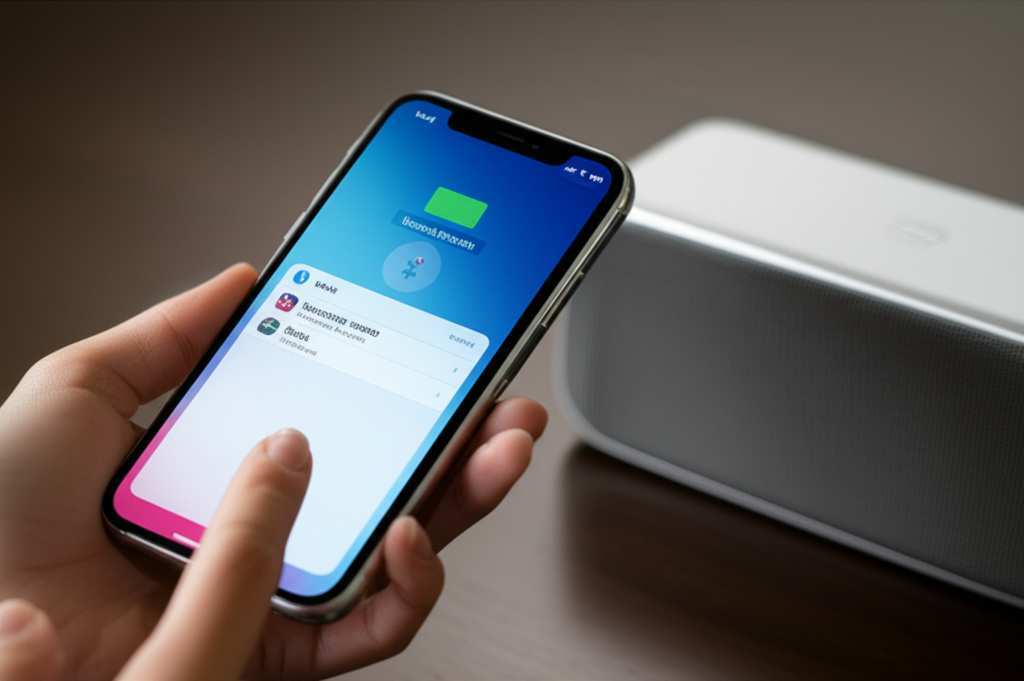
Let’s Talk About Sound and Why It Matters
Music, podcasts, audiobooks, those important calls – they all sound so much better when they’re not tinny or muffled. A good Bluetooth speaker can totally transform your listening experience. Imagine your favorite playlist filling your entire room, or that movie scene sounding like you’re right there in the action. It’s pure magic!
But sometimes, the tech part can feel a bit like a puzzle. You see all these specs, different connection types, and wonder, “What do I even need?” It’s easy to get overwhelmed. My goal is to cut through all that noise and give you the clear, simple steps you need.
We’ll make sure you know exactly what to do to get your iPhone and speaker paired up. No more frustration, just pure audio enjoyment. So grab your iPhone and your speaker, and let’s make some noise together!
First Things First: Getting Your Speaker Ready
Before we even think about your iPhone, we need to make sure our speaker is ready for its close-up. Most Bluetooth speakers need a little prep work, kind of like getting ready for a party.
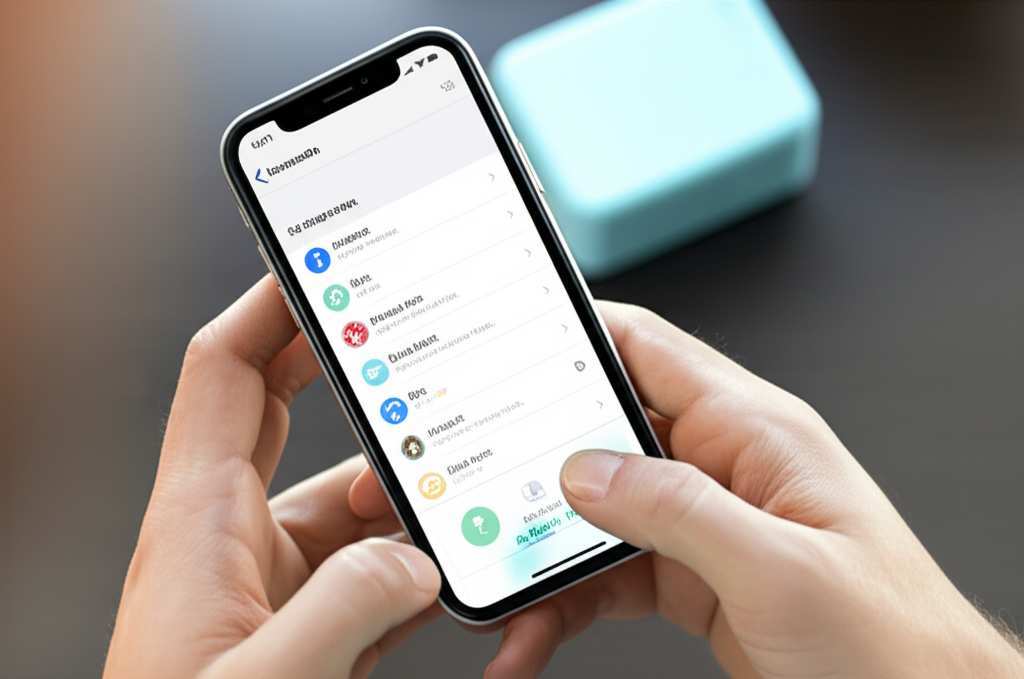
Power Up!
Your Bluetooth speaker needs power to work, just like your iPhone. If it has a rechargeable battery, make sure it’s charged up. Some speakers have a charging cable that plugs into a wall adapter or your computer. Others might use disposable batteries. Check your speaker’s manual if you’re unsure.
Turn It On!
Find the power button on your speaker. It’s usually pretty obvious, often labeled with a power symbol (a circle with a line through it). Press and hold it for a few seconds until you see a light turn on or hear a little sound. This means your speaker is awake and ready.
Pairing Mode: The Magic Step
This is the most important part for connecting! Your speaker needs to be in “pairing mode.” This tells it to look for new devices to connect to. How do you get it there? Look for a button often labeled with the Bluetooth symbol (it looks like a little ‘B’ made of waves).
Press and hold this button. You might hear a beep or see a light start to flash, usually blue. This flashing light is your signal: your speaker is now discoverable and ready to be found by your iPhone.
Tip: Some speakers automatically go into pairing mode when you turn them on for the first time. Others require you to press and hold the Bluetooth button. Always check your speaker’s manual if you’re not sure!
Now, Let’s Talk iPhone: Finding That Bluetooth Menu
Okay, speaker is powered on and in pairing mode. Great job! Now, let’s get your iPhone ready to find it. This is super straightforward, and we’ll walk through it together.
Open Settings
On your iPhone’s home screen, you’ll see a bunch of colorful icons. Look for the one that looks like gears – that’s your ‘Settings’ app. Tap it to open.
Find the Bluetooth Option
Once you’re in Settings, scroll down just a little bit. You’ll see a few options. Look for the one that says ‘Bluetooth’. It usually has the Bluetooth symbol next to it, just like on your speaker. Tap on ‘Bluetooth’.
Turn Bluetooth On
At the top of the Bluetooth screen, you’ll see a toggle switch. If it’s gray, Bluetooth is off. Tap it to turn it green. This tells your iPhone to start looking for nearby Bluetooth devices.
Fun Fact: Bluetooth technology is named after a Viking king, Harald Bluetooth, who was known for uniting tribes. Pretty cool, right? It’s all about connecting things!
Connecting the Dots: Pairing Your iPhone and Speaker
This is where the magic happens! Your iPhone is now actively searching for your speaker, and your speaker is broadcasting its presence.
Your iPhone Sees the Speaker
On your iPhone’s Bluetooth screen, under the ‘Devices’ section, you’ll start to see a list of available devices. Your speaker’s name should pop up here. It might be something like “JBL Flip 5” or “Sony SRS-XB23,” depending on the brand.
Tap to Connect
When you see your speaker’s name in the list, simply tap on it. Your iPhone will then try to connect to the speaker. You might see a message like “Connecting…” for a few seconds.
Confirmation!
Once the connection is successful, your speaker’s name will move up to the ‘My Devices’ list and say ‘Connected’. The flashing light on your speaker will usually turn solid, and you might hear a confirmation sound from the speaker itself. You did it!
Pro Tip: If your speaker doesn’t show up right away, make sure it’s still in pairing mode (that flashing light!). You can try turning your iPhone’s Bluetooth off and on again, or even restarting both devices.
What If It Doesn’t Connect? Easy Fixes!
Sometimes, tech has a mind of its own. Don’t worry if it doesn’t connect perfectly on the first try. We’ve all been there! Here are some super simple fixes that usually do the trick.
Is It Really in Pairing Mode?
Double-check that your speaker is actively in pairing mode. That flashing light is your best friend here. If it’s solid and not flashing, it might be connected to something else or just not in discoverable mode. Try pressing and holding the Bluetooth button again until it flashes.
Distance Matters
Bluetooth works best when devices are close to each other. Try moving your iPhone closer to your speaker, or vice-versa. Walls and other electronic devices can sometimes interfere with the signal. Keep them within about 30 feet (10 meters) for the best results.
Forget and Re-pair
If your iPhone and speaker have connected before but are acting up, sometimes the easiest fix is to ‘forget’ the device on your iPhone and then pair them again.
1. Go to your iPhone’s Settings > Bluetooth.
2. Tap the ‘i’ icon next to your speaker’s name in the ‘My Devices’ list.
3. Tap ‘Forget This Device’.
4. Then, put your speaker back into pairing mode and tap it in the ‘Other Devices’ list to reconnect.
Restart Everything
The classic tech fix! Turn off your speaker completely. Then, turn off your iPhone’s Bluetooth. Wait about 30 seconds, then turn your iPhone’s Bluetooth back on and power up your speaker into pairing mode. Try connecting again.
Real-World Example: I once had a speaker that wouldn’t connect to my new phone. Turns out, it was still secretly connected to my old tablet that was in another room! Forgetting the device on my phone and putting the speaker back into pairing mode fixed it instantly.
Choosing the Right Speaker for You: A Quick Chat
Since you’re connecting your iPhone to a speaker, you might be thinking about getting a new one or upgrading your current setup. There are SO many options out there! It can be a bit much, but let’s break down what really matters.
Sound Quality: Bass, Treble, and Clarity
This is probably the most important thing. Do you like deep bass for your hip-hop? Or crisp highs for your classical music? Reading reviews or, even better, listening to speakers in person can help you find the sound profile you love. A good speaker will have a balanced sound that’s clear at all volumes.
Portability: Size and Battery Life
Are you taking your speaker to the beach or just moving it from your living room to your kitchen?
Small, lightweight speakers are great for travel and usually have decent battery life for their size.
Larger speakers might offer bigger sound and more powerful bass but are less portable.
* Battery life is key. Look for speakers that can last at least 8-10 hours on a single charge if you plan to use them for extended periods.
Durability and Water Resistance
If your speaker is going to live a rough life (pool parties, camping trips, kids dropping it!), look for rugged designs and water-resistance ratings. A rating like IPX7 means it can be submerged in water for a short period, which is great for poolside use.
Connectivity Features
Most speakers use Bluetooth, but some offer other options like Wi-Fi for better streaming quality at home, or the ability to connect multiple speakers together for a stereo effect. For most people, simple Bluetooth is all you need.
Let’s look at a quick comparison of some popular speaker types:
| Speaker Type | Best For | Portability | Sound Quality | Typical Price Range |
|---|---|---|---|---|
| Ultra-Portable (e.g., JBL Go) | On-the-go, travel, personal listening | High | Good for size, can be bass-light | $20 – $50 |
| Mid-Size Portable (e.g., UE Boom, Bose SoundLink) | Everyday use, small gatherings, room-filling sound | Medium | Excellent, balanced sound, good bass | $80 – $200 |
| Large/Home Bluetooth (e.g., Audioengine, some Sonos) | Home entertainment, serious listening, parties | Low | Premium, deep bass, hi-fi sound | $200+ |
This table gives you a general idea. Remember, prices can change, and brands often have many models within each category! Always check current reviews on sites like CNET or TechRadar for the latest details on specific models.
Advanced Tips for a Better Bluetooth Experience
Once you’ve got the basics down, there are a few extra things you can do to make your Bluetooth audio even better.
Keep Your iPhone’s Software Updated
Apple regularly releases software updates for iPhones. These updates often include improvements to Bluetooth performance and stability. Go to Settings > General > Software Update to make sure your iPhone is running the latest version.
Manage Multiple Connections
Your iPhone can connect to multiple Bluetooth devices, but it can usually only play audio through one at a time. If you have headphones, a watch, and a speaker all connected, you might need to tell your iPhone which device to use for audio.
1. Open the Control Center by swiping down from the top-right corner of your screen (or up from the bottom on older iPhones).
2. Tap the AirPlay icon (it looks like a triangle with circles above it) in the Now Playing widget.
3. Select your speaker from the list of available audio output devices.
Clean Your Bluetooth Speaker’s Grills
Over time, dust and debris can accumulate in the speaker grills. This can sometimes affect sound quality. Gently use a soft brush or a can of compressed air to clean them out. Always make sure the speaker is turned off and unplugged first.
Understand Bluetooth Codecs (The Super Techy Bit!)
This is a bit more technical, but basically, codecs are like languages that Bluetooth devices use to send audio data. Higher-quality codecs (like aptX or LDAC, though not always supported on iPhones) can result in better sound. However, for most everyday listening, the standard AAC codec used by iPhones provides excellent quality. Don’t sweat this too much, but it’s interesting to know!
Frequently Asked Questions (FAQs)
Got more questions? No worries, I’ve got you covered!
Q1: Why won’t my iPhone find my Bluetooth speaker?
This usually happens if the speaker isn’t in pairing mode. Make sure the Bluetooth button is pressed until the light flashes. Also, try moving your iPhone and speaker closer together and ensuring your iPhone’s Bluetooth is turned on.
Q2: How long does it take to connect my iPhone to a Bluetooth speaker?
Once both devices are ready, it typically takes just a few seconds – usually less than 10 seconds – for them to pair and connect.
Q3: Can I connect my iPhone to multiple Bluetooth speakers at once?
Generally, an iPhone can only play audio through one Bluetooth speaker at a time. Some speaker brands allow you to connect two of their own speakers together for stereo sound, and then you connect your iPhone to one of those. But your iPhone itself usually only streams to one directly.
Q4: What does it mean when my speaker’s light is solid blue instead of flashing?
A solid blue light usually means the speaker is already connected to a device. If you want to connect it to a different device (like your iPhone), you might need to disconnect it from the current device or put it back into pairing mode by holding the Bluetooth button.
Q5: Do I need to connect my iPhone every time I want to use the speaker?
No! Once you’ve paired your iPhone and speaker, they will remember each other. The next time you turn on your speaker and your iPhone’s Bluetooth is on, they should connect automatically. You might just need to select the speaker in your iPhone’s Control Center if it doesn’t connect right away.
Q6: My sound is cutting out. What should I do?
This is often due to distance or interference. Try moving your iPhone and speaker closer together. Also, try turning off other nearby Bluetooth devices or Wi-Fi routers temporarily to see if that helps. Sometimes restarting both devices can clear up connection issues.
Q7: Can I use my Bluetooth speaker for phone calls?
Yes, absolutely! Most Bluetooth speakers have a built-in microphone and can be used for hands-free calls. When your iPhone is connected, incoming calls will ring on the speaker, and you can answer them by pressing a button on the speaker itself. The audio will come through the speaker, and your voice will be picked up by its microphone.
You’ve Got This! Enjoy Your Wireless Sound!
See? Connecting your iPhone to a Bluetooth speaker is totally doable. You’ve learned how to power up, get into pairing mode, find it on your iPhone, and troubleshoot common issues. You’ve even learned a bit about choosing a new speaker and keeping your audio experience smooth.
It’s all about those simple steps: power on, pairing mode, find on iPhone, connect. And if something’s not working, you now have a few tricks up your sleeve to get it sorted. Tech is meant to be enjoyed, not stressed over, and I hope this guide has made your audio adventures much easier.
Now you can take your music anywhere, make your movie nights pop, or enjoy crystal-clear calls without being tied down by wires. Go ahead, crank up the volume (responsibly, of course!), and immerse yourself in amazing sound. Happy listening!