Connect your iPhone to a Bluetooth speaker in minutes with this super easy guide! Get ready for amazing sound for your music, podcasts, and calls, all without wires. Let’s make your audio awesome!
Hey there, tech adventurer! Ever wished you could fill your room with music from your iPhone, but without those messy wires? Or maybe you just got a cool new Bluetooth speaker and are wondering how to get it talking to your phone. It can feel a bit like magic, right? But trust me, it’s totally doable, and I’m here to make it super simple for you.
We all love our tunes, podcasts, or even just a louder phone call. A good Bluetooth speaker can seriously upgrade your listening experience. It’s like taking your iPhone’s sound from a whisper to a party! But sometimes, the tech talk can sound a bit confusing, with all those settings and buttons. Don’t worry, we’ll skip the jargon and get straight to the fun part.
Think of me as your friendly guide through the world of gadgets. I love finding ways to make technology easy and enjoyable for everyone. This guide is all about helping you connect your iPhone to a Bluetooth speaker so you can start enjoying richer sound right away. We’ll go step-by-step, and you’ll be a pro in no time!
Ready to dive in and unlock a world of wireless sound? Let’s break down how to connect your iPhone to that awesome Bluetooth speaker you’ve got. It’s easier than you think!
Why Connect Your iPhone to a Bluetooth Speaker?
Imagine this: you’re at a picnic, and you want to share your favorite playlist with friends. Or maybe you’re cooking in the kitchen and want to listen to a podcast without holding your phone. A Bluetooth speaker is your best friend for these moments! It lets you take your iPhone’s sound and spread it out, filling the space with clear, rich audio.
It’s not just about music, either. Watching a movie on your iPad or iPhone? A Bluetooth speaker can make the sound way more immersive. Playing a game? Get ready for those epic sound effects to come alive! Plus, if you’re on a long phone call, a speaker can make it super comfortable and hands-free.
The magic of Bluetooth is that it connects devices wirelessly, using radio waves. This means no more tangled cables! You can place your speaker where it sounds best, and keep your iPhone in your pocket or across the room. It’s all about convenience and better sound quality, all at once.
Getting to Know Your Bluetooth Speaker
Before we connect, let’s quickly look at your speaker. Most Bluetooth speakers have a few key things you’ll notice. There’s usually a power button to turn it on and off. You’ll also see a button that looks like the Bluetooth symbol (it’s a circle with a line coming out of the top, like a weird antenna). This is your pairing button!
Some speakers might have volume controls right on them, which is super handy. Others might have buttons for playing, pausing, or skipping tracks. Don’t worry if yours looks a little different; the core idea is the same. We’re looking for that power button and that all-important Bluetooth pairing button.
Step-by-Step: Connecting Your iPhone to a Bluetooth Speaker
Okay, ready to make some noise? This is the fun part. We’ll go through the steps together, and you’ll see how simple it really is. It’s like a little tech dance between your iPhone and your speaker.
Step 1: Power Up Your Bluetooth Speaker
First things first, you need to turn on your speaker. Find the power button, usually on the top or side, and press it. You might hear a little chime or see a light turn on. This tells you the speaker is ready to go.
Some speakers have a rechargeable battery, so make sure it’s charged up! If it’s brand new, it might need a charge before its first use. Check the speaker’s manual if you’re unsure.
Step 2: Put Your Speaker in Pairing Mode
This is the crucial step! Your speaker needs to tell your iPhone, “Hey, I’m here and ready to connect!” To do this, you need to put it into pairing mode. You’ll usually press and hold the Bluetooth button for a few seconds.
You’ll often hear a sound or see a light blinking rapidly. This blinking light is your signal that the speaker is actively searching for a device to connect to. Keep an eye (or ear) out for this cue. It’s like the speaker is saying, “Pick me!”
Step 3: Open Bluetooth Settings on Your iPhone
Now, let’s grab your iPhone. Swipe down from the top-right corner of your screen to open the Control Center. If you have an older iPhone, you might need to swipe up from the bottom of the screen. Look for the Bluetooth icon – it looks like a little radio wave symbol.
Tap and hold the Bluetooth icon. This will expand the Control Center and show you more options. You’ll see the Bluetooth toggle switch. Make sure it’s turned on. If it’s gray, tap it to turn it blue.
Alternatively, you can go to the main Settings app on your iPhone. Scroll down and tap on “Bluetooth.” Make sure the toggle at the top is switched on (green).
Step 4: Find and Select Your Speaker on Your iPhone
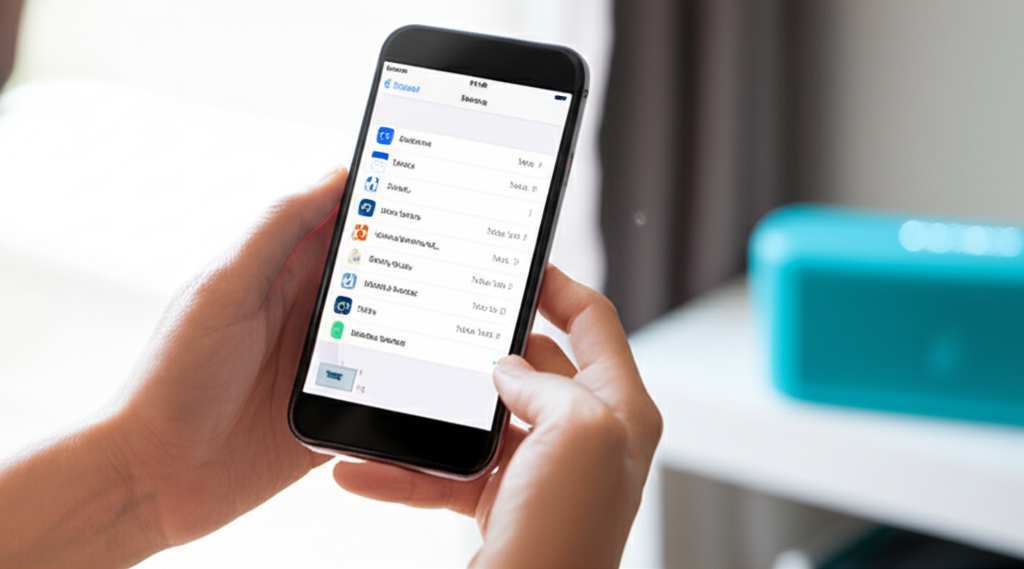
Once Bluetooth is on and your speaker is in pairing mode, your iPhone will start scanning for nearby Bluetooth devices. On the Bluetooth settings screen, you’ll see a list under “Other Devices.”
Your speaker’s name should appear in this list. It might be something like “JBL Flip 5” or “Sony SRS-XB23,” or maybe a more generic name. Look for the name that matches your speaker.
Step 5: Tap to Connect
See your speaker’s name in the list? Awesome! Now, just tap on it. Your iPhone will try to connect to the speaker. You might see “Connecting…” next to its name for a moment.
If all goes well, you’ll see “Connected” appear next to your speaker’s name. You might also hear a confirmation sound from the speaker itself, like a happy little beep. Congratulations, you’re connected!
Step 6: Play Your Audio!
Now for the best part! Open up your favorite music app, podcast player, or any app that makes sound. Start playing something. The audio should now be coming out of your Bluetooth speaker, not your iPhone.
You can control the volume using your iPhone’s volume buttons or the controls on your speaker. If you want to disconnect later, just go back to your iPhone’s Bluetooth settings and tap on the speaker’s name again to turn off the connection, or simply turn off your speaker.
Troubleshooting: When Things Don’t Connect
Sometimes, technology throws us a little curveball. If your iPhone and speaker aren’t connecting, don’t panic! Here are a few common things to check.
Is the speaker in pairing mode? This is the most common reason. Make sure you pressed and held the Bluetooth button until you saw or heard the pairing indicator.
Is your iPhone’s Bluetooth on? Double-check that the Bluetooth toggle in your iPhone’s settings is switched on.
Are the devices too far apart? Bluetooth has a range, usually around 30 feet (10 meters). Try bringing your iPhone closer to the speaker.
Is the speaker already connected to another device? Many speakers can only connect to one device at a time. If it was previously paired with a tablet or another phone, you might need to disconnect it from that device first.
Restart both devices. Sometimes, a simple restart can fix temporary glitches. Turn off your speaker, then turn off Bluetooth on your iPhone, wait a few seconds, then turn them back on and try pairing again.
Forget the device and re-pair. On your iPhone’s Bluetooth settings, tap the little ‘i’ icon next to your speaker’s name and select “Forget This Device.” Then, put your speaker back in pairing mode and try connecting as if it were the first time.
If you’re still having trouble, check your speaker’s user manual. It often has specific troubleshooting tips for that model.
Understanding Bluetooth Versions: What’s the Deal?
You might see different Bluetooth versions mentioned, like Bluetooth 4.0, 5.0, or 5.2. What does this mean for you? Newer versions are generally better! They offer:
Longer Range: You can be further away from your speaker and still have a good connection.
Faster Speeds: This means quicker pairing and potentially better audio quality.
Better Battery Efficiency: Your speaker and iPhone might use less power when connected.
Most modern iPhones and Bluetooth speakers use at least Bluetooth 4.2, with many now featuring Bluetooth 5.0 or higher. Don’t stress too much about it, but if you’re buying a new speaker, look for a newer Bluetooth version for the best experience.
Here’s a quick look at how different Bluetooth versions stack up:
| Bluetooth Version | Approximate Range | Data Transfer Rate | Key Improvements |
|---|---|---|---|
| Bluetooth 4.0 | ~30 ft (10 m) | 1 Mbps | Low Energy (BLE) |
| Bluetooth 4.2 | ~30 ft (10 m) | 1 Mbps | Improved security and speed |
| Bluetooth 5.0 | ~100 ft (30 m) | 2 Mbps | 2x speed, 4x range, improved efficiency |
| Bluetooth 5.2 | ~100 ft (30 m) | 2 Mbps | Enhanced power efficiency, LE Audio |
As you can see, going from Bluetooth 4.0 to 5.0 can significantly improve your wireless experience. While most devices are backward compatible (meaning a Bluetooth 5.0 speaker can connect to a Bluetooth 4.0 iPhone), you get the most benefits when both devices support the same or newer version.
Making the Most of Your Bluetooth Speaker
Once you’ve got your speaker connected, there are a few things you can do to get the best sound and experience.
Tips for Better Sound Quality
Placement Matters: Don’t hide your speaker in a corner! Placing it in an open area, perhaps on a table or shelf, will help the sound fill the room better. Some speakers sound best when elevated.
Room Acoustics: Hard surfaces like walls and floors can reflect sound, sometimes making it sound harsh. Softer surfaces like carpets and curtains can absorb sound, leading to a warmer tone. Experiment with different spots!
Speaker Type: Different speakers are designed for different environments. Some are great for small rooms, while others are built to be louder and more robust for outdoor use. Know what your speaker is best at.
Audio Source Quality: The quality of the music file or streaming service you use also impacts sound. Higher quality streams or files will sound better.
Speaker Features to Look For
When you’re choosing a Bluetooth speaker, you might see a bunch of features. Here’s a quick rundown of what some of them mean:
Water Resistance: Great for poolside parties or bathroom listening! Look for an IP rating (like IPX7) which tells you how well it can handle water.
Battery Life: How long can it play before needing a charge? This is crucial for portable use.
Stereo Pairing: Some speakers can pair with another identical speaker to create a true stereo sound experience.
Voice Assistant Integration: Some speakers can work with Siri or Google Assistant.
Portability: Size and weight are key if you plan to carry it around a lot.
Here’s a little table that compares some popular types of Bluetooth speakers:
| Speaker Type | Best For | Typical Battery Life | Portability | Sound Profile |
|---|---|---|---|---|
| Compact Portable | On-the-go, small rooms | 8-15 hours | Very High | Clear, decent volume |
| Rugged/Waterproof | Outdoors, active use | 10-20 hours | High | Durable, balanced |
| Home/Bookshelf | Indoor listening, quality focus | N/A (often plugged in) | Low | Rich, detailed, powerful |
| Smart Speaker | Voice control, home audio | Varies (often plugged in) | Low | Varies, often room-filling |
Choosing the right speaker depends on where and how you plan to use it. If you’re always moving, a compact and rugged speaker is ideal. If you want the best sound for your living room, a larger home speaker might be a better fit.
A Quick Word on Security
Bluetooth is generally very secure for everyday use. However, it’s a good practice to only pair your devices in places you trust. Avoid pairing in crowded public areas where someone might try to interfere. Also, make sure your iPhone’s software is up-to-date, as updates often include security enhancements.
For more in-depth info on Bluetooth security, you can check out resources from reputable tech sites like CNET. They do a great job of explaining these technical details in an easy-to-understand way.
Frequently Asked Questions (FAQ)
Here are some common questions beginners have about connecting their iPhone to a Bluetooth speaker.
Q1: Do I need an internet connection to connect my iPhone to a Bluetooth speaker?
A1: Nope! Bluetooth is a wireless technology that works without Wi-Fi or cellular data. All you need is Bluetooth enabled on both your iPhone and the speaker.
Q2: How do I disconnect my iPhone from the Bluetooth speaker?
A2: It’s super easy! You can either turn off your Bluetooth speaker, or go to your iPhone’s Settings > Bluetooth, tap the ‘i’ icon next to your speaker’s name, and select ‘Disconnect.’ Or, simply toggle Bluetooth off on your iPhone.
Q3: Can my iPhone connect to multiple Bluetooth speakers at once?
A3: Typically, an iPhone can only play audio through one Bluetooth speaker at a time. Some apps or specific speaker features might allow for dual audio streaming to two devices simultaneously, but it’s not the standard for a single speaker connection.
Q4: My speaker won’t show up in my iPhone’s Bluetooth list. What should I do?
A4: Make sure your speaker is in pairing mode (usually by holding the Bluetooth button until a light blinks). Also, ensure Bluetooth is turned on on your iPhone and that the speaker isn’t already connected to another device. Sometimes restarting both devices helps!
Q5: How do I update my Bluetooth speaker’s firmware?
A5: This varies by speaker brand. Many manufacturers have a companion app for their speakers that allows you to check for and install firmware updates. Check your speaker’s manual or the manufacturer’s website for specific instructions.
Q6: Can I use my Bluetooth speaker for phone calls?
A6: Absolutely! Most Bluetooth speakers with a built-in microphone can be used for hands-free phone calls. When your iPhone is connected, calls will automatically route to the speaker. You can usually answer or end calls by pressing a button on the speaker.
Q7: How long does a Bluetooth speaker battery typically last?
A7: Battery life varies a lot! Smaller, portable speakers might offer 6-10 hours, while larger or more advanced models can provide 15-30 hours or even more on a single charge. Always check the product specifications for exact battery life.
Your Wireless Audio Adventure Awaits!
See? Connecting your iPhone to a Bluetooth speaker is a straightforward process. You’ve learned how to power up, pair, and troubleshoot, and even got a peek at what makes different speakers tick. It’s all about making your tech work for you, so you can enjoy your favorite sounds anywhere, anytime.
Now you’re all set to enjoy richer audio for your music, podcasts, movies, and calls. Don’t be afraid to experiment with different speakers and settings to find what sounds best to you. The world of wireless sound is open for you to explore!
So go ahead, crank up the volume, and let the good times roll. Now go enjoy amazing sound and make every moment louder and better! Happy listening!