Want to connect your Alexa speaker via Bluetooth? It’s super easy! Just a few quick steps, and you’ll be streaming your favorite music, podcasts, or audiobooks from your phone or tablet in no time. Get ready for amazing sound!
Hey there, tech explorers! Max here from AffTechy.com, your go-to buddy for making gadgets feel like child’s play. You know those moments when you just want to blast your favorite tunes or catch up on a podcast without fuss? That’s where a good speaker comes in. And when it’s an Alexa speaker, you get smarts and great sound.
But sometimes, getting your phone to talk to your speaker can feel like cracking a secret code. Don’t worry, though! I’ve been there, staring at settings and wondering what each button does. It doesn’t have to be confusing. We’re going to make connecting your Alexa speaker via Bluetooth as simple as ordering a pizza.
Think of it like introducing two friends. You want them to hit it off, right? That’s exactly what we’ll do with your devices. We’ll go through it step-by-step, and you’ll be a pro in no time. Let’s dive in and unlock that amazing sound!
What is Bluetooth, Anyway?
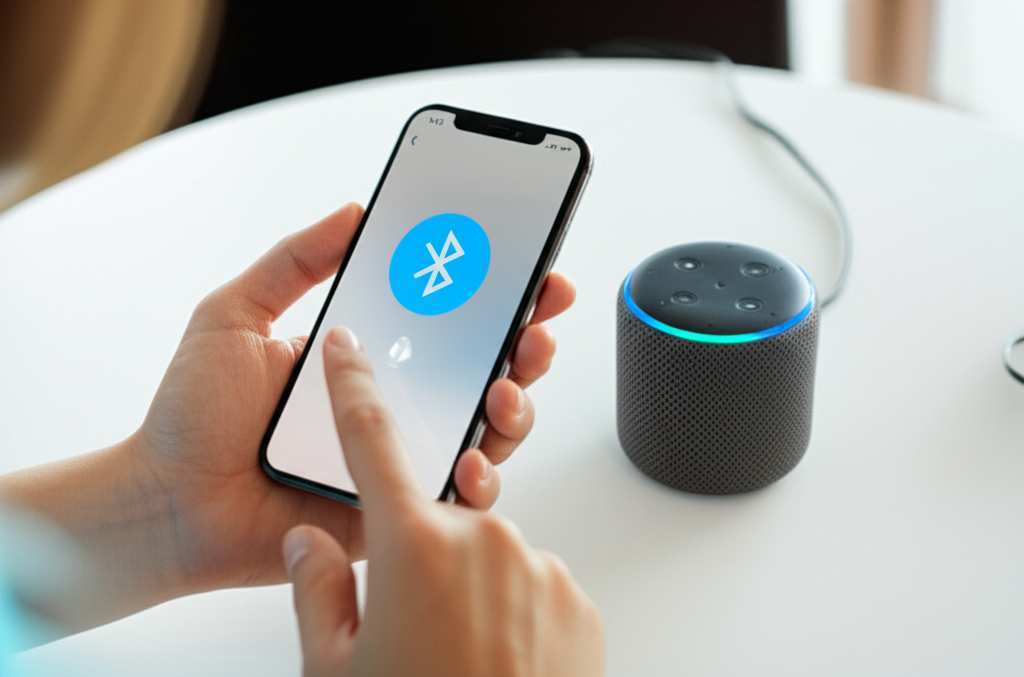
So, what exactly is this “Bluetooth” thing? Think of it as a magic invisible leash that lets devices talk to each other wirelessly. It’s like a secret handshake between your phone and your Alexa speaker, allowing them to share audio without needing any wires.
Why bother with Bluetooth when Alexa can stream itself? Well, Bluetooth gives you more options! You can play audio from apps that Alexa doesn’t directly support, like certain niche podcasts or specific audiobooks you have stored on your device. It’s all about giving you more control and flexibility over your listening experience.
Why Bluetooth is Your Alexa Speaker’s New Best Friend
You might be wondering, “Alexa can already play music, so why do I need Bluetooth?” That’s a fair question! While Alexa is amazing at streaming directly from services like Spotify or Amazon Music, Bluetooth opens up a whole new world of audio possibilities.
Imagine you have a favorite podcast app that Alexa doesn’t have a direct skill for. With Bluetooth, you can simply play it on your phone and send the audio straight to your Alexa speaker. It’s like giving your Alexa speaker a universal translator for all your audio needs!
Plus, sometimes you just want to quickly play a song from your personal music library or share a funny video’s audio with friends in the room. Bluetooth makes this super simple. No more fiddling with cables or complicated setups. It’s all about quick, easy, wireless audio fun.
Getting Started: What You’ll Need
Before we jump into the fun part, let’s make sure you have everything ready. It’s pretty simple, really. You won’t need a toolkit or a degree in engineering!
First off, you’ll need your Alexa-enabled speaker, of course. Make sure it’s plugged in and powered on. You also need your smartphone or tablet – this is what will send the music or audio to your speaker. It could be an iPhone, an Android device, or even an iPad.
Finally, you’ll need the Amazon Alexa app installed on your smartphone or tablet. This app is like the control center for all your Alexa devices. If you don’t have it yet, head over to your device’s app store (Apple App Store or Google Play Store) and download it. It’s free and essential for setting things up!
Step 1: Wake Up Your Alexa Speaker
First things first, let’s get your Alexa speaker ready to listen. Make sure it’s plugged into a power source and that the little light ring on top is on. This usually means it’s powered up and ready to go.
If you haven’t set up your Alexa speaker with Wi-Fi yet, you’ll need to do that first using the Alexa app. But assuming it’s already connected and working, you’re golden! Just make sure it’s within hearing distance, so Alexa can hear your commands.
Step 2: Tell Alexa to Go Into Pairing Mode
Now for the magic words! You need to tell your Alexa speaker to get ready to connect to a new Bluetooth device. It’s like telling a friend, “Hey, I’m looking for a new connection!”
Simply say, “Alexa, pair Bluetooth.” You should hear a little chime or a voice confirmation from Alexa saying something like, “Now in pairing mode,” or “Searching for devices.” This tells you it’s listening and ready to find your phone or tablet.
Step 3: Find Alexa on Your Phone or Tablet
Next, we need to go to your smartphone or tablet and turn on its Bluetooth. This is like opening the door for your devices to find each other.
On an iPhone or iPad, swipe down from the top-right corner to open the Control Center, then tap the Bluetooth icon to turn it on. On most Android devices, swipe down from the top of the screen to open the quick settings panel, then tap the Bluetooth icon. You want to make sure the Bluetooth is glowing or highlighted, showing it’s active!
Step 4: Connect to Your Alexa Speaker
With Bluetooth on your phone or tablet, it’s time to find your Alexa speaker. Open the Bluetooth settings on your phone or tablet. You’ll see a list of available devices nearby.
Look for your Alexa speaker’s name in the list. It usually has “Echo” or the specific model name in it (like “Echo Dot” or “Echo Show”). Tap on your speaker’s name. Your phone or tablet will then try to connect to it.
You might hear Alexa confirm the connection, saying something like, “Connected to [Your Phone’s Name].” And voilà! Your devices are now friends and ready to share audio.
Alternative Setup: Using the Alexa App
Sometimes, using your voice isn’t the easiest way, or maybe you just prefer navigating through an app. Good news! You can also set up Bluetooth for your Alexa speaker right within the Amazon Alexa app. This is super handy if you have multiple devices or if voice commands aren’t working perfectly.
Here’s how to do it:
Open the Alexa App and Go to Devices
First, launch the Amazon Alexa app on your smartphone or tablet. At the bottom of the screen, you’ll see a few icons. Tap on “Devices.”
Select Your Alexa Speaker
In the “Devices” section, you’ll see a list of all your Alexa-enabled devices. Find and tap on the specific Alexa speaker you want to connect via Bluetooth. For example, if you have an Echo Dot, tap on “Echo Dot.”
Find the Bluetooth Settings
Once you’re on your speaker’s settings page, scroll down until you find the “Bluetooth Connectivity” option. Tap on it. You should see options to “Pair a New Device” or “Manage Devices.”
Initiate Pairing from the App
Tap on “Pair a New Device.” The Alexa app will then instruct your speaker to enter Bluetooth pairing mode. You might hear Alexa say, “Now in pairing mode,” just like when you use the voice command. The app will also start scanning for nearby Bluetooth devices.
Connect Your Phone/Tablet
On your phone or tablet, make sure your Bluetooth is turned ON. In the Alexa app, you’ll see a list of available devices to pair. Find your phone or tablet’s name in the list and tap on it. Your devices should then connect, and Alexa will confirm the successful Bluetooth connection.
This app method gives you a visual guide and can be easier if you’re not sure about the exact voice commands or if there’s background noise. It’s a great backup or primary way to get connected!
Playing Audio Through Your Alexa Speaker
You’ve done it! Your Alexa speaker and your phone or tablet are now connected via Bluetooth. So, what’s next? Time for the fun part – playing your audio!
Open any app on your phone or tablet that plays sound. This could be Spotify, Apple Music, YouTube, Audible, or even a simple voice recording app. Start playing whatever you want to hear.
The sound should automatically come out of your Alexa speaker. If it doesn’t, don’t panic! Go back to your phone’s Bluetooth settings. Make sure it’s still connected to your Alexa speaker. Sometimes, you might need to select your Alexa speaker as the audio output device from your phone’s media settings.
Controlling Your Music with Your Voice
Here’s where things get really cool. Even when you’re playing audio via Bluetooth, you can still use Alexa’s voice commands to control your music! It’s like having a personal DJ at your beck and call.
You can say things like:
- “Alexa, pause.”
- “Alexa, resume.”
- “Alexa, next song.”
- “Alexa, previous song.”
- “Alexa, stop music.”
- “Alexa, volume up/down.”
This works because Alexa is smart enough to understand that the audio source is now coming from your paired device, but it can still manage playback. Pretty neat, right?
Disconnecting Your Alexa Speaker
When you’re done listening or want to connect another device, you’ll need to disconnect your current Bluetooth connection. It’s just as easy as connecting!
You can tell Alexa, “Alexa, disconnect Bluetooth.” Alexa will confirm that the Bluetooth connection has been ended. Your phone or tablet will also show that it’s disconnected from the speaker.
Alternatively, you can turn off Bluetooth on your smartphone or tablet. This will also break the connection. Or, you can go into the Alexa app, navigate to your speaker’s Bluetooth settings, and choose to disconnect or “forget” the device. You have a few easy options!
Managing Multiple Bluetooth Devices
What if you have more than one phone, or maybe a tablet and a laptop you want to connect? Your Alexa speaker can remember multiple devices! It can store up to 8 paired devices.
When you connect a new device, it replaces the oldest one if you’ve already reached the limit of 8. This means you might need to re-pair older devices if you connect many new ones over time.
To see which devices are currently paired, you can ask Alexa, “Alexa, what Bluetooth devices are paired?” She’ll list them for you. To remove a specific device, you can say, “Alexa, forget [Device Name].” For example, “Alexa, forget iPhone.”
Troubleshooting Common Issues
Sometimes, technology doesn’t play nicely right away. If you’re having trouble connecting or playing audio, don’t get frustrated! Here are a few common issues and how to fix them:
Issue: Alexa doesn’t go into pairing mode.
Solution: Make sure you’re saying the command clearly. Try standing closer to the speaker. If it still doesn’t work, try restarting your Alexa speaker by unplugging it for 10 seconds and plugging it back in. Then, try the voice command again.
Issue: My phone/tablet can’t find the Alexa speaker.
Solution: Ensure Bluetooth is enabled on your phone/tablet and that it’s in pairing mode. Also, check that your Alexa speaker is still in pairing mode (you might need to say “Alexa, pair Bluetooth” again). Try moving your phone/tablet closer to the speaker.
Issue: The devices are paired, but no sound is playing.
Solution: Check the volume on both your phone/tablet and your Alexa speaker. Make sure the audio isn’t paused on your phone. Try disconnecting and re-pairing the devices. Also, verify that your phone/tablet is set to output audio to the Alexa speaker in its Bluetooth settings.
Issue: Sound is choppy or cutting out.
Solution: Bluetooth works best when devices are close and there aren’t many obstacles. Try moving your phone/tablet closer to the Alexa speaker. Minimize other wireless devices or strong Wi-Fi signals that might interfere. Restarting both devices can also help.
Fun Facts About Bluetooth
Did you know Bluetooth technology is named after a Viking king? King Harald Bluetooth united Danish tribes in the 10th century, and the technology’s creator, Jim Kardach, thought it was a fitting name for a technology that united different devices. How cool is that?
Bluetooth operates in the 2.4 GHz frequency band, the same one used by Wi-Fi and microwave ovens. This is why sometimes interference can be an issue, but clever engineering helps it manage its signal effectively. It’s a busy neighborhood for wireless signals!
Comparing Alexa Speakers for Bluetooth Use
While most Alexa speakers offer Bluetooth connectivity, some are better suited for different needs. If audio quality is a top priority for your Bluetooth streaming, you might want to consider the larger Echo devices.
Here’s a quick look at how some popular models stack up for Bluetooth audio:
| Alexa Speaker Model | Typical Bluetooth Range | Sound Quality (General) | Portability |
|---|---|---|---|
| Echo Dot (3rd Gen & Newer) | Up to 30 feet | Good for its size | Very Portable |
| Echo (4th Gen) | Up to 30 feet | Excellent, richer bass | Moderately Portable |
| Echo Studio | Up to 30 feet | Audiophile-grade, immersive | Not Portable |
| Echo Show (various models) | Up to 30 feet | Good, with screen benefits | Moderately Portable |
As you can see, if you’re looking for the best Bluetooth sound experience, the Echo Studio or the standard Echo (4th Gen) will likely offer a richer, more powerful audio output compared to the compact Echo Dot. However, for casual listening or when portability is key, the Echo Dot is a fantastic choice. The “Typical Bluetooth Range” is generally consistent across most devices, but environmental factors can influence this.
Tips for the Best Bluetooth Experience
Want to make sure your Bluetooth connection is always smooth and sounds great? Here are a few pro tips:
- Keep it Close: Bluetooth has a limited range, usually around 30 feet (10 meters) in open space. Walls and other electronic devices can shorten this. Try to keep your phone or tablet within 10-15 feet of your Alexa speaker for the most reliable connection.
- Update Your Devices: Make sure both your Alexa speaker’s software and your phone/tablet’s operating system are up-to-date. Updates often include improvements to Bluetooth performance and stability.
- Restart When in Doubt: If you encounter any glitches, a simple restart of both your Alexa speaker and your phone/tablet can often resolve the issue. Unplug the speaker, turn off your phone’s Bluetooth, then power them back up and try connecting again.
- Prioritize Your Connection: If your Alexa speaker is connected to multiple Bluetooth devices and you want to use a specific one, ensure that device’s Bluetooth is on and it’s the most recently connected or “active” device.
- Use the Alexa App for Management: For more advanced control, like forgetting devices or checking paired devices, the Alexa app is your best friend. It offers a clear visual interface for managing your Bluetooth connections.
Frequently Asked Questions (FAQs)
Q1: Do I need Wi-Fi to use Bluetooth with my Alexa speaker?
A1: No, you don’t need Wi-Fi for the Bluetooth connection itself. However, your Alexa speaker needs Wi-Fi to function initially for setup and to access Alexa’s voice services. Bluetooth is a separate wireless connection for audio streaming.
Q2: Can I use my Alexa speaker as a Bluetooth speaker for my TV?
A2: Yes, you can! If your TV has Bluetooth output capability, you can pair it with your Alexa speaker just like you would a phone. Just follow the same steps to put your Alexa speaker in pairing mode and then connect from your TV’s Bluetooth settings.
Q3: How many Bluetooth devices can an Alexa speaker connect to?
A3: An Alexa speaker can remember up to 8 paired Bluetooth devices. Once you reach 8, it will remove the oldest device when a new one is paired. You can always re-pair devices if needed.
Q4: Can I use Bluetooth and Wi-Fi audio simultaneously?
A4: No, your Alexa speaker can only use one audio source at a time. If you’re playing audio via Bluetooth, Alexa commands for streaming music from Wi-Fi services might not work, or vice-versa. You’ll need to disconnect Bluetooth to use Alexa’s direct streaming capabilities.
Q5: What’s the difference between using Alexa’s built-in streaming and Bluetooth?
A5: Alexa’s built-in streaming uses Wi-Fi to play music directly from services like Spotify or Amazon Music. Bluetooth streams audio from your phone or tablet over a wireless connection, allowing you to play content from apps not directly supported by Alexa skills.
Q6: My Alexa speaker is connected to my phone, but I can’t control playback with my voice. What’s wrong?
A6: While many Alexa speakers support voice control for Bluetooth playback (pause, skip, volume), not all models or all apps are fully compatible. Try saying “Alexa, pause” or “Alexa, next song.” If it doesn’t work, you may need to control playback directly from your phone or tablet.
Q7: How do I make my Alexa speaker the default audio output for my phone?
A7: Your Alexa speaker won’t automatically become the default audio output for all apps on your phone. You need to actively select it via Bluetooth settings or start playback and ensure the audio is routing to it. You can also manually reconnect to it from your phone’s Bluetooth menu if it disconnects.
Conclusion: Enjoy Your New Sound World!
See? Connecting your Alexa speaker via Bluetooth is totally doable, and it really opens up your listening options. You’ve learned how to pair your devices using voice commands or the handy Alexa app, how to play your favorite audio, and even how to troubleshoot if things get a bit tricky.
Remember, technology is meant to make our lives easier and more enjoyable. Whether you’re jamming out to your personal playlist, catching up on an important podcast, or sharing a laugh with a video’s audio, your Alexa speaker is now an even more versatile companion.
Don’t be afraid to experiment! Try pairing different devices and exploring all the audio possibilities. You’ve got this!
Now go enjoy amazing sound and make every moment louder and better! Happy listening!