Yes, you absolutely can connect a Bluetooth speaker to your computer! It’s a super simple process that adds awesome sound to your PC or laptop without messy wires. We’ll show you exactly how to do it, step-by-step.
Hey there, tech explorer! Ever wish your computer could pump out sound like a concert hall? Maybe you’ve got a cool Bluetooth speaker just sitting there, and you’re wondering if it can team up with your laptop or desktop. It’s totally frustrating when you want to enjoy your favorite music, podcasts, or movie sound effects, but your computer’s speakers just don’t cut it. You might have looked at all those buttons and settings and thought, “Is this even possible for me?”
Well, guess what? Connecting a Bluetooth speaker to your computer is way easier than you think. Think of it like pairing your phone with your car’s audio system – it’s that straightforward! We’re going to walk through it together, so you can go from “hmm, I wonder” to “wow, this sounds amazing!” Get ready to ditch those tiny computer speakers and fill your room with rich, clear audio. Let’s dive in and make your computer sound spectacular!
Let’s Talk About Sound
Imagine this: you’re working on a project, and suddenly your favorite upbeat playlist kicks in. Or maybe you’re watching a movie, and the explosions and dialogue sound like you’re right there in the action. That’s the magic of good sound, and a Bluetooth speaker can seriously upgrade your computer’s audio game. It’s like giving your computer a voice transplant, but in a good way!
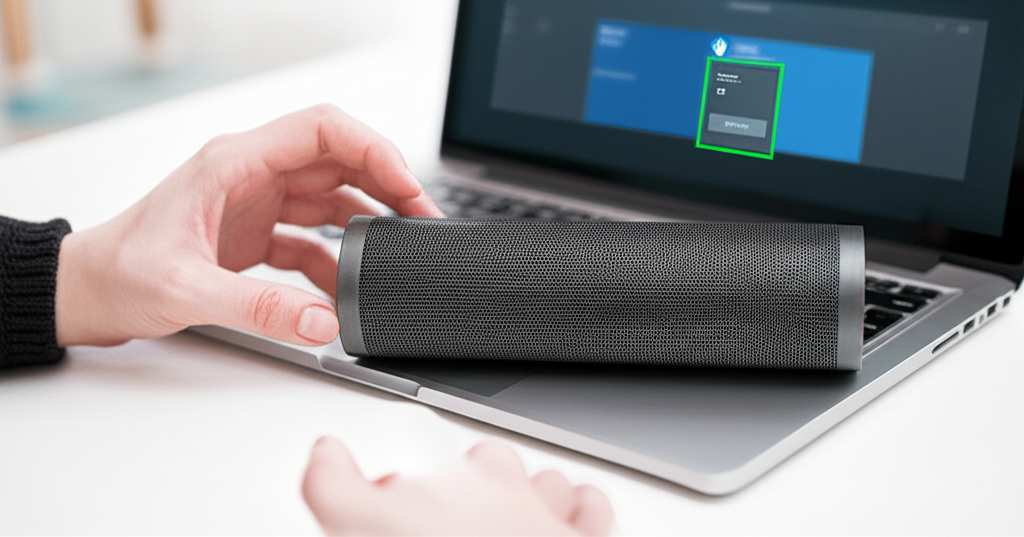
You know how sometimes your computer’s built-in speakers sound a bit tinny or just… flat? It happens to the best of us. It’s like trying to enjoy a gourmet meal with a tiny plastic spoon. But with a Bluetooth speaker, you get that rich bass, clear highs, and full sound that makes everything more immersive and enjoyable. Plus, no more tangled wires cluttering up your desk!
The Magic of Bluetooth
So, what exactly is Bluetooth? It’s a short-range wireless technology that lets devices talk to each other. Think of it as a secret handshake for your gadgets. It uses radio waves to send information, like audio signals, from your computer to your speaker. This means you can place your speaker anywhere in the room without worrying about cables. Super convenient, right?
This technology is used in tons of devices, from your wireless headphones to your smartwatch. It’s designed to be simple to use and energy-efficient. For your computer and speaker, it means a quick and easy connection that frees you up to move around. You can even have your speaker on a shelf across the room and still get great sound!
Can You Connect A Bluetooth Speaker To A Computer? Yes, You Can!
The short answer is a big, resounding YES! Most modern computers, both laptops and desktops, come with built-in Bluetooth capabilities. If yours doesn’t, don’t worry! You can easily add it with a small, inexpensive USB adapter. So, no matter what kind of computer you have, you can probably enjoy wireless sound.
It’s really about making your tech work for you. If you’ve got a speaker that’s just begging to be used, connecting it to your computer is a fantastic way to boost your entertainment or productivity. It’s a simple upgrade that makes a huge difference.
What You’ll Need
Before we jump into the steps, let’s make sure you have everything ready. It’s like preparing for a simple recipe – just a few key ingredients!
Your Bluetooth Speaker: Make sure it’s charged up and ready to go!
Your Computer: Whether it’s a laptop or a desktop, it needs to be powered on.
Bluetooth Enabled (or an Adapter): Most computers have this built-in. If yours doesn’t, you can grab a USB Bluetooth adapter for around $10-$20. These are super tiny and plug right into a USB port.
Step 1: Prep Your Speaker
First things first, let’s get your speaker ready for its big moment. This usually involves two simple things: turning it on and putting it into pairing mode.
Turn it On: Find the power button on your speaker. It’s usually pretty obvious. Press it, and you should see a light come on or hear a little chime.
Enter Pairing Mode: This is the key step! Most speakers have a dedicated Bluetooth button. It might have the Bluetooth symbol (a stylized “B”) on it. You usually need to press and hold this button for a few seconds. You’ll often hear a sound or see a light flashing to let you know it’s ready to connect. Check your speaker’s manual if you’re unsure; it’s usually a simple process.
Step 2: Turn On Bluetooth on Your Computer
Now, let’s get your computer ready to find the speaker. The steps vary slightly depending on whether you’re using Windows or macOS.
For Windows Users
1. Open Settings: Click the Start menu (the Windows icon in the bottom-left corner) and then click the gear icon for Settings.
2. Go to Devices: In the Settings window, click on “Devices.”
3. Select Bluetooth & other devices: On the left-hand side, click “Bluetooth & other devices.”
4. Toggle Bluetooth On: Make sure the Bluetooth toggle switch is turned to “On.” It will usually turn blue.
5. Add Device: Click the “+ Add Bluetooth or other device” button at the top.
6. Choose Bluetooth: In the pop-up window, select “Bluetooth.”
For macOS Users
1. Open System Preferences: Click the Apple logo in the top-left corner of your screen and select “System Preferences.”
2. Click Bluetooth: Find and click on the “Bluetooth” icon.
3. Turn Bluetooth On: If Bluetooth is off, you’ll see a button to “Turn Bluetooth On.” Click it.
4. Wait for Discovery: Your Mac will automatically start looking for nearby Bluetooth devices.
Step 3: Pair Your Speaker With Your Computer
This is where your computer and speaker officially meet! Your computer will scan for available Bluetooth devices.
Find Your Speaker: In the list of devices that appear on your computer screen, you should see the name of your Bluetooth speaker. It might be something like “JBL Flip 5,” “Bose SoundLink,” or the brand name.
Click to Connect: Click on your speaker’s name.
Confirm Pairing: Your computer might ask you to confirm a PIN or just say “Connecting.” Follow any on-screen prompts. Once successfully paired, you’ll usually see a message saying “Connected” or “Paired” next to your speaker’s name in the list. Your speaker might also make a sound or its light might change from flashing to solid.
Step 4: Set Your Bluetooth Speaker as the Default Audio Output
Sometimes, even after pairing, your computer might still be using its internal speakers. We need to tell it to use your new Bluetooth speaker!
For Windows Users
1. Open Sound Settings: Right-click on the speaker icon in the bottom-right corner of your taskbar (near the clock).
2. Select Sounds: Click on “Sounds.”
3. Go to the Playback Tab: A “Sound” window will pop up. Click on the “Playback” tab.
4. Find Your Speaker: You’ll see a list of audio devices. Look for your Bluetooth speaker. It might have a green checkmark next to it if it’s already connected.
5. Set as Default: Right-click on your Bluetooth speaker and select “Set as Default Device” and “Set as Default Communication Device.”
6. Apply and OK: Click “Apply” and then “OK.”
For macOS Users
1. Open System Preferences: Go back to System Preferences (Apple menu > System Preferences).
2. Click Sound: Find and click on the “Sound” icon.
3. Select Output: Click on the “Output” tab.
4. Choose Your Speaker: In the list of devices, select your Bluetooth speaker.
5. Close: You can now close the System Preferences window. Your Mac will remember this setting.
Troubleshooting Common Issues
Even the simplest tech can sometimes throw a curveball! If your speaker isn’t connecting, don’t panic. Here are a few common fixes.
Is Bluetooth Really On? Double-check that Bluetooth is enabled on both your computer and your speaker. Sometimes that little toggle gets switched off accidentally.
Speaker Not Appearing? Try turning your speaker off and on again, and then put it back into pairing mode. On your computer, try disabling and then re-enabling Bluetooth.
Connection Dropping? Make sure your speaker isn’t too far from your computer. Walls and other electronic devices can sometimes interfere with the signal. Try moving them closer.
No Sound? Revisit Step 4 and make sure your Bluetooth speaker is set as the default audio output device. Sometimes a quick restart of your computer can also help!
Paired But Not Playing? Disconnect the speaker from your computer, then remove it from your computer’s list of paired devices. Then, try pairing it again from scratch.
Tips for the Best Bluetooth Experience
Want to get the most out of your wireless audio setup? Here are a few friendly tips.
Keep Devices Close: For the most stable connection, try to keep your computer and speaker within about 30 feet (10 meters) of each other. Obstacles like walls can reduce this range.
Update Your Drivers: Sometimes, outdated Bluetooth drivers on your computer can cause issues. If you have a Windows PC, you can usually find driver updates through Windows Update or by visiting your computer manufacturer’s website.
Check Speaker Battery: A low battery on your Bluetooth speaker can sometimes lead to connection problems or intermittent sound. Make sure it’s well-charged before a long listening session.
One Device at a Time: Most Bluetooth speakers work best when connected to only one device at a time. If your speaker is already connected to your phone, disconnect it before trying to pair it with your computer.
A Quick Look at Bluetooth Versions
You might hear about different Bluetooth versions (like 4.0, 5.0, 5.2). Newer versions generally offer better range, faster speeds, and more stable connections. While most speakers and computers work fine together regardless of the version, if you’re buying new gear, aim for Bluetooth 5.0 or higher for the best performance. It’s like having a superhighway for your audio data!
Here’s a little table to show some differences:
| Bluetooth Version | Approximate Range | Key Improvements |
|---|---|---|
| 4.0/4.1 | Up to 33 feet (10 meters) | Introduced LE (Low Energy) for better battery life. |
| 4.2 | Up to 33 feet (10 meters) | Improved security and speed. |
| 5.0 | Up to 80 feet (24 meters) | Faster speeds, longer range, improved power efficiency, better multi-device support. |
| 5.1 | Up to 80 feet (24 meters) | Direction finding (better for location services), improved connection stability. |
| 5.2 | Up to 80 feet (24 meters) | Enhanced power efficiency, better audio streaming quality (with LE Audio). |
See? Newer versions are pretty neat! They help your devices communicate more efficiently. For just connecting a speaker, even an older version will likely do the job perfectly well.
What If My Computer Doesn’t Have Bluetooth?
Don’t despair if your trusty desktop or older laptop doesn’t have Bluetooth built-in. Adding it is super easy and affordable!
USB Bluetooth Adapters: These are small dongles that plug into a USB port on your computer. You can find them online or at most electronics stores for about $10 to $20. Just plug it in, install any simple drivers it needs (often automatic), and you’ll have Bluetooth functionality! It’s like giving your computer a Bluetooth superpower.
Fun Fact About Bluetooth
Did you know Bluetooth technology is named after a 10th-century Viking king? King Harald “Bluetooth” Gormsson was famous for uniting Danish tribes. The technology’s creator, Jim Kardach, thought it was a fitting name for a technology that would unite different communication protocols. Pretty cool, right? It’s a bit of history mixed with your everyday tech!
Frequently Asked Questions
Got more questions? We’ve got friendly answers!
Q1: How do I know if my computer has Bluetooth?
For Windows: Go to Settings > Devices > Bluetooth & other devices. If you see a toggle switch for Bluetooth, your computer has it. If you see “Bluetooth” listed under your computer’s specifications on the manufacturer’s website, it also has it.
For macOS: Click the Apple logo in the top-left corner and select “System Preferences.” Then click “Bluetooth.” If you see a button to turn Bluetooth on, your Mac has it.
Q2: Can I connect multiple Bluetooth speakers to my computer at once?
This depends on your computer and operating system. Windows and macOS can often connect to multiple Bluetooth devices, but playing audio through more than one simultaneously as a stereo pair is usually not supported out-of-the-box for speakers. Some specialized software or specific Bluetooth adapters might allow this, but for most users, it’s one speaker at a time for audio output.
Q3: Will my Bluetooth speaker work with any computer?
Yes, as long as the computer has Bluetooth capability (either built-in or via a USB adapter) and supports the standard Bluetooth audio profiles (like A2DP), your speaker should work. It’s a pretty universal standard!
Q4: Why is the sound choppy or cutting out?
This is often due to interference. Try moving your speaker closer to your computer, or away from other wireless devices like microwaves, Wi-Fi routers, or cordless phones. Also, ensure your speaker’s battery is charged and that your computer’s Bluetooth drivers are up-to-date.
Q5: Do I need special software to connect my speaker?
Generally, no! Your computer’s operating system (Windows or macOS) has built-in tools to manage Bluetooth connections. You only need specific software if your Bluetooth adapter came with its own utility, or if you’re trying to do something advanced like connecting multiple speakers for synchronized playback.
Q6: How do I disconnect my Bluetooth speaker?
You can usually disconnect by going into your computer’s Bluetooth settings, finding your speaker in the list of connected devices, and clicking “Disconnect” or “Remove Device.” You can also simply turn off your Bluetooth speaker, or turn off Bluetooth on your computer.
Q7: Can I use my Bluetooth speaker for video calls?
Yes! Once connected and set as your default audio device, your speaker will handle the audio output for calls. However, most Bluetooth speakers don’t have built-in microphones, so you’ll still need your computer’s microphone (or a separate headset) for your voice input. Some higher-end Bluetooth speakers do have microphones, so check your speaker’s features!
Conclusion: Enjoy Your New Sound!
See? Connecting a Bluetooth speaker to your computer is totally doable and incredibly rewarding. You’ve learned how to pair your devices, set your speaker as the default, and even troubleshoot common hiccups. It’s a simple process that unlocks a whole new level of audio enjoyment for your music, movies, games, and more. No more struggling with tangled wires or settling for mediocre sound.
Now go forth and experience your digital world with richer, fuller sound! Whether you’re rocking out to your favorite tunes or immersing yourself in a cinematic masterpiece, your Bluetooth speaker is ready to make every moment louder and better. Happy listening!