Yes, you absolutely can use your Amazon Echo as a Bluetooth speaker! It’s a super easy way to stream music, podcasts, or anything else from your phone or tablet directly to your Echo device for better sound. Let’s get you hooked up!
Hey there, tech adventurer! Ever find yourself wishing your phone’s speaker could be a little louder, or maybe sound a bit richer? We’ve all been there. Music just sounds better when it’s filling the room, right? And sometimes, figuring out which speaker to buy can feel like a puzzle.
Well, guess what? That cool Amazon Echo device you have sitting on your shelf might just be the perfect speaker solution you’ve been looking for. It’s not just for asking about the weather or setting timers; it can actually be your go-to Bluetooth speaker.
Don’t worry if tech jargon makes your head spin. I’m here to make it super simple. We’ll walk through everything, step by step, so you can enjoy your favorite audio with amazing sound in no time. Let’s break it down!
Can I Use My Amazon Echo as a Bluetooth Speaker? The Short Answer
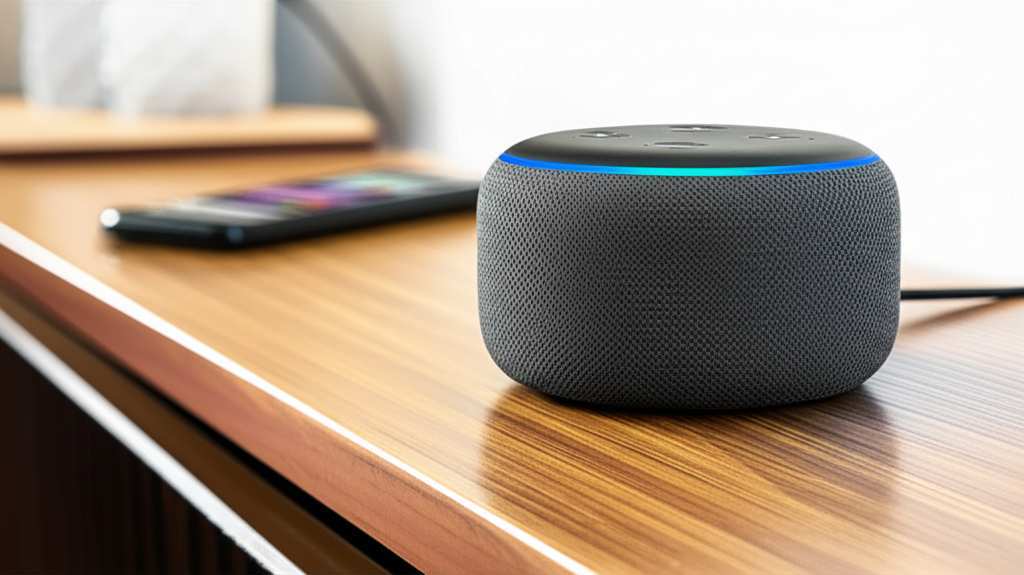
You bet! Your Amazon Echo, whether it’s an Echo Dot, Echo Show, or a full-sized Echo, is designed to work as a Bluetooth speaker. This means you can connect your smartphone, tablet, or even your laptop to it wirelessly. Think of it as giving your Echo a new superpower: playing anything you want from your other devices!
This feature is a game-changer. It means you don’t need a separate Bluetooth speaker if you already have an Echo. You can stream your Spotify playlists, listen to audiobooks, or even get better sound for videos directly through your Echo. It’s all about making your tech work smarter for you.
Why Would You Want to Use Your Echo as a Bluetooth Speaker?
There are tons of reasons why this is a fantastic idea. Let’s dive into a few:
- Better Sound Quality: Most Echo devices have speakers that are way better than what you find on most phones or tablets. You’ll get richer bass, clearer highs, and a fuller sound that makes music and podcasts so much more enjoyable.
- Convenience: No need to buy another gadget! If you already have an Echo, you have a capable Bluetooth speaker ready to go. It’s perfect for parties, relaxing at home, or just enjoying your tunes.
- Hands-Free Control: Since it’s an Echo, you can often control playback with your voice. Tell Alexa to play, pause, skip tracks, or adjust the volume without even touching your phone. How cool is that?
- Fill Your Room: Echo speakers are designed to project sound. They can fill a room with music, unlike the tiny speakers on your phone that might only be audible when you’re close by.
Let’s Get Connected: How to Pair Your Device with Your Echo
Connecting your phone or tablet to your Echo is like a quick digital handshake. It’s straightforward, and Alexa makes it easy. Here’s how you do it, step by step:
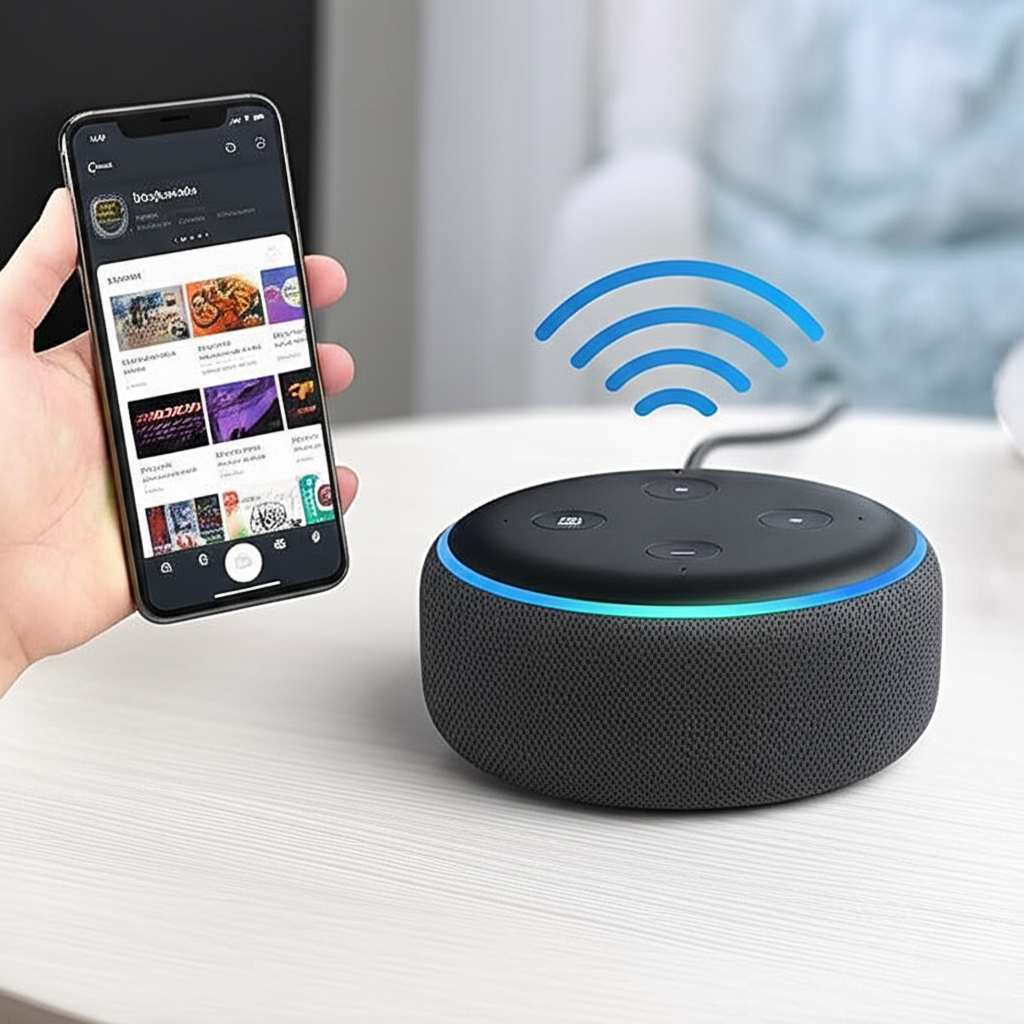
Step 1: Put Your Echo in Pairing Mode
First, you need to tell your Echo to look for new devices. You can do this with a simple voice command. Just say:
"Alexa, pair Bluetooth."
Or, if you want to be more specific and see what’s available, you can say:
"Alexa, Bluetooth pairing mode."
You’ll hear Alexa confirm that it’s ready to pair. Sometimes, you’ll also see a light ring on your Echo turn a specific color, like blue, to show it’s in pairing mode. It’s like the Echo is saying, “Okay, I’m ready for you!”
Step 2: Open Bluetooth Settings on Your Phone or Tablet
Now, grab your smartphone or tablet. You need to go into its Bluetooth settings. The exact location varies a little depending on whether you use an iPhone, Android, or another type of device, but it’s usually found under “Settings” or “Connections.”
- For iPhones/iPads: Go to Settings > Bluetooth. Make sure Bluetooth is toggled ON.
- For Android Phones/Tablets: Go to Settings > Connections > Bluetooth. Make sure Bluetooth is toggled ON.
Your device will start searching for nearby Bluetooth devices. It’s like your phone is looking around for potential connections.
Step 3: Select Your Echo Device from the List
In your phone’s Bluetooth menu, you’ll see a list of available devices. Look for the name of your Echo device. It will usually be something like “Echo Dot (3rd Gen),” “Echo Studio,” or just “Amazon Echo.”
Tap on the name of your Echo device. Your phone will then try to connect to it. You might see a message asking you to confirm a pairing code, but usually, it connects automatically.
Once it’s connected, Alexa will usually announce, “Now connected to [Your Device Name].” And on your phone, it will say “Connected” next to your Echo’s name in the Bluetooth list. Success!
Step 4: Play Your Audio!
Now for the fun part! Open up your favorite music app, podcast player, or any app that plays audio. Start playing your content. The sound should now come out of your Echo device instead of your phone or tablet.
You can control the playback using your phone or tablet, or by using voice commands with Alexa. For example, you can say:
"Alexa, pause.""Alexa, resume.""Alexa, skip song.""Alexa, volume up.""Alexa, set volume to 5."
It’s pretty neat how seamlessly it works, turning your smart speaker into a powerful sound system for all your devices.
Managing Your Bluetooth Connections with Alexa
Your Echo can remember multiple Bluetooth devices. This means you don’t have to re-pair every single time. Here are some handy voice commands for managing your connections:
"Alexa, connect to [Device Name]."(Connects to a previously paired device)"Alexa, disconnect."(Disconnects the currently connected device)"Alexa, what's connected?"(Tells you which device is currently paired)"Alexa, forget [Device Name]."(Removes a device from your Echo’s memory)"Alexa, stop Bluetooth."(Turns off the Bluetooth connection)
Knowing these commands can save you a lot of time and make using your Echo as a Bluetooth speaker even smoother. It’s all about making technology work for you, not the other way around!
Troubleshooting Common Bluetooth Issues
Sometimes, things don’t go perfectly the first time. If you’re having trouble connecting, don’t worry! Here are a few common issues and how to fix them:
- Echo Not Showing Up: Make sure your Echo is in pairing mode by saying “Alexa, pair Bluetooth.” Also, ensure Bluetooth is turned ON on your phone or tablet.
- Connection Dropping: Bluetooth works best when devices are relatively close to each other. Try moving your phone or tablet closer to your Echo. Obstacles like walls can sometimes interfere.
- No Sound: Double-check that your Echo is actually connected in your phone’s Bluetooth settings. Also, make sure the volume on both your phone and your Echo is turned up. Sometimes, you might need to restart both devices.
- Can’t Disconnect: Use the voice command “Alexa, disconnect” or go to your phone’s Bluetooth settings and tap “Disconnect” or “Forget Device.”
- Interference: Other wireless devices can sometimes interfere with Bluetooth signals. Try turning off other Bluetooth devices nearby if you’re experiencing issues.
A quick restart of both your Echo and your phone often solves many minor glitches. It’s a tech universal fix!
A Quick Look: Echo Models and Their Bluetooth Capabilities
Most Amazon Echo devices support Bluetooth connectivity. This means you can generally use any Echo you have as a Bluetooth speaker. Here’s a peek at some popular models and what you can expect:
| Echo Device Model | Bluetooth Support | Sound Quality Notes |
|---|---|---|
| Echo Dot (3rd Gen) | Yes | Good for personal listening or small rooms. Clear voice, decent music. |
| Echo Dot (4th Gen) | Yes | Improved sound over 3rd Gen. Better bass and fuller sound for its size. |
| Echo (4th Gen) | Yes | Significantly better sound than Dots. Richer bass and clearer mids/highs. Great for medium to large rooms. |
| Echo Studio | Yes | Premium sound quality. Designed for immersive audio with Dolby Atmos and 3D audio support. Excellent for audiophiles. |
| Echo Show (Various Models) | Yes | Sound quality varies by model but generally good. Also offers a screen for visual content. |
As you can see, while most Echo devices offer Bluetooth, the size and capability of the speaker vary. An Echo Studio will give you a much more powerful audio experience than an Echo Dot. It’s always good to know what your device is capable of!
Advanced Tips: Getting the Best Sound from Your Echo Speaker
Want to make your Echo sound even better when you’re using it as a Bluetooth speaker? Here are a few tricks:
- Placement Matters: Don’t hide your Echo in a corner or behind furniture. Placing it on a stable surface, perhaps near a wall but not directly in it, can help enhance the bass. Experiment with different spots in your room.
- Adjust EQ Settings: Some Echo devices allow you to adjust bass and treble settings via the Alexa app. You can find this under “Device Settings” > “Audio” or “Sound Settings.” Tweak these to match your preference.
- Use High-Quality Audio Sources: If you’re streaming music, use a service that offers high-quality audio. Lower-quality streams won’t sound as good, no matter how good the speaker is.
- Consider Multi-Room Audio (for multiple Echos): If you have more than one Echo, you can group them for multi-room music. While this is more for Alexa music services, it shows the power of Echo audio.
- Check for Updates: Ensure your Echo’s software is up-to-date. Amazon regularly releases updates that can improve performance, including audio quality.
It’s amazing how small adjustments can make a big difference in how your music sounds. Think of it like tuning a guitar – a little tweak can bring out the best notes!
When to Consider a Dedicated Bluetooth Speaker vs. Echo
While using your Echo as a Bluetooth speaker is fantastic, there might be times when a dedicated Bluetooth speaker is a better fit. Here’s a quick comparison:
| Feature | Amazon Echo (as Bluetooth Speaker) | Dedicated Bluetooth Speaker |
|---|---|---|
| Primary Function | Smart Assistant, then Bluetooth speaker | Bluetooth speaker |
| Portability | Requires power outlet, not portable | Often battery-powered, highly portable |
| Durability/Water Resistance | Generally not designed for outdoor/rugged use | Many models are water-resistant or waterproof |
| Sound Customization | Limited EQ via app | Often more advanced EQ options, sometimes app-controlled |
| Setup Complexity | Easy pairing via voice/app | Easy pairing, but no smart assistant features built-in |
| Voice Assistant Integration | Built-in (Alexa) | None (unless you connect via a phone with a voice assistant) |
So, if you’re planning a beach trip or a camping adventure, a dedicated, rugged Bluetooth speaker might be more practical. But for home use, enhancing your existing Echo is a brilliant choice. It’s all about matching the tool to the job!
Frequently Asked Questions (FAQ)
Q1: Do I need an Amazon Prime subscription to use my Echo as a Bluetooth speaker?
A: Nope! You don’t need Amazon Prime at all to use your Echo as a Bluetooth speaker. The Bluetooth connection is a feature of the device itself, separate from any subscription services.
Q2: Can I use my Echo to play audio from my TV?
A: Some Echo devices, like the Echo Studio and Echo (4th Gen), can connect to your TV via Bluetooth. However, there might be a slight delay (latency) between the video and audio, which can be noticeable. It’s usually better for music or podcasts than for watching movies unless the delay is minimal for your setup.
Q3: What happens if I ask Alexa a question while my phone is connected via Bluetooth?
A: Alexa will respond! If your phone is connected, asking Alexa a question will pause your audio from your phone, Alexa will answer, and then your audio will resume. It’s pretty smart about managing both functions.
Q4: How do I disconnect my phone from my Echo permanently?
A: To disconnect temporarily, just say “Alexa, disconnect.” To remove the device from your Echo’s memory permanently, say “Alexa, forget [Your Device Name].” You can also do this through the Alexa app by going to Devices > Echo & Alexa > [Your Echo Device] > Bluetooth Devices and selecting “Forget Device.”
Q5: Can I use multiple Echo devices as one big speaker system for my phone?
A: You can group multiple Echo devices for multi-room music when streaming directly through Alexa. However, when using a single phone as a Bluetooth source, you can only connect to one Echo device at a time for Bluetooth audio playback. For true stereo sound from your phone, you’d typically need two identical Echo devices paired in a stereo pair, which is a separate setup process within the Alexa app.
Q6: Will using my Echo as a Bluetooth speaker drain its battery faster?
A: Most Echo devices need to be plugged into a power outlet to work, so battery life isn’t a concern. If you happen to have a rare portable Echo model, Bluetooth streaming would use more power than when it’s idle, but it’s generally not a significant issue.
Q7: Can I use my Amazon Echo Link or Echo Amp as a Bluetooth speaker?
A: The Echo Link and Echo Amp are designed to integrate with existing audio systems. While they have Bluetooth input capabilities, they are part of a larger setup and not standalone speakers in the same way as an Echo Dot or Echo. The process would be similar but involves connecting to the specific input on those devices.
Your Echo is More Than Just a Smart Speaker!
See? Using your Amazon Echo as a Bluetooth speaker is super simple and incredibly useful. It’s a fantastic way to boost your audio experience at home without needing extra equipment. You’ve learned how to pair your devices, control playback, troubleshoot issues, and even get the best sound possible.
Don’t be afraid to experiment! Try streaming your favorite podcast, that new album you’ve been meaning to listen to, or even the audio from a video you’re watching. You might be surprised at how much better it sounds.
Now go enjoy amazing sound and make every moment louder and better with your trusty Echo!