Yes, you absolutely can connect portable Bluetooth speakers to your TV or laptop! It’s a fantastic way to boost your audio experience without messy wires. Get ready for richer sound for movies, music, and games.
Hey there, tech explorers! Max here from AffTechy.com, your go-to buddy for making technology simple and fun. You know how sometimes your laptop’s built-in speakers or your TV’s sound just feels… well, a bit flat? It’s like watching a movie with tinny dialogue or listening to music that lacks that deep bass you love. That’s where portable Bluetooth speakers come in, and guess what? They can totally level up your sound game for both your TV and your laptop.
I get it; figuring out tech can sometimes feel like trying to read a secret code. You see all these buttons and settings, and you just want to know if your cool little speaker can actually work with your big screen or your workhorse laptop. The good news? It’s usually way easier than you think! We’re going to dive into how you can connect them, making your audio experience so much better. Let’s make this super simple, step by step.
Let’s Talk Sound: Why Upgrade Your Audio?
Think about your favorite movie scenes or gaming moments. Great sound makes them so much more immersive, right? It pulls you into the action and makes everything feel more real. Even just listening to music can be a totally different experience when the sound is full and clear. Your TV or laptop speakers are okay for everyday use, but they often can’t produce the depth and richness that even a small portable speaker can offer.
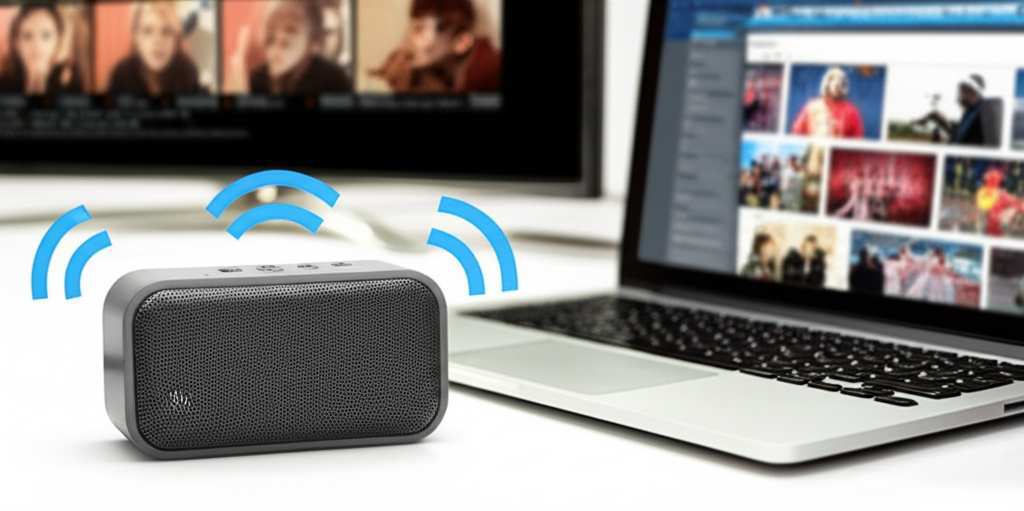
Portable Bluetooth speakers are designed to pack a punch. They’re small enough to move around easily, but many have powerful drivers and smart technology that deliver much better sound quality than what comes built-in. Plus, the freedom of wireless connection means no more awkward cable management or worrying about whether your speaker is close enough. It’s all about convenience and a superior listening experience.
The Magic of Bluetooth: How It Works (The Simple Version!)
So, what exactly is this “Bluetooth” thing that makes wireless magic happen? Think of Bluetooth as a short-range invisible radio wave. It lets two devices talk to each other wirelessly. Your laptop or TV has a Bluetooth transmitter, and your portable speaker has a Bluetooth receiver. When you pair them, they establish a secure connection, allowing the audio signal to travel from your device to the speaker without any cables.
This connection is super handy because it’s designed for convenience. Once you pair your devices, they usually remember each other. This means you won’t have to go through the whole setup process every single time you want to use your speaker. It’s like introducing two friends who then recognize each other on sight every time they meet again!
Can Portable Bluetooth Speakers Connect to TV? Yes, You Can!
This is a big one for many people! You’re settling in for a movie night, and the TV speakers just aren’t cutting it. The dialogue is muffled, or the explosions lack that booming effect. Connecting a portable Bluetooth speaker can dramatically change your viewing experience. It’s like bringing a mini-cinema sound system into your living room.
The key to connecting to a TV is whether your TV has Bluetooth capabilities. Many newer smart TVs do! If yours doesn’t, don’t worry, there’s still a way. We’ll cover both scenarios because we want everyone to enjoy amazing sound.
Connecting to a TV with Built-in Bluetooth
If your TV is Bluetooth-enabled, this is the easiest route. It’s very similar to pairing your phone with a speaker. You just need to navigate your TV’s settings menu. Here’s a general idea of how it works:
-
Put your Bluetooth speaker in pairing mode. This is usually done by pressing and holding a dedicated Bluetooth button on the speaker. You’ll often hear a sound or see a light flashing to let you know it’s ready to connect.
-
Go to your TV’s settings menu. Look for options like ‘Sound,’ ‘Audio,’ ‘Connections,’ or ‘Bluetooth.’ The exact wording can vary depending on your TV brand.
-
Select the Bluetooth option and scan for devices. Your TV will start searching for nearby Bluetooth devices that are in pairing mode.
-
Choose your speaker from the list. Once your speaker appears, select it. Your TV will then attempt to connect to it.
-
Confirm the connection. You might get a confirmation message on your TV or hear a sound from your speaker. Now, any audio from your TV should play through your Bluetooth speaker!
It’s like a little tech treasure hunt, but once you find those settings, the reward is fantastic sound! You’ll be amazed at the difference. For example, a good portable speaker can make those movie soundtracks truly epic.
What If My TV Doesn’t Have Bluetooth? The Magic of Bluetooth Transmitters!
Don’t have a Bluetooth-enabled TV? No problem at all! There’s a neat little gadget called a Bluetooth transmitter (sometimes called a transmitter/receiver). This device plugs into your TV’s audio output (like the headphone jack or an optical audio port) and broadcasts the TV’s sound via Bluetooth. Your portable speaker then connects to this transmitter, just like it would to a phone.
These transmitters are relatively inexpensive and super easy to use. You usually just plug them in, turn them on, put them in pairing mode, and then put your speaker in pairing mode to connect. It’s a brilliant workaround that opens up wireless audio for almost any TV!
When choosing a transmitter, look for ones that support the latest Bluetooth version (like Bluetooth 5.0 or higher) for better range and stability. Some even let you connect two speakers at once – double the sound, double the fun!
Connecting to Your Laptop: Easier Than You Think!
Connecting a portable Bluetooth speaker to your laptop is usually a breeze, especially if your laptop has built-in Bluetooth. Most modern laptops, both Windows and Mac, come with Bluetooth technology these days. It’s designed to make connecting accessories like mice, keyboards, and yes, speakers, super simple.
This is perfect for enhancing your work-from-home setup, enjoying music while you’re browsing, or making your online meetings sound clearer. Let’s walk through the steps for both Windows and Mac, because we’re all about making it easy.
Connecting to a Windows Laptop
Windows laptops have made Bluetooth connectivity very user-friendly. You’ll usually find the Bluetooth settings tucked away in the main Settings app. Here’s how to get your speaker connected:
-
Turn on your Bluetooth speaker and put it in pairing mode. Just like with the TV, this is the first crucial step. Check your speaker’s manual if you’re unsure how to do this – usually, it involves holding down the Bluetooth button.
-
Open Windows Settings. You can do this by clicking the Start button (the Windows logo) and then clicking the gear icon for Settings.
-
Go to ‘Devices’ or ‘Bluetooth & devices.’ In the Settings window, find and click on the ‘Devices’ option, which often has a keyboard and mouse icon. Then, select ‘Bluetooth & other devices’ from the left-hand menu.
-
Make sure Bluetooth is turned ON. There will be a toggle switch. If it’s off, click it to turn it on.
-
Click ‘Add Bluetooth or other device.’ A new window will pop up. Select ‘Bluetooth’ as the type of device you want to add.
-
Select your speaker from the list. Your laptop will scan for available devices. When your speaker appears, click on its name to connect.
-
Wait for the connection. Windows will confirm when your speaker is connected. You might see a message saying “Your device is ready to go!” You can then close the settings window.
Once connected, your laptop should automatically use the Bluetooth speaker for audio output. If it doesn’t, you might need to manually select it in your sound settings. We’ll cover that in a bit!
Connecting to a Mac Laptop
MacBooks are known for their sleek integration of hardware and software, and connecting Bluetooth speakers is no exception. It’s a smooth process that’s very similar to Windows. Here’s how you do it:
-
Activate pairing mode on your Bluetooth speaker. Make sure your speaker is discoverable by following its specific instructions.
-
Open System Settings (or System Preferences). Click the Apple logo in the top-left corner of your screen and select ‘System Settings’ (on newer macOS versions) or ‘System Preferences’ (on older versions).
-
Navigate to ‘Bluetooth.’ In the System Settings/Preferences window, find and click on the ‘Bluetooth’ option. It usually has a blue Bluetooth symbol.
-
Ensure Bluetooth is ON. If it’s off, click the toggle to turn it on. Your Mac will automatically start searching for nearby devices.
-
Find and connect to your speaker. Your Bluetooth speaker should appear in the list of available devices. Click the ‘Connect’ button next to its name.
-
Confirm connection. Your Mac will indicate when the speaker is successfully connected. It will move to the list of ‘My Devices’ or ‘Known Devices.’
Just like with Windows, your Mac should default to using the Bluetooth speaker for audio. If you ever need to check or change this, you can go to ‘Sound’ settings within System Settings/Preferences.
What If My Laptop Doesn’t Have Bluetooth?
It’s becoming rarer, but some older laptops might not have built-in Bluetooth. If that’s the case, you can still enjoy wireless audio with a simple and inexpensive USB Bluetooth adapter (dongle). You plug this small device into a USB port on your laptop, and it instantly gives your computer Bluetooth capabilities. Once installed, you follow the same pairing steps as if your laptop had Bluetooth built-in!
These little adapters are lifesavers for older tech. They’re usually plug-and-play, meaning you just plug them in, and your operating system (Windows or macOS) recognizes them and installs the necessary drivers automatically. It’s a quick and affordable way to bring your laptop into the wireless age.
Making Sure the Sound Comes Out Right: Selecting Your Speaker as Audio Output
Sometimes, even after connecting your speaker, your device might still be trying to play sound through its internal speakers. This is totally normal, and it’s easy to fix! You just need to tell your TV, laptop, or tablet which device should be used for audio playback.
On Windows Laptops
After connecting your speaker via Bluetooth, look for the speaker icon in the system tray (usually in the bottom-right corner of your screen, near the clock). Click on this icon. You should see a list of available audio output devices. Click on the name of your Bluetooth speaker to select it as the primary audio output. If you don’t see the speaker icon, right-click on an empty space in the taskbar, select ‘Taskbar settings,’ and ensure ‘Volume’ is turned on.
On Mac Laptops
On a Mac, you can usually control sound output from the menu bar at the top of the screen. Look for the volume icon. If you don’t see it, you can enable it in System Settings > Control Center. Click the volume icon, and you’ll see a list of output devices. Select your Bluetooth speaker from this list. Alternatively, go to System Settings > Sound > Output and choose your speaker there.
On Smart TVs
For smart TVs, this setting is usually found within the ‘Sound’ or ‘Audio’ menu. Look for an option like ‘Audio Output,’ ‘Sound Output,’ or ‘Speaker Select.’ Here, you’ll be able to choose between ‘TV Speaker,’ ‘Audio System,’ or your connected Bluetooth device. Make sure your Bluetooth speaker is selected.
It’s like telling your device, “Hey, this is where I want the music to play from now on!” A quick check of these settings can save you a lot of head-scratching.
Key Features to Look For in Portable Bluetooth Speakers
When you’re looking to buy a portable Bluetooth speaker, especially one you might want to use with your TV or laptop, a few features can make a big difference. It’s not just about loudness; it’s about quality and convenience.
-
Sound Quality: Look for speakers with good bass response and clear mid-tones and treble. Brands often list features like “passive radiators” or “360-degree sound” which indicate better audio. Reading reviews can also give you a good idea of how a speaker actually sounds.
-
Battery Life: If you plan to use it for long movie sessions or all-day listening, check the battery life. Many speakers offer 10-20 hours of playback on a single charge. Some even support fast charging!
-
Bluetooth Version: Newer Bluetooth versions (like 5.0, 5.1, or 5.2) offer a more stable connection, longer range, and better power efficiency compared to older versions. This means fewer dropouts and a more reliable experience.
-
Water Resistance: While not essential for indoor use, if you plan to move your speaker around or use it near a kitchen or bathroom, a water-resistant rating (like IPX4 or IPX7) can be a great bonus.
-
Connectivity Options: Some speakers offer more than just Bluetooth. An auxiliary (AUX) input, for example, allows you to connect devices with a cable if Bluetooth isn’t an option or if you want to save battery on your source device.
-
Portability and Size: Consider how you’ll be using it. Do you need something super compact for your desk, or something a bit larger for room-filling sound?
Think about what’s most important for your listening habits. Are you a movie buff who needs deep bass, or a music lover who prioritizes clarity? Knowing this helps you pick the perfect match.
Bluetooth Speaker vs. Soundbar for TV: What’s the Difference?
This is a common question! While a portable Bluetooth speaker can definitely improve your TV’s sound, it’s different from a soundbar. Soundbars are specifically designed to sit under or in front of your TV and offer a more permanent, integrated audio solution. They often have more powerful speakers and advanced audio processing for surround sound effects.
Portable Bluetooth speakers, on the other hand, are flexible. You can move them anywhere, take them outdoors, and use them with multiple devices. They’re great for a quick audio boost or for smaller spaces where a full soundbar might be overkill. For many, a portable Bluetooth speaker is the more budget-friendly and versatile option.
Quick Comparison: Portable Speaker vs. Soundbar
Here’s a simple breakdown to help you see the main differences:
| Feature | Portable Bluetooth Speaker | Soundbar |
|---|---|---|
| Portability | High – easy to move and use anywhere | Low – designed for permanent TV placement |
| Setup Complexity | Very Easy – usually just Bluetooth pairing | Easy to Moderate – may involve HDMI or optical cables |
| Sound Quality | Good to Excellent, varies by model | Good to Excellent, often better for TV dialogue and bass |
| Versatility | High – use with TV, laptop, phone, tablet | Primarily for TV, some models connect to other devices |
| Space Requirement | Minimal | Requires space in front of or below the TV |
| Price Range | Generally lower to mid-range | Mid-range to high-end |
So, if you want something you can easily move around and use for more than just your TV, a portable Bluetooth speaker is a fantastic choice. If you’re looking for a dedicated, immersive home theater experience, a soundbar might be more your speed. But for a simple upgrade that’s incredibly versatile, portable speakers win!
Troubleshooting Common Connection Issues
Even with the best tech, sometimes things don’t go perfectly the first time. Don’t get frustrated! Most Bluetooth connection problems are pretty common and have simple fixes. Here are a few tips:
-
Check the distance: Bluetooth has a limited range (usually around 30 feet or 10 meters). Make sure your speaker and device are close enough to each other, especially during the initial pairing. Walls and other obstructions can also interfere.
-
Restart everything: The classic IT solution works wonders! Turn off Bluetooth on your device, turn off your speaker, and then turn them both back on. Sometimes, a simple refresh is all that’s needed.
-
“Forget” the device and re-pair: On your laptop or TV, go to your Bluetooth settings. Find your speaker in the list of paired devices, and select the option to “Remove” or “Forget” it. Then, try pairing it again from scratch.
-
Check for interference: Other wireless devices, like microwaves or other Bluetooth gadgets, can sometimes interfere. Try moving away from other electronics.
-
Update drivers/firmware: For laptops, ensure your Bluetooth drivers are up to date. For speakers, check the manufacturer’s website for any firmware updates. This is less common but can solve persistent issues.
-
Charge your devices: Low battery on either your speaker or your source device can sometimes cause connection problems.
Remember, technology is meant to make life easier, not harder! If you’re having trouble, take a deep breath, try these steps, and you’ll likely get it working in no time.
Fun Fact: The Evolution of Bluetooth!
Did you know Bluetooth technology has been around since the late 1990s? It was originally developed by Ericsson with the goal of replacing cables. The name “Bluetooth” itself comes from a Viking king, Harald Bluetooth, who united warring Danish tribes. Pretty cool, right? The technology has come a long way since then, offering faster speeds and more reliable connections than ever before!
This constant evolution means newer Bluetooth speakers and devices are more capable and easier to use. When choosing new tech, opting for the latest Bluetooth version often means a smoother experience.
Choosing the Right Portable Bluetooth Speaker for Your Needs
With so many options out there, picking the perfect portable Bluetooth speaker can feel overwhelming. Here are a few popular types and what they’re good for, based on what you might use them for:
-
Ultra-Portable/Pocket-Sized: Great for personal listening on the go, easy to fit in a bag. Sound might be less powerful but still better than most phone speakers. (e.g., JBL Go series, Anker Soundcore Mini).
-
Mid-Sized/All-Rounder: The sweet spot for most users. Good balance of sound quality, battery life, and portability. Ideal for rooms, small gatherings, or pairing with a laptop/TV. (e.g., JBL Flip series, Bose SoundLink Flex, Ultimate Ears Boom).
-
Rugged/Outdoor: Built to withstand bumps, dust, and water. Perfect if you plan to take it camping, to the beach, or just want extra durability. (e.g., Ultimate Ears Megaboom, FUGOO Style).
-
Party Speakers: Larger, often with more powerful bass and louder volume. Some even have LED lights. Great for gatherings but less portable. (e.g., JBL Charge series, Sony SRS-XG500).
Think about where you’ll use it most often. If it’s mainly for your desk while you work, a smaller, sleek speaker might be perfect. If it’s for movie nights in the living room, you might want something with a bit more oomph. Check out reviews from reputable sites like CNET or TechRadar to get detailed insights on specific models.
Frequently Asked Questions (FAQs)
Got more questions? We’ve got answers! Here are some common queries about connecting portable Bluetooth speakers.
Q1: Can I connect my Bluetooth speaker to my smart TV?
A: Absolutely! If your smart TV has built-in Bluetooth, you can pair your speaker directly through the TV’s settings menu. If it doesn’t, you can use a Bluetooth transmitter plugged into your TV’s audio output.
Q2: Will connecting a Bluetooth speaker drain my TV or laptop battery faster?
A: For laptops, yes, using Bluetooth will consume a small amount of battery power, but it’s usually minimal and won’t make a drastic difference. TVs are typically plugged in, so battery drain isn’t an issue.
Q3: How far can my Bluetooth speaker be from my TV or laptop?
A: The standard Bluetooth range is about 30 feet (10 meters) in an open area. However, walls, furniture, and other electronic devices can reduce this range. For the most stable connection, keep your devices reasonably close.
Q4: Can I use my Bluetooth speaker while it’s charging?
A: Most portable Bluetooth speakers can be used while they are charging. This is super convenient if you want to use your speaker for an extended period and have access to a power outlet.
Q5: What’s the difference between pairing and connecting?
A: Pairing is the initial process where your speaker and device exchange information to recognize each other. Connecting is when they are actively linked and transmitting audio. Once paired, devices usually connect automatically when they are both on and within range.
Q6: My speaker is connected but there’s no sound. What should I do?
A: First, check that your speaker is selected as the audio output device on your TV or laptop. Also, ensure the volume is turned up on both your device and the speaker. Try disconnecting and re-pairing the devices.
Q7: Can I connect multiple Bluetooth speakers to one TV or laptop?
A: Some devices and speakers support this feature (often called “dual pairing” or “stereo pairing”). Your laptop or TV might be able to connect to two speakers simultaneously, or some speakers can link to each other. Check your device’s and speaker’s manuals for compatibility.
Conclusion: Enjoy Your Enhanced Audio Experience!
See? Connecting your portable Bluetooth speaker to your TV or laptop is totally doable and a fantastic way to get richer, more immersive sound. Whether you’re binge-watching your favorite show, diving into a video game, or just enjoying some tunes while you work, that extra audio boost makes a world of difference. You’ve learned how to pair them up, troubleshoot common issues, and even what to look for when buying a new speaker.
Don’t let complicated tech terms hold you back from enjoying better sound. With these simple steps, you’re all set to bring your audio experience to life. So go ahead, pair up your speaker, and get ready to hear everything in stunning clarity and depth. Now go enjoy amazing sound and make every moment louder and better!