Having trouble connecting your Bluetooth speaker? Don’t worry! This guide offers simple, step-by-step fixes to get your music playing again in no time.
Hey there, tech explorer! Ever felt that sudden wave of frustration when your favorite tunes just won’t play because your Bluetooth speaker decided to go on strike? It’s like the music just stops mid-party, right? We’ve all been there.
You’re just trying to set the mood for a chill evening, or maybe get pumped up for a workout, and suddenly, your speaker is playing hide-and-seek with your phone. It can be super confusing, and sometimes, the tech manuals make it sound like rocket science.
But here’s the good news: fixing these little hiccups is usually much simpler than you think. We’re going to break down how to get your Bluetooth speaker talking to your devices again, easily.
So, grab a comfy seat, and let’s dive into making your tech troubles disappear, one simple fix at a time. We’ll make sure your music is back on track before you know it!
Why Does My Bluetooth Speaker Suddenly Stop Connecting?
It’s a question many of us ask when the music dies. Sometimes, it feels like our gadgets have a mind of their own, doesn’t it? One minute everything is fine, and the next, you’re staring at a silent speaker and a confused phone.
There are a few common reasons this happens. Maybe the speaker and your device just need a little reset. Or perhaps there’s a tiny glitch in their communication channel that we can easily clear up.
Think of it like talking to a friend. Sometimes, you both just need to take a breath and start the conversation over to understand each other better. Our Bluetooth devices are no different!
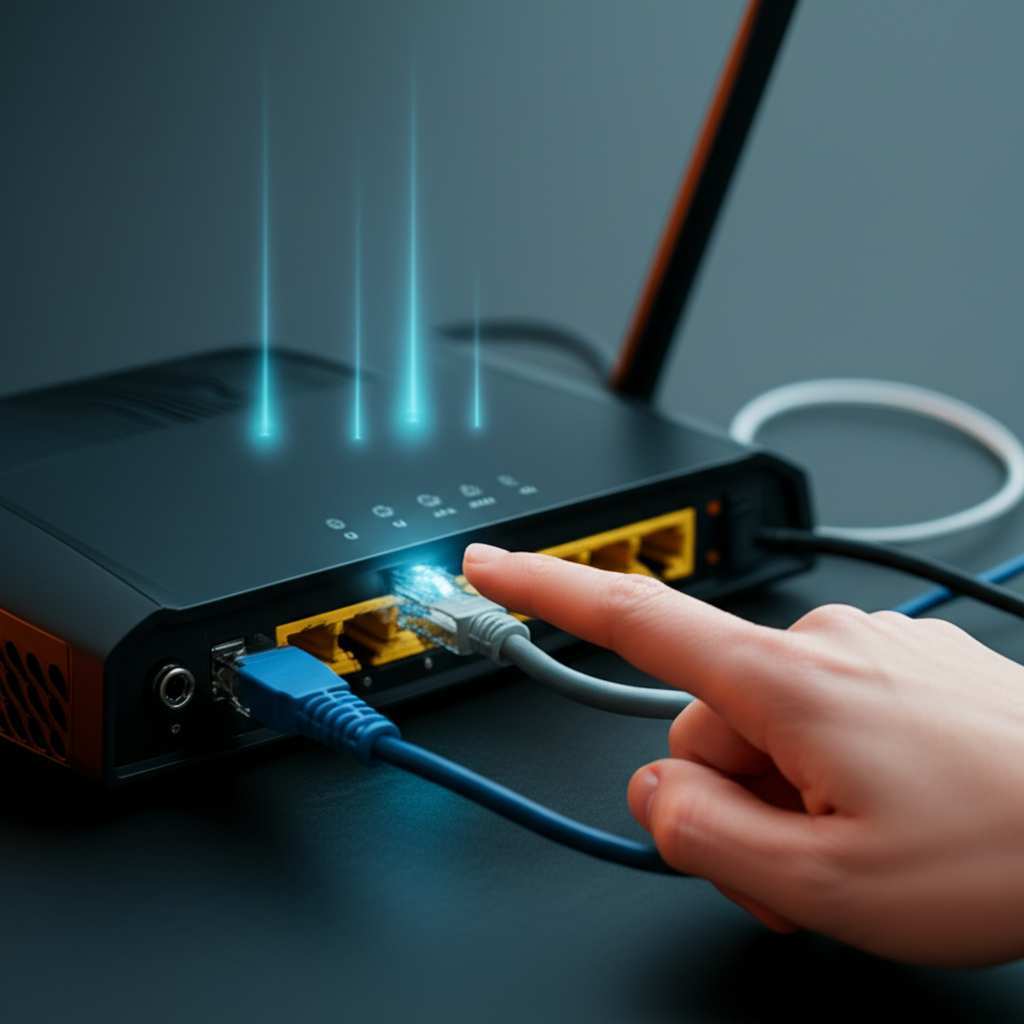
Let’s Get Connected: Easy First Steps
Before we get into anything complicated, let’s try the super-simple stuff. These are the fixes that work most of the time. They’re like the magic wand for many tech problems.
1. Check That Bluetooth is Actually On
This sounds obvious, but seriously, it happens! Make sure Bluetooth is enabled on both your speaker and your device (phone, tablet, laptop).
On your phone or tablet: Go to your Settings. Look for the “Bluetooth” option. Make sure the switch is toggled to “On.”
On your speaker: Most speakers have a dedicated Bluetooth button. Sometimes you need to press and hold it to put it in pairing mode. Check your speaker’s manual if you’re unsure, but usually, a blinking light means it’s ready to connect.
2. Bring Them Closer Together
Bluetooth has a range, usually around 30 feet (10 meters). If you’re too far away, the signal can get weak.
Move your speaker and your device closer to each other.
Try to remove any big obstacles in between, like thick walls or metal objects.
3. Power Cycle Everything: The Universal Fix!
This is the classic “turn it off and on again” trick, and it’s a lifesaver. It clears out temporary glitches.
Turn off your Bluetooth speaker. Unplug it if it’s plugged in. Wait about 30 seconds.
Turn off Bluetooth on your device. Go back into your phone or tablet’s settings and toggle Bluetooth off.
Turn your device back on.
Turn your speaker back on.
Turn Bluetooth back on on your device. Now, try pairing again.
This simple restart often solves a surprising number of connectivity woes. It’s like giving your gadgets a fresh start.
When the Basics Aren’t Enough: Deeper Dives
Okay, so the super-easy steps didn’t quite do the trick. No worries! We have more tricks up our sleeve. These next steps involve a bit more tinkering, but they’re still totally beginner-friendly.
4. Forget and Re-pair the Device
Sometimes, your device and speaker remember old connections that are causing trouble. Telling them to “forget” each other and start fresh can work wonders.
On your phone or tablet: Go to your Bluetooth settings. You’ll see a list of devices you’ve connected to before.
Find your speaker’s name in the list. Tap on it, and then select “Forget Device,” “Unpair,” or something similar.
Now, put your speaker back into pairing mode. Follow the instructions for your specific speaker (usually pressing and holding the Bluetooth button).
Scan for devices on your phone/tablet again. Your speaker should appear. Tap it to pair.
This process ensures you’re making a brand-new connection, free from any past electronic baggage.
5. Check for Software Updates
Just like your phone needs updates, your speaker might too! Some speakers can update their firmware. This can fix bugs and improve performance, including connectivity.
Check your speaker’s manufacturer website. They usually have a support section where you can find information about updates.
Follow their instructions carefully. This might involve downloading an app or connecting your speaker to a computer.
Keep your device’s operating system updated too. Sometimes, an old OS can cause issues with newer Bluetooth versions.
6. Clear the Bluetooth Cache on Your Device (Android Users)
If you’re using an Android device, clearing the Bluetooth cache can sometimes resolve stubborn connection problems. This removes temporary files related to Bluetooth that might have become corrupted.
Go to Settings on your Android device.
Tap on Apps or Applications.
You might need to tap the three dots in the corner and select Show System Apps or System Processes.
Find Bluetooth in the list.
Tap on Storage.
You should see options to Clear Cache and Clear Data. Tap Clear Cache first.
If that doesn’t work, you can try Clear Data, but be aware this might reset some Bluetooth settings.
Restart your device after clearing the cache.
This is a bit more technical, but it’s a powerful fix for Android users.
Troubleshooting Specific Scenarios
Let’s talk about some common situations and how to tackle them.
Speaker Connects to One Device, But Not Another
This often means the speaker is already connected to another device. Many speakers can only connect to one source at a time.
Check other nearby devices. Is your speaker accidentally connected to your laptop when you’re trying to use your phone?
Disconnect from the other device. Turn off Bluetooth on the device it’s already connected to, or manually disconnect it from the Bluetooth settings on that device.
Try connecting to your desired device again.
Speaker Connects, But Audio is Choppy or Cuts Out
This can be super annoying! It usually means the Bluetooth signal is weak or being interfered with.
Reduce the distance. As mentioned before, get your speaker and device closer.
Minimize interference. Other wireless devices, microwaves, and even Wi-Fi routers can sometimes interfere with Bluetooth signals. Try moving away from these.
Close unnecessary apps. Some apps running in the background can hog your device’s processing power, affecting Bluetooth performance.
Check speaker battery. A low battery on the speaker can sometimes cause performance issues. Make sure it’s charged.
Speaker Won’t Enter Pairing Mode
If your speaker isn’t flashing to indicate it’s ready to pair, it might be in a different mode or need a hard reset.
Refer to your manual. Every speaker is a little different. The manual will tell you the exact button press needed for pairing.
Try a factory reset. Some speakers have a hidden reset button or a button combination you can press to restore factory settings. This often puts it back into pairing mode. Again, check your manual for this.
Speaker vs. Device: Who’s the Culprit?
Sometimes, it’s helpful to figure out if the problem lies with your speaker or the device you’re trying to connect.
Try connecting your speaker to a different device. If it connects and works fine with another phone or tablet, the issue is likely with your original device.
Try connecting a different Bluetooth device to your speaker. If another speaker or headphones connect to your phone without issues, then your original speaker might be the problem.
This simple test can save a lot of troubleshooting time.
A Quick Look at Bluetooth Versions
You might have heard about Bluetooth 4.0, 5.0, or even newer versions. While you don’t need to be an expert, knowing a little can help. Newer versions generally offer better range, speed, and stability.
| Bluetooth Version | Typical Range | Speed | Power Efficiency | Notes |
| :—————- | :———— | :——— | :————— | :—————————————————————– |
| 4.0 | ~30 ft (10m) | Up to 24 Mbps | High | Introduced Bluetooth Low Energy (BLE), a big step forward. |
| 5.0 | ~100 ft (30m) | Up to 2 Mbps | Higher | Better range, speed, and broadcasting capabilities. |
| 5.1/5.2/5.3 | ~100 ft (30m) | Up to 2 Mbps | Even Higher | Improved direction finding, connection stability, and audio quality. |
If your speaker is older (like Bluetooth 3.0 or earlier) and your device is very new, you might encounter some compatibility hiccups. But usually, Bluetooth is designed to be backward-compatible, so it should still work! The main thing is to ensure both devices are updated and have their Bluetooth features enabled.
When All Else Fails: Contact Support
If you’ve tried everything on this list and your speaker still won’t connect, it might be time to reach out for help.
Check your warranty. If your speaker is still under warranty, you might be able to get it repaired or replaced.
Contact the manufacturer’s support. They have specific knowledge about their products and can offer advanced troubleshooting steps. You can usually find their contact information on their website.
Look for online forums. Other users might have experienced and solved the same issue. A quick search on Google or tech forums can sometimes reveal solutions. For example, sites like CNET often have user forums and troubleshooting guides.
Don’t give up if the simple fixes don’t work! There’s always a solution out there.
Frequently Asked Questions (FAQ)
Here are some quick answers to common questions about Bluetooth connectivity.
Q: Why does my speaker keep disconnecting?
A: This usually happens if the devices are too far apart, there’s interference, or the speaker’s battery is low. Try moving closer, away from other electronics, and make sure your speaker is charged. Forgetting and re-pairing can also help.
Q: Can I connect my speaker to multiple devices at once?
A: Most portable Bluetooth speakers can only connect to one device at a time. You’ll need to disconnect from one device before you can connect to another. Some higher-end speakers might support multi-point connection, but it’s not standard.
Q: Do I need to keep my phone unlocked to play music?
A: No, you don’t. Once the music is playing, you can lock your phone or switch to other apps. The Bluetooth connection will keep the music going to your speaker.
Q: My speaker is making a weird noise. What’s wrong?
A: A weird noise could be a sign of a bad Bluetooth connection (choppy audio), a faulty speaker, or even interference. Try the troubleshooting steps for choppy audio first. If it persists, it might be a hardware issue with the speaker itself.
Q: How do I know if my speaker is compatible with my new phone?
A: Most Bluetooth devices are backward-compatible, meaning a new device can connect to an older speaker, and vice-versa. As long as both devices have Bluetooth, they should be able to pair. Newer versions offer better performance, though.
Q: Is it safe to use my speaker while it’s charging?
A: Yes, it’s generally safe to use your Bluetooth speaker while it’s charging. Most speakers are designed to allow this. Just be sure to use the charger that came with your speaker or a reputable replacement.
* Q: My speaker won’t turn on at all. What should I do?
A: First, make sure it’s fully charged. Leave it plugged in for a few hours. If it still won’t turn on, try a different power outlet or charging cable. If none of that works, there might be an internal issue, and you may need to contact support.
Conclusion: Get Back to Your Music!
See? Fixing those pesky connectivity issues is usually pretty straightforward. We’ve covered everything from the simple “turn it off and on again” to a few deeper dives that can solve trickier problems.
Remember, most of the time, it’s just a little glitch that needs a quick reset or a fresh pairing. You’ve got the power to get your music flowing again!
Don’t let a silent speaker put a damper on your day. Try these easy fixes, and you’ll likely be enjoying your favorite playlists in no time. And if you ever upgrade your speaker, you’ll know what to look for to ensure smooth connections.
Now go enjoy amazing sound and make every moment louder and better! Happy listening!