Having trouble with your Bluetooth speaker? Don’t worry! Resetting it is usually an easy fix. Follow these simple steps to get your speaker working like new again, so you can enjoy your music without any fuss.
Hey there, tech adventurer! Max here from AffTechy.com. You know, sometimes our gadgets can be a little quirky. Like that one time my coffee maker decided to brew only half a cup. It happens! And when your trusty Bluetooth speaker starts acting up, it can really put a damper on your vibe.
Whether you’re trying to blast your favorite tunes at a party, get lost in an audiobook, or just enjoy some background music while you cook, a finicky speaker is a bummer. You might have tried reconnecting it a dozen times, or maybe it just won’t pair with your phone anymore. It can feel a bit frustrating, right?
But here’s the good news: most of the time, these little tech hiccups have super simple solutions. And today, we’re diving into one of the most common and effective fixes for Bluetooth speaker problems. We’re talking about resetting your speaker! It sounds a bit technical, but I promise, it’s as easy as making a peanut butter sandwich.
We’ll walk through exactly what a reset does, why it’s helpful, and how to do it for most speakers. By the end of this, you’ll be a Bluetooth speaker troubleshooting pro, ready to get back to enjoying crystal-clear sound. Let’s break it down step by step!
Why Does My Bluetooth Speaker Need a Reset?
Think of a reset like giving your speaker a fresh start. Over time, these little devices store a lot of information. They remember all the phones, tablets, and laptops they’ve connected to. Sometimes, this memory can get a bit jumbled up.
This can lead to all sorts of issues. Maybe your speaker won’t connect to a new device. Or it might connect but the sound is choppy or cuts out. Sometimes, it just refuses to turn on or pair at all. A reset clears out all that old, confusing data. It’s like clearing your computer’s cache when it starts running slow.
This process essentially returns your speaker to its factory settings. It’s like unboxing it for the very first time. All previous connections are forgotten, and the speaker is ready to form new, stable bonds. It’s a powerful first step before you start thinking about more complicated fixes.
The Magic of Resetting: What Happens?
When you reset your Bluetooth speaker, you’re essentially telling it to forget everything it has learned. This includes:
Paired Devices: It removes all previously connected phones, tablets, and computers from its memory.
Connection Settings: Any custom settings or glitches in its connection profile are wiped clean.
Temporary Glitches: Small software bugs or temporary errors that might be causing performance issues are cleared.
This is why a reset is so effective. It’s a clean slate! It doesn’t erase any firmware updates you might have installed, but it does clear out the day-to-day operational memory. It’s like rebooting your phone when an app is misbehaving.
It’s important to note that a reset is usually harmless. It won’t damage your speaker. And it’s often the quickest way to solve common connectivity problems. So, if your speaker is giving you grief, a reset is your first, best friend.
Let’s Get Technical (But Not Too Technical!)
Before we jump into the actual steps, let’s quickly cover a few things. Not all Bluetooth speakers are created equal, and the reset process can vary slightly from one brand to another. However, there are some common methods that work for the vast majority of them.
The most common ways to reset involve holding down a specific button or a combination of buttons for a certain amount of time. Sometimes, you might need to plug the speaker in, or ensure it’s turned off. We’ll cover the most frequent scenarios.
Also, if you’re looking for how to reset a Bluetooth speaker without a power button, don’t worry! We’ll touch on that too. Most speakers have dedicated buttons for power, volume, and Bluetooth pairing. The reset function is often hidden behind a slightly longer press of one of these, or a combination.
How to Reset Your Bluetooth Speaker: Step-by-Step Guide
Okay, ready to get your speaker back in action? Let’s dive into the most common ways to perform a reset.
Method 1: The Classic Button Hold
This is the most frequent method. Many speakers have a dedicated Bluetooth button, or a combination of buttons that triggers a reset.
- Turn on your speaker. Make sure it has enough battery or is plugged in.
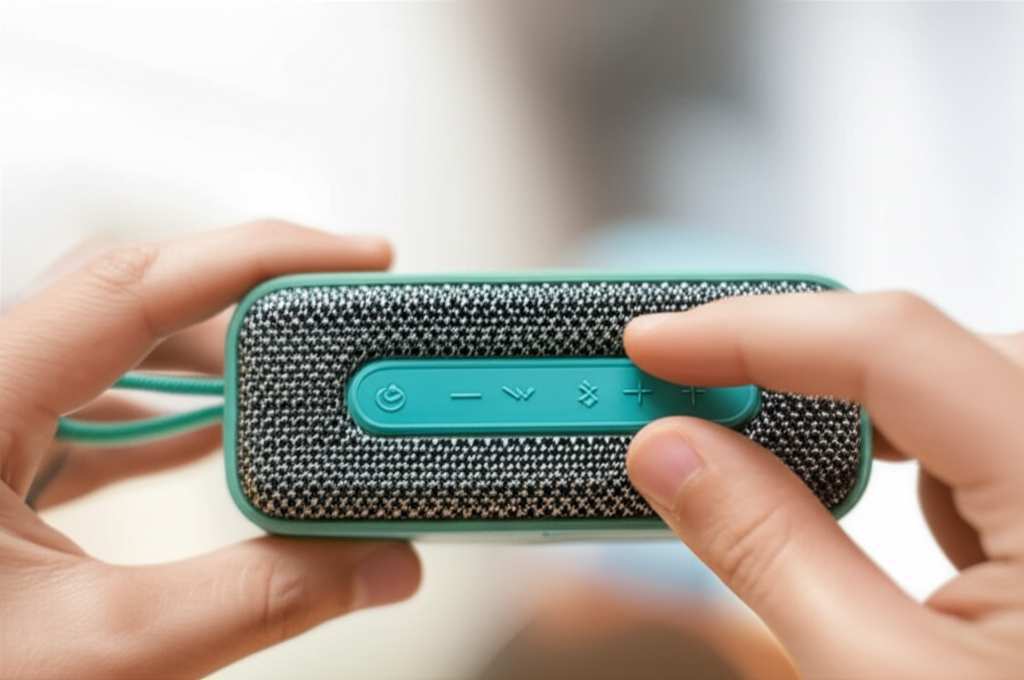
- Locate the Bluetooth button. This is usually marked with the Bluetooth symbol (a stylized “B”).
- Press and hold the Bluetooth button. Keep holding it down for about 10-15 seconds. You might hear a sound, see a light flash differently, or the speaker might even turn off and then back on.
- Release the button. Your speaker should now be reset.
- Try pairing again. Put your speaker back into pairing mode and connect your device.
Sometimes, it’s not just the Bluetooth button. Some speakers require you to hold down the Power button and the Volume Down (-) button simultaneously for about 10-15 seconds. Others might use the Power button and the Volume Up (+) button. Always check your speaker’s manual if you’re unsure!
Pro Tip: If you don’t have the manual, a quick search on Google for “[Your Speaker Brand and Model] reset” usually brings up the exact instructions.
Method 2: The Power Cycle Reset
This method is super simple and effective for many portable speakers. It involves a full power cycle.
- Turn off your speaker. Make sure it’s completely powered down.
- Unplug any charging cables. Remove it from the wall charger or any other connected device.
- Wait for about 30 seconds. This gives any residual power time to drain.
- Press and hold the Power button for 15-20 seconds. Do this while the speaker is off and unplugged. This can help discharge any remaining power and force a reset.
- Plug in the charging cable.
- Turn on your speaker. It should now be reset.
This is a good one to try if the direct button hold doesn’t seem to do anything. It’s a bit like giving the speaker a full system reboot from the ground up.
Method 3: Resetting Through an App
Some modern Bluetooth speakers, especially higher-end ones, come with companion apps. These apps often have advanced settings, and a reset option is usually one of them.
- Download and open the official app for your speaker. You can usually find this in your phone’s app store.
- Connect your speaker to your phone via Bluetooth.
- Navigate to the settings or device options within the app. Look for something like “Factory Reset,” “Restore Defaults,” or “Reset Speaker.”
- Follow the on-screen prompts. The app will guide you through the reset process.
This is often the most straightforward method if your speaker supports it. It’s designed to be user-friendly, so you don’t have to guess which buttons to press.
Resetting Without a Dedicated Power Button?
You asked about how to reset a Bluetooth speaker without a power button. This is less common, as most speakers have a power button! However, if your speaker has a very minimalist design or uses a touch interface where a power button isn’t obvious, here’s how you might approach it:
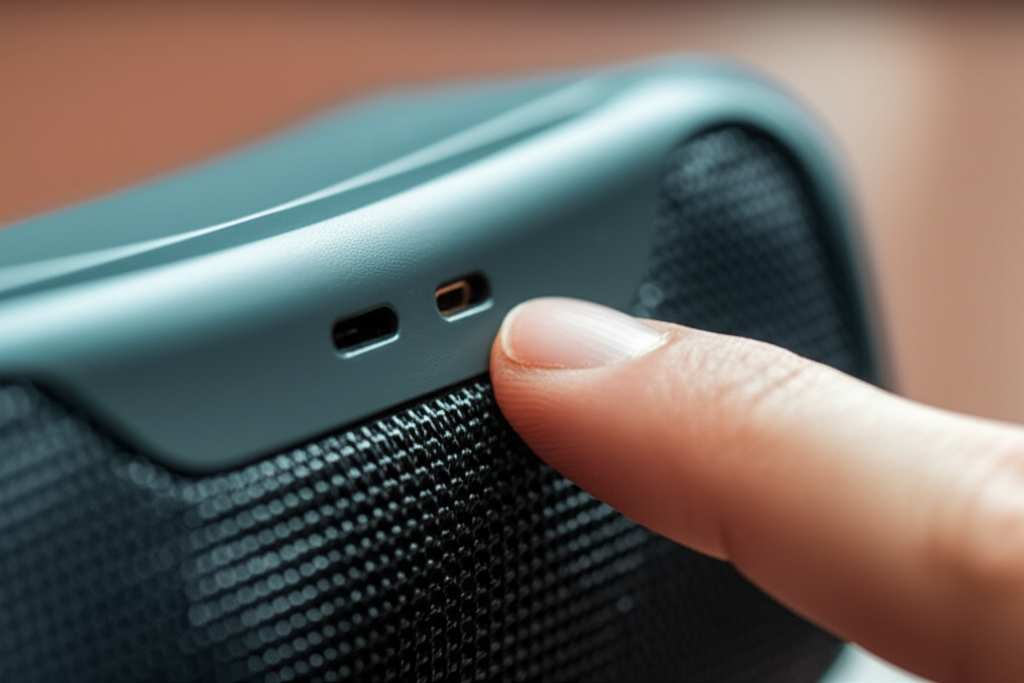
Look for a “Reset” Hole: Some electronic devices have a tiny pinhole designed for resetting. You’d need a paperclip to press it. Check around the speaker for any small openings.
Combinations of Other Buttons: If there’s no power button, the reset might be triggered by holding down the Bluetooth pairing button and perhaps a volume button for an extended period (15-30 seconds).
App Control is Key: For speakers without obvious buttons, the companion app is almost always the intended way to manage settings and perform a reset.
Battery Drain Method: If all else fails, you can try the power cycle method described above by simply letting the battery drain completely. Once it’s dead, leave it off for a good while (an hour or more), then try charging and turning it on. This can sometimes force a reset by clearing all residual power.
Always refer to your speaker’s manual first, as it will detail the specific reset procedure for your model.
When to Reset Your Speaker: Common Scenarios
So, when should you actually go through the trouble of resetting your speaker? Here are some common signs that a reset might be in order:
Connection Issues: Your speaker won’t pair with your phone, or it keeps disconnecting unexpectedly.
Audio Problems: Sound is choppy, distorted, or one speaker channel isn’t working (for stereo pairs).
Unresponsive Buttons: Some buttons on the speaker aren’t working correctly.
Speaker Won’t Turn On: It seems completely dead, even when charged.
Selling or Gifting the Speaker: You want to clear your personal data and settings before passing it on.
Troubleshooting Other Issues: As a general first step when any weird behavior occurs.
It’s like a mini-tune-up for your speaker! A reset can often fix problems that seem much more serious.
Understanding Bluetooth Pairing Modes
After you reset your speaker, you’ll usually need to put it back into pairing mode to connect it to your device. This is how your phone or tablet finds the speaker.
Here’s what you typically need to do:
Press the Bluetooth Button: On most speakers, a short press of the Bluetooth button will put it into pairing mode. Sometimes, you need to press and hold it until a light flashes rapidly or you hear a specific sound.
Check the Indicator Light: A flashing blue light is the universal sign for pairing mode. A solid blue light usually means it’s connected.
On Your Device: Go to your phone or tablet’s Bluetooth settings. Turn Bluetooth on, and your speaker should appear in the list of available devices. Tap on it to connect.
Fun Fact: Bluetooth technology was named after a Viking king, Harald Bluetooth! He was known for uniting Scandinavian tribes, just as Bluetooth technology aims to unite devices wirelessly.
Comparing Speaker Reset Methods
Let’s look at how these methods stack up. It’s helpful to know which one might be best for you.
| Method | Ease of Use | Effectiveness | When to Use |
|---|---|---|---|
| Button Hold | Medium | High | Most common issues, quick fix |
| Power Cycle | Easy | Medium-High | Speaker unresponsive, seems dead |
| App Reset | Very Easy | High | Speaker has companion app, for advanced control |
| Battery Drain | Hard (takes time) | Medium | No obvious buttons, last resort |
As you can see, the button hold is often the go-to method because it’s generally effective and available on most speakers. The app method is fantastic if your speaker has it, offering a guided experience.
What to Do If Resetting Doesn’t Work
Sometimes, even a reset won’t solve the problem. If you’ve tried all the reset methods and your speaker is still misbehaving, don’t despair! Here are a few more things to check:
Check Your Device: Make sure the Bluetooth on your phone or tablet is working correctly. Try pairing another Bluetooth device to your phone.
Update Firmware: Some speakers can be updated via an app or a computer. Check the manufacturer’s website for firmware updates.
Check for Physical Damage: Has the speaker been dropped or exposed to water? Physical damage might be the cause.
Contact Support: If your speaker is still under warranty, reach out to the manufacturer’s customer support. They can offer specific troubleshooting steps or arrange for a repair.
Consider a New Speaker: If the speaker is old and out of warranty, it might be time for an upgrade. Newer models often have better battery life and sound quality. For some great options, check out reviews on sites like CNET.
It’s always worth a shot to explore these options before giving up.
Frequently Asked Questions About Resetting Bluetooth Speakers
Let’s answer some common questions beginners have about resetting their speakers.
Q1: Will resetting my speaker delete my music?
A: Nope, absolutely not! Resetting your speaker only clears its settings and paired device memory. It doesn’t affect any music files stored on your phone or computer, nor does it erase any downloaded content on the speaker itself (if it has internal storage).
Q2: How do I know if my speaker is reset?
A: Usually, you’ll hear a confirmation sound, or the indicator lights will change. For example, a light might flash rapidly, or the speaker might power off and then back on automatically. After resetting, it should no longer be connected to your previously paired devices.
Q3: Can I reset my speaker if it’s not turning on?
A: This is a bit trickier. If it won’t turn on at all, a full power cycle (letting the battery drain completely, then charging) might help. However, if the speaker is truly unresponsive, it might indicate a deeper hardware issue, and you may need to contact the manufacturer.
Q4: How often should I reset my Bluetooth speaker?
A: There’s no set schedule! You only need to reset your speaker when you encounter problems, like connectivity issues or strange audio behavior. It’s not something you need to do regularly.
Q5: What’s the difference between resetting and unpairing?
A: Unpairing usually refers to removing a specific device from your speaker’s memory or removing the speaker from your phone’s Bluetooth list. Resetting is a more thorough process that clears all* paired devices and restores the speaker to its original factory settings. Think of unpairing as breaking up with one device, and resetting as clearing the speaker’s entire contact list.
Q6: Do I need a special tool to reset my speaker?
A: For most speakers, no! You just need to press and hold existing buttons. If your speaker has a tiny reset pinhole, you might need a paperclip or a thin, pointed object, but these are less common for Bluetooth speakers.
Q7: My speaker still won’t connect after resetting. What now?
A: If a reset didn’t fix it, try restarting your phone or tablet. Ensure the speaker is in pairing mode and that your device’s Bluetooth is on. Also, make sure you don’t have too many other Bluetooth devices active nearby, as this can sometimes cause interference. If problems persist, consult your speaker’s manual or contact the manufacturer for further assistance.
Putting It All Together: Enjoying Your Sound
There you have it! Resetting a Bluetooth speaker is usually a straightforward process that can solve a surprising number of common issues. You’ve learned why it’s helpful, the different methods to try, and what to do if it doesn’t quite fix the problem.
Remember, technology is meant to make our lives easier and more enjoyable. Don’t let a little glitch get you down. With these simple steps, you’re now equipped to tackle most Bluetooth speaker connection woes.
So go ahead, give that reset button a press (or a hold!), reconnect your devices, and get back to enjoying your favorite music, podcasts, or audiobooks in all their glory. You’ve got this!
Now go enjoy amazing sound and make every moment louder and better!