Having trouble with your Bluetooth speaker? A quick reset often fixes common connection issues and gets your music playing again in no time! It’s a simple fix that can save you a lot of hassle.
Hey there, tech explorer! You know that feeling when your favorite song is just begging to be blasted, but your Bluetooth speaker is acting up? It’s a bummer, right? Whether it’s not connecting, making weird noises, or just being plain stubborn, it can really put a damper on your vibe. Picking out the perfect speaker can be a whole adventure, and then trying to figure out why it’s not working? That can feel like a whole other quest. But don’t worry, I’m here to make it super simple. We’re going to dive into the easiest way to get your speaker back in action. Let’s break it down step by step and get your tunes flowing again!
Why Would You Even Need to Reset Your Bluetooth Speaker?
Sometimes, our gadgets just need a little nudge to get back on track. Think of it like giving your speaker a fresh start. It clears out any temporary glitches or confusing settings that might be causing problems. It’s usually the first thing to try when your speaker isn’t behaving as it should.
This little trick can solve a bunch of common annoyances. Maybe your speaker won’t pair with your phone anymore. Or perhaps it keeps disconnecting randomly. Sometimes, even the sound quality might seem off, and a reset can help sort that out. It’s like rebooting your computer when it gets slow – a quick way to fix things.

It’s not as scary as it sounds! Most Bluetooth speakers have a simple reset process. We’ll walk through the common methods, and you’ll be a pro in no time. Get ready to bring your speaker back to life and enjoy your music, podcasts, or audiobooks without a hitch.
The Magic of a Bluetooth Reset: What It Actually Does
So, what exactly happens when you reset your Bluetooth speaker? It’s pretty straightforward, really. When you perform a reset, you’re essentially telling your speaker to forget everything it has learned. This includes all the devices it has been paired with before.
It’s like wiping the slate clean. All temporary data, settings, and connection histories are erased. This is super helpful if your speaker is having trouble remembering your phone or if you’ve tried connecting it to too many devices. The speaker goes back to its original, factory settings. It’s like unboxing it for the very first time!
This process can resolve a surprising number of issues. If your speaker isn’t discoverable by your phone, or if it pairs but doesn’t play sound, a reset is often the quickest fix. It’s a universal troubleshooting step that works for many different brands and models. Think of it as a digital deep clean for your speaker.
Common Reasons Your Bluetooth Speaker Might Be Misbehaving
Let’s chat about why your speaker might be acting up. It’s not always your fault! Sometimes, technology just has a mind of its own. One of the most common culprits is a connection issue. Your phone might be trying to connect to a different device, or the speaker might be confused about which device to listen to.
Another reason could be outdated firmware. Some speakers have software that can be updated, and if it’s old, it might cause problems. Interference from other electronic devices can also mess with the Bluetooth signal. Things like microwaves or other wireless gadgets can sometimes get in the way. It’s like trying to have a quiet conversation in a noisy room!
Sometimes, it’s just a simple software glitch. A little hiccup in the speaker’s internal system can lead to all sorts of weird behavior. That’s where our trusty reset comes in. It’s designed to clear out these little gremlins and get things working smoothly again. It’s a surprisingly effective first step for many problems.
Before You Hit Reset: Simple Checks to Try First
Before we jump into the reset button, let’s try a couple of super easy things. Sometimes, the solution is simpler than you think! First, make sure your speaker is charged. A low battery can cause all sorts of strange behavior, including connection problems. Plug it in and give it some juice.
Next, try turning both your speaker and your device (like your phone or tablet) off and then back on again. This is called a power cycle, and it can clear out temporary issues on both ends. It’s a classic for a reason – it often works wonders!
Also, check the distance between your speaker and your device. Bluetooth has a limited range, usually around 30 feet (10 meters). If you’re too far away, the connection can drop. Try moving them closer together to see if that helps. These small steps can sometimes save you the trouble of a full reset.
How to Reset My Bluetooth Speaker: The Step-by-Step Guide
Okay, ready to get your speaker back in tune? Resetting your Bluetooth speaker usually involves a specific button combination or a setting within the speaker itself. Since every speaker is a little different, the exact steps can vary. But don’t worry, we’ll cover the most common methods.
Method 1: The Power Button Trick
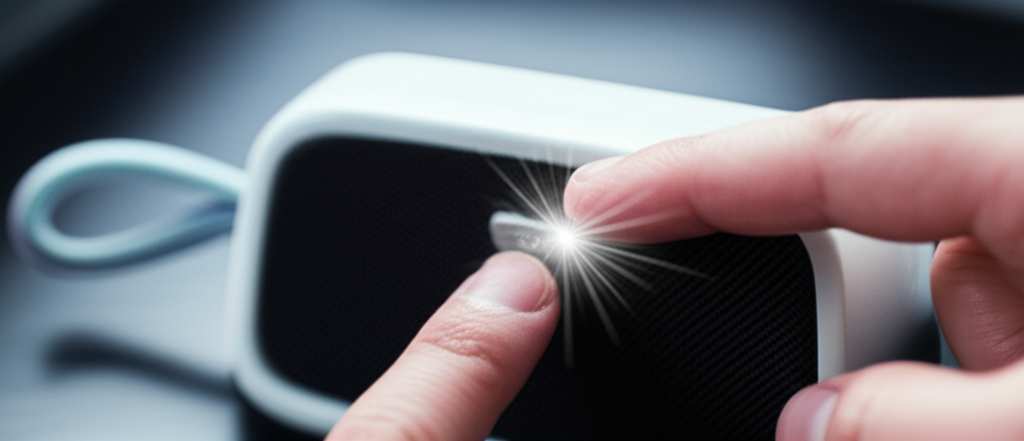
Many speakers have a simple reset that involves holding down the power button for an extended period. This is often done while the speaker is turned on. You might hear a beep or see a light change to indicate the reset has happened.
- Turn on your Bluetooth speaker.
- Locate the power button.
- Press and hold the power button for about 10-15 seconds.
- Listen for a beep or look for a flashing light that indicates a reset.
- Release the button.
- The speaker should now be back to its factory settings.
This is a great starting point because it’s straightforward and works on many models. After the reset, you’ll need to pair your device with the speaker again, just like you did the first time.
Method 2: The Bluetooth Pairing Button Combo
Some speakers require you to press and hold a combination of buttons to reset. Often, this involves the Bluetooth pairing button and the power button, or the volume up/down buttons. The manual for your speaker is your best friend here!
- Make sure your speaker is turned on.
- Find the Bluetooth pairing button (it often has a Bluetooth symbol).
- Press and hold both the power button AND the Bluetooth button simultaneously.
- Hold them down for about 10-15 seconds.
- You might hear a distinct sound or see a light sequence that confirms the reset.
- Release both buttons.
This method is common for speakers that have a dedicated pairing button. It’s designed to force the speaker to forget all previous pairings. Again, you’ll need to re-pair your devices afterwards.
Method 3: Resetting Through the Device Settings
For some speakers, especially those with companion apps, you might be able to reset them through the app itself. This is less common for a full factory reset but can be useful for troubleshooting specific connection issues.
- Open the manufacturer’s app for your Bluetooth speaker on your smartphone or tablet.
- Navigate to the speaker’s settings within the app.
- Look for an option like “Factory Reset,” “Restore Defaults,” or “Reset Speaker.”
- Follow the on-screen prompts to complete the reset.
This method is usually very straightforward if your speaker supports it. The app guides you through the entire process. It’s a modern approach to managing your gadgets!
Method 4: The “Hold All Buttons” Approach
In some cases, manufacturers might design a reset by holding down multiple buttons at once. This is often a way to ensure you don’t accidentally reset the device. It might involve holding down the power, volume up, and Bluetooth buttons together.
- Turn on your speaker.
- Identify the power, volume up (+), and Bluetooth buttons.
- Press and hold all three buttons at the same time.
- Continue holding for about 15-20 seconds.
- You should observe a visual or audible cue that the reset is complete.
- Release the buttons.
This method is less common but can be found on certain models. It’s always worth checking your speaker’s manual if the simpler methods don’t seem to work.
Finding Your Speaker’s Reset Sequence: Where to Look
Not sure which method is right for your specific speaker? No worries! The best place to find the exact reset instructions is your speaker’s user manual. It’s that little booklet that came in the box. If you’ve lost it, don’t panic!
Most manufacturers have their user manuals available for download on their official websites. Just search for your speaker’s brand and model number, and you should be able to find a PDF version. You can also try searching online with phrases like “[Your Speaker Brand] [Your Speaker Model] reset instructions.”
Sometimes, a quick YouTube search can also show you videos of people demonstrating the reset process for your specific speaker. Seeing it done can be really helpful! If all else fails, reaching out to the manufacturer’s customer support is always an option. They can guide you through the process.
What to Expect After the Reset
Once you’ve successfully reset your speaker, it’s like it’s brand new again. This means it won’t automatically connect to your phone or tablet. You’ll need to go through the pairing process once more.
On your phone or tablet, go to your Bluetooth settings. Turn Bluetooth on if it’s not already. Your speaker should now appear in the list of available devices. It might show up with its original name, like “JBL Flip 5” or “Sony SRS-XB23.” Tap on its name to connect.
You might be prompted to confirm a pairing code, though this is rare with modern speakers. Once connected, you should see it listed as an “Active” or “Connected” device. Now you can play your music, and it should connect much more smoothly!
Resetting vs. Re-Pairing: What’s the Difference?
It’s important to know the difference between resetting your speaker and simply re-pairing it. Re-pairing is what you do when you want your device to forget the speaker and then connect to it again. This is useful if the current connection is glitchy.
A reset, on the other hand, is more drastic. It wipes all previous pairings from the speaker itself. This means it forgets every phone, tablet, or computer it has ever connected to. You’re essentially returning the speaker to its out-of-the-box state. This is why you always have to re-pair all your devices after a reset.
Think of re-pairing as refreshing a single connection. Resetting is like starting over with all connections. If re-pairing doesn’t solve the problem, a reset is usually the next logical step.
When a Reset Might Not Be Enough
While resetting your Bluetooth speaker is a fantastic first step, it’s not always a magic bullet. If you’ve tried resetting your speaker and it’s still not working, there might be a deeper issue. This could be a problem with your phone or tablet’s Bluetooth connection itself.
It’s also possible that the speaker has a hardware problem. Maybe a component is damaged, or the battery is no longer holding a charge properly. If the speaker won’t turn on at all, or if it makes persistent strange noises even after a reset, it might need professional attention or replacement.
In these cases, it’s a good idea to check online forums for your specific speaker model or contact the manufacturer’s support. They might have advanced troubleshooting steps or be able to arrange for a repair. Sometimes, a faulty cable or a problem with the charging port can also be the culprit.
Pro Tips for Keeping Your Bluetooth Speaker Happy
Want to keep your speaker in tip-top shape? Here are a few simple tips to make sure it runs smoothly for a long time.
- Keep it Clean: Dust and debris can get into ports and buttons. Gently wipe your speaker with a dry, soft cloth regularly. Avoid using harsh chemicals or submerging it unless it’s specifically waterproof.
- Manage Your Pairings: While many speakers can remember multiple devices, it’s good practice to “forget” the speaker on your device if you’re not using it anymore. This helps prevent connection conflicts.
- Update Firmware: If your speaker has a companion app, check for firmware updates periodically. These updates often include performance improvements and bug fixes.
- Avoid Extreme Temperatures: Don’t leave your speaker in a hot car or out in freezing weather. Extreme temperatures can damage the battery and internal components.
- Charge Wisely: Try to avoid letting the battery drain completely too often. Most modern lithium-ion batteries prefer shallow charges.
Following these simple steps can help prolong your speaker’s life and ensure you get the best possible performance. It’s all about treating your tech with a little care!
Comparing Popular Bluetooth Speaker Features
Let’s look at a quick comparison of some common features you’ll find on Bluetooth speakers. Understanding these can help you choose your next great audio companion!
| Feature | What it Means | Why it Matters |
|---|---|---|
| Water Resistance (IPX Rating) | Indicates how well the speaker is protected against water and dust. IPX7, for example, means it can be submerged in water. | Great for poolside, beach trips, or even the shower! |
| Battery Life | The number of hours the speaker can play on a single charge. | Crucial for long listening sessions or parties without interruption. |
| Portability/Size | How compact and lightweight the speaker is. | Determines if it’s easy to carry around or fits your space. |
| Sound Quality | Refers to the clarity, bass, and overall richness of the audio. | The most important factor for enjoying music and media! |
| Connectivity Options | Besides Bluetooth, some speakers offer Wi-Fi, NFC, or aux-in ports. | Provides flexibility for different devices and connection types. |
As you can see, features like water resistance (IPX rating) are super handy for outdoor use. Battery life is key if you’re always on the go. And of course, sound quality is king – it’s what makes your music sound amazing! When choosing a speaker, think about where and how you’ll use it most.
Another Look: Speaker Battery Performance
Battery life is a big deal for wireless speakers. Here’s a look at how some popular models stack up. This can help you gauge how long you can expect to listen before needing a recharge.
| Speaker Model | Advertised Battery Life (Hours) | Typical Use Cases |
|---|---|---|
| JBL Flip 6 | 12 hours | Day trips, backyard gatherings, personal listening. |
| Sony SRS-XB23 | 24 hours | Weekend getaways, extended parties, background music for days. |
| Bose SoundLink Flex | 12 hours | Beach days, hiking, regular daily use. |
| Ultimate Ears BOOM 3 | 15 hours | Pool parties, camping, outdoor adventures. |
This table shows that battery performance can vary quite a bit! While some speakers offer marathon listening sessions, others are better suited for shorter bursts of audio. Always check the advertised battery life, but remember that real-world usage can sometimes differ based on volume and features used. For more details on specific models, check out reviews on sites like CNET.
Frequently Asked Questions About Resetting Bluetooth Speakers
Let’s answer some common questions folks have about resetting their Bluetooth speakers.
Q1: Will resetting my speaker delete my music?
Nope! Resetting your speaker only clears its connection settings and any temporary glitches. It won’t touch any of the music or audio files you might have stored on your phone or other devices. Your tunes are safe!
Q2: Do I need to reset my speaker every time it has a problem?
Not necessarily! Always try the simpler steps first, like restarting your speaker and device, and checking the distance. A reset is a more thorough step, best used when those simpler fixes don’t work.
Q3: Can I reset my speaker if it’s not turning on?
Usually, a reset requires the speaker to be powered on. If your speaker won’t turn on at all, it might indicate a battery issue or a more serious hardware problem. In that case, a reset isn’t the solution. Try charging it fully and check the power adapter.
Q4: How do I know if the reset was successful?
You’ll typically hear a specific sound, like a beep or chime, or see a light on the speaker change color or flash in a particular pattern. The speaker will then usually go into pairing mode automatically. If you’re unsure, try pairing it with your phone again; if it’s discoverable, the reset worked!
Q5: My speaker is still not working after a reset. What now?
If a reset didn’t do the trick, it’s time to explore other options. Double-check your device’s Bluetooth settings, try pairing with a different device, or consult your speaker’s manual or manufacturer support. There might be a hardware issue or a more complex software problem.
Q6: Can I reset my speaker without a manual?
Yes, absolutely! As we discussed, you can usually find the manual online on the manufacturer’s website. Searching for your speaker’s model number and “reset instructions” is also very effective. YouTube is another great resource for visual guides.
Q7: Is resetting my speaker safe for the device?
Yes, resetting your Bluetooth speaker is completely safe. It’s a standard troubleshooting procedure designed by the manufacturer to help resolve issues. It won’t damage your speaker in any way.
Conclusion: Get Your Sound Back on Track!
And there you have it! You’ve learned how to perform a quick reset on your Bluetooth speaker. It’s a simple yet powerful tool to fix those annoying connection glitches and get your audio flowing again. Remember, most speakers have a straightforward reset process, often just involving holding down a button or two.
Don’t let a stubborn speaker spoil your groove. Whether you’re jamming out, catching up on podcasts, or enjoying an audiobook, clear sound is essential. By knowing how to reset your speaker, you’re equipped to handle common tech hiccups with confidence. Give it a try next time your speaker acts up, and you’ll likely be back to enjoying your favorite sounds in minutes.
Now go forth and explore the world of sound! May your connections be strong and your music loud. Happy listening!