Connect your wireless mic to a Bluetooth speaker easily! This guide shows you the simple steps so you can get great sound for parties, presentations, or singing along, no tech headaches needed.
Hey there, tech explorer! So, you’ve got this awesome Bluetooth speaker, right? It’s perfect for blasting your favorite tunes at a backyard BBQ or making movie nights extra epic. But what if you want to add a microphone to the mix? Maybe you want to host a karaoke night, give a speech, or just belt out some tunes with a bit more flair. It can sound a little tricky, I know! Sometimes, the tech jargon can make your head spin faster than a DJ’s turntable.
But don’t you worry one bit! That’s exactly why I’m here. Think of me as your friendly guide, ready to make technology feel as simple as your favorite playlist. We’ll break down how to get that wireless mic talking to your Bluetooth speaker without any fuss. It’s all about making tech work for you, not the other way around.
We’ll go from figuring out what you need to getting everything hooked up and sounding fantastic. No confusing manuals or complicated diagrams here. Just clear, simple steps that anyone can follow. Ready to turn up the volume on your next event? Let’s dive in and make some noise!
Let’s Talk About Sound: Why This Matters
Imagine you’re at a party. Music is playing, people are chatting, and suddenly, someone grabs a microphone. They start singing, and their voice is clear, loud, and fills the whole space. That’s the magic of a good sound system! A wireless microphone gives you freedom to move, and a Bluetooth speaker delivers that sound wherever you go.
Connecting them might seem like a puzzle, but it’s actually a pretty straightforward process once you know the tricks. It opens up a world of possibilities, from giving confident presentations to throwing unforgettable karaoke parties. You’ll be the life of the party, or the most engaging speaker, with crystal-clear audio.
What You’ll Need: Your Sound Squad
Before we jump into connecting, let’s make sure you have the right gear. It’s like packing for a picnic – you need the essentials to have a great time. Most of the time, you’ll be looking for two main things:
- A Wireless Microphone System: This usually comes with a microphone and a receiver. The receiver is the piece that actually talks to your speaker.
- A Bluetooth Speaker: This is your sound powerhouse. It needs to be able to receive an audio signal.
It’s important to know that not all wireless microphones are directly Bluetooth. Some use their own radio frequencies. This is where a little detective work comes in, and we’ll cover that!
The Big Question: Can My Mic Talk to My Speaker Directly?
This is the million-dollar question! Most modern Bluetooth speakers are designed to receive audio from your phone, tablet, or computer via Bluetooth. However, they aren’t always built to directly accept a microphone’s signal, especially if the microphone uses its own wireless system (not Bluetooth itself).
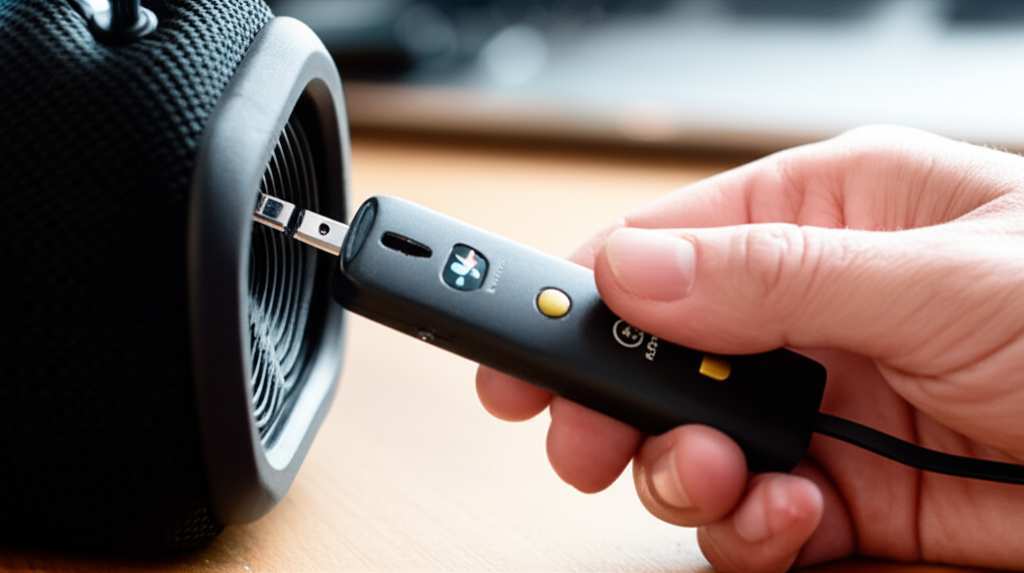
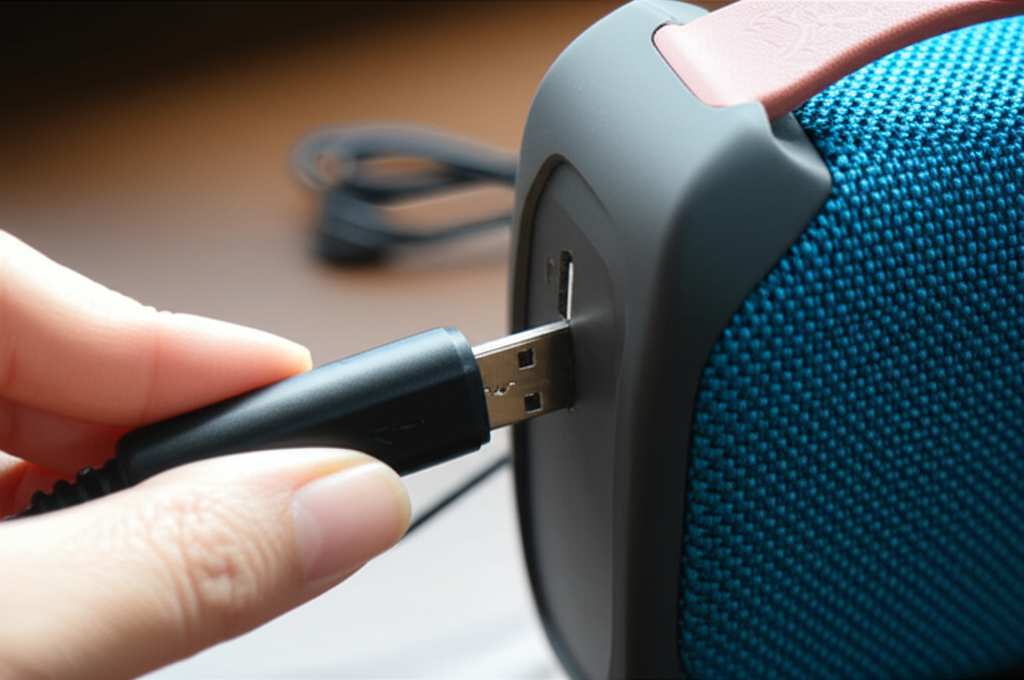
Here’s the cool part: many wireless microphone systems have a receiver that can connect to speakers using a standard audio cable. If your speaker has an auxiliary (AUX) input, or even RCA inputs, you’re golden! You can plug the receiver directly into the speaker.
If your wireless microphone is a Bluetooth microphone, then it’s a much simpler connection. You’ll just pair it with your speaker like you would your phone. Let’s explore these scenarios.
Scenario 1: My Wireless Mic is NOT a Bluetooth Mic (Most Common)
This is the most frequent setup. You have a standard wireless mic system, and you want to connect it to your regular Bluetooth speaker. The key here is the receiver unit that comes with your microphone.
Step 1: Check Your Microphone Receiver
Look at the back or side of your microphone’s receiver. What kind of output ports does it have?
- 3.5mm (1/8 inch) Audio Output: This is a common headphone-style jack.
- 1/4 inch (6.35mm) Audio Output: This is a larger jack, often used for instruments.
- RCA Outputs: These are usually red and white jacks.
Most wireless mics will have at least one of these.
Step 2: Check Your Bluetooth Speaker’s Inputs
Now, let’s look at your Bluetooth speaker. Does it have any of these input ports?
- AUX IN (3.5mm): This is the most common input on portable speakers.
- RCA IN: Some larger speakers might have these.
- Microphone Input (often labeled MIC IN): Some speakers are designed with this specifically for microphones.
Step 3: The Cable Connection – Your Audio Bridge
If both your receiver and speaker have compatible ports, you just need the right cable!
- If Receiver has 3.5mm and Speaker has AUX IN: Use a 3.5mm to 3.5mm audio cable.
- If Receiver has 1/4 inch and Speaker has AUX IN: Use a 1/4 inch to 3.5mm adapter cable.
- If Receiver has RCA and Speaker has RCA: Use an RCA cable.
- If Receiver has RCA and Speaker has AUX IN: Use an RCA to 3.5mm adapter cable.
Plug one end into the receiver’s output and the other into the speaker’s input.
Step 4: Power Up and Set Levels
Turn on your microphone receiver and your Bluetooth speaker. Make sure the speaker is set to the correct input mode (often labeled AUX or Line In). Start with the volume on both the microphone receiver and the speaker turned down low. Then, slowly turn them up while speaking into the mic.
This is a super important step for avoiding sudden loud noises! You want to find a balance where the mic is clear but not distorted.
Scenario 2: My Wireless Mic IS a Bluetooth Microphone
This is the dream scenario for simplicity! If your microphone itself is a Bluetooth device, then you’ll connect it directly to your Bluetooth speaker using the standard Bluetooth pairing process.
Step 1: Put Your Bluetooth Mic in Pairing Mode
This is usually done by pressing and holding a specific button on the microphone or its small receiver unit. Check your mic’s manual for the exact instructions. Often, a light will start flashing to show it’s ready to pair.
Step 2: Put Your Bluetooth Speaker in Pairing Mode
On your speaker, there’s usually a Bluetooth button. Press and hold it until a light flashes or you hear a sound indicating it’s in pairing mode.
Step 3: Find and Select Your Mic on the Speaker
On your speaker (or sometimes on your phone/tablet if you’re using it to control the speaker’s input), look for available Bluetooth devices. Your microphone should appear in the list. Select it to connect.
Step 4: Confirm Connection and Test
Once paired, you should hear a confirmation sound or see a solid light on both devices. Now, speak into your microphone! You might need to adjust the volume on the speaker.
A Little Tech Secret: Bluetooth vs. RF Wireless Mics
It’s good to know the difference!
- Bluetooth Microphones: Use the Bluetooth protocol to send audio. They are convenient for direct pairing with Bluetooth speakers or devices.
- RF (Radio Frequency) Wireless Mics: These use radio waves on specific frequencies. They often have a separate receiver unit that needs to be connected to your speaker via cable. They can sometimes offer better range and less latency (delay).
Most beginner-friendly wireless mics you buy today will be RF systems with a standard audio output, making Scenario 1 the most likely path for you.
Quick Troubleshooting Tips: When Things Go Sideways
Don’t panic if it doesn’t work perfectly the first time! Tech can be a little quirky. Here are some common fixes:
- No Sound at All? Double-check all your cable connections. Make sure the speaker is on the right input (AUX). Try a different audio cable if you have one.
- Sound is Distorted or Too Low? Adjust the volume on both the microphone receiver and the speaker. You want a good balance. Too much gain on the mic can cause distortion.
- Speaker Won’t Pair with Bluetooth Mic? Make sure both devices are in pairing mode. Turn them off and on again. Sometimes, clearing the Bluetooth list on your speaker can help.
- Buzzing or Humming Noise? This could be interference. Try moving the microphone receiver away from other electronic devices. Ensure your cables are not damaged.
If you’re still stuck, a quick peek at the manuals for your specific mic and speaker can be a lifesaver.
Comparing Connectivity Options: A Quick Look
Let’s break down how you might connect a microphone to a speaker, focusing on ease of use and common setups.
| Connection Method | Type of Mic Needed | Speaker Input Needed | Pros | Cons |
|---|---|---|---|---|
| Direct Bluetooth Pairing | Bluetooth Microphone | Bluetooth Connectivity | Super simple, no cables needed. | Less common for mics, potential for slight delay. |
| Audio Cable (3.5mm/1/4″) | Any Wireless Mic with Audio Output | AUX In (3.5mm) or Mic In | Very common, reliable audio signal. | Requires a physical cable connection. |
| RCA Cable | Any Wireless Mic with RCA Output | RCA In | Good for stereo or higher-quality audio. | Less common on portable Bluetooth speakers. |
See? Most of the time, a simple cable is your best friend for connecting a wireless mic to a Bluetooth speaker, especially if your mic isn’t a Bluetooth one itself. This table shows you how easy it is to match your gear!
Popular Wireless Mic & Speaker Pairings (Examples)
While specific models change rapidly, here are some types of gear that work well together. This isn’t a strict list, but it gives you an idea of what to look for.
| Device Type | Typical Connection Method | Notes |
|---|---|---|
| Portable Bluetooth Speaker (e.g., JBL Flip, Bose SoundLink) | AUX In (3.5mm) | Most common input. Great for connecting mic receivers. |
| PA System Speaker (e.g., Behringer, Mackie) | Mic In (XLR or 1/4″) or Line In (RCA/1/4″) | Often has dedicated mic inputs, making it easier. |
| Basic Wireless Microphone System (e.g., Shure PG series, Rode Wireless GO) | 3.5mm or 1/4″ Audio Output from Receiver | Designed to connect to cameras, mixers, or speakers. |
| Karaoke Machine with Bluetooth | Mic In (1/4″) and Bluetooth | Can often accept wired mics and stream music via Bluetooth. |
When you’re shopping, just check the specs! Look for an “AUX IN” on your speaker and an “AUDIO OUT” on your mic receiver. It’s that simple! For more detailed reviews on specific gear, sites like CNET and TechRadar are fantastic resources.
Making Your Sound Shine: Extra Tips
Want to take your sound from good to great? Here are a few more friendly tips:
- Positioning is Key: Don’t hold the mic right up to the speaker. Keep some distance to avoid feedback (that squealing noise!). A few feet is usually good.
- Control the Volume: Start low and gradually increase. This protects your ears and your equipment.
- Check Battery Life: Make sure both your mic and speaker are charged up before you start. Nothing kills the mood like a dead battery!
- Minimize Background Noise: If you’re in a noisy environment, try to find a quieter spot. Your voice will come through much clearer.
- Experiment with EQ: Some speakers and mic receivers have basic EQ (equalizer) settings. Play around with them to find the best sound for your voice.
Frequently Asked Questions (FAQ)
Q1: Can I connect any wireless microphone directly to my Bluetooth speaker?
A1: Not always directly via Bluetooth. Most wireless mics use their own radio frequencies and need to be connected to the speaker using an audio cable (like an AUX cable) plugged into the speaker’s input port. If your mic is a Bluetooth mic, then yes, you can pair it directly.
Q2: What kind of cable do I need to connect my wireless mic receiver to my Bluetooth speaker?
A2: It depends on the ports! Most commonly, you’ll need a 3.5mm to 3.5mm audio cable if both your receiver and speaker have that port. You might also need adapters like 1/4 inch to 3.5mm or RCA to 3.5mm.
Q3: My speaker has a “Mic In” port. Can I just plug my wireless mic receiver into that?
A3: Yes, if your receiver has a compatible output (like 1/4 inch or 3.5mm) and your “Mic In” port matches. This is often the best way to get good sound, as the port is designed for microphones.
Q4: I’m getting a loud screeching sound (feedback). What’s wrong?
A4: That’s feedback! It happens when the microphone picks up the sound coming from the speaker and amplifies it. Try moving the microphone further away from the speaker, or turning down the volume on the speaker or the mic receiver slightly.
Q5: Do I need a special Bluetooth adapter for my microphone?
A5: Only if your wireless microphone system doesn’t have a standard audio output and you specifically want to connect it via Bluetooth. However, most non-Bluetooth wireless mics come with receivers that have audio outputs, so you just need the right cable.
Q6: Can I connect my microphone to my speaker and also stream music from my phone at the same time?
A6: This depends on your speaker! Some speakers allow you to connect a microphone via AUX while also playing music via Bluetooth from another device. Others might only allow one input at a time. Check your speaker’s manual to be sure.
Q7: My wireless mic has a small dongle. Do I plug that into my speaker?
A7: If the dongle is a Bluetooth transmitter/receiver, it might pair with your speaker if the speaker also has Bluetooth. More often, though, the dongle is the receiver for the mic, and that receiver unit has the audio output you’ll use to connect to your speaker via cable.
Conclusion: You’re Ready to Amplify!
See? Connecting your wireless mic to a Bluetooth speaker is totally doable. Whether you’re using a simple audio cable to bridge the gap or pairing a true Bluetooth microphone, the steps are clear and straightforward. You’ve learned how to identify the right ports, choose the correct cables, and even troubleshoot common issues.
Now you can confidently set up for karaoke nights, backyard parties, presentations, or any event where you need your voice to be heard loud and clear. Don’t be afraid to experiment a little with the settings to get that perfect sound. The world of amplified sound is now at your fingertips!
Now go enjoy amazing sound and make every moment louder and better!