Don’t let your Bluetooth speaker die mid-song! Keep it on by adjusting power-saving settings, using a constant power source, or disabling auto-off features. We’ll show you how to stop that annoying shut-off and keep the music playing.
Hey there, tech adventurers! Max here from AffTechy.com. You know that feeling, right? You’re jamming out to your favorite playlist, or maybe you’re in the middle of an important call, and suddenly… silence. Your trusty Bluetooth speaker has decided it’s time for a nap. It’s super frustrating, especially when you least expect it.
I’ve been there too! It’s like the speaker has a mind of its own, shutting off just when the vibe is perfect. Picking the right speaker can feel like navigating a maze sometimes, with all sorts of buttons and settings. But don’t worry, we’re going to untangle this mystery together.
This guide is all about making sure your Bluetooth speaker stays powered on when you need it. We’ll walk through simple steps and easy tips to avoid that dreaded auto-off. Let’s break it down so you can enjoy uninterrupted sound!

Why Does My Bluetooth Speaker Keep Turning Off?
It’s a common question, and the answer usually boils down to a few things. Most Bluetooth speakers have a built-in feature to save battery life. They do this by turning themselves off after a period of inactivity or when the battery gets low. It’s a smart design, but sometimes it’s just not what we want.
Think of it like your phone – it goes to sleep to save power. Your speaker does something similar. If it doesn’t detect any sound or any device connected for a while, it assumes you’re done and powers down. This is great for saving battery, but not so great when you’re trying to have a long listening session or use it as a speakerphone.
Understanding Your Speaker’s Power Settings
Most modern Bluetooth speakers come with automatic power-saving features. These are designed to conserve battery life when the speaker isn’t actively being used. While this is fantastic for extending playback time, it can be a real buzzkill if your speaker turns off mid-party or during an important call.
The good news is that many speakers offer ways to tweak these settings. You might be able to adjust how long it takes for the speaker to go into standby mode, or even disable the feature altogether. It often depends on the brand and model of your speaker, so let’s explore how to find these options.

Method 1: Check the Speaker’s Physical Buttons and Controls
Sometimes, the simplest solutions are right in front of you. Many speakers have dedicated buttons or switches that control power-related features. You might not even know they’re there!
Look for these common controls:
- Power Button: This is the obvious one. Make sure it’s fully powered on. Some speakers have a long-press function to turn them on or off.
- Auto-Off/Power-Saving Button: Some models have a specific button, often marked with a battery or a power icon with a line through it, that toggles the auto-off feature. Pressing this might disable or adjust the timer.
- Volume Controls: While not directly related to turning off, ensuring your volume is at a decent level can sometimes prevent a very low-volume signal from being interpreted as “no sound” by the speaker.
Here’s a quick tip: If you’re unsure, grab your speaker’s manual! It’s the ultimate guide to all its functions.
Method 2: Explore the Companion Mobile App
Many higher-end Bluetooth speakers come with a dedicated smartphone app. This app is usually your gateway to unlocking advanced settings that aren’t accessible via the speaker’s physical buttons. It’s where you can really customize your listening experience.
These apps often let you:
- Adjust Auto-Off Timers: You can usually set a longer delay before the speaker shuts down or turn the feature off completely.
- Firmware Updates: Sometimes, an update can improve battery management or fix bugs related to power.
- EQ Settings: While not directly related to auto-off, customizing sound profiles can enhance your overall enjoyment.
How to find and use the app:
- Check your speaker’s box or manual for the app name and download instructions.
- Download the app from your phone’s app store (iOS App Store or Google Play Store).
- Open the app and follow the prompts to connect it to your speaker. This usually involves Bluetooth pairing.
- Navigate through the app’s menus to find settings related to power, sleep, or auto-off.
This is often the most powerful way to control your speaker’s behavior. For example, brands like Bose and JBL frequently offer robust companion apps with detailed power management options.
Method 3: Disable Auto-Off via Device Settings (Less Common)
In some rare cases, certain Bluetooth speakers might have their auto-off behavior influenced by the device they are connected to. This is more common with Bluetooth headphones than speakers, but it’s worth a quick check.
On your smartphone or tablet, you can sometimes find Bluetooth device settings. Look for your speaker in the list of connected devices. Tap the gear icon or “i” symbol next to it. Some operating systems might offer options to prevent the device from disconnecting or going into a low-power state, though this is quite uncommon for speakers.
For example, on some Android devices:
- Go to Settings.
- Tap Connected devices or Bluetooth.
- Find your speaker in the list of paired devices and tap the gear icon.
- Look for any options related to power management or battery saving.
It’s important to note that this method is less likely to work for speakers compared to headphones, as speakers are typically designed to manage their own power. But hey, it doesn’t hurt to look!
Method 4: Use a Constant Power Source (The Most Reliable Way!)
If you want to guarantee your speaker never turns off due to battery issues or inactivity, the most straightforward solution is to keep it plugged in. Many Bluetooth speakers can operate and charge simultaneously.
Here’s how this works:
- Plug it in: Connect your speaker to its charger and plug it into a wall outlet or a USB power source.
- Keep it connected: As long as it’s plugged in, the speaker will draw power from the outlet, and the battery will either stay full or charge. This also bypasses most auto-off timers that are designed to save battery.
This is especially useful if you’re using your speaker for background music at an event, as a soundbar for your TV, or for long conference calls. You just need to make sure you have a power outlet nearby. Some larger portable speakers even have AC power ports specifically for this purpose.
Fun Fact: Some power banks can also be used to keep your speaker charged and running for extended periods, making them great for outdoor gatherings or situations without easy access to an outlet.
Method 5: Trick Your Speaker into Thinking It’s Active
This is a bit of a hack, but it can work in a pinch if your speaker’s auto-off is too aggressive and you can’t find a setting to disable it. The idea is to send a continuous, low-level audio signal to the speaker. This tells the speaker that it’s actively being used and should stay on.
How to try this:
- Find a quiet audio source: You can use a white noise generator app, a continuous low-frequency tone, or even a very quiet, long track of music.
- Set the volume low: Make sure the volume is barely audible, so it doesn’t disturb you or others.
- Play it on loop: Ensure the audio source is set to repeat continuously.
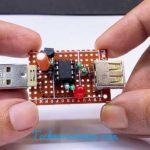
This method essentially tricks the speaker’s sound detection system into thinking there’s an active audio stream. It’s not the most elegant solution, but it can prevent the speaker from shutting down unexpectedly. Some people even use tiny USB dongles that emit a low-level signal specifically for this purpose, though these are less common for speakers.
Choosing a Speaker That Stays On
When you’re shopping for a new Bluetooth speaker, keep an eye out for features that address this annoyance. Not all speakers are created equal when it comes to power management.
What to look for:
- Companion App Control: As mentioned, speakers with good apps often let you disable auto-off.
- Long Battery Life: While it doesn’t stop auto-off, a longer battery life means you’ll have to deal with it less often.
- AC Power Option: Speakers designed for home use or parties often have a direct AC power input.
- Stereo Pairing/Multi-Room Features: These systems often have more sophisticated power management that keeps them active when linked.
Here’s a quick comparison of speaker types and their typical auto-off behavior:
| Speaker Type | Typical Auto-Off Behavior | Best for Avoiding Auto-Off |
|---|---|---|
| Basic Portable Speakers | Aggressive auto-off (5-15 mins inactivity) | Requires app or continuous power |
| Smart Speakers (e.g., Google Home, Alexa) | Rarely auto-off when plugged in; uses voice commands | Always plugged in, so not an issue |
| Home Audio Bluetooth Speakers | Often have longer timers or can be set to stay on | Usually have AC power options |
| Rugged/Outdoor Speakers | Varies; many have robust apps | Check for app control or AC input |
Remember to read reviews and check product descriptions for details on power-saving features. A speaker that allows you to disable auto-off is a winner for uninterrupted listening!
Troubleshooting: Speaker Still Turns Off?
Even after trying these tips, if your speaker is still stubbornly shutting down, there might be a few other things to consider.
Check the Battery Health: If your speaker is old, the battery might not hold a charge well. This can cause it to shut down prematurely, even if it’s not related to the auto-off timer. Some apps can show you battery health.
Firmware Issues: Ensure your speaker’s firmware is up to date. Manufacturers often release updates to improve performance and fix bugs, including power management issues. You can usually do this through the companion app.
Faulty Unit: In rare cases, the speaker itself might be faulty. If it consistently turns off under all conditions, even when plugged in and actively playing sound, it might be time to contact the manufacturer for support or consider a replacement.
It’s always a good idea to consult the manufacturer’s support website or contact their customer service if you’re facing persistent issues. They might have specific advice for your model.
Frequently Asked Questions (FAQ)
Q1: My speaker keeps turning off after only 5 minutes. How do I fix this?
A1: This is usually the auto-off feature kicking in. Try looking for a companion app for your speaker. Most apps allow you to extend or disable this timer. If there’s no app, see if there’s a physical button to turn off power saving, or simply keep it plugged into a power source.
Q2: Can I completely disable the auto-off feature on any Bluetooth speaker?
A2: Not always. It depends heavily on the speaker’s design and manufacturer. Many higher-end speakers offer this option through their apps, but some simpler models might not have a way to disable it.
Q3: Will keeping my speaker plugged in all the time damage the battery?
A3: Modern speakers have smart charging technology. They usually stop charging once the battery is full, so leaving them plugged in shouldn’t damage the battery. It’s generally safe and the best way to prevent unexpected shut-offs.
Q4: My speaker turns off even when music is playing. What’s wrong?
A4: This is unusual! It could mean the audio signal is too low, or there might be a fault with the speaker. Try increasing the volume slightly. If it persists, check for firmware updates or contact the manufacturer. It might be a defect.
Q5: I don’t have a smartphone. How can I manage my speaker’s settings?
A5: If your speaker requires an app and you don’t have a smartphone, you might be limited. Check the speaker’s physical buttons first. If there’s no way to adjust power settings, keeping it plugged in is your best bet. Some speakers might have desktop software, but that’s rare.
Q6: Is there a way to make my speaker stay on for longer without using an app?
A6: Yes! The most reliable way is to keep it plugged into a power outlet. If that’s not possible, you can try playing a continuous, low-volume audio track (like white noise) from another device to trick the speaker into staying active.
Wrapping Up: Enjoy Uninterrupted Sound!
So there you have it! Dealing with a Bluetooth speaker that keeps turning off can be a real mood killer, but it doesn’t have to be a mystery. We’ve covered checking physical buttons, diving into companion apps, using a constant power source, and even a little trick to keep it awake.
Remember, the easiest and most reliable way to prevent your speaker from shutting off is often just to keep it plugged in. If you prefer portability, exploring your speaker’s app is your next best bet. Now you’re armed with the knowledge to make sure your tunes, podcasts, or calls keep going as long as you want them to!
Go ahead, try out these tips on your speaker. You’ll be amazed at how much smoother your listening experience becomes. Now go enjoy amazing sound and make every moment louder and better!