Connecting your Sony Bluetooth speaker is super easy! This guide walks you through pairing it with your phone or other devices in just a few simple steps. Get ready for great sound without the wires!
Hey there, tech explorers! Max Donovan here from AffTechy.com, your go-to spot for making gadgets feel like your best pals. You know, those moments when you just want to blast your favorite tunes, dive into a podcast, or make movie night epic? A good speaker makes all the difference. But sometimes, getting that speaker hooked up can feel like solving a puzzle.
I remember when I first got my hands on a sleek Sony Bluetooth speaker. I was so excited to fill my room with sound! But then came the moment of truth: connecting it. It felt a little daunting, wondering if I’d need a degree in tech to get it working.
That’s why I’m here! We’re going to break down exactly how to connect your Sony Bluetooth speaker. No confusing jargon, no complicated diagrams. Just clear, friendly steps that anyone can follow.
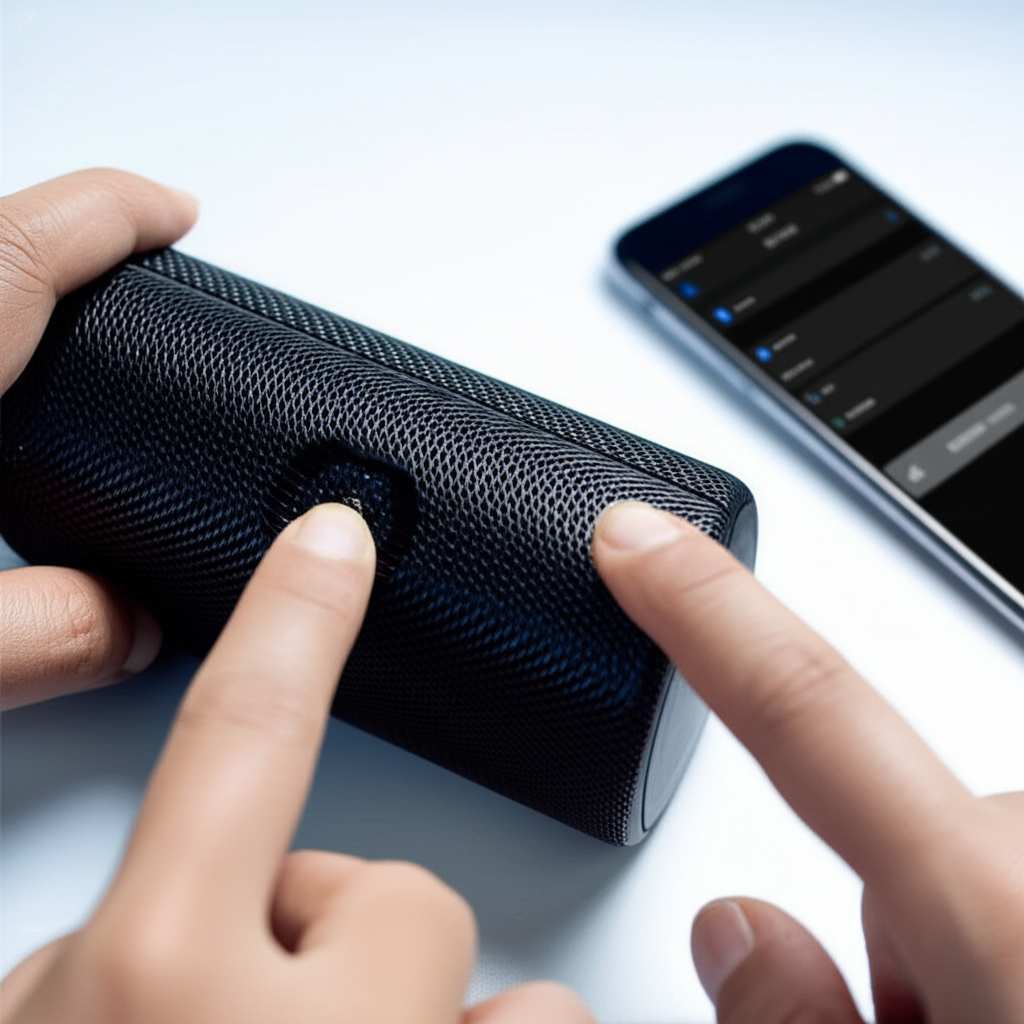
Think of it like making a new friend. You need to introduce yourselves, right? Bluetooth is kind of the same. We’ll help your speaker and your device say hello to each other so they can share music.
Ready to unlock the awesome sound your Sony speaker is capable of? Let’s dive in and make this connection a breeze!
Let’s Talk About Sound: Why Connect a Bluetooth Speaker?
Music, podcasts, audiobooks, movies – they all sound so much better with a good speaker. Your phone or tablet has a speaker, sure, but it’s usually small and a bit tinny. A dedicated Bluetooth speaker gives you richer sound, deeper bass, and makes everything feel more immersive. It’s like upgrading from a whisper to a full concert experience!
Plus, the freedom of Bluetooth is fantastic. No more tangled wires getting in the way. You can place your speaker anywhere in the room, or even take it outside, and your music follows you. It’s about convenience and a much better listening experience, all rolled into one.
Your Sony Bluetooth Speaker: What’s Inside the Box?
When you unbox your new Sony speaker, you’ll usually find a few key things. There’s the speaker itself, of course, which feels solid and well-made. You’ll also get a USB charging cable, often with a little adapter or power brick. Don’t forget the instruction manual – while it might look intimidating, it’s a great reference if you get stuck.
Some speakers come with a strap for easy carrying, while others might include an audio cable for wired connections. Take a moment to look over everything. It helps to know what you’re working with before you start pairing.
Getting Started: Powering Up Your Sony Speaker
The very first step is always to make sure your speaker has some juice. Most Sony Bluetooth speakers have a built-in rechargeable battery. You’ll typically find a power button, often with a little LED light next to it. Press and hold this button for a few seconds until the speaker turns on. You might hear a little chime or see the light change color.
Charging is super important. If your speaker is brand new, it’s a good idea to give it a full charge before you start using it. Plug the USB cable into the speaker’s charging port and connect the other end to a power source, like a USB wall adapter or your computer. The indicator light will usually show you when it’s charging and when it’s fully charged.
The Magic Word: Bluetooth Pairing!
Okay, now for the main event: pairing! Bluetooth is a technology that lets devices talk to each other wirelessly over short distances. Think of it like a secret handshake that your speaker and your phone (or tablet, laptop, etc.) need to learn. This process is called “pairing.”
Once paired, your devices will remember each other, and you won’t have to go through the full pairing process every time. It’s like introducing two friends; after the first meeting, they’ll recognize each other instantly.
Step-by-Step: How to Connect Your Sony Bluetooth Speaker
Let’s break this down into super simple steps. We’ll cover connecting to a smartphone, but the process is very similar for other devices like tablets and laptops.
Step 1: Turn On Your Sony Speaker and Put it in Pairing Mode
First, make sure your speaker is powered on. After it’s on, you need to tell it you want to connect a new device. This is called “pairing mode.”
How do you do that? On most Sony speakers, there’s a dedicated Bluetooth button, often with the Bluetooth symbol (a sort of stylized arrow). You usually need to press and hold this button for a few seconds. You’ll know it’s in pairing mode when you hear a specific sound or see a blinking LED light. The light usually blinks blue when it’s ready to pair.
Pro Tip: Some newer Sony models might automatically enter pairing mode the first time you turn them on after unboxing. If you don’t see a dedicated Bluetooth button, just turn it on and check your device’s Bluetooth settings.
Step 2: Turn On Bluetooth on Your Device
Now, grab your smartphone, tablet, or laptop. You need to turn on its Bluetooth.
For iPhones/iPads: Go to Settings > Bluetooth and toggle the switch to “On.”
For Android Phones/Tablets: Go to Settings > Connected devices (or Connections) > Bluetooth and toggle the switch to “On.”
For Windows Laptops: Click the Start button, go to Settings > Devices > Bluetooth & other devices, and toggle the Bluetooth switch to “On.”
For Macs: Click the Apple menu > System Preferences > Bluetooth, and click “Turn Bluetooth On.”
Your device will then start searching for nearby Bluetooth devices. You’ll see a list appear under “Available Devices” or something similar.
Step 3: Select Your Sony Speaker from the List
This is where your device finds your speaker! Look for your Sony speaker’s name in the list of available devices on your phone or computer. The name is usually something like “Sony [Model Number]” or “SRS-[Model Number].”
For example, if you have a Sony SRS-XB13, you’ll look for “SRS-XB13” in the list. If you’re not sure of the name, check the speaker’s manual or the original packaging.
Once you see it, tap or click on its name.
Step 4: Confirm the Pairing (If Necessary)
Sometimes, your device and speaker will pair automatically after you select the speaker. Other times, you might see a prompt asking you to confirm a pairing code or a PIN. This is a security feature to make sure you’re connecting to the correct device.
Usually, if a PIN is required, it’s a simple “0000” or “1234.” Just enter it if asked. If it doesn’t work, check your speaker’s manual.
Once the pairing is successful, you’ll usually hear a confirmation sound from your speaker, and the blinking light will turn solid. Your device will also show that the speaker is “Connected.”
Step 5: Play Some Music!
Hooray, you’re connected! Now the fun part begins. Open your favorite music app, podcast player, or video, and start playing something. The sound should now come out of your Sony Bluetooth speaker!
If you don’t hear anything, double-check that the volume is turned up on both your device and your speaker. Sometimes, there are separate volume controls.
Tips for a Smoother Connection Experience
Keep Devices Close: For the initial pairing, keep your speaker and your device within a few feet of each other. This helps ensure a strong connection.
One Device at a Time: Most Sony speakers can only be actively connected to one device at a time. If you want to connect a different device, you might need to disconnect the first one from your speaker first.
Forget and Re-Pair: If you ever have trouble connecting, try “forgetting” the speaker from your device’s Bluetooth list and then re-pairing it. This often solves stubborn connection issues.
Update Your Device: Make sure your smartphone or computer’s operating system is up to date. Software updates often include improvements to Bluetooth connectivity.
Understanding Your Sony Speaker’s Features
Sony packs a lot of cool tech into their speakers. Here are a few common features you might encounter:
Key Features and What They Mean
Bluetooth Version: Newer versions (like Bluetooth 5.0 or 5.1) offer better range, faster speeds, and more stable connections than older versions.
NFC (Near Field Communication): Some Sony speakers have NFC. This allows for “tap-to-pair” functionality. If your phone also has NFC, you can simply tap your phone to the NFC logo on the speaker, and it will pair automatically! Super convenient.
Multi-Point Connection: This feature lets your speaker connect to two devices simultaneously. For example, you could have it connected to your phone and your laptop.
Water Resistance (IP Rating): Many Sony speakers are water-resistant, indicated by an IP rating (e.g., IPX4, IP67). This means they can handle splashes or even be submerged in water for a short time, making them great for poolside or bathroom use.
Sound Modes: Some speakers have different sound modes like “EXTRA BASS” or “Sound Boost” to enhance specific audio frequencies.
Connecting Multiple Devices: A Quick Look
So, what if you want to connect more than one device to your Sony speaker? Here’s how it generally works:
Standard Pairing: As mentioned, most speakers connect to one device at a time. To switch, you disconnect from the current device and then initiate pairing with the new one.
Multi-Point Connection: If your speaker supports “Multi-Point Connection” (check your manual!), you can pair two devices.
1. Pair the first device as usual.
2. Turn off Bluetooth on the first device or disconnect the speaker from it.
3. Put the speaker back into pairing mode and pair the second device.
4. Once the second device is connected, turn Bluetooth back on for the first device. It should reconnect automatically.
It’s a handy feature if you use both your phone and your laptop for audio.
Sony Bluetooth Speaker Models: A Quick Comparison
Sony offers a wide range of Bluetooth speakers, from compact portable ones to larger, more powerful units. Here’s a peek at how a couple of popular models stack up. This can give you an idea of what features to expect.
| Feature | Sony SRS-XB13 | Sony SRS-XG500 |
| :————- | :———————————— | :————————————- |
| Size | Compact, portable | Larger, powerful |
| Waterproof | IP67 (dustproof & submersible) | IP65 (dustproof & splash-proof) |
| Battery Life| Up to 16 hours | Up to 30 hours |
| Bass Boost | Yes | Yes (MEGA BASS) |
| NFC Pairing| No | Yes |
| Multi-Point| No | Yes |
| Stereo Pairing| Yes (with another XB13) | Yes (with another XG500) |
* What does this table tell you? As you can see, the SRS-XB13 is a fantastic, super-portable option that can handle rougher conditions like dust and submersion, perfect for adventures. The SRS-XG500 is a beast for parties, offering much longer battery life and a more robust sound. Choosing between them depends on your needs – portability and durability for the XB13, or maximum sound and playtime for the XG500.
For more in-depth reviews and comparisons of Sony speakers, sites like CNET often have excellent breakdowns.
Troubleshooting Common Connection Issues
Sometimes, things don’t go as planned. Don’t worry, most problems have simple fixes!
Q1: My device can’t find my Sony speaker. What should I do?
A: First, make sure your speaker is on and in pairing mode. The Bluetooth light should be blinking. Also, check that Bluetooth is enabled on your device. If it’s still not showing up, try turning both devices off and on again.
Q2: The speaker paired, but there’s no sound. What’s wrong?
A: Check the volume levels on both your speaker and your device. Make sure the speaker is selected as the audio output device on your phone or computer. Sometimes, restarting both devices can fix this.
Q3: My Sony speaker keeps disconnecting. How can I fix it?
A: This could be due to distance or interference. Try moving your device closer to the speaker. Also, ensure there aren’t too many other Bluetooth devices active nearby. If the issue persists, try forgetting the speaker from your device’s Bluetooth settings and re-pairing it.
Q4: Can I connect my Sony speaker to my TV?
A: Most TVs don’t have built-in Bluetooth. If your TV does, follow the same pairing steps. If not, you might need a separate Bluetooth transmitter that plugs into your TV’s audio output.
Q5: My speaker is paired with my phone, but I want to connect my laptop. How?
A: You’ll need to disconnect the speaker from your phone first. Go to your phone’s Bluetooth settings, find the speaker, and tap “Disconnect” or “Unpair.” Then, put your speaker back into pairing mode and connect your laptop.
Q6: How do I update my Sony speaker’s firmware?
A: Some Sony speakers can be updated via a companion app, like the Sony | Music Center app. Download the app on your smartphone, connect your speaker, and the app will usually notify you if an update is available.
Q7: My speaker won’t charge. What’s the problem?
A: Try using a different USB cable and power adapter. Ensure the charging port on the speaker is clean. If it still doesn’t charge, there might be an issue with the battery or charging circuitry, and you might need to contact Sony support.
Keeping Your Speaker Happy: A Little Maintenance
Taking care of your speaker ensures it lasts and sounds great. A simple wipe-down with a soft, dry cloth is usually all it needs to keep it looking fresh. If it gets a bit dusty, a slightly damp cloth can work, but always ensure the speaker is off and unplugged.
For water-resistant speakers, always check the manual about drying it properly after exposure to water. Keeping the charging port clean and dry is also important. A little care goes a long way!
Conclusion: Your Sound, Your Way!
And there you have it! Connecting your Sony Bluetooth speaker is really that straightforward. You’ve learned how to power it up, put it in pairing mode, connect it to your devices, and even troubleshoot common hiccups.
It’s amazing how a simple Bluetooth connection can transform your listening experience. From impromptu dance parties to enjoying a quiet audiobook, your speaker is ready to deliver. Don’t be afraid to explore different music apps or even connect it to your computer for a richer movie sound.
Now go forth and enjoy that fantastic audio quality! You’ve got the knowledge, so go make every moment louder and better with your awesome Sony Bluetooth speaker! Happy listening!