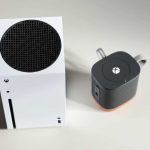
Connecting your Xbox One to a Bluetooth speaker is super easy! Just follow these simple steps and get ready to boost your game audio or movie sound without messy wires. Let’s get that awesome sound going!
Hey there, tech adventurer! Ever feel like your Xbox One’s sound could be, well, a little more… epic? Maybe those built-in speakers or your current setup just aren’t cutting it for those booming game explosions or the dramatic movie scores. We’ve all been there, staring at a tangle of wires or wishing for a simpler way to get that crystal-clear audio. Choosing the right speaker can feel like a puzzle, and figuring out how to connect it? That can be even trickier!
But don’t you worry, my friend! I’m Max Donovan from AffTechy.com, and I’m here to make this whole tech thing feel like a breeze. Think of me as your friendly guide through the gadget jungle. Today, we’re diving into something super useful: hooking up your Xbox One to a Bluetooth speaker. It’s not as complicated as it sounds, I promise!
We’ll break it all down, step-by-step, so you can ditch the wires and enjoy your games and movies with amazing sound. Ready to turn up the volume? Let’s make this happen!
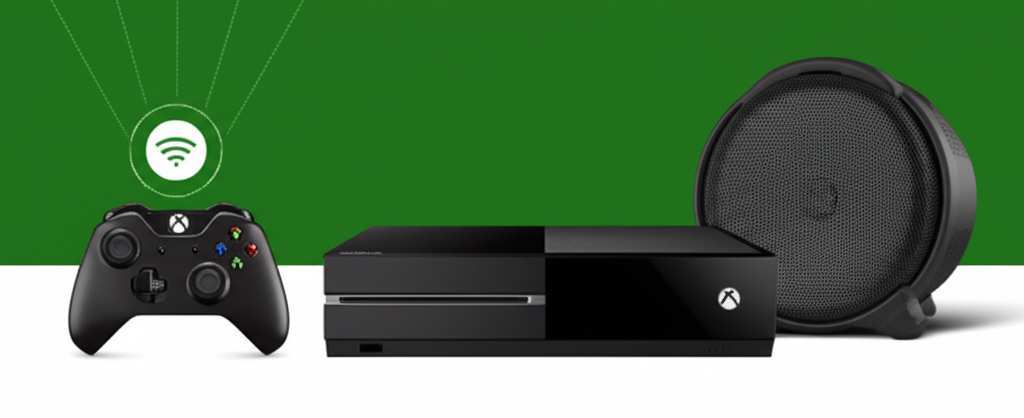
Let’s Talk About Sound: Why Bluetooth Speakers Rock for Your Xbox
Imagine this: you’re deep in an intense gaming session, or maybe you’re catching up on your favorite show. Suddenly, the audio booms through your room, making you feel like you’re right there in the action. That’s the magic of a good speaker! They add a whole new layer to your entertainment, making everything more immersive and enjoyable.
Now, think about wires. They can be a pain, right? They get tangled, they limit where you can place your speaker, and sometimes they just look messy. Bluetooth speakers are fantastic because they cut out all that hassle. You can place your speaker anywhere within range and enjoy rich sound without a single cable getting in your way. It’s all about convenience and better audio quality!
So, why connect your Xbox One to one? It’s simple: freedom and better sound! You can move your speaker around your room, connect it wirelessly, and often get audio quality that’s way better than your TV’s built-in speakers. It’s a simple upgrade that makes a huge difference to your gaming and entertainment experience.
Before We Connect: What You Need to Know
Okay, so you’ve got your Xbox One and you’re excited about using your Bluetooth speaker. That’s awesome! But here’s a little secret: the Xbox One doesn’t have built-in Bluetooth audio support for headphones or speakers directly. Yep, I know, a bit of a bummer! It’s one of those quirky tech things we sometimes run into.
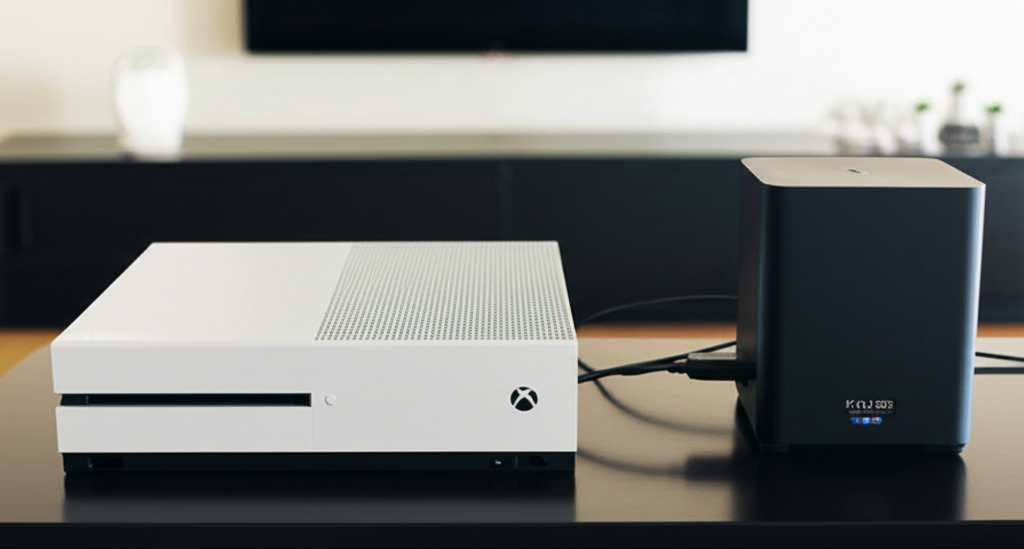
This means you can’t just pair your speaker directly to the Xbox like you would with your phone. But don’t throw your speaker out the window just yet! There are still fantastic ways to get that wireless audio goodness. We just need a little helper to bridge the gap between your Xbox and your speaker.
The good news is, these solutions are pretty straightforward and won’t break the bank. We’ll explore the most common and effective ways to achieve this. So, let’s get ready to find the perfect method for you!
The Secret Sauce: How to Get Bluetooth Audio from Your Xbox One
Since the Xbox One doesn’t have built-in Bluetooth for audio, we need a workaround. The most popular and reliable way to do this is by using a Bluetooth Transmitter Adapter. Think of this little gadget as a translator. It takes the audio signal from your Xbox and beams it wirelessly to your Bluetooth speaker.
There are a few types of these adapters, but they generally plug into your Xbox’s audio output. This could be the headphone jack on your controller, the optical audio port on the back of the console, or even the USB port. Once plugged in, the adapter pairs with your Bluetooth speaker, and voilà! You’ve got wireless sound.
It’s a really clever solution that opens up a world of wireless audio possibilities for your Xbox. It might seem a little extra at first, but trust me, the freedom and sound quality are totally worth it. Let’s look at the main ways to set this up.
Method 1: Using a Bluetooth Transmitter with Your Controller’s Headphone Jack
This is often the easiest and most common method, especially if your Bluetooth speaker is portable and you want to use it away from the TV. Many Bluetooth transmitter adapters are designed to plug right into the 3.5mm headphone jack found on your Xbox One controller.
Here’s how it works: you plug the small transmitter into your controller’s headphone port. Then, you pair your Bluetooth speaker with this transmitter. The audio from your game or movie will then travel wirelessly from the controller-mounted transmitter to your speaker. It’s like giving your controller a wireless audio superpower!
This method is great because it’s super portable. You can even use it with your headphones if you want a wireless audio experience that way too. It’s a small device that makes a big difference.
Step-by-Step Guide: Controller Headphone Jack Method
Ready to try this out? It’s simpler than you think! Just follow these steps carefully, and you’ll be enjoying wireless sound in no time.
1. Get Your Gear Ready: You’ll need your Xbox One, your Xbox One controller, a Bluetooth transmitter adapter that plugs into a 3.5mm audio jack, and your Bluetooth speaker. Make sure your speaker is charged and ready to go!
2. Charge Your Controller: If you’re using a wireless controller, ensure it has enough battery power. Some adapters draw a little power, so a full charge is always a good idea.
3. Plug In the Transmitter: Take your Bluetooth transmitter adapter and plug its 3.5mm audio jack firmly into the headphone port on the bottom of your Xbox One controller. You’ll feel it click into place.
4. Power On the Transmitter: Most transmitters have a power button. Press and hold it until the indicator light starts blinking. This usually means it’s in pairing mode. Check your adapter’s manual for specific instructions.
5. Put Your Speaker in Pairing Mode: Now, turn on your Bluetooth speaker and put it into pairing mode. This usually involves pressing and holding a Bluetooth button until a light blinks or you hear a sound. Again, consult your speaker’s manual if you’re unsure.
6. Pair Them Up: The transmitter and speaker should find each other automatically. The blinking lights on the transmitter will usually turn solid, or change color, once they’re successfully paired. This might take a few seconds.
7. Adjust Xbox Audio Settings: On your Xbox One, go to Settings > General > Volume & audio output. Under “Headset format,” you might need to select “Headset audio” or a similar option. Also, check “Speaker audio” and ensure it’s set to “Stereo uncompressed” or “Dolby Atmos for headphones” if your speaker supports it. The exact settings can vary, so experiment a bit!
8. Test the Sound: Start a game or play some music on your Xbox. You should now hear the audio coming from your Bluetooth speaker! If you don’t hear anything, double-check all your connections and pairing steps.
Quick Tips for Controller Connection
Adapter Placement: Some people find it more comfortable to use a short extension cable for the transmitter so it doesn’t stick straight out.
Battery Drain: Keep an eye on your controller’s battery life, as the transmitter can use a bit of power.
Range Matters: Bluetooth has a limited range, usually around 30 feet (10 meters). Keep your speaker within this range for a stable connection.
Method 2: Using a Bluetooth Transmitter with the Optical Audio Port
If you want a more permanent setup or if your controller’s headphone jack isn’t working out, using the Xbox One’s optical audio port is another excellent option. This method provides a dedicated audio output from the console itself, which can sometimes offer a cleaner signal.
This type of Bluetooth transmitter typically connects to the optical audio port (also known as TOSLINK or S/PDIF) on the back of your Xbox One. It might also need a USB connection for power. Once connected and paired with your speaker, all audio from the Xbox will be sent wirelessly.
This is a great choice if you have a dedicated gaming spot and want to avoid plugging/unplugging things from your controller. It’s a stable, dedicated audio solution.
Step-by-Step Guide: Optical Audio Port Method
This method involves a few more connections, but it’s still very manageable. Let’s walk through it together.
1. Gather Your Equipment: You’ll need your Xbox One, an optical audio Bluetooth transmitter adapter (make sure it supports the S/PDIF optical connection), a USB power cable (often included with the adapter), your Bluetooth speaker, and potentially a USB power source for the adapter (like a spare USB port on your TV or an AC adapter).
2. Locate Ports: Find the optical audio out port on the back of your Xbox One. It’s usually a small, square-ish port with a red light inside. You’ll also need a USB port for power.
3. Connect the Transmitter:
Plug the optical audio cable into the optical out port on your Xbox One.
Connect the other end of the optical audio cable to the optical input on your Bluetooth transmitter adapter.
Connect the USB power cable to the transmitter adapter.
Plug the other end of the USB cable into a powered USB port. This could be on your Xbox One, your TV, or a wall adapter.
4. Power On the Transmitter: Turn on your Bluetooth transmitter adapter. It should start blinking, indicating it’s ready to pair. Check its manual for the exact pairing procedure.
5. Put Speaker in Pairing Mode: Turn on your Bluetooth speaker and activate its pairing mode. Refer to your speaker’s manual if you’re unsure how.
6. Pair Them Up: The transmitter and speaker should automatically connect. The blinking light on the transmitter will usually become solid once paired.
7. Configure Xbox Audio Settings:
On your Xbox One, navigate to Settings > General > Volume & audio output.
Under “HDMI audio” or “Optical audio,” select “Stereo uncompressed.” The optical port needs a specific format.
If you’re using an optical audio adapter, ensure the “HDMI audio” setting is set to “Stereo uncompressed” as well, just to be safe.
You might also need to set “Optical audio” to “Stereo uncompressed” or “Bitstream out” depending on your adapter and speaker capabilities. It’s often best to start with “Stereo uncompressed.”
8. Test the Audio: Launch a game or app. You should now hear sound coming from your Bluetooth speaker. If not, double-check all connections and ensure the adapter and speaker are properly paired.
Pros and Cons: Optical vs. Controller Jack
Let’s break down which method might be best for you.
| Feature | Controller Headphone Jack Method | Optical Audio Port Method |
|---|---|---|
| Setup Ease | Very Easy | Moderately Easy |
| Portability | High (transmitter moves with controller) | Low (adapter is stationary) |
| Audio Quality | Good (depends on adapter and jack) | Potentially Better (dedicated digital signal) |
| Power Source | Controller battery | External USB power (console, TV, adapter) |
| Interference Risk | Slightly higher (controller signals) | Lower (dedicated audio line) |
| Compatibility | Works with most controllers | Requires optical audio port on Xbox One |
As you can see, the controller method is super convenient for on-the-go gaming or if you don’t have easy access to a USB power source near your Xbox. The optical method offers a more robust connection, potentially with slightly better audio fidelity, if you prefer a fixed setup.
What to Look For in a Bluetooth Transmitter Adapter
Not all Bluetooth adapters are created equal! To get the best experience, here are a few things to keep in mind when you’re shopping around.
Bluetooth Version: Look for adapters that use Bluetooth 5.0 or higher. Newer versions offer better stability, faster pairing, and a longer range.
Codec Support: Some adapters support low-latency codecs like aptX or aptX LL (Low Latency). These are fantastic for gaming because they minimize the delay between what you see on screen and what you hear. This is super important to avoid audio lag!
Power Source: Does it draw power from the controller, or does it need a separate USB connection? If it needs USB, make sure you have a spare port available.
Connection Type: Double-check that it uses the port you want – 3.5mm headphone jack or optical audio.
Battery Life (for adapter): If the adapter has its own battery, check how long it lasts. Some can be used while charging, which is ideal.
Brand Reputation: Stick to reputable brands. Reading reviews can help you avoid faulty products.
Here’s a quick look at some popular types of adapters you might find:
| Adapter Type | Connection Point | Power Source | Best For |
|---|---|---|---|
| Controller Jack Adapter | Xbox One Controller 3.5mm Headphone Port | Controller Battery / USB Passthrough | Portability, ease of use, wireless headphones |
| Optical Audio Adapter | Xbox One Optical Audio (S/PDIF) Out Port | External USB Power | Dedicated, stable audio, potentially better quality |
| USB Bluetooth Dongle | Xbox One USB Port | Xbox USB Port | Simpler connection if optical isn’t available (check compatibility!) |
Remember, the USB dongle method is less common for direct audio output on Xbox One compared to the other two. Always check product descriptions carefully to ensure compatibility!
Fun Facts About Bluetooth Audio!
Did you know Bluetooth technology is named after a Viking king? Harald Bluetooth united Danish tribes, and the technology’s creators thought it was a fitting name for a technology that would unite different devices! Pretty cool, right?
Also, Bluetooth operates in the 2.4 GHz frequency band. This is the same band used by Wi-Fi, microwaves, and other devices. That’s why sometimes, if you’re too close to a microwave or have too many devices on Wi-Fi, your Bluetooth connection might get a little spotty. It’s all about sharing that airwave space!
Common Hiccups and How to Fix Them
Sometimes, technology doesn’t play nice right away. If you’re having trouble, don’t sweat it! Here are a few common issues and their fixes:
No Sound:
Check all your connections. Is the adapter plugged in securely?
Is your Bluetooth speaker turned on and paired correctly?
Did you set the correct audio output settings on your Xbox?
Try restarting your Xbox, the adapter, and the speaker.
Audio Lag (Latency):
This is common with Bluetooth. Look for adapters that support low-latency codecs (like aptX LL).
Try moving your speaker closer to the transmitter.
Ensure there are no major Wi-Fi or other 2.4 GHz interference sources nearby.
Sometimes, a simple reboot of all devices can help.
Connection Dropping:
Make sure your speaker and adapter are within range.
Check for interference from other wireless devices.
Ensure both your adapter and speaker have enough battery charge.
Speaker Not Pairing:
Make sure both devices are in pairing mode.
Turn off other Bluetooth devices nearby that might be trying to connect.
Try “forgetting” the speaker on the transmitter (if possible) and re-pairing.
Consult the manuals for both your adapter and speaker.
If you’re still stuck, a quick search for your specific adapter model and “Xbox One connection issues” might bring up solutions from other users or the manufacturer. Websites like CNET often have great troubleshooting guides for audio devices!
Making Your Choice: Which Transmitter is Right for You?
Choosing the best Bluetooth transmitter adapter really depends on your setup and preferences.
For Gamers Who Move Around: If you often game in different rooms or want the flexibility to use your speaker on the go, the controller headphone jack method is likely your best bet. It’s simple, portable, and easy to set up. Just remember to keep an eye on your controller’s battery.
For a Dedicated Gaming Zone: If you have a primary gaming setup and want a solid, consistent audio connection, the optical audio port method is excellent. It provides a direct audio feed from the console and might offer a slight edge in audio clarity.
* For Simplicity and Cost: Sometimes, the cheapest adapters work perfectly fine for casual listening. If you’re on a budget and just want to add wireless audio without worrying about latency for movies or general use, a basic 3.5mm adapter can do the trick.
It’s always a good idea to read reviews from other Xbox users to see how well a particular adapter performs with the console.
Frequently Asked Questions (FAQ)
Q1: Can I connect any Bluetooth speaker to my Xbox One?
A: Yes, you can connect most standard Bluetooth speakers to your Xbox One, but you’ll need a Bluetooth transmitter adapter since the Xbox doesn’t have built-in Bluetooth audio support.
Q2: Will I experience audio lag (delay) with a Bluetooth speaker?
A: Bluetooth can sometimes have a slight delay. For the best experience, especially for gaming, look for a Bluetooth transmitter adapter that supports low-latency codecs like aptX LL.
Q3: How do I put my Xbox One into pairing mode?
A: Your Xbox One itself doesn’t have a pairing mode for audio devices. You put the Bluetooth transmitter adapter into pairing mode, and then you put your Bluetooth speaker into pairing mode. They then connect to each other.
Q4: Do I need a special kind of Bluetooth adapter for Xbox One?
A: You need a Bluetooth transmitter adapter that can receive audio from your Xbox One’s controller headphone jack or optical audio port. Not all Bluetooth adapters are transmitters; some are receivers. Make sure you get a transmitter!
Q5: Can I use two Bluetooth speakers with my Xbox One at the same time?
A: Most basic Bluetooth transmitters only support connecting to one speaker or headphone set at a time. Some advanced adapters might offer dual-device connectivity, but this is less common for simpler setups.
Q6: What if my Bluetooth speaker doesn’t sound loud enough?
A: First, check the volume on both your Xbox One and your Bluetooth speaker. Then, ensure you’ve selected the correct audio output settings on your Xbox. If it’s still too low, the speaker itself might have limitations, or you might need to consider a more powerful speaker or a transmitter with a stronger output.
Q7: Can I connect my Xbox One controller to a Bluetooth headset directly?
A: No, the Xbox One controller doesn’t support Bluetooth audio for headsets directly. You would still need a Bluetooth transmitter adapter that plugs into the controller’s headphone jack to use Bluetooth headphones wirelessly.
Wrapping It Up: Enjoy Your Wireless Sound!
And there you have it! Connecting your Xbox One to a Bluetooth speaker is totally achievable and makes a world of difference to your gaming and entertainment. We’ve covered why it’s awesome, the different ways to do it using a handy Bluetooth transmitter adapter, and what to look for to get the best sound.
Remember, whether you use the controller jack for ultimate portability or the optical port for a rock-solid connection, the key is having that little adapter to bridge the gap. It’s a small step that unlocks a much more immersive audio experience.
Don’t be afraid to experiment with the settings on your Xbox and your transmitter to find what sounds best for you. The world of tech is all about making it work for your needs!
Now go forth, connect that speaker, and enjoy your games and movies with incredible, wire-free sound. Make every explosion louder, every soundtrack richer, and every gaming moment more epic! Happy gaming and happy listening!