Want to blast your game audio through a cool Bluetooth speaker on your Xbox One? It’s easier than you think! Follow these simple steps to boost your sound experience without any fuss. Get ready for richer game sounds and music!
Hey there, tech adventurer! Max here from AffTechy.com. You know, sometimes the best way to really get into a game or movie is with awesome sound. That built-in TV speaker can only do so much, right? And a good Bluetooth speaker? Oh man, it can transform your whole setup! But then you think, “Can I actually connect my awesome speaker to my Xbox One?” It sounds like it should be simple, but tech can sometimes feel like a puzzle.
Don’t you worry about a thing! We’re going to break down exactly how to get your Xbox One and your favorite Bluetooth speaker singing the same tune. We’ll make it super easy, no confusing jargon, just clear steps. Think of me as your friendly guide, walking you through it.
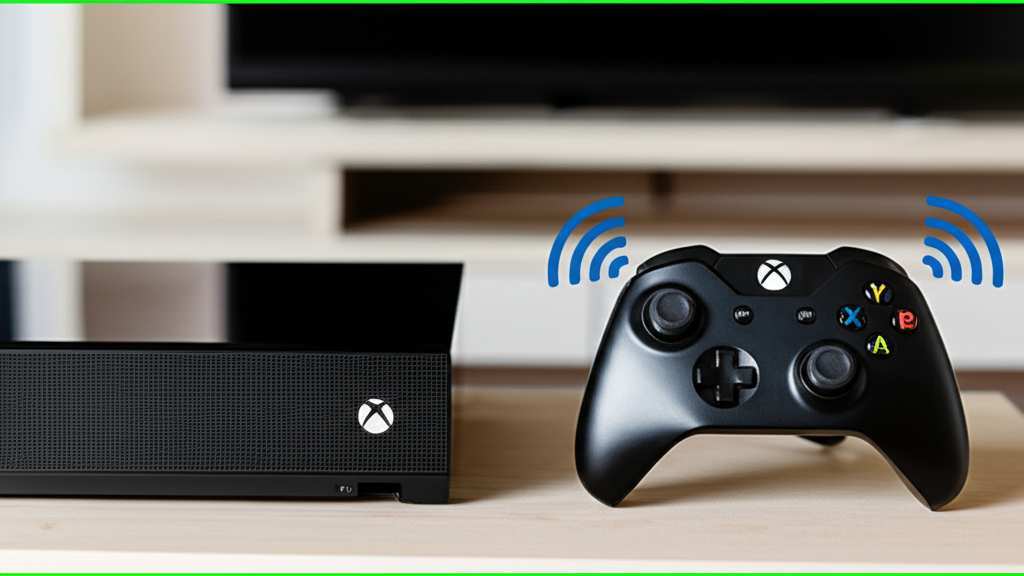
We’ll cover everything from what you need to the actual connection process. It’s all about making your gaming and entertainment time even more epic. Ready to ditch those tinny TV speakers and dive into some serious sound? Let’s make this happen!
Why Connect Your Bluetooth Speaker to Xbox One?
Imagine this: you’re deep into a thrilling game, the explosions are booming, and the soundtrack is epic. Now, imagine that sound coming from a rich, full Bluetooth speaker instead of your TV’s speakers. It’s a game-changer, literally! Connecting a Bluetooth speaker can seriously amp up your gaming sessions and movie nights.
You get more immersive audio. This means you can hear every little detail, from footsteps creeping up behind you to subtle environmental sounds. It makes the experience so much more real. Plus, you can often position your speaker for the best sound.

It’s also super convenient! Many Bluetooth speakers are portable. This means you can easily move your sound setup around your room or even take it to another space. No more being tied to one spot with wires. It’s all about flexibility and better sound.
The Big Question: Can Xbox One Directly Connect to Bluetooth Speakers?
Here’s the scoop: the Xbox One console itself doesn’t have built-in Bluetooth support for audio devices like speakers or headphones. That might sound like a bummer at first, but don’t click away just yet! There are still fantastic ways to make this happen.
This is a common point of confusion for many gamers. Microsoft designed the Xbox One to use specific wireless audio solutions. They focused on their own Xbox Wireless Headsets and controllers, which use a different, proprietary wireless technology. This is why your phone or tablet can connect to Bluetooth speakers easily, but your Xbox One can’t directly.
But fear not! We’re going to explore the workarounds that let you enjoy that sweet Bluetooth speaker sound with your Xbox One. It’s all about finding the right adapter or a smart little trick.
What You’ll Need: Your Sound Setup Toolkit
To get your Bluetooth speaker hooked up to your Xbox One, you’ll need a couple of things. The most important piece is a way to bridge the gap between your Xbox and the Bluetooth speaker.
Think of it like needing an adapter to plug your foreign phone charger into a US outlet. You need something to make the connection possible. We’ll look at the most common and effective options to get this done.
Here’s a quick rundown of what you might need:
Your Xbox One Console: Of course! Whether it’s the original Xbox One, Xbox One S, or Xbox One X, the methods we’ll discuss apply.
Your Bluetooth Speaker: Make sure it’s charged and ready to pair.
A Bluetooth Transmitter/Adapter (Recommended): This is often the easiest and most reliable solution. We’ll dive into what these are shortly.
An Audio Cable (Sometimes): Depending on the adapter or setup, you might need a 3.5mm audio cable.
Your Xbox Controller: You might need it for initial setup or to adjust settings.
Method 1: The Bluetooth Transmitter/Adapter – Your Best Friend for Sound
This is the most popular and straightforward way to connect your Bluetooth speaker to your Xbox One. A Bluetooth transmitter is a small device that plugs into your Xbox and broadcasts the audio signal wirelessly. Your Bluetooth speaker then picks up this signal.
These transmitters are designed specifically for this purpose, making the setup smooth. They often have their own pairing buttons and indicator lights, so you know when everything is connected. It’s like giving your Xbox a temporary Bluetooth superpower!
There are a few types of these adapters:
USB Bluetooth Audio Transmitters: These plug directly into a USB port on your Xbox. Some might require an optical audio cable connection as well for the best audio quality.
3.5mm Audio Jack Transmitters: These plug into the audio-out port on your TV or sometimes the headphone jack on your Xbox controller (though this can sometimes have latency issues).
Let’s explore how to use one of these.
How to Use a USB Bluetooth Audio Transmitter
Many modern USB Bluetooth transmitters are designed to work directly with gaming consoles. They often handle both power and audio through the USB port.
Here’s a step-by-step guide:
1. Plug in the Transmitter: Find a USB port on your Xbox One. Plug the Bluetooth transmitter into it. The Xbox should recognize it as a USB device.
2. Put the Transmitter in Pairing Mode: Most transmitters have a small button. Press and hold this button until an indicator light starts blinking. This means it’s ready to find a device. Check your transmitter’s manual for exact instructions, as this can vary.
3. Put Your Bluetooth Speaker in Pairing Mode: On your speaker, you’ll need to activate its Bluetooth pairing mode. This is usually done by pressing and holding a dedicated Bluetooth button. Again, consult your speaker’s manual if you’re unsure.
4. Wait for Them to Connect: The transmitter and speaker will search for each other. Once they find each other, the blinking lights on both devices should turn solid or change color. This indicates they are successfully paired.
5. Configure Xbox Audio Settings: Now, you need to tell your Xbox to send audio to the transmitter.
Go to Settings on your Xbox One.
Select Volume & audio output.
Under Speaker audio, you might see an option related to your transmitter. If it’s a USB transmitter, it might automatically default to sending audio. If you have options, select the one that corresponds to your transmitter.
You may also need to adjust the Headset format under Controller audio. Sometimes, sending audio via USB means you might need to select “Stereo uncompressed” or a similar option here if you have a headset plugged into the controller, or if the system expects audio output.
6. Test the Sound: Play some game audio or music. You should now hear it coming from your Bluetooth speaker!
Pro Tip: Some USB transmitters also support connecting two speakers or headphones at once. This is great if you and a friend want to share the audio experience wirelessly.
How to Use a 3.5mm Audio Transmitter
If your USB transmitter doesn’t have an audio-out option, or if you’re using a different type of adapter, a 3.5mm audio transmitter is another good choice. This type often connects to your TV’s headphone jack or optical audio out.
1. Connect the Transmitter:
To your TV: Plug the 3.5mm audio cable from the transmitter into your TV’s headphone port. If your TV has an optical audio out, you might use an optical cable and a transmitter that supports it.
To your Xbox Controller (Less Ideal): You can plug some transmitters into the headphone jack of your Xbox One controller. However, this method can sometimes introduce audio lag (latency), which can be annoying in games.
2. Power the Transmitter: Most 3.5mm transmitters need power. This is usually via a USB cable connected to the Xbox, a USB power adapter, or sometimes internal batteries.
3. Put Transmitter in Pairing Mode: Press and hold the pairing button on the transmitter until the indicator light blinks.
4. Put Speaker in Pairing Mode: Activate pairing mode on your Bluetooth speaker.
5. Wait for Connection: Allow the devices to pair. Lights should become solid.
6. Configure TV Audio Settings (If applicable): If you plugged into your TV, you might need to go into your TV’s audio settings and ensure the audio output is set to the correct port (e.g., “Headphone,” “External Speaker,” or “Optical”).
7. Configure Xbox Audio Settings:
Go to Settings on your Xbox One.
Select Volume & audio output.
Under Speaker audio, select HDMI audio or Optical audio depending on how your TV is connected to the Xbox, and ensure it’s set to Stereo uncompressed or Bitstream out if using optical. The audio signal is coming from the TV to the transmitter, so the Xbox needs to send the signal to the TV correctly.
8. Test the Sound: Play some audio to confirm it’s working.
A Note on Latency: Audio latency, or lag, is the delay between what you see on screen and what you hear. This can be a problem with Bluetooth audio, especially in fast-paced games. High-quality Bluetooth transmitters, particularly those using the aptX Low Latency codec, can minimize this. Always check the product description for latency information.
Method 2: Using Your TV’s Bluetooth Capabilities (If Available)
Some newer smart TVs have built-in Bluetooth support. If your TV has this feature, you might be able to connect your Bluetooth speaker directly to your TV, and then the Xbox audio will be routed through the TV.
This is a super clean solution if your TV supports it!
1. Check Your TV’s Bluetooth: Go into your TV’s settings menu. Look for a section related to Bluetooth or Sound Devices.
2. Enable Bluetooth on Your TV: Turn on the Bluetooth feature on your TV.
3. Put Your Speaker in Pairing Mode: Activate pairing mode on your Bluetooth speaker.
4. Scan for Devices on Your TV: On your TV, select the option to search for new Bluetooth devices. Your speaker should appear in the list.
5. Pair Your Speaker: Select your speaker from the list on your TV and initiate the pairing process.
6. Route Xbox Audio Through TV:
Make sure your Xbox One is connected to your TV via an HDMI cable.
Go to Settings on your Xbox One.
Select Volume & audio output.
Under Speaker audio, ensure it’s set to HDMI audio or Optical audio (if using optical cable for audio from Xbox to TV). The Xbox sends the audio to the TV, and the TV then sends it wirelessly to your Bluetooth speaker.
7. Test the Sound: Play something on your Xbox and see if it comes through your TV’s connected Bluetooth speaker.
Important Consideration: Just like with transmitters, some TVs might introduce audio lag when using Bluetooth. If you notice a delay, you might need to adjust your TV’s audio sync settings or consider a dedicated Bluetooth transmitter for a more reliable experience.
Method 3: Using the Xbox Controller’s Headphone Jack (Less Common/Ideal)
This method is a bit of a workaround and usually not the best for speakers, but it’s worth mentioning for completeness, especially if you have a speaker with a 3.5mm AUX input.
You can connect a Bluetooth transmitter that accepts a 3.5mm audio input to your Xbox One controller’s headphone jack. The transmitter then sends the audio wirelessly to your Bluetooth speaker.
1. Connect Transmitter to Controller: Plug the 3.5mm audio cable from your Bluetooth transmitter into the headphone jack on your Xbox One controller.
2. Power the Transmitter: Ensure the transmitter is powered on (usually via battery or USB).
3. Put Transmitter in Pairing Mode: Activate pairing mode on the transmitter.
4. Put Speaker in Pairing Mode: Activate pairing mode on your Bluetooth speaker.
5. Pair Devices: Wait for them to connect.
6. Configure Xbox Controller Settings:
Go to Settings on your Xbox One.
Select Devices & accessories.
Select your controller.
Under Volume & chat mixer, ensure Headset volume is at maximum. The Chat mixer can be set to Do nothing.
7. Test the Sound: Play some audio.
Why this isn’t ideal for speakers:
Audio Lag: This method is highly prone to audio lag, making it poor for gaming.
Controller Battery Drain: The transmitter will draw power from your controller, draining its battery faster.
Sound Quality: The audio quality might be compromised compared to other methods.
This is generally better suited for wireless headphones that have their own pairing mechanism.
Choosing the Right Bluetooth Transmitter
When you’re shopping for a Bluetooth transmitter, keep a few things in mind. Not all transmitters are created equal!
Here’s a quick guide to help you pick a good one:
Bluetooth Version: Look for Bluetooth 5.0 or higher. This offers better range, faster pairing, and more stable connections.
Codecs Supported:
SBC: This is the standard codec. It works everywhere but isn’t the best quality.
AAC: Better quality than SBC, especially for Apple devices.
aptX: Offers improved audio quality over SBC.
aptX Low Latency (aptX LL): This is the one you really want for gaming! It significantly reduces audio lag. If your speaker also supports aptX LL, you’ll have a near-lag-free experience.
Connectivity Options: Does it plug into USB, optical, or 3.5mm? Make sure it matches your setup (Xbox, TV, or controller).
Number of Devices: Do you want to connect one speaker or two? Some transmitters support dual-device connection.
Power Source: How does it get power? USB is convenient if you have a free port.
Brand Reputation: Stick to well-known brands for better reliability and support. Websites like CNET often have reviews of the latest audio transmitters.
Popular Bluetooth Transmitter Features Compared
Here’s a little table to give you an idea of what to look for. These are general features, and specific models will vary.
| Feature | Basic Transmitter | Mid-Range Transmitter | Premium Transmitter (aptX LL) |
| :—————— | :—————- | :——————– | :—————————- |
| Bluetooth Version | 4.0 – 4.2 | 4.2 – 5.0 | 5.0+ |
| Supported Codecs | SBC | SBC, AAC | SBC, AAC, aptX, aptX LL |
| Audio Lag | Noticeable | Minimal | Very Low (near zero) |
| Range | Up to 30ft | Up to 50ft | Up to 50ft+ |
| Dual Device Support | No | Sometimes | Often |
| Power Source | USB or Battery | USB | USB |
| Price (Approx.) | $15 – $30 | $30 – $60 | $50 – $100+ |
When you look at this table, you can see why aptX Low Latency is a big deal for gamers. If you’re serious about your gaming audio and want to avoid that annoying delay, investing in a transmitter that supports aptX LL is definitely worth it. It makes a huge difference in how responsive games feel.
Troubleshooting Common Issues
Sometimes, things don’t connect perfectly on the first try. It happens to the best of us! Here are a few common hiccups and how to fix them.
Speaker Won’t Pair with Transmitter
Are both devices in pairing mode? Make sure the lights on both the transmitter and speaker are blinking, indicating they are actively searching.
Are they too far apart? Bring the transmitter and speaker closer together during the initial pairing process.
Is the transmitter already paired to another device? Turn off Bluetooth on your phone or tablet to ensure the transmitter is free to connect to your speaker.
Restart everything: Turn off both the transmitter and the speaker. Turn them back on and try pairing again.
Check compatibility: Ensure your speaker and transmitter are using compatible Bluetooth versions or profiles.
No Sound Coming Through
Check the volume: Is the volume turned up on both your Xbox and your Bluetooth speaker?
Check Xbox audio settings: Did you correctly configure the audio output in your Xbox settings? Make sure it’s set to send audio to your transmitter or TV.
Check TV audio settings (if using TV method): Ensure your TV is set to output audio correctly through its Bluetooth or headphone port.
Is the transmitter powered on? Double-check that the transmitter has power.
Is the audio cable secure? If you’re using any audio cables, make sure they are plugged in firmly at both ends.
Audio Lag or Delay
Use aptX Low Latency: If possible, use a transmitter and speaker that both support aptX Low Latency. This is the most effective solution for lag.
Check transmitter settings: Some transmitters have a mode button to switch between different codecs or latency settings.
Reduce distance: Sometimes, a weaker signal can increase lag. Try moving the speaker closer to the transmitter.
Close other Bluetooth devices: Ensure no other Bluetooth devices are interfering with the connection.
Fun Fact!
Did you know that Bluetooth technology was named after a Viking king, Harald Bluetooth? He was known for uniting warring Danish tribes, much like Bluetooth technology aims to unite different devices wirelessly! Pretty cool, right?
Maintaining Your Bluetooth Speaker
To keep your Bluetooth speaker sounding its best and lasting a long time, a little care goes a long way.
Here are some simple maintenance tips:
Keep it clean: Wipe down the speaker with a soft, dry cloth regularly. Avoid using harsh chemicals or abrasive cleaners.
Protect from moisture: Unless your speaker is specifically designed to be waterproof, keep it away from water, rain, and high humidity.
Avoid extreme temperatures: Don’t leave your speaker in direct sunlight for long periods or in very cold environments.
Charge properly: Use the correct charger and avoid overcharging, although most modern devices have protection against this.
Update firmware (if applicable): Some speakers have companion apps that allow for firmware updates. These can sometimes improve performance or fix bugs.
Frequently Asked Questions (FAQ)
Q1: Can I connect my Xbox One controller’s headset to a Bluetooth speaker?
Not directly. Your controller’s headset jack is for wired headphones or a dedicated Xbox Wireless Headset adapter. To connect a Bluetooth speaker, you’ll need a separate Bluetooth transmitter that plugs into your Xbox or TV.
Q2: Will connecting a Bluetooth speaker cause lag in my games?
It can, especially with standard Bluetooth connections. To minimize lag, look for Bluetooth transmitters and speakers that support the aptX Low Latency (aptX LL) codec. This is crucial for a smooth gaming experience.
Q3: Do I need a special adapter for every Bluetooth speaker I want to connect?
No, you only need one Bluetooth transmitter connected to your Xbox or TV. This transmitter will then broadcast the audio signal, and your Bluetooth speaker will receive it. You can pair different Bluetooth speakers to the same transmitter over time, but usually only one speaker can be actively connected at a time.
Q4: Can I use my phone’s Bluetooth connection to send audio to my Xbox One speaker?
No, the Xbox One does not stream audio from the console to a phone or tablet via Bluetooth. You connect your Bluetooth speaker to the Xbox (or an adapter connected to the Xbox).
Q5: What’s the difference between Bluetooth and Xbox Wireless?
Xbox Wireless is Microsoft’s proprietary wireless technology used for controllers and some headsets. It’s optimized for gaming, offering low latency and a direct connection to the console. Standard Bluetooth is a more universal wireless standard used for many devices like phones, speakers, and headphones.
Q6: How do I know if my TV has Bluetooth?
You can usually find out by checking your TV’s settings menu. Look for options related to Bluetooth, wireless connections, or audio devices. You can also check your TV’s model number online on the manufacturer’s website.
Q7: Can I connect my Bluetooth speaker to my Xbox One S or Xbox One X?
Yes, all models of the Xbox One (Original, S, and X) can use a Bluetooth transmitter to connect to Bluetooth speakers. The methods described in this article apply to all Xbox One consoles.
Bringing the Boom to Your Battles!
So there you have it! Connecting a Bluetooth speaker to your Xbox One might not be as simple as pairing your phone, but with a good Bluetooth transmitter, it’s totally achievable and makes a world of difference. You can now enjoy richer game audio, more immersive movie sound, and clearer music without being limited by your TV’s speakers.
We’ve covered the direct connection myth, the best workarounds using transmitters, and even how to leverage your smart TV if it has Bluetooth. Remember to look for that aptX Low Latency feature if gaming lag is a concern for you.
Don’t be afraid to try it out! It’s a fantastic way to upgrade your entertainment experience. Grab a transmitter, pair up your speaker, and get ready to hear your games like never before. Now go enjoy amazing sound and make every moment louder and better!