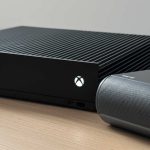
Yes, you can connect a Bluetooth speaker to your Xbox, but it’s not as straightforward as connecting to your phone. We’ll walk you through the simple ways to get that awesome sound pumping through your favorite speaker!
Hey there, tech explorer! So, you’ve got this awesome Xbox, right? And you also have a fantastic Bluetooth speaker that makes your music sound incredible. It’s totally natural to think, “Can I just pair these two and get that killer audio for my games or movies?” It makes total sense, especially when you want to share that epic sound with friends or just avoid waking up the whole house!
We’ve all been there, staring at settings and wondering if we’re missing a magic button. Sometimes tech can feel a bit like a puzzle, and trying to connect devices can be confusing. But don’t worry, that’s exactly why I’m here! My goal is to make technology feel super simple and fun for you. Think of me as your friendly guide, here to help you unlock all the cool stuff your gadgets can do without any head-scratching.
The truth is, connecting a Bluetooth speaker directly to an Xbox isn’t as simple as just hitting “pair.” Xbox consoles don’t natively support Bluetooth audio output for speakers in the same way your phone or tablet does. But before you throw your hands up, I’ve got some super easy solutions for you! We’re going to explore a couple of clever workarounds that will get your Xbox audio blasting through your Bluetooth speaker in no time. Let’s break it down step by step.
Why Sound Matters So Much
Think about your favorite game. Is it the graphics? Yes, they’re important! But what about the roar of an engine, the crackle of a campfire, or the dramatic soundtrack that pulls you into the story? Sound is a huge part of the experience. It makes games more immersive, movies more exciting, and even just watching videos more enjoyable. Having your audio come through a great Bluetooth speaker can really take things to the next level, giving you richer bass, clearer dialogue, and that feeling of being right in the middle of the action.
Sometimes, the built-in TV speakers just don’t cut it. They can sound a bit tinny, or lack that deep, rumbling bass that makes explosions feel impactful. That’s where your trusty Bluetooth speaker comes in! It’s designed to deliver fantastic audio, and it’s a shame not to use it with your Xbox. But since Xbox doesn’t have a direct Bluetooth audio send feature, we need to get a little creative. Don’t worry, these methods are totally beginner-friendly!
The Direct Bluetooth Connection: What’s the Catch?
Many people wonder if they can just go into their Xbox settings, turn on Bluetooth, and pair their speaker. It’s a common thought because it’s how we connect headphones or speakers to phones and computers. However, Xbox consoles are designed a bit differently. They use Bluetooth primarily for controllers, not for streaming audio from the console itself to speakers or headphones. This is a common point of confusion, but it’s good to know upfront!
So, while your Xbox has Bluetooth capability, it’s not set up to send game or media audio directly to a standard Bluetooth speaker. This is a technical limitation of the console’s design. But don’t let that stop you from enjoying better sound! There are some brilliant workarounds that let you achieve exactly what you want. We’ll explore the most popular and easiest ones.
Solution 1: The Bluetooth Audio Transmitter (The Most Common Fix!)
This is the go-to solution for most people wanting to connect Bluetooth speakers to their Xbox. It’s super effective and not complicated at all. Think of it as a little translator that takes your Xbox’s audio and makes it Bluetooth-friendly.
What is a Bluetooth Audio Transmitter?
A Bluetooth audio transmitter is a small device that plugs into an audio output port on your Xbox. It then takes that audio signal and broadcasts it wirelessly via Bluetooth. Your Bluetooth speaker (or headphones!) can then connect to this transmitter, just like it would connect to your phone. It’s a clever way to add Bluetooth audio output to any device that has an audio jack.
How Does It Work with Your Xbox?
Your Xbox has several audio output options. The most common ones used for transmitters are:
3.5mm Headphone Jack: Many Xbox controllers have a 3.5mm jack. You can plug a transmitter into this port.
Optical Audio Out (Toslink): Your Xbox console itself likely has an optical audio port. Some transmitters are designed to plug into this. This often provides a higher quality audio signal.
The transmitter receives the audio, converts it into a Bluetooth signal, and then sends it to your speaker. Your speaker then pairs with the transmitter, not the Xbox directly. It’s like adding a Bluetooth dongle to an older computer – it brings a new feature to an existing device!
Setting Up Your Bluetooth Transmitter: Step-by-Step
This process is usually very straightforward. Here’s a typical setup:
1. Choose Your Transmitter: Make sure the transmitter you buy is compatible with your Xbox and your speaker. Some transmitters connect via the controller’s headphone jack, while others connect to the console directly using an optical cable. The optical connection is generally preferred for better sound quality if your console and transmitter support it.
2. Power the Transmitter: Most transmitters need power. This is often done via a USB cable. You can plug this into a USB port on your Xbox or a USB power adapter.
3. Connect the Transmitter to Your Xbox:
For 3.5mm Connection: Plug the transmitter into the 3.5mm headphone jack on your Xbox controller.
For Optical Connection: Connect one end of the optical audio cable (Toslink) to your Xbox’s Optical Out port and the other end to the transmitter. You might also need to disable optical audio in your Xbox settings if it’s not the default.
4. Put the Transmitter in Pairing Mode: There will be a button on the transmitter. Press and hold it until a light starts flashing, indicating it’s ready to pair. Check the transmitter’s manual for specific instructions.
5. Put Your Bluetooth Speaker in Pairing Mode: Turn on your Bluetooth speaker and put it into its pairing mode. This is usually done by pressing and holding a Bluetooth button until a light flashes or you hear a sound.
6. Wait for Them to Connect: Keep the transmitter and speaker close to each other. They should automatically find each other and connect. A solid light on the transmitter usually means it’s successfully paired.
7. Adjust Xbox Audio Settings: You might need to go into your Xbox audio settings to ensure the audio is being sent correctly. For optical audio, you might need to select “Bitstream out” and choose the correct format (like Dolby Digital or DTS) depending on your transmitter’s capabilities. For the 3.5mm jack, it’s often simpler, but check if you need to enable audio output to the controller.
A Little Tip for Better Sound
When using an optical connection, look for a transmitter that supports aptX Low Latency. This technology is designed to minimize the delay between what you see on screen and what you hear. This is super important for gaming, so you don’t get that annoying lag where the sound is behind the action.
Solution 2: Using an HDMI Audio Extractor
This is another excellent method, especially if you’re using an HDMI cable for your Xbox to connect to your TV. It’s a bit more involved than a simple transmitter but offers a robust solution.
What is an HDMI Audio Extractor?
An HDMI audio extractor is a device that takes an HDMI signal (which carries both video and audio) and splits it. It allows the video to pass through to your TV, while simultaneously extracting the audio signal and outputting it through separate ports, like optical audio or a 3.5mm jack.
How Does It Work with Your Xbox?
You connect your Xbox to the HDMI input of the extractor. Then, you connect the extractor’s HDMI output to your TV or monitor. Finally, you connect a Bluetooth audio transmitter to the audio output port on the extractor (usually optical or 3.5mm). This transmitter then connects to your Bluetooth speaker.
Setting Up Your HDMI Audio Extractor: Step-by-Step
1. Get the Right Gear: You’ll need your Xbox, your TV/monitor, an HDMI cable, an HDMI audio extractor, a Bluetooth audio transmitter, and your Bluetooth speaker.
2. Connect Xbox to Extractor: Plug one end of an HDMI cable into your Xbox and the other end into the HDMI IN port on the audio extractor.
3. Connect Extractor to TV: Use another HDMI cable to connect the HDMI OUT port on the extractor to an HDMI IN port on your TV or monitor.
4. Connect Transmitter to Extractor: Plug your Bluetooth audio transmitter into the audio output port on the extractor. This is usually a 3.5mm headphone jack or an optical (Toslink) port.
5. Power Everything Up: Make sure the extractor and the transmitter are powered on. They often use USB power.
6. Pair Your Speaker: Put your Bluetooth speaker into pairing mode and pair it with your Bluetooth audio transmitter, just like in Solution 1.
7. Configure Settings: You might need to adjust the audio output settings on your Xbox. If using optical out from the extractor, ensure it’s set to Bitstream out. You may also need to ensure the extractor is set to pass through the audio signal correctly.
Why This Method is Great
This method is fantastic because it doesn’t interfere with your high-quality HDMI video signal. It cleanly separates the audio, giving your Bluetooth transmitter a clear signal to work with. It’s a stable setup that can provide excellent sound.
Comparing the Solutions: Which is Right for You?
Let’s look at the main ways to get that Bluetooth audio flowing. Each has its own perks!
| Feature | Bluetooth Audio Transmitter (Controller Jack) | Bluetooth Audio Transmitter (Optical) | HDMI Audio Extractor + Transmitter |
| :—————— | :——————————————– | :———————————— | :——————————— |
| Ease of Setup | Very Easy | Easy | Moderate |
| Audio Quality | Good | Very Good | Excellent |
| Latency (Lag) | Can be noticeable | Low latency possible (aptX LL) | Low latency possible (via transmitter) |
| Cost | Low | Moderate | Moderate to High |
| Power Needs | Usually powered by controller | USB Power | USB Power for Extractor & Transmitter |
| Port Usage | Controller’s 3.5mm jack | Console’s Optical Out port | Console’s HDMI Out, TV’s HDMI In |
What does this table mean for you?
If you want the absolute quickest and cheapest way to try this, plugging a transmitter into your controller’s headphone jack is the easiest start. Just make sure the transmitter supports low latency if you’re a serious gamer!
For better sound quality and less chance of lag, using a transmitter that connects via the Xbox’s optical port is a great step up. This bypasses the controller entirely and gets a cleaner signal.
The HDMI audio extractor method is the most comprehensive. It’s best if you want the highest possible audio quality and a very stable connection, and you’re comfortable with a few more cables and steps. You’ll also need to ensure your chosen transmitter has low latency capabilities to avoid that gaming lag.
Choosing the Right Bluetooth Speaker
While we’re talking about speakers, it’s worth mentioning that not all Bluetooth speakers are created equal. Here are a few things to consider when picking one for your Xbox setup:
Latency: As mentioned, for gaming, low latency is key. Look for speakers that explicitly state they support low-latency Bluetooth codecs like aptX Low Latency. This ensures the sound stays in sync with the action on screen.
Sound Quality: Do you want booming bass for action movies, or crystal-clear dialogue for story-driven games? Reading reviews can help you find speakers that excel in the areas you care about most.
Battery Life: If you plan on gaming for long sessions, check how long the speaker’s battery lasts. Some can last 10-20 hours, while others might be closer to 4-6 hours.
Connectivity Options: While you’re focused on Bluetooth, some speakers also have an auxiliary (aux-in) port, which can be a handy backup.
A fun fact is that Bluetooth technology has come a long way! Older Bluetooth versions could have noticeable delays, but newer versions and specific codecs have made wireless audio much more reliable for everyday use and even for gaming.
Troubleshooting Common Issues
Sometimes, things don’t work perfectly on the first try. Here are a few common hiccups and how to fix them:
No Sound: Double-check all your cable connections. Ensure the transmitter and speaker are paired. Go into your Xbox audio settings and make sure the correct output is selected (e.g., optical audio, or audio through the controller).
Audio Lag (Delay): This is the most common issue.
If using a controller jack, try a transmitter that supports aptX Low Latency.
If using optical or HDMI extractor, ensure your transmitter also supports aptX Low Latency.
Some games have their own audio delay settings.
If your TV has an audio sync adjustment, you can use that to fine-tune.
Speaker Won’t Pair: Make sure both the transmitter and speaker are in pairing mode. Try turning them both off and on again. Ensure they are close enough to each other. Some transmitters can only pair with one device at a time.
Connection Drops: Ensure the transmitter and speaker are within range. Obstructions like walls can interfere with the signal. Try moving them closer.
If you’re still stuck, consulting the manuals for your specific transmitter and speaker is always a good idea. Tech companies often have great online support resources too!
Alternatives to Bluetooth Speakers
While Bluetooth is popular, it’s not the only way to get great sound. Here are a couple of other options for your Xbox:
Wired Headphones: These offer the best sound quality and absolutely zero lag. You can plug them directly into your controller or console.
Xbox Wireless Headsets: These use Microsoft’s proprietary Xbox Wireless protocol, which is designed for low latency and high-quality audio without Bluetooth. They connect directly to your Xbox.
* Soundbars or Home Theater Systems: If you’re serious about audio, a dedicated soundbar or a full surround sound system connected via HDMI or optical will give you an incredible, immersive experience.
These alternatives might be worth considering depending on your priorities for sound quality, convenience, and budget.
Frequently Asked Questions (FAQ)
Here are some common questions beginners have about connecting Bluetooth speakers to their Xbox.
Q1: Can I connect any Bluetooth speaker directly to my Xbox?
A1: Unfortunately, no. Xbox consoles do not natively support streaming audio to standard Bluetooth speakers. You’ll need an adapter or transmitter to make it work.
Q2: Will connecting a Bluetooth speaker cause a delay in my game audio?
A2: It can, but it depends on the technology used. Look for Bluetooth transmitters and speakers that support low-latency codecs like aptX Low Latency to minimize delay. For critical gaming, wired solutions are still the most reliable for zero lag.
Q3: What is the easiest way to connect a Bluetooth speaker to my Xbox?
A3: The easiest method is usually using a Bluetooth audio transmitter that plugs into your Xbox controller’s 3.5mm headphone jack. It requires minimal setup and is quite affordable.
Q4: Do I need a special kind of Bluetooth speaker for my Xbox?
A4: Not necessarily a special speaker, but you do need a special way to connect. The speaker just needs to be a standard Bluetooth speaker that can pair with a transmitter. However, for gaming, one that supports low-latency codecs is ideal.
Q5: Can I connect my Xbox controller and a Bluetooth speaker at the same time?
A5: Yes, you can! If you use a Bluetooth transmitter that connects via the optical port or an HDMI extractor, your controller can still connect wirelessly to the Xbox. If you use a transmitter plugged into the controller’s headphone jack, that port is occupied, but your controller still connects to the Xbox wirelessly.
Q6: Which audio output is best on the Xbox for connecting to a transmitter?
A6: The optical audio out port on the Xbox console generally provides the cleanest and highest quality audio signal for a transmitter. The 3.5mm headphone jack on the controller is simpler but can sometimes have slightly lower quality or more noticeable latency.
Q7: Where can I buy a Bluetooth audio transmitter for my Xbox?
A7: You can find Bluetooth audio transmitters at most major electronics retailers, both online and in physical stores. Popular places include Amazon, Best Buy, and other electronics websites. Just search for “Xbox Bluetooth audio transmitter” or “Bluetooth transmitter for console.”
Bringing the Boom to Your Xbox Experience
So there you have it! Connecting a Bluetooth speaker to your Xbox isn’t a direct plug-and-play, but it’s absolutely achievable with a few simple tools. Whether you go with a handy Bluetooth transmitter that plugs into your controller, a more robust optical transmitter, or an HDMI audio extractor setup, you can totally get that awesome speaker sound for your games and entertainment.
You’ve learned about the different solutions, how to set them up step-by-step, and even some tips for getting the best audio experience without annoying lag. You’re now equipped to make your Xbox sound as amazing as it looks! Don’t be afraid to experiment and find the setup that works best for you.
Now go enjoy amazing sound and make every moment louder and better!