Is your Bluetooth speaker acting up with crackles, skips, or drops? Don’t worry! We’ve got simple, surprising fixes to get your music sounding smooth again, fast.
Hey there, tech explorers! Max here from AffTechy.com, your go-to buddy for making gadgets feel easy. You know how much fun it is to blast your favorite tunes or get lost in a movie with a great Bluetooth speaker? It’s like magic, bringing sound wherever you go. But then, it happens. That annoying glitch. Your music skips, the sound cuts out, or it just disconnects for no reason. It can totally kill the vibe, right?
Picking out a good speaker can feel like a puzzle sometimes, with all those specs and features. And when it stops working right, it’s super frustrating. You just want to enjoy your sound without any fuss. That’s where I come in! I’m here to help you figure out exactly why your Bluetooth speaker might be glitching and, more importantly, how to fix it.
We’ll dive into the little things that can cause these sound hiccups. We’ll explore easy fixes you can try right now. Think of me as your friendly guide, breaking down tech mysteries into simple steps. So, grab your favorite beverage, and let’s make your Bluetooth speaker sound amazing again. Let’s break it down step by step!
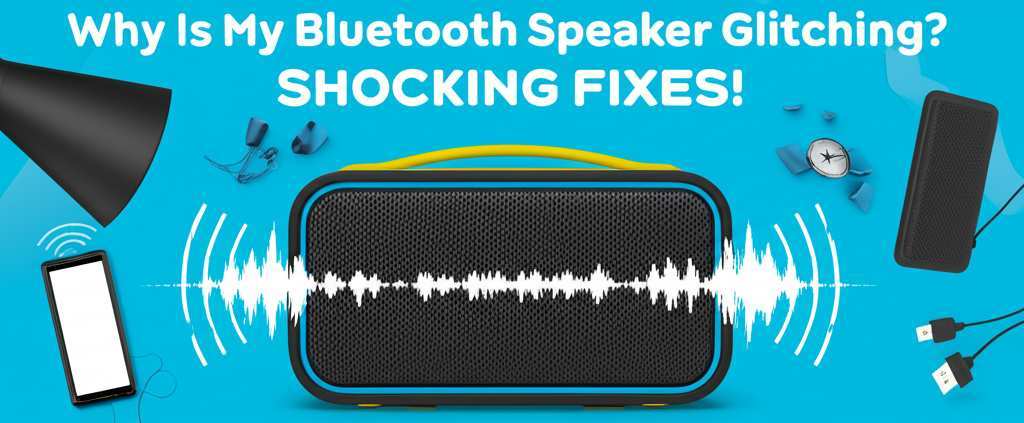
Why Is My Bluetooth Speaker Glitching? Let’s Find Out!
It’s like a mystery novel, but with sound! Your Bluetooth speaker, which usually works like a charm, suddenly starts acting weird. This can happen for so many reasons. Sometimes it’s a simple fix, and other times it needs a bit more detective work. But don’t sweat it! We’re going to uncover the secrets behind those annoying glitches.
Think about it: your speaker connects wirelessly. That means a lot of invisible signals are doing their thing. When something interrupts those signals, or when the speaker itself gets a little confused, you get glitches. It’s like trying to have a quiet chat in a really noisy room – the message gets lost!
The good news is that most of these issues are totally fixable. You don’t need to be a tech wizard to solve them. We’ll go through the common culprits one by one. Get ready to become a Bluetooth speaker whisperer!
The Usual Suspects: What’s Causing the Glitches?
Let’s talk about the most common reasons your Bluetooth speaker might be misbehaving. These are the everyday things that can easily throw a wrench in your audio fun.
Distance and Obstacles
Bluetooth signals have a sweet spot. They work best when your speaker and the device playing music (like your phone or tablet) are pretty close. If you move too far away, the signal can get weak. Walls, furniture, even your own body can get in the way. It’s like trying to hear someone whisper from across a big park – the sound just doesn’t travel well.
Interference from Other Devices
You know how a busy street can be noisy? Well, your Bluetooth signal can get noisy too! Other wireless devices can cause interference. Things like microwaves, Wi-Fi routers, other Bluetooth devices, and even some cordless phones can mess with your speaker’s connection. It’s like trying to tune into your favorite radio station, but there are a dozen other stations bleeding through.
Low Battery Power
Just like your phone, your Bluetooth speaker needs enough juice to run smoothly. When the battery gets low, it might not have enough power to send or receive signals properly. This can lead to stuttering, dropping connections, or just generally poor performance. It’s like trying to run a marathon on an empty stomach – you’re going to slow down!
Outdated Software or Firmware
Sometimes, the brains of your speaker (its firmware) or the brains of your device (its operating system) need an update. These updates often fix bugs and improve how things work together. If your speaker or device is running old software, it might not be communicating efficiently, leading to glitches. It’s like using an old map when there are new roads – you might get lost!
Too Many Connected Devices
Most Bluetooth speakers can connect to multiple devices, but they usually only play audio from one at a time. If you have a bunch of devices trying to connect or already connected, it can confuse the speaker. It might switch between them unexpectedly or drop the connection altogether. Think of a busy waiter trying to serve tables – if there are too many, some orders might get mixed up.
Physical Damage or Speaker Issues
Sadly, sometimes the problem isn’t just a signal issue. If your speaker has been dropped, exposed to water, or is just getting old, there might be internal damage. This can cause all sorts of audio problems, including glitches. It’s like a car engine that’s been through a lot – it might start making funny noises.
Shocking Fixes: Easy Steps to Stop the Glitches!
Alright, let’s get down to business! We’ve talked about why it might be happening. Now, let’s fix it. These are simple, effective ways to get your Bluetooth speaker back in top shape.
1. Bring Them Closer Together
This is the easiest fix, and it works more often than you’d think!
Move your device and speaker near each other. Try to keep them within 30 feet (about 10 meters).
Remove any physical barriers. Try to have a clear line of sight between your phone and the speaker. No walls, no big furniture in between.
Why does this work? Bluetooth uses radio waves. These waves get weaker the further they travel and the more stuff they have to go through. Keeping them close ensures a strong, clear signal.
2. Reset the Connection
Sometimes, the connection between your device and speaker just needs a fresh start.
Turn off Bluetooth on your device. Go to your phone or tablet’s settings and toggle Bluetooth off.
Turn off your Bluetooth speaker. Press and hold the power button until it turns off.
Wait a minute. Give them both a little break.
Turn your speaker back on.
Turn Bluetooth back on on your device.
Re-pair the devices. Go to your Bluetooth settings and select your speaker from the list of available devices.
This is like hanging up and calling back. It clears out any temporary glitches in the communication pathway.
3. Forget and Re-pair Your Speaker
If a simple reset doesn’t do the trick, try making your device “forget” the speaker entirely and then connect again as if it were new.
On your device, go to Bluetooth settings.
Find your speaker in the list of paired devices.
Tap on it and select “Forget Device” or “Unpair.” (The wording might be slightly different on different phones.)
Turn off your speaker and turn it back on.
Put your speaker in pairing mode. (Check your speaker’s manual if you’re not sure how to do this – usually involves holding a Bluetooth button.)
On your device, scan for new Bluetooth devices.
Select your speaker from the list and pair it again.
This helps if there was a specific setting or connection detail that got corrupted. It’s a more thorough way to re-establish the link.
4. Check and Update Software
Outdated software can cause all sorts of weird problems. Let’s make sure everything is up to date.
Update your phone or tablet’s operating system. Go to your device’s settings and look for “Software Update” or “System Update.”
Check for speaker firmware updates. Some speaker brands have a companion app (like Bose Connect, JBL Portable, or Sony | Music Center). Open the app and see if there’s an option to update your speaker’s firmware. If there isn’t an app, check the manufacturer’s website for instructions.
Manufacturers release updates to fix bugs and improve performance. Keeping your tech updated is like giving it a tune-up!
5. Reduce Interference
Let’s clear the airwaves for your Bluetooth signal.
Turn off other wireless devices temporarily. Try turning off Wi-Fi on your phone, or temporarily unplugging nearby Wi-Fi routers or other Bluetooth devices to see if the glitch stops.
Move away from potential interference sources. Microwaves, cordless phones, and even some older monitors can cause issues. If your speaker is near one, try moving it.
Think of it as creating a quiet zone for your Bluetooth signal. Less noise means a clearer connection.
6. Manage Connected Devices
If your speaker is connected to multiple devices, it can get confused.
Disconnect other devices. If you have your speaker connected to your phone and laptop at the same time, try disconnecting your laptop.
Clear the speaker’s memory. Some speakers allow you to clear all paired devices. You might need to hold down a specific button combination. Check your speaker’s manual for how to do this. Then, re-pair only the device you want to use.
This ensures your speaker is focused on just one connection, preventing confusion.
7. Charge Your Speaker Fully
A low battery can lead to inconsistent performance.
Make sure your speaker is fully charged. Plug it in using the correct charger and let it charge until the indicator light shows it’s full.
Try using it while plugged in. If it works fine while charging, it strongly suggests a battery issue.
A healthy battery provides stable power, which is crucial for all electronic components, including the Bluetooth transmitter and receiver.
8. Factory Reset Your Speaker
This is a more drastic step, but it can fix deeper software issues.
Find the reset button or combination. This is usually hidden and requires a paperclip to press. Check your speaker’s manual for specific instructions.
Perform the reset. This will erase all saved settings and pairings.
Re-pair your speaker to your device.
A factory reset is like giving your speaker a brand-new start, wiping away any lingering software glitches.
Troubleshooting Table: Common Glitches & Solutions
Let’s put some common problems and their fixes side-by-side. This makes it easy to see what might be happening and what to do.
| Glitch Description | Possible Cause | Recommended Fix |
| :—————————- | :————————————————- | :——————————————————————————— |
| Sound skips or cuts out | Weak signal, interference, low battery | Move closer, reduce interference, charge speaker, forget/re-pair. |
| Speaker disconnects randomly | Too far, interference, multiple devices, low battery | Move closer, minimize interference, disconnect other devices, charge speaker. |
| Static or crackling sound | Interference, poor connection, damaged cable | Move speaker, check device audio, try a different audio source, check charging cable. |
| Speaker won’t pair | Bluetooth off, speaker not in pairing mode, full memory | Ensure Bluetooth is on, put speaker in pairing mode, forget device & re-pair. |
| Sound distorted or muffled | Low battery, software issue, speaker damage | Charge speaker, update software, factory reset speaker, test with another device. |
| Speaker not recognized | Bluetooth off, speaker off, device glitch | Turn on Bluetooth, power on speaker, restart device, forget/re-pair. |
This table is your quick-reference guide! If you see a glitch, check the table. It points you toward the most likely cause and the easiest fix. It’s like having a handy cheat sheet for your audio adventures!
Advanced Tips & Fun Facts!
Want to go a little deeper? Here are some extra tips and cool bits of info to make your Bluetooth speaker experience even better.
Understand Bluetooth Versions
Did you know there are different versions of Bluetooth? Newer versions (like Bluetooth 5.0 and above) are faster, have a longer range, and use less power than older ones. If your speaker and device have different Bluetooth versions, you might not get the best performance. A speaker with Bluetooth 5.0 can often connect more reliably and further than one with Bluetooth 3.0.
The Magic of Pairing Mode
When you put a Bluetooth speaker into “pairing mode,” it’s essentially broadcasting its presence, saying, “Hey, I’m available to connect!” This is usually done by holding down the Bluetooth button for a few seconds. Your phone or tablet then scans for these broadcasts to find the speaker.
Speaker Placement Matters!
Where you put your speaker can actually affect sound quality and connection strength. Placing a speaker on a hard, flat surface often gives better bass. And if you’re having connection issues, try moving it away from walls or corners, which can sometimes reflect or block signals. For the best sound, aim to place it at ear level.
Battery Health Secrets
Just like phone batteries, Bluetooth speaker batteries degrade over time. If your speaker is several years old and consistently has connection problems or a very short battery life, the battery might be nearing the end of its lifespan. This isn’t a glitch, but a sign of aging hardware.
External Interference Hotspots
Certain household appliances are notorious for emitting radio frequency interference. Microwaves are a big one, especially when they are running. Old CRT televisions and some baby monitors can also cause issues. If your speaker is glitching only when the microwave is on, you’ve found your culprit!
When to Call in the Pros (or Get a New Speaker!)
Sometimes, despite your best efforts, the glitches persist. If you’ve tried all the basic fixes, including factory resets and firmware updates, it might be time to consider a few things.
Check Your Warranty: If your speaker is still under warranty, contact the manufacturer. They might be able to repair it or offer a replacement.
Consult Online Forums: Look for your specific speaker model online. Other users might have experienced the same issue and found a unique solution. Websites like Reddit or dedicated tech forums can be goldmines.
Consider the Age of the Speaker: Technology moves fast! If your speaker is quite old, it might be struggling to keep up with newer devices or might have internal components that are failing.
Professional Repair: For expensive speakers, professional repair might be an option, though it can sometimes be costly.
If your speaker is constantly glitching, has poor battery life, or is just generally unreliable after all troubleshooting attempts, it might be time to invest in a new one. You can find fantastic Bluetooth speakers these days for great prices. For example, sites like CNET often have up-to-date reviews and recommendations for the latest models.
Frequently Asked Questions (FAQs)
Got more questions buzzing in your head? Let’s clear them up!
Q1: How often should I update my Bluetooth speaker’s firmware?
A1: You don’t need to update it constantly. Check for updates every few months, or if you notice new issues. Manufacturers usually release updates when there are significant improvements or bug fixes.
Q2: My speaker keeps disconnecting from my phone, but my headphones don’t. What’s wrong?
A2: This usually means the issue is with the speaker or its connection to your phone, not your phone’s Bluetooth itself. Try forgetting the speaker on your phone and re-pairing it. Also, make sure the speaker isn’t too far from your phone.
Q3: Can I use my Bluetooth speaker while it’s charging?
A3: Most Bluetooth speakers can be used while charging. However, sometimes charging a device while it’s actively transmitting can cause minor interference. If you experience glitches only while charging, try using it after it’s fully charged or unplugged to see if that helps.
Q4: My speaker sounds fine on my laptop but glitches on my phone. Why?
A4: This suggests the problem might be with your phone’s Bluetooth settings or software, or perhaps the specific audio app you’re using on your phone. Try restarting your phone, clearing the Bluetooth cache, or testing a different audio app.
Q5: Is it normal for Bluetooth speakers to have a limited range?
A5: Yes, it’s normal! The advertised range (often around 30-100 feet or 10-30 meters) is under ideal conditions. Walls, furniture, and other electronic devices will reduce this effective range. Aim for a closer connection for the best experience.
Q6: What does “pairing mode” mean for my Bluetooth speaker?
A6: Pairing mode is when the speaker is actively searching for and ready to connect with a new device. Your phone or tablet needs to find the speaker while it’s in this discoverable mode. You usually activate it by pressing and holding the Bluetooth button.
Q7: My speaker is making a buzzing noise. Is it broken?
A7: A buzzing noise can sometimes be a sign of electrical interference or a loose connection inside. Try moving the speaker away from other electronics. If it persists, and especially if it happens at all volume levels, it might be a hardware issue.
Wrapping Up: Enjoy Crystal Clear Sound!
See? Glitching Bluetooth speakers aren’t the end of the world! We’ve explored the common culprits, from simple distance issues to pesky interference. And best of all, we’ve armed you with easy-to-follow fixes that you can try right now.
Remember, most of the time, it’s just a little hiccup that needs a quick adjustment. Moving closer, resetting the connection, or updating software can work wonders. You’ve learned how to troubleshoot, understand your speaker’s needs, and even keep it in better shape for longer.
So, don’t let those audio glitches get you down. Give these tips a try. You’ll be back to enjoying your favorite music, podcasts, or movies with smooth, clear sound in no time. Now go enjoy amazing sound and make every moment louder and better! Happy listening!