Yes, you can upgrade a laptop’s cooling system. It involves adding or improving cooling components.
But it’s not always simple and may need some technical skills. Laptops are designed with specific cooling systems to handle their heat output. Over time, components like the CPU and GPU can overheat, impacting performance. Upgrading your laptop’s cooling system can help maintain optimal temperatures and enhance performance.
This may include adding extra cooling pads, replacing thermal paste, or installing better fans. Understanding your laptop’s design and compatibility is crucial. In this blog, we’ll explore the options available for upgrading your laptop’s cooling system and provide tips to help you keep your device running smoothly. Whether you’re a gamer, a heavy user, or just want better performance, this guide is for you.
Credit: laptopmedia.com
Introduction To Laptop Cooling
Laptops can get very hot when used for a long time. Heat can damage the laptop’s parts. Cooling helps keep the laptop safe. It also makes the laptop last longer. A cool laptop runs faster and performs better.
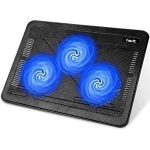
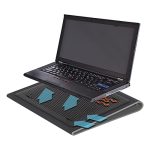
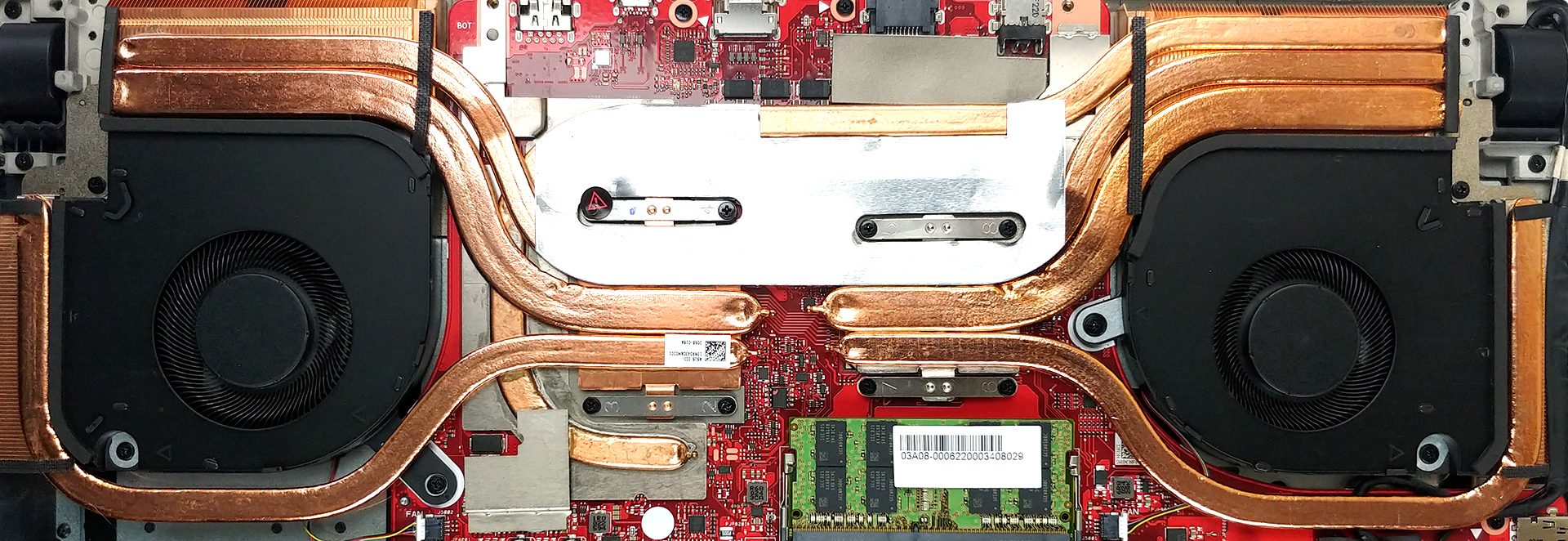
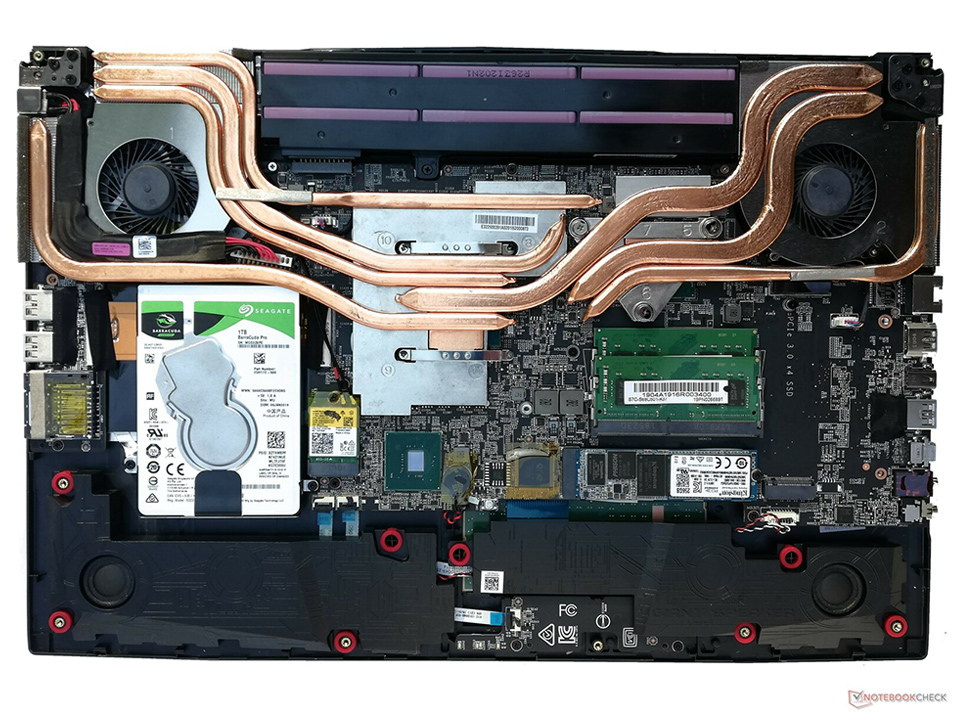
Many laptops use fans to cool down. Some laptops have heat sinks. These parts help move heat away from the laptop. Thermal paste is used between parts to improve cooling. Cooling pads can also help. They are placed under the laptop. Cooling pads have fans that help keep the laptop cool.
Signs Your Laptop Needs Better Cooling
Experiencing frequent overheating or unexpected shutdowns? Your laptop might need an upgraded cooling system. Improving airflow or installing better cooling pads can help.
Overheating Symptoms
Your laptop feels hot to touch. The fan is always loud. It shuts down suddenly. These are clear signs of overheating. It may even show an error message. Hot air might blow from the vents. The laptop’s bottom feels very warm. You may even notice a burning smell. All these are signs that your laptop needs better cooling.
Performance Issues
Your laptop runs slower than usual. Apps take longer to open. Games lag or freeze. The screen may flicker or go black. These are signs of performance issues due to heat. Frequent crashes are also a problem. The laptop may become unresponsive. Poor cooling can cause these problems.
Evaluating Your Current Cooling System
Listen to the fan. Does it make strange noises? This could mean trouble. A healthy fan should be quiet. Check the airflow. Hold your hand near the vents. Can you feel air moving? If not, it might be blocked. Also, inspect the fan for dust. Dust can slow it down. Clean it carefully with a soft brush.
Use a temperature monitoring tool. This software shows your laptop’s heat levels. High temperatures can harm your device. Ideal range is 40-60°C. Above 70°C is risky. Check the tool regularly. See if the temperature stays high. If so, your cooling system might need an upgrade. Always keep an eye on these numbers.
Diy Cooling Solutions
Upgrading a laptop’s cooling system can improve performance and longevity. Simple solutions include adding cooling pads or cleaning internal fans. Enhanced cooling can prevent overheating and maintain speed.
Cleaning Internal Components
Dust can clog the laptop’s fans and vents. This makes it overheat. Use a can of compressed air. Blow out the dust from the fans and vents. Be gentle. Don’t damage the components. Clean the fan blades carefully. Dust can make the cooling system weak. Cleaning can help the laptop stay cool.
Applying Thermal Paste
Thermal paste helps transfer heat from the CPU to the cooler. Over time, old thermal paste dries out. Remove the old paste first. Use isopropyl alcohol and a soft cloth. Apply a small amount of new thermal paste. Spread it evenly. This ensures good contact with the cooler. New thermal paste improves heat transfer. Helps keep the laptop cool.
Upgrading The Cooling System
Upgrading your laptop’s cooling system helps it run better. Better fans can make a big difference. First, check your laptop model. Some laptops allow fan upgrades. Find high-quality fans that fit your laptop. Remove the old fan carefully. Install the new fan in its place. Make sure it fits well. Connect the new fan to your laptop. Test your laptop to see if it cools better. This simple upgrade can keep your laptop cool and fast.
Heat sinks help remove extra heat from your laptop. They are easy to add. Find heat sinks that fit your laptop’s parts. Place them on the parts that get hot. Use thermal paste to stick them well. This helps the heat sink work better. Heat sinks can keep your laptop cooler. Your laptop might run faster too. Always check your laptop’s temperature after adding heat sinks. This helps ensure they work well.
External Cooling Aids
Upgrade your laptop’s cooling system with external cooling aids. These solutions enhance airflow and reduce overheating. Improve your laptop’s performance and longevity effortlessly.
Cooling Pads
Cooling pads help keep your laptop cool. They are easy to use. Place your laptop on the pad. It has fans that blow air. This helps reduce heat. Cooling pads can be powered by USB. They are portable. Perfect for travel. They can improve laptop performance. They are also affordable.
Laptop Stands
Laptop stands lift your laptop. This helps with air flow. Better air flow means less heat. Stands can also help your posture. Your screen is at eye level. This reduces neck strain. Some stands have fans. More cooling power. Stands can be adjustable. Find the right height. They are great for desk setups.
Software Solutions For Cooling
Fan control software helps manage your laptop’s temperature. It adjusts fan speed based on heat levels. This keeps the laptop cool and quiet. SpeedFan and HWMonitor are popular options. These tools are easy to use. They work on most laptops. Good fan control can extend your laptop’s life. It prevents overheating. Overheating can damage parts. Proper fan management is essential. It ensures smooth performance. You can enjoy your laptop without worry.
Optimizing your laptop’s performance can help with cooling. Close unused programs. This reduces load on the CPU. Keep your laptop’s software updated. Updates often fix bugs and improve efficiency. Clean your laptop’s vents. Dust can block airflow. Good airflow keeps temperatures low. Use a cooling pad. It provides extra fans. This helps keep your laptop cool. Small steps can make a big difference. Your laptop will run better and cooler.
When To Seek Professional Help
Upgrading a laptop’s cooling system can be tricky. Some upgrades need special tools. A professional has the right tools. They also have the skills. This ensures the upgrade is done right. It also keeps your laptop safe.
Opening your laptop can void the warranty. This means you lose free repairs from the maker. A professional can upgrade without breaking the warranty. They know the rules. They follow them carefully. This keeps your warranty safe.
Preventive Measures
Upgrading a laptop’s cooling system can prevent overheating. Consider adding extra fans or using a cooling pad for better airflow. Regular cleaning of vents and components also helps.
Regular Maintenance
Regular maintenance is key to a laptop’s cooling. Dust can block air vents and fans. Clean your laptop with compressed air. Avoid using a vacuum. It can damage parts. Check and clean vents every month. Keep your workspace clean. Dust builds up fast. Clean the keyboard too. Dust can sneak in through keys.
Safe Usage Tips
Place your laptop on a hard, flat surface. Soft surfaces block air flow. Use a laptop cooling pad. It can help reduce heat. Avoid placing your laptop near heat sources. Keep it away from direct sunlight. Do not use your laptop on your bed. It traps heat. Close unused programs. They make your laptop work harder.

Credit: www.msi.com
Credit: www.msi.com
Frequently Asked Questions
Can I Upgrade My Laptop’s Cooling System?
Yes, you can upgrade it. Options include better thermal paste, cooling pads, or internal fan upgrades. Each method helps reduce temperatures and improve performance.
How Do I Improve My Laptop’s Cooling?
You can improve it by using a cooling pad, applying new thermal paste, or upgrading internal fans. These methods enhance airflow and heat dissipation.
Is Upgrading Laptop Cooling Effective?
Yes, it is effective. Upgrading cooling components can significantly lower temperatures, enhance performance, and extend the laptop’s lifespan.
What Are The Best Laptop Cooling Upgrades?
The best upgrades include high-quality thermal paste, efficient cooling pads, and better internal fans. These solutions improve cooling efficiency and overall performance.
Conclusion
Upgrading your laptop’s cooling system is possible. It can enhance performance. Make sure to choose the right components. Follow proper installation steps to avoid issues. Better cooling can extend your laptop’s life. Research thoroughly before making any changes. Consult a professional if unsure.
Proper cooling is crucial for your laptop’s health. Keep it cool and running smoothly. Happy upgrading!