Yes, you can upgrade your laptop’s storage to an SSD. It’s a great way to boost speed and performance.
Upgrading to a Solid State Drive (SSD) is a smart move. Laptops with SSDs run faster and smoother. You will notice quicker boot times and faster file transfers. It’s like giving your laptop a new lease on life. Many people worry about the complexity of upgrading.
But it’s simpler than you might think. With the right tools and guidance, you can do it yourself. This post will guide you through the process. We’ll cover the benefits, steps, and tips for a successful upgrade. Let’s dive in and get your laptop running like new.
Credit: www.youtube.com
Checking Compatibility
Upgrading your laptop’s storage to an SSD can boost performance. Check the laptop’s specifications and ensure it supports SSDs. Most modern laptops are compatible, but it’s always best to verify before purchasing.
Laptop Model And Specifications
First, check your laptop’s model number. This helps find compatible parts. Look at the laptop’s manual or website. Specifications are also important. Look for the type of storage it supports. Some laptops use SATA connections. Others use NVMe or PCIe.
Types Of Ssds
There are different types of SSDs. SATA SSDs fit in most older laptops. They are easy to install. NVMe SSDs are faster. They fit in newer laptops. Check your laptop’s specifications before buying. This ensures the right fit.
Choosing The Right Ssd
SSDs come in different sizes. Common options are 256GB, 512GB, and 1TB. Choose a size based on your needs. If you store many files, bigger is better. A small SSD is fine for simple tasks. More storage means you can keep more data. Think about how much space you use now. Then, add some extra for future needs.
SSDs are faster than regular hard drives. They boost your laptop’s speed. Your laptop will start quickly. Apps will load in seconds. Check the read and write speeds. Higher numbers are better. Look for brands with good reviews. A good SSD will make your laptop feel like new. You will notice the difference right away.
Preparing For The Upgrade
Always back up your data before starting. Use an external hard drive or cloud storage. This keeps your important files safe. You can lose data during upgrades. Double-check that all files are backed up. This includes photos, documents, and videos.
Gather all tools before you begin. You will need a screwdriver. Make sure it fits your laptop screws. Also, get an anti-static wrist strap. This prevents damage from static electricity. Keep a clean cloth nearby to wipe dust off. Finally, have your new SSD ready.
Credit: forum-en.msi.com
Installing The Ssd
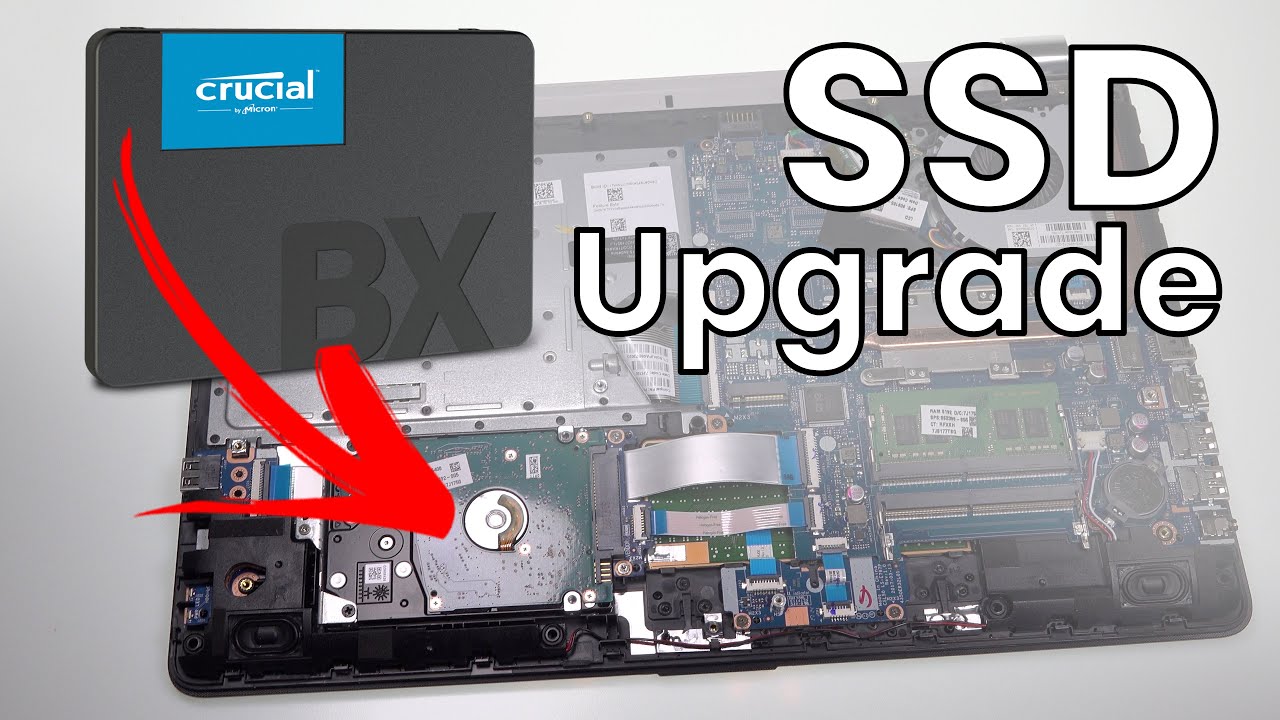
First, turn off your laptop and unplug it. Open the back cover by removing the screws. Locate the old drive. Carefully disconnect it from the laptop. Pull it out gently. Be cautious not to damage any cables or connectors. Set the old drive aside.
Take the new SSD out of its packaging. Align it with the slot where the old drive was. Insert the SSD gently but firmly. Ensure it is connected properly. Replace the screws to secure the SSD. Close the back cover of the laptop. Turn on your laptop. Your new SSD should be ready for use.
Setting Up The New Ssd
Upgrading your laptop’s storage to an SSD can boost performance. SSDs provide faster data access and improved reliability. Consider your laptop’s compatibility before making the switch.
Cloning Your Old Drive
Cloning your old drive can save time. It copies everything to the new SSD. Use cloning software. Many SSD brands offer free tools. Follow the software’s guide. Connect your new SSD to your laptop. Use a USB to SATA adapter. Start the cloning process. This can take a while. Be patient. After cloning, swap the drives. Your laptop should boot from the new SSD.
Fresh Operating System Installation
Installing a fresh operating system can improve performance. Backup your data first. Download the OS from the official site. Create a bootable USB drive. Use software like Rufus. Plug the USB into your laptop. Restart and boot from the USB. Follow the installation steps. Choose the new SSD as the install location. Complete the installation. Restore your backed-up data.
Post-upgrade Steps
To restore your data, first, connect the old storage device. Use an external enclosure or adapter. Open your backup software. Select the files and folders you need. Start the restore process. Wait for the process to complete. Verify your files are in place. Ensure all important data is accessible. Double-check for any missing files.
Enable TRIM support. This helps maintain SSD speed. Update your system BIOS. Ensure compatibility and stability. Use SSD-friendly settings. Disable unnecessary startup programs. Reduce system load. Avoid defragmenting your SSD. It can reduce lifespan. Monitor SSD health. Use dedicated software. Regularly check for firmware updates. Keep your SSD in top shape.
Troubleshooting Common Issues
Ensure your SSD is properly connected to the laptop. Sometimes, a loose connection causes recognition problems. Check the BIOS settings. Make sure the SSD is enabled.
Update the laptop’s firmware. Sometimes, older firmware does not recognize new SSDs. Use a different port or cable if possible. Faulty cables cause recognition problems too.
Check if the SSD is compatible with your laptop. Some SSDs may not perform well with certain hardware. Update your operating system and drivers. Outdated software slows down the SSD.
Ensure there is enough free space on the SSD. Full SSDs perform slower. Use a disk cleanup tool to remove unwanted files. This can improve performance.
Credit: www.backblaze.com
Frequently Asked Questions
Can I Upgrade My Laptop’s Storage To An Ssd?
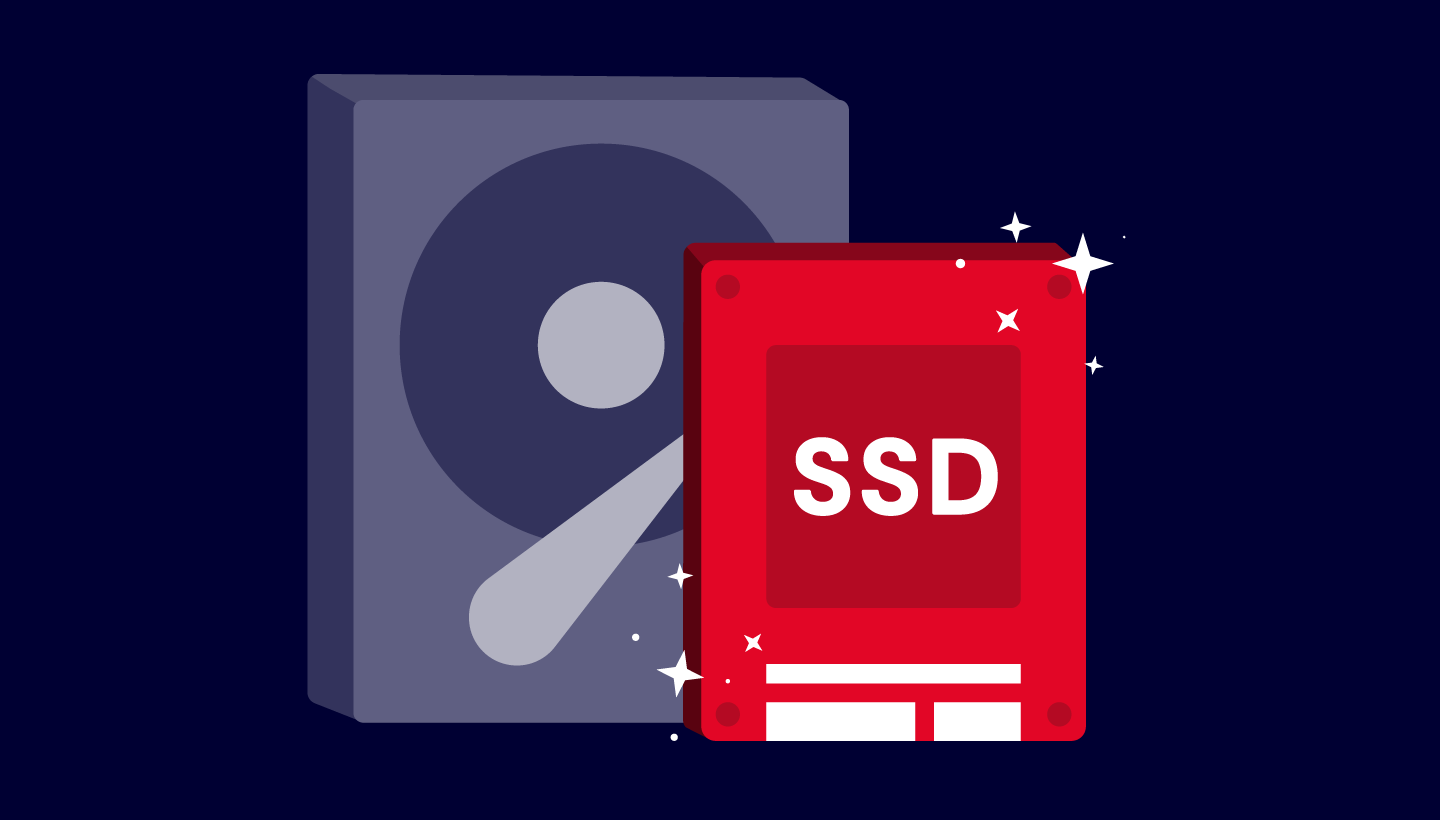
Yes, most laptops can be upgraded to an SSD. Check your laptop’s specifications first to ensure compatibility. Replacing an HDD with an SSD can significantly improve performance and speed.
How Do I Know If My Laptop Supports Ssd?
Check your laptop’s user manual or manufacturer’s website for compatibility. Most modern laptops support SSD upgrades, but it’s essential to verify beforehand.
What Are The Benefits Of Upgrading To An Ssd?
Upgrading to an SSD provides faster boot times, quicker data access, and improved overall performance. It also consumes less power and is more durable than HDDs.
Can I Clone My Hdd To An Ssd?
Yes, you can clone your HDD to an SSD using cloning software. This process ensures all your data and operating system migrate to the new SSD seamlessly.
Conclusion
Upgrading your laptop to an SSD is a smart move. It boosts speed and performance. The process is simple and can be done at home. Follow the steps carefully for the best results. Enjoy quicker boot times and faster file access.
Your laptop will feel new again. Make the switch today and experience the difference. Happy computing!