Yes, you can replace a laptop’s graphics card. But it’s not always simple.
Replacing a graphics card in a laptop can be tricky. Unlike desktops, laptops are compact and often have integrated components. This makes upgrades challenging. Many laptops have graphics cards soldered to the motherboard. For those with removable cards, finding a compatible upgrade can be hard.
Understanding your laptop’s design is key. Some models allow for easy swaps, while others don’t. This guide will help you know if you can replace your laptop’s graphics card. We will explore the steps involved and the factors to consider. By the end, you’ll have a clear idea of what to expect and how to proceed.
Types Of Laptop Graphics Cards
Laptop graphics cards come in two types: integrated and dedicated. Integrated graphics are built into the motherboard. Dedicated graphics cards are separate and usually more powerful. Replacing a laptop’s graphics card is often difficult or impossible because many are soldered to the motherboard.
Integrated Vs. Dedicated
Integrated graphics cards are built into the laptop’s motherboard. They share memory with the main CPU. This makes them less powerful. They are good for basic tasks. Dedicated graphics cards have their own memory. They are more powerful and better for gaming. These cards are separate from the CPU. They provide better performance. Dedicated cards use more power. They can also generate more heat. Choose based on your needs.
Popular Brands
Some popular brands for graphics cards are NVIDIA and AMD. NVIDIA’s GeForce series is well-known. AMD’s Radeon series is also popular. Both brands offer a range of options. Some laptops come with Intel integrated graphics. Each brand has pros and cons. Choose based on your needs and budget.
Credit: nosbuscamos.org
Checking Compatibility
Many laptops have integrated graphics that cannot be removed. Some high-end models allow GPU upgrades. Check your laptop’s manual for details. Certain brands have proprietary designs. These restrict upgrades. Research your laptop model online. Find upgrade compatibility information.
Even if your laptop allows GPU upgrades, other factors matter. Your motherboard must support the new graphics card. BIOS updates might be needed. Check the manufacturer’s site for BIOS compatibility. Make sure your new GPU fits the motherboard slot. Consider power and heat issues too. Not all GPUs are power-efficient. Ensure your laptop can handle the new GPU’s heat output.
Tools And Equipment
You will need a small screwdriver set. Get one that fits small screws. A plastic prying tool is also needed. It helps to open the laptop safely. Have a small container for screws. It keeps them from getting lost. Keep a static wrist strap to avoid damage from static electricity.
Wear an anti-static wrist strap. It protects your laptop from static electricity. Use a soft cloth to place your laptop on. It prevents scratches. Work in a clean, dry area. This helps keep parts safe. Make sure you have good lighting. It helps you see small parts better.
Step-by-step Replacement Guide
First, turn off your laptop and unplug it. Remove the battery if possible. Gather all necessary tools like screwdrivers. Work in a clean, static-free area. Touch a metal object to discharge static electricity.
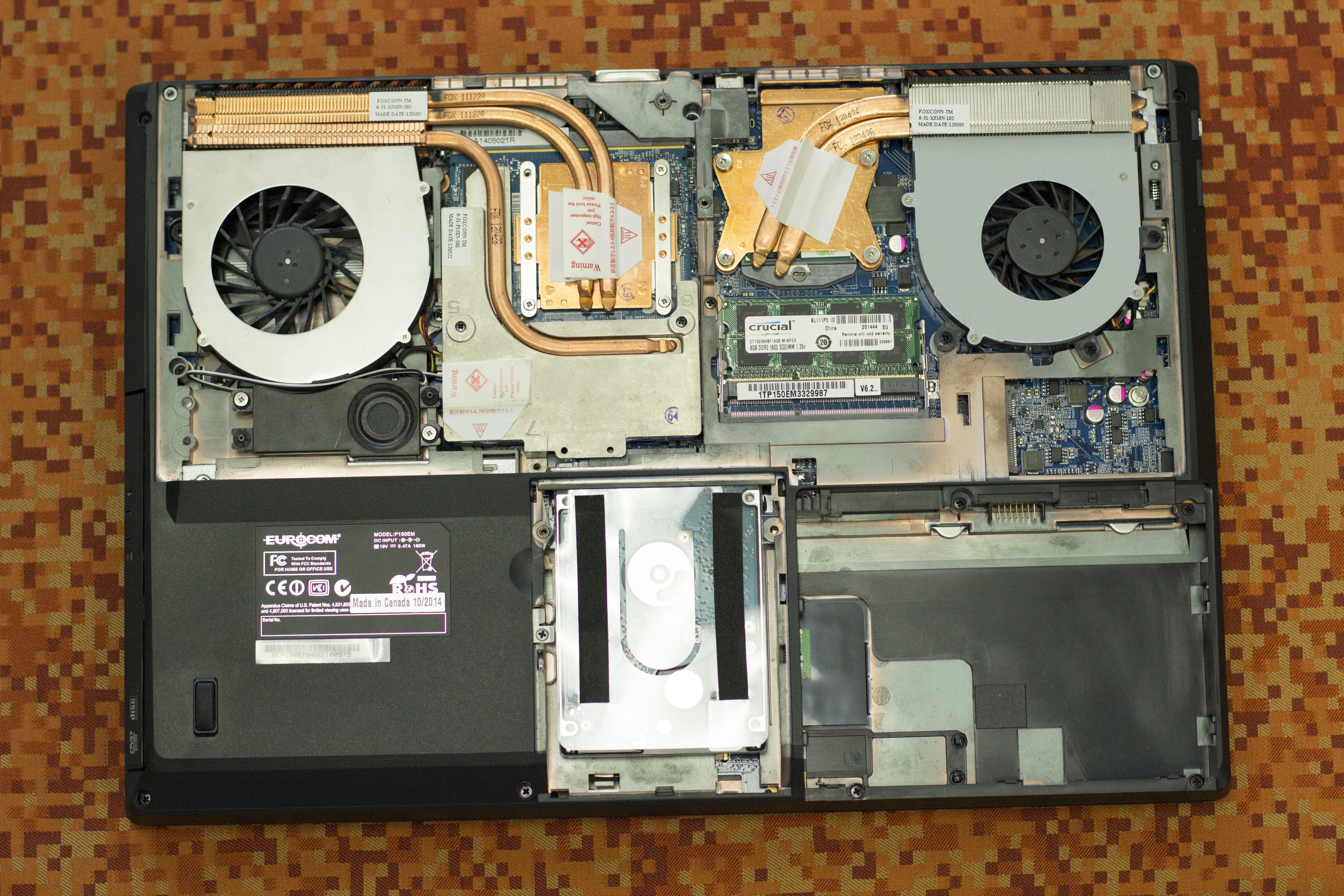
Open your laptop’s case by removing screws. Find the graphics card. It’s usually near the center. Carefully disconnect any cables attached. Unscrew the graphics card from its slot. Gently pull the card out without forcing it.
Align the new graphics card with the slot. Insert the card carefully. Make sure it sits firmly in place. Reconnect any cables you removed earlier. Screw the card securely into its slot. Close the laptop’s case and replace the screws. Reinsert the battery and power on your laptop.
Post-installation Steps
Replacing a laptop’s graphics card requires careful post-installation steps. Update drivers to ensure compatibility. Check for overheating to avoid damage.
Driver Installation
After installing a new graphics card, you need to install the correct drivers. These drivers help your computer to communicate with the new hardware. First, visit the manufacturer’s website. Look for the latest drivers for your specific card model. Download and install the drivers. Follow on-screen instructions. This process ensures your card works well with your system.
Performance Testing
Testing your new graphics card’s performance is important. You can use benchmarking tools to check this. Tools like 3DMark or Heaven Benchmark are popular choices. Run these tests to see how well your card performs. Check for any issues or glitches. If you see problems, you may need to adjust settings. Proper testing ensures smooth performance for your games and applications.
Credit: www.youtube.com
Common Challenges
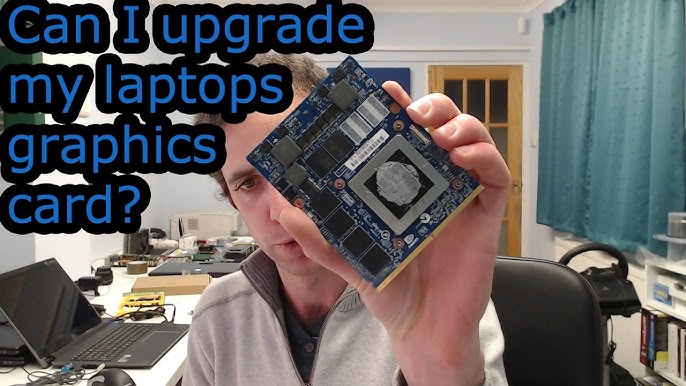
Replacing a laptop’s graphics card can be hard. Not all laptops allow GPU upgrades. Laptops are built with parts that are not easy to change. Many laptops have integrated graphics cards. These cards are part of the motherboard. Removing them is almost impossible. Some laptops use MXM modules. These modules can be swapped. But they are rare. Finding the right MXM card is tough.
New graphics cards can cause software conflicts. Drivers for the new card might not work well. Operating systems may not recognize the new card. BIOS updates might be needed. Some laptops do not have BIOS updates. This can cause more issues. Compatibility checks are important. They help in avoiding conflicts. Always make sure the new card works with your laptop.
Alternative Solutions
Replacing a laptop’s graphics card is often difficult. Most laptops have integrated graphics, making upgrades nearly impossible. Consider external GPU options for enhanced performance.
External Graphics Cards
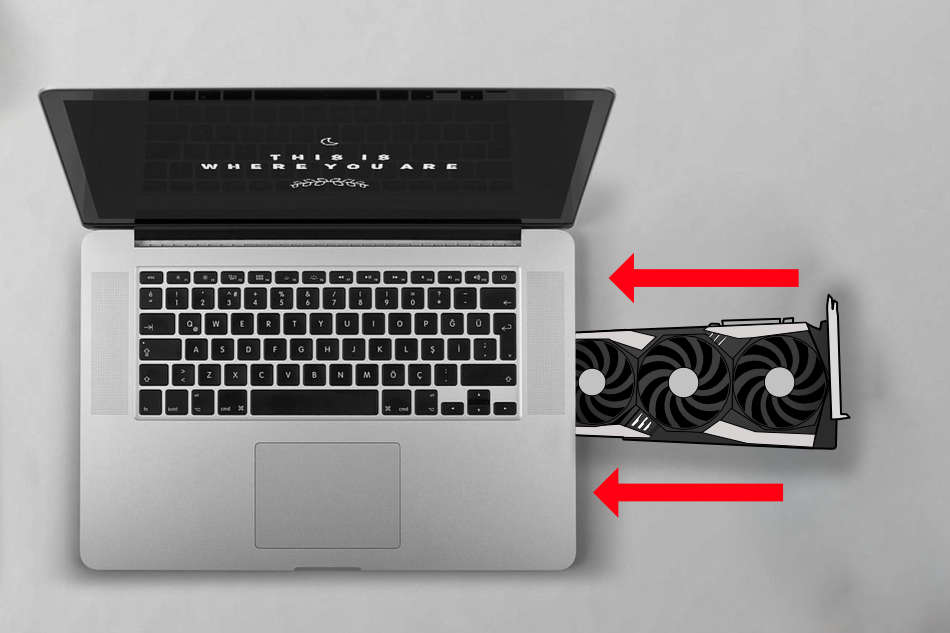
External graphics cards are a good choice. They connect to your laptop using a cable. This can boost your laptop’s graphics power. It is useful for gaming and video editing. You need a special dock or box for this. The dock holds the external card. It can be expensive. But it is easier than upgrading the internal card.
Upgrading The Entire Laptop
Sometimes, it is better to buy a new laptop. This is true if your laptop is old. New laptops have better graphics cards. They also have better processors and more memory. This can make your work and play smoother. Selling your old laptop can help pay for the new one. Look for a laptop with good reviews. This ensures it will meet your needs.
Credit: www.pcworld.com
Frequently Asked Questions
Can I Upgrade My Laptop’s Graphics Card?
Upgrading a laptop’s graphics card is generally not possible. Most laptops have integrated or soldered GPUs. External GPU enclosures are an alternative, but they can be expensive.
What Are External Gpus For Laptops?
External GPUs (eGPUs) are devices that connect to a laptop via Thunderbolt 3. They provide desktop-level graphics performance. They are suitable for gaming and graphic-intensive tasks.
How Can I Improve My Laptop’s Graphics Performance?
To improve graphics performance, update your drivers, optimize settings, and clean your laptop’s internals. Consider using an eGPU for significant enhancements.
Are All Laptops Compatible With External Gpus?
Not all laptops support external GPUs. Ensure your laptop has a Thunderbolt 3 port. Check compatibility before purchasing an eGPU.
Conclusion
Replacing a laptop’s graphics card can be challenging. Many laptops have integrated graphics. Upgrading is often impossible. Check your laptop’s model and specifications first. Some high-end laptops allow upgrades. Professional help might be needed. Weigh the cost and benefits. Sometimes, buying a new laptop is easier.
Research and consult experts before making a decision. Your laptop’s performance depends on the right choice. Happy computing!