Connecting your Bluetooth speaker to your computer is super simple! Just follow these easy steps, and you’ll be jamming to your favorite tunes or enjoying clearer audio in no time. We’ll make it quick and painless.
Hey there, tech explorer! Ever feel like your computer’s sound is just… okay? Maybe you’ve got a killer Bluetooth speaker just sitting there, waiting to unleash its awesome sound. It’s a common puzzle: how do you get that portable powerhouse hooked up to your desktop or laptop? I get it. Sometimes tech feels like a secret club with all sorts of jargon. But honestly, connecting a Bluetooth speaker to your computer is way easier than it sounds. Think of it like introducing two new friends – they just need a little nudge to get acquainted.
I remember the first time I tried to connect my fancy new speaker. I stared at the settings menu, feeling a bit lost. Was it pairing? Discovering? What did all those buttons mean? It can be a little confusing at first, but don’t worry! We’re going to walk through this together, step by step. By the end of this, you’ll be a pro, and your computer will be singing (or booming!) with fantastic audio.
So, let’s ditch the confusion and dive into making your computer and Bluetooth speaker the best of audio buddies. Get ready to enjoy richer sound for your music, movies, and games. Let’s break it down and get that sound flowing!
Step 1: Make Sure Your Speaker Is Ready to Pair
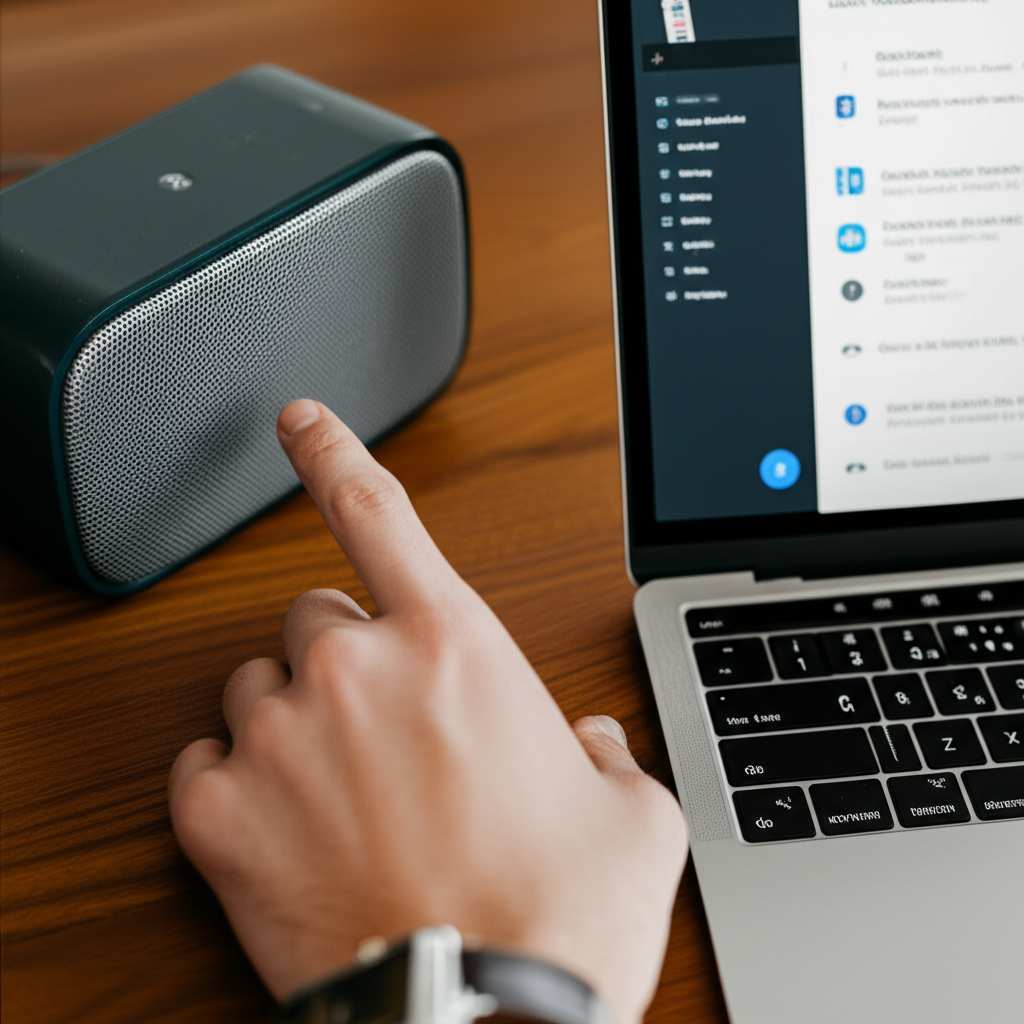
Before we even touch your computer, let’s get your Bluetooth speaker in the mood. Most speakers have a special pairing mode. This is like the speaker saying, “Okay, I’m looking for a new friend to connect to!” You usually activate this by pressing and holding a Bluetooth button.
You’ll often see a little Bluetooth symbol on the speaker itself. Look for a button near it. Press and hold it for a few seconds. Sometimes, a light on the speaker will start blinking – often blue – to show it’s in pairing mode. If you’re not sure, check your speaker’s manual. It’s like the speaker’s instruction book, and it’s super helpful!
Step 2: Turn On Bluetooth on Your Computer
Now, let’s get your computer ready. Your computer needs to have Bluetooth turned on so it can “see” your speaker. The way you do this depends on whether you have a Windows PC or a Mac. Don’t worry, it’s usually just a couple of clicks or taps.
For Windows Computers
If you’re using Windows 10 or 11, it’s pretty straightforward. You can find the Bluetooth settings easily. It’s all about finding that little switch to turn it on.
- Click the Start button (the Windows logo, usually in the bottom-left corner).
- Click on the Settings gear icon.
- In the Settings window, click on Devices (or Bluetooth & devices in Windows 11).
- Look for the Bluetooth toggle switch. Make sure it’s turned On.
- If it’s already on, great! If not, simply click it to turn it on.
For Mac Computers
Macs make it super simple too. You can usually find Bluetooth settings right in your menu bar. It’s designed to be user-friendly.
- Click the Apple menu (the apple icon in the top-left corner of your screen).
- Select System Preferences (or System Settings in newer macOS versions).
- Click on Bluetooth.
- If Bluetooth is off, you’ll see a button to turn it on. Click it.
- Once it’s on, your Mac will start looking for devices.
Step 3: Pair Your Speaker with Your Computer
This is where the magic happens! Your computer is now looking for devices, and your speaker is broadcasting that it’s ready to connect. This process is called “pairing.” It’s like establishing a secure handshake between your devices.
On Windows
Once Bluetooth is on, your computer will show you available devices. You just need to find your speaker in that list and click to connect. It’s usually very quick!
- In the same Devices or Bluetooth & devices settings window, click on Add Bluetooth or other device (or Add device in Windows 11).
- A new window will pop up. Click on Bluetooth.
- Your computer will scan for nearby Bluetooth devices.
- You should see your speaker’s name appear in the list. Click on its name.
- Your computer might show a passcode, or it might just connect automatically. Follow any on-screen prompts.
- Once it’s connected, it will usually say “Connected” or “Paired” under the speaker’s name.
On Mac
Your Mac is designed to make this really smooth. When Bluetooth is on, it actively searches for new devices.
- With Bluetooth turned on in System Preferences, your Mac will automatically scan for devices.
- Look for your speaker’s name in the list of devices. It might say “Not Connected” next to it.
- Click the Connect button next to your speaker’s name.
- Your Mac might ask you to confirm a code or just proceed with the connection.
- Once paired, it will show “Connected” under the speaker’s name.
Step 4: Set Your Bluetooth Speaker as the Default Audio Device
Sometimes, even after connecting, your computer might still play sound through its built-in speakers. We need to tell it, “Hey, use the new Bluetooth speaker for all my audio!” This is called setting it as the default audio device.
On Windows
This is a crucial step to ensure all your sound comes out of your new speaker.
- Right-click on the speaker icon in your taskbar (usually in the bottom-right corner of your screen).
- Click on Open Sound settings.
- Under the Output section, you’ll see a dropdown menu labeled Choose your output device.
- Click the dropdown and select your Bluetooth speaker from the list. It will likely have its name and say “Bluetooth Audio” or something similar.
- That’s it! Your computer should now use your Bluetooth speaker for all sound.
On Mac
Macs make this just as easy, ensuring your audio goes where you want it.
- Click the Apple menu and go to System Preferences (or System Settings).
- Click on Sound.
- Select the Output tab.
- You’ll see a list of sound output devices. Click on your Bluetooth speaker’s name.
- Your Mac will now send all audio to your connected Bluetooth speaker.
Troubleshooting Common Connection Issues
Sometimes, tech doesn’t cooperate right away. Don’t get discouraged! Most problems have super simple fixes. It’s usually something small that’s easily overlooked.
Here are a few common hiccups and how to fix them:
- Speaker not appearing in the list: Make sure your speaker is still in pairing mode. Turn Bluetooth off and then on again on your computer. Try moving the speaker closer to your computer.
- Connection fails or is unstable: Sometimes, other wireless devices can interfere. Try moving away from Wi-Fi routers or other Bluetooth devices. Restart both your computer and your speaker.
- Sound still coming from computer speakers: Double-check that your Bluetooth speaker is set as the default audio device (Step 4). Sometimes, you might need to disconnect and reconnect the speaker.
- Speaker connects but no sound: Ensure the volume on both your computer and the speaker is turned up. Check that the speaker is selected as the output device in your computer’s sound settings.
Fun Facts About Bluetooth Audio
Did you know Bluetooth technology has been around for quite a while? It was first developed by Ericsson in 1994! The name “Bluetooth” actually comes from a Viking king, Harald Bluetooth, who was known for uniting different Danish tribes. Pretty cool, right? This wireless connection technology has come a long way, making our lives easier and more connected.
Why Bluetooth is Awesome for Speakers
Bluetooth is fantastic for speakers because it cuts the cords! This means you can place your speaker anywhere in the room and still have great sound. It’s super convenient for parties, relaxing at home, or even just having background music while you work. Plus, most modern devices – phones, tablets, and computers – come with Bluetooth built-in, making it a universal way to connect. It’s all about freedom and easy audio.
Comparing Bluetooth Speaker Features
When you’re looking at Bluetooth speakers, you might see a lot of different specs. Here’s a quick rundown of what matters most for connecting to your computer:
| Feature | What it Means | Why it Matters for You |
|---|---|---|
| Bluetooth Version (e.g., 4.0, 5.0) | This is the technology standard. Newer versions are faster and more stable. | Bluetooth 5.0 offers better range, faster connections, and uses less power than older versions. It’s great for a smooth audio experience. |
| Audio Codecs (e.g., SBC, AAC, aptX) | These are like languages that send audio data. Some are better quality than others. | Higher-quality codecs like aptX can deliver near CD-quality sound wirelessly. If your speaker and computer support it, you’ll notice clearer, richer audio. |
| Pairing Options (e.g., NFC, Multi-point) | How you connect and if you can connect to multiple devices. | NFC makes pairing super fast (just tap your device). Multi-point lets you connect to your computer and phone at the same time, which is super handy. |
So, when you’re picking out a new speaker, looking for Bluetooth 5.0 and support for better audio codecs can really make a difference in your listening experience. It ensures a strong, clear connection for all your audio needs.
How to Maintain Your Bluetooth Connection
Keeping your Bluetooth speaker connected and sounding great is pretty simple. A little care goes a long way!
- Keep it Charged: A low battery can cause connection issues. Make sure your speaker is charged up for the best performance.
- Update Your Drivers: Occasionally, your computer’s Bluetooth drivers might need an update. Windows and Mac usually do this automatically, but you can check your system’s update settings if you have problems.
- Avoid Obstructions: While Bluetooth has a good range, thick walls or metal objects can weaken the signal. Keep your speaker and computer relatively close and with a clear line of sight if possible.
- Regularly Re-pair (If Needed): If you experience persistent issues, sometimes unpairing the speaker and then pairing it again can solve the problem. It’s like giving the connection a fresh start.
Expert Tip: Bluetooth Range and Interference
Most Bluetooth speakers have a range of about 30 feet (10 meters). However, this can be affected by what’s between your computer and speaker. Walls, furniture, and even your microwave can sometimes interfere with the signal. For the best, most stable connection, try to keep your devices within the same room and avoid placing them right next to other electronic gadgets. It’s like giving your Bluetooth signal a clear path to travel!
FAQ: Your Bluetooth Speaker Questions Answered
Q: Can I connect multiple Bluetooth speakers to my computer at once?
A: Generally, most computers can only connect to one Bluetooth audio device at a time for sound output. Some specialized software or hardware might allow for multi-speaker setups, but for standard use, one speaker is the norm.
Q: How do I disconnect my Bluetooth speaker?
A: On Windows, go to Settings > Bluetooth & devices, find your speaker, and click “Disconnect.” On Mac, go to System Preferences > Bluetooth, find your speaker, and click “Disconnect” or “X.” You can also just turn off Bluetooth on your computer or speaker.
Q: Why is my Bluetooth speaker not showing up in the list?
A: Make sure your speaker is in pairing mode and close to your computer. Try turning Bluetooth off and on again on your computer, and restart both devices. Sometimes, a simple restart is all it needs!
Q: Does my computer need a Bluetooth adapter?
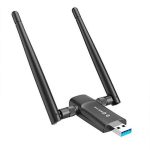
A: Most modern laptops and many desktop computers come with built-in Bluetooth. If yours doesn’t, you can easily buy a small USB Bluetooth adapter, which is a very affordable solution.
Q: What is pairing mode?
A: Pairing mode is when your Bluetooth device (like a speaker) is actively discoverable and ready to connect to a new device. You usually activate it by pressing and holding a specific button on the speaker, often indicated by a blinking light.
Q: Can I use my Bluetooth speaker while it’s charging?
A: Yes, absolutely! Most Bluetooth speakers can be used while they are plugged in and charging. This is super convenient, especially for longer listening sessions.
Q: Is Bluetooth audio quality good?
A: The quality can vary, but modern Bluetooth versions and audio codecs (like aptX) deliver excellent sound quality that is often indistinguishable from wired connections for most listeners. It’s definitely good enough for enjoying music and movies!
Conclusion: Enjoy Your New Sound Experience
See? Connecting your Bluetooth speaker to your computer is totally doable, and it opens up a whole new world of sound. You’ve learned how to get your speaker into pairing mode, enable Bluetooth on your computer, make the connection, and even set it as your go-to audio device. Plus, you’ve got some handy tips for troubleshooting and keeping things running smoothly.
Don’t be afraid to experiment! Try connecting from different apps or playing different types of audio to really appreciate the difference. Now you can elevate your music, make movie nights more immersive, and enjoy clearer sound for all your computer activities. Go forth and enjoy amazing sound, and make every moment louder and better!